---
title: "How to Embed Code in a React Application"
description: "Steps on how you can embed the EmbedSocial Widget Code in a React Application."
---
In this tutorial, I will give you a detailed walkthrough on how to embed your widget in a React Application.
1\. The first step is to copy the code from your created widget:
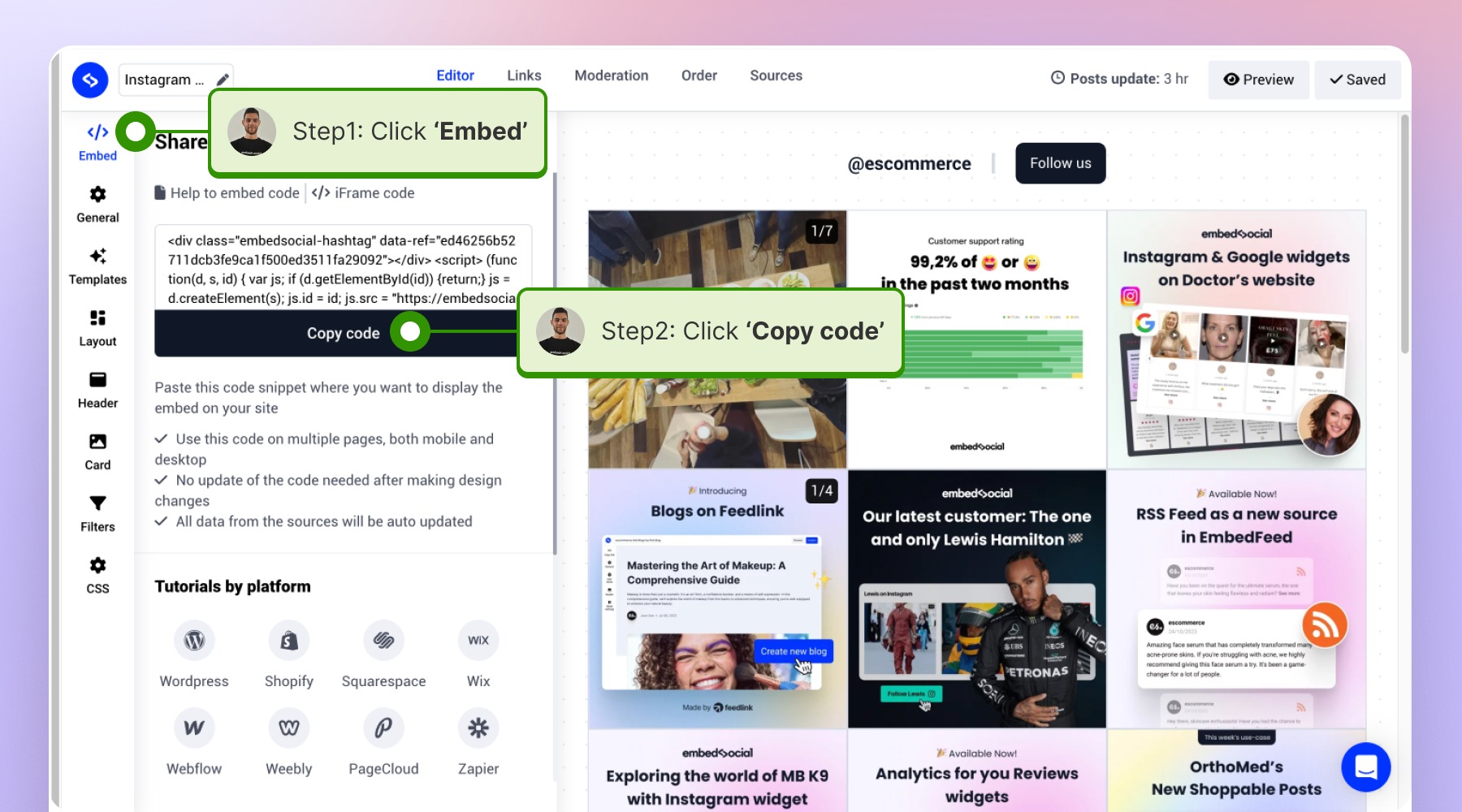
2.After the code is copied you will need to separate the HTML code from the JavaScript, for example:
**This is the EmbedSocial widget code:**
``
``
**HTML code:**
``
**JavaScript code:**
`(function(d, s, id) { var js; if (d.getElementById(id)) {return;} js = d.createElement(s); js.id = id; js.src = "https://embedsocial.com/cdn/ht.js"; d.getElementsByTagName("head")[0].appendChild(js); }(document, "script", "EmbedSocialHashtagScript"));`
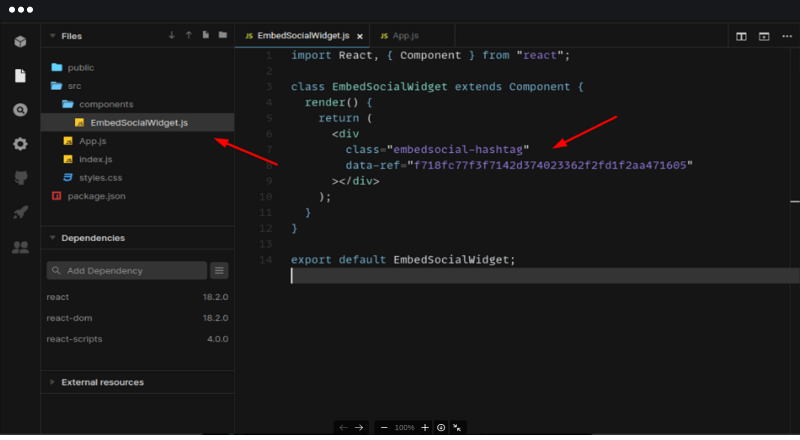
3\. Next head over to your React application and create a new component in your components directory and paste the HTML code inside the render function:
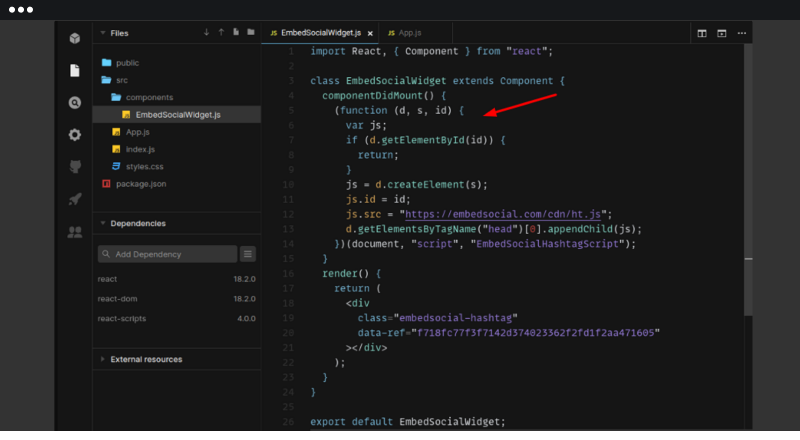
Paste the JavaScript code inside the componentDidMount lifecycle method:
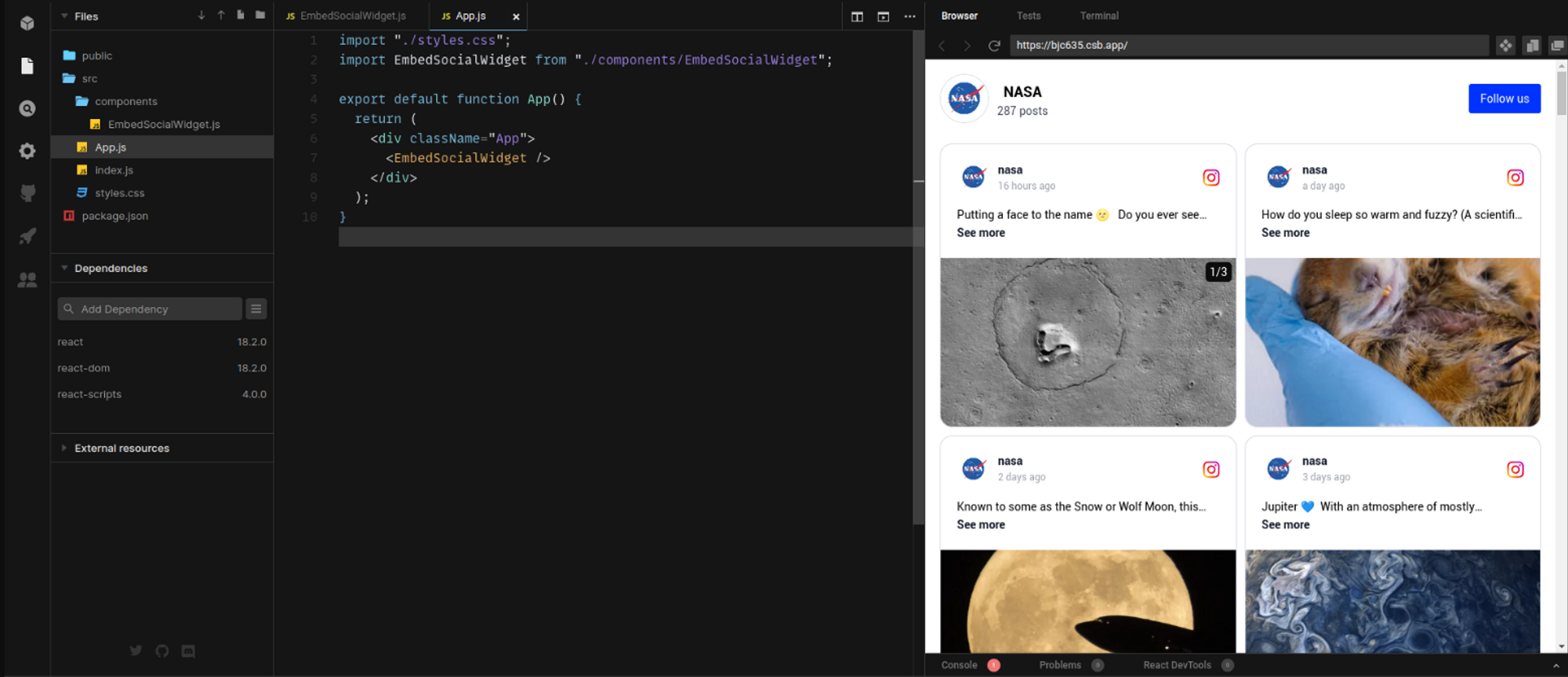
4\. Navigate to the page where you want to display the widget, in our case we will add it to the main App.js, and import the component we just created:
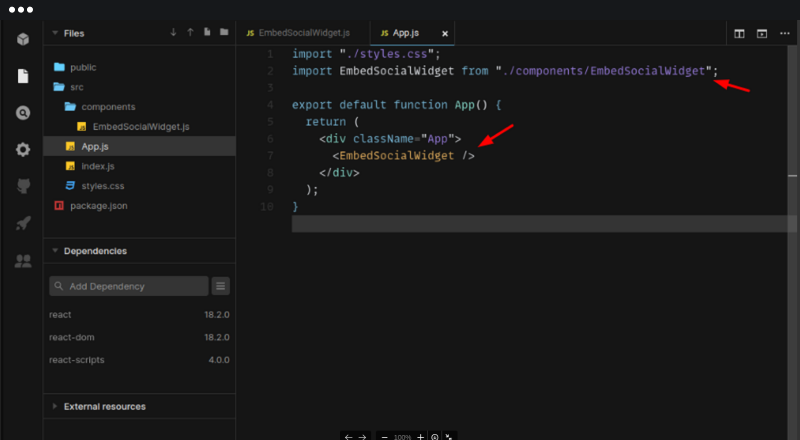
5\. That's it. Once you do this and save the changes, the widget will appear on your page.
> If you have any questions, click the bottom right chat icon to talk with our customer success team or send us an email at [support@embedsocial.com](mailto:support@embedsocial.com) We're here for you 🙏
## Embed the widget in React
Thank you for posting this question! To answer it, of course, our widgets can be embedded in the React App as well.
Here is a helpful article on how to embed the widget on React App:
[How to Embed Code in a React Application](/docs/integrations/javascript-frameworks/)
> If you have any questions, click the bottom right chat icon to talk with our customer success team or send us an email at [support@embedsocial.com](mailto:support@embedsocial.com) We're here for you 🙏
## Embed in Vue
In Vue applications, there are two options when embedding custom HTML/javascript code:
- **Composition API**
- **Options API**
First, you will need to copy your widget code:
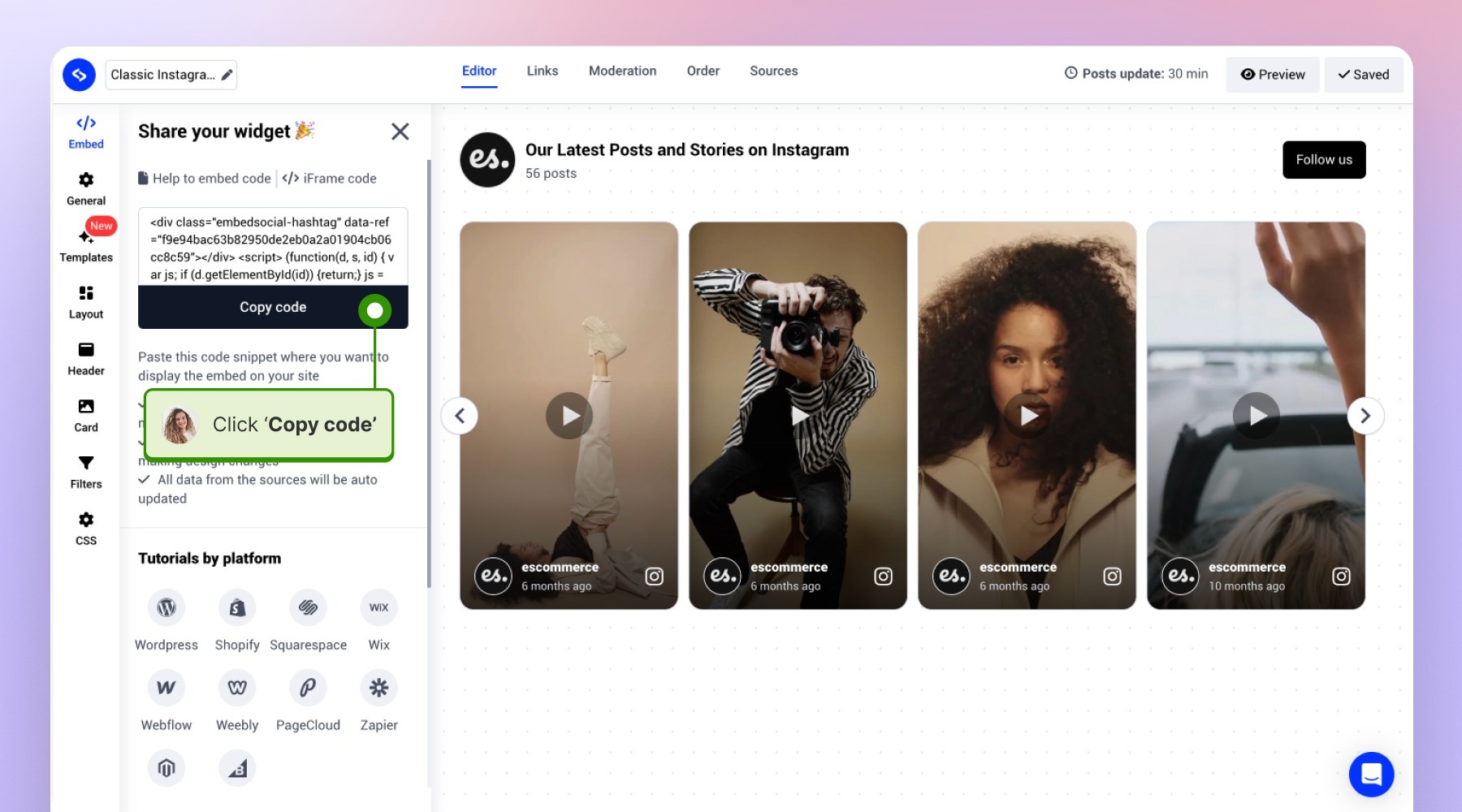
After you have copied the code, you will need to separate the HTML from the javascript, for example:
**EmbedSocial widget code:**
```html
```
**HTML**
```html
```
**JavaScript**
```js
(function(d, s, id) { var js; if (d.getElementById(id)) {return;} js = d.createElement(s); js.id = id; js.src = "https://embedsocial.com/cdn/ht.js"; d.getElementsByTagName("head")[0].appendChild(js); }(document, "script", "EmbedSocialHashtagScript"));
```
**1\. Embedding the widget through the Options API**
To embed the EmbedSocial widget code in a Vue application that uses the Options API, please follow the steps below:
First, head over to your Vue application and create a new component in your components directory:
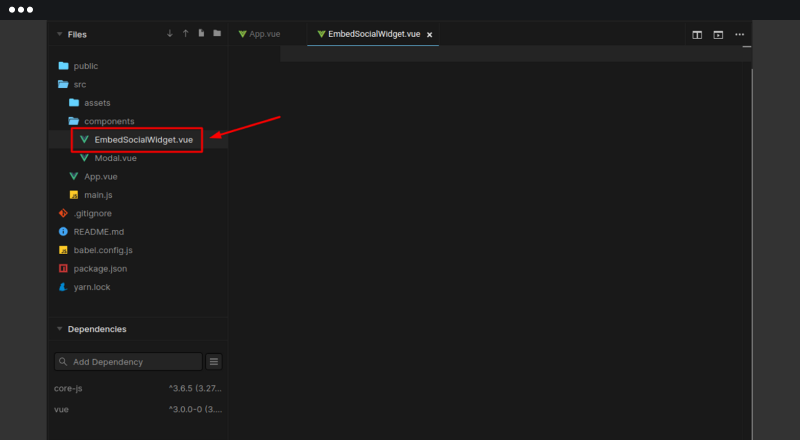
Paste the EmbedSocial widget HTML code inside the `` tags:
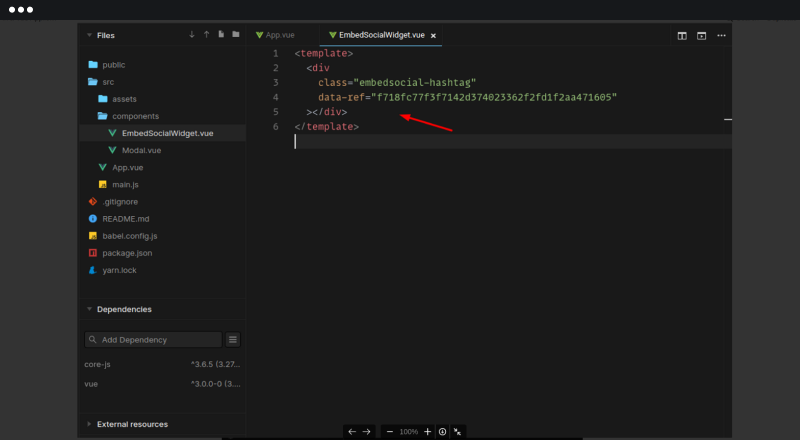
Paste the EmbedSocial widget javascript code inside the created lifecycle hook:
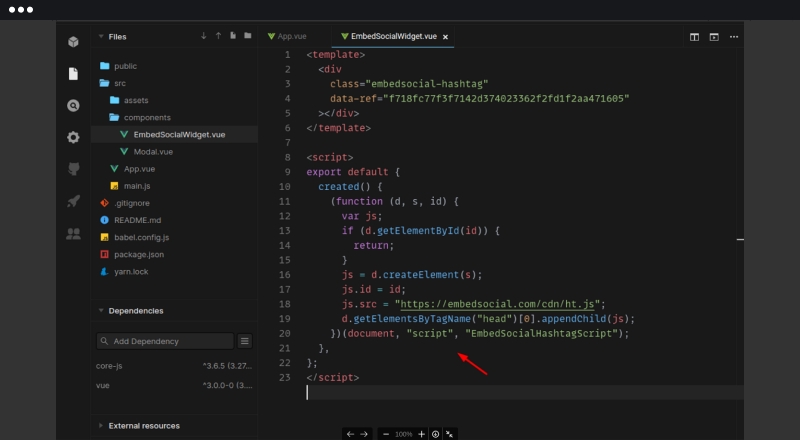
Now after you’ve created the EmbedSocial widget component, you just need to import the component and display it on your website.
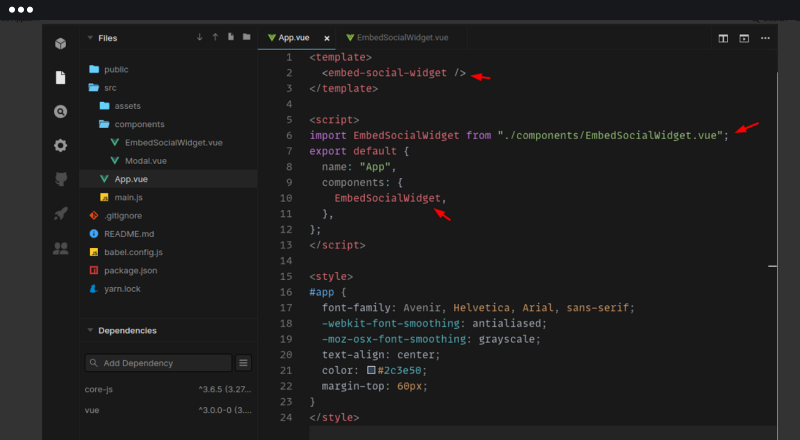
Open the file/page where you want to display the widget and import the component, in this case, we are importing it in App.vue:
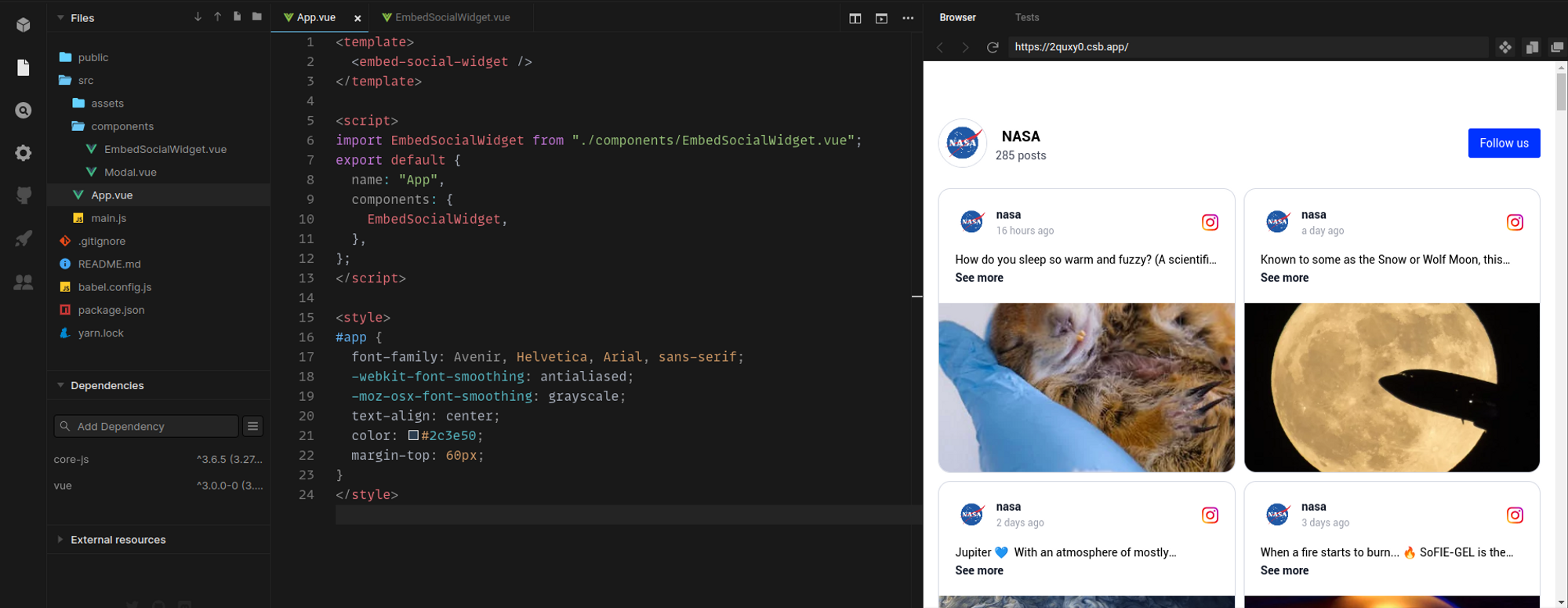
Here are the results from this code and using Options API
**2\. Composition API**
The **Composition API** is an addition to the Vue framework created to address the limitations of the Options API used in Vue2.
In order to embed your widget code in a Vue application that uses the Composition API, you will need to follow the steps below:
First, head over to your Vue application and create a new component in your components directory:
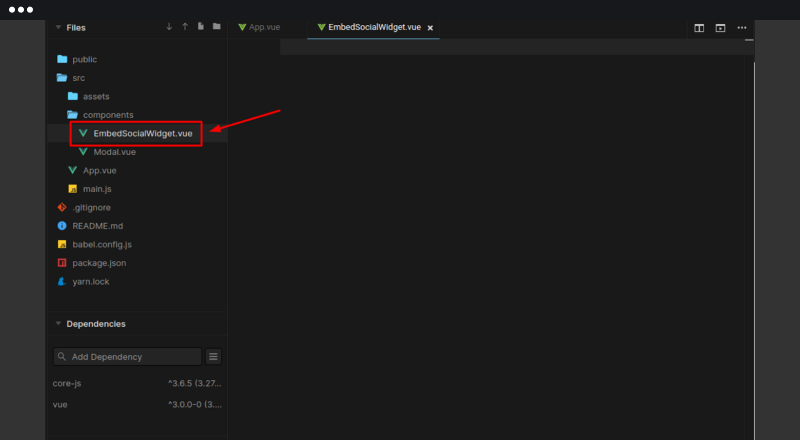
Next, paste the EmbedSocial widget HTML code inside the `` tags:
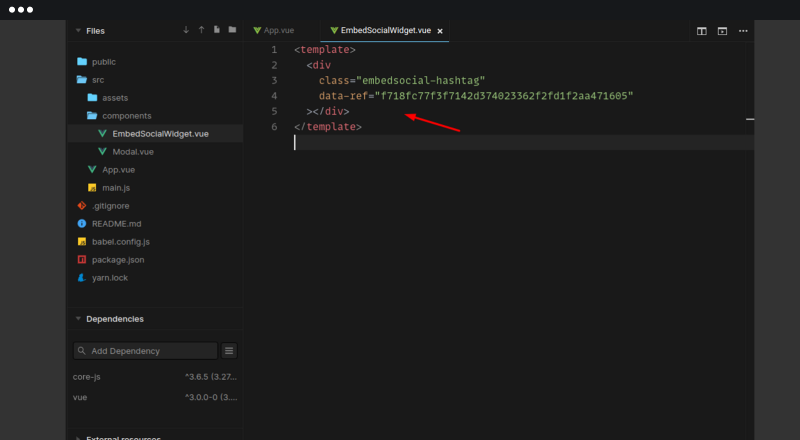
Then you will need to import onCreated function from Vue, and paste the EmbedSocial widget javascript code inside the onCreated function:
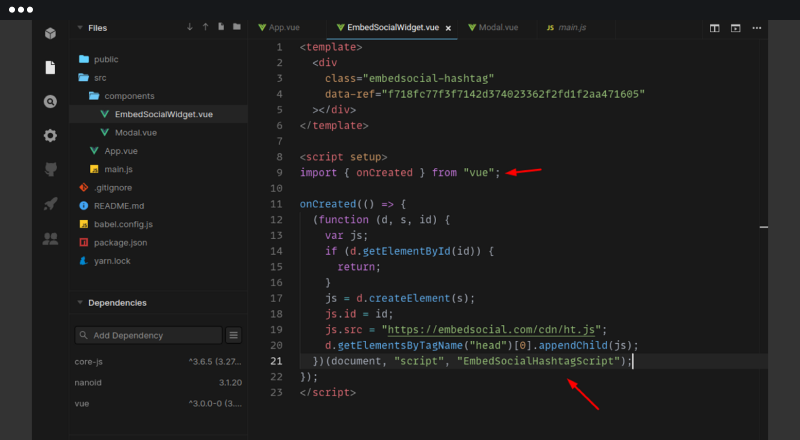
By following the steps above, you’ve created the EmbedSocial widget component, we have to import the component and display it on your website.
Open the file/page where you want to display your widget and import the component, in this case, we are importing it in App.vue:
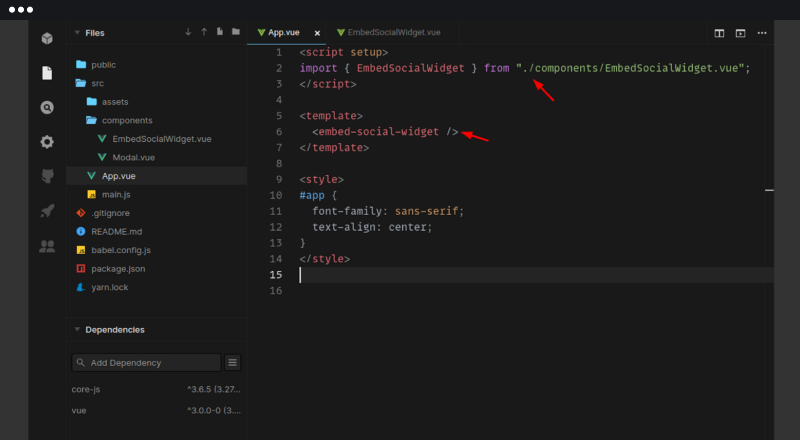
Once this is done, your widget will be displayed on your website.
That's it.
> If you have any questions, click the bottom right chat icon to talk with our customer success team or send us an email at [support@embedsocial.com](mailto:support@embedsocial.com) We're here for you 🙏
## Embed in Angular
In Angular applications, there are two options for integrating custom JavaScript code.
One option is to embed the code directly into the HTML, and the other best solution is to create a Component.
1. # Embedding code anywhere on the page
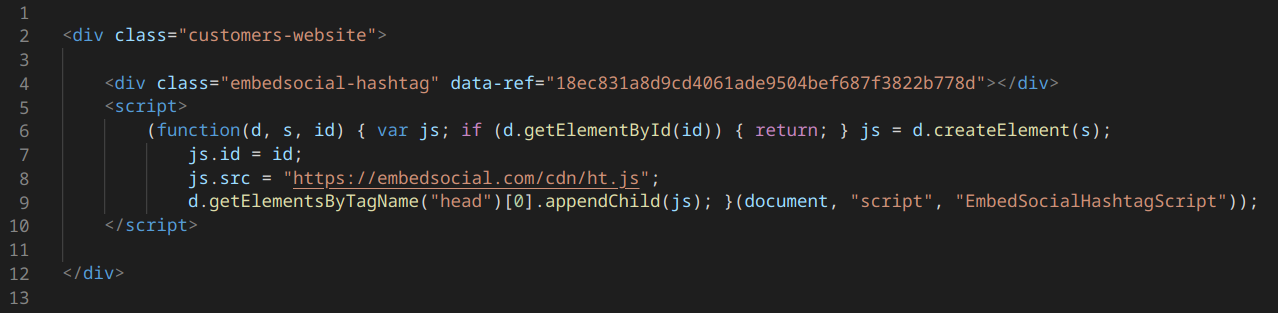
This is a familiar option and the easiest way to go. So you can just access the html on any of your Angular files and paste the EmbedSocial code directly.
Here's an example:
**2\. Creating a Component**
There are two steps you need to follow to achieve this:
- Create the component
- Use the component
1\. In the terminal, use the following command **\`ng generate component EmbedSocialWidget\`** to create an angular component called **\`EmbedSocialWidget\`**
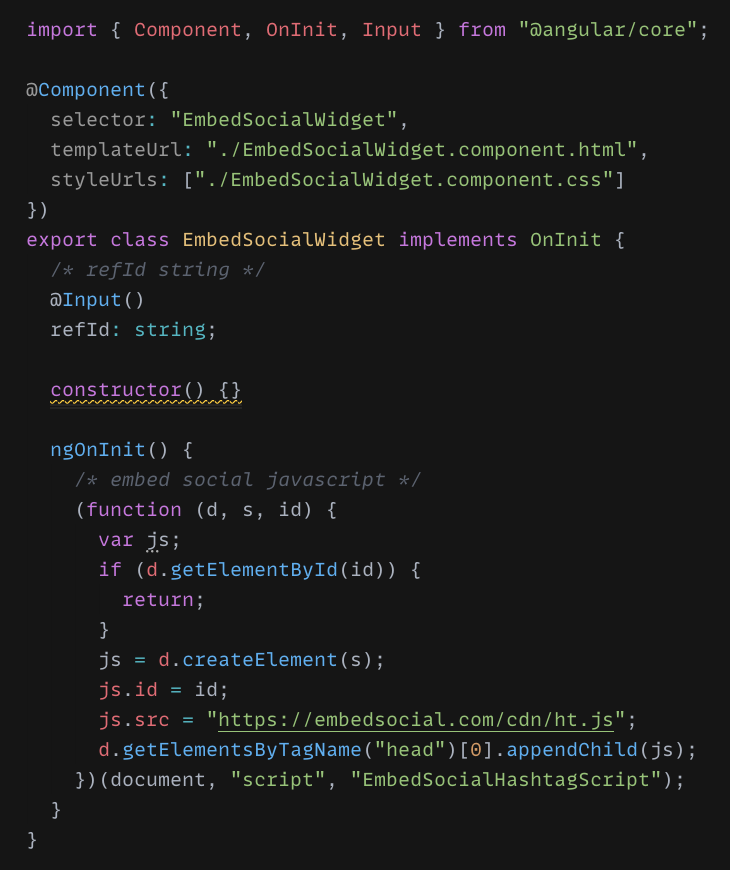
2\. After the component is created, open **\`EmbedSocialWidget.component.ts\`** and add an **\`@Input() decorated\`** string called **\`refId\`** just above the constructor.
3\. In that same file, inside the **\`ngOnInit()\`** function, add the embedsocial javascript, which is responsible for building the widget.
Your component file **\`EmbedSocialWidget.component.ts\`** should look like the image below:
**Using the component**
First, [login](/admin/login) to your EmbedSocial account and go to [Widgets](/admin/reviews_feed). Open one of the widgets that you want to embed and get the EmbedSocial **data-ref** attribute value (as mentioned above).
The data-ref attribute should look like this:
data-ref="1ca3d4d1a06e6fc2ae3b6b90f934326fd3a9edf4"
Once you have the data-ref, you can use the newly created **\`EmbedSocialWidget\`** component freely anywhere within your angular project. Just edit the component’s **\`refId\`** binding with the **refId** you copied from EmbedSocial before.
Here is an example of using the component:

That's it.
> Hope this was helpful, and if you have questions or need assistance feel free to reach out to: [support@embedsocial.com](mailto:support@embedsocial.com)