![Comment intégrer les Instagram Stories sur votre site web? [Guide complet + Exemples]](https://embedsocial.com/wp-content/uploads/2018/02/how-to-embed-instagram-stories-on-website.jpg)
L’intégration des Instagram stories sur les sites web devient de plus en plus populaire car c’est un excellent moyen pour les marques de garder leur site web frais et engager leurs visiteurs.
De plus, vous pouvez facilement diriger vos abonnés Instagram vers votre site web via les applications de lien en bio ou simplement en ajoutant votre lien de site web à vos publications via un autocollant de lien.
Pour ajouter ce contenu Instagram à votre site web, vous devez utiliser un widget de site web Instagram, qui peut être entièrement personnalisé à votre goût et se met à jour automatiquement.
Je vous parlerai de tout ce processus dans les sections ci-dessous et pourquoi vous devez le faire dès que possible. De plus, vous trouverez les meilleurs outils et exemples pour cela.
Guide rapide: Intégrez les Instagram stories sur votre site web en quelques étapes
L’intégration des Instagram stories sur les pages web est très simple avec les bons outils. Par exemple, en utilisant EmbedSocial, vous n’avez que quelques étapes à suivre:
- Inscrivez-vous pour un widget de story Instagram et une plateforme UGC complète.
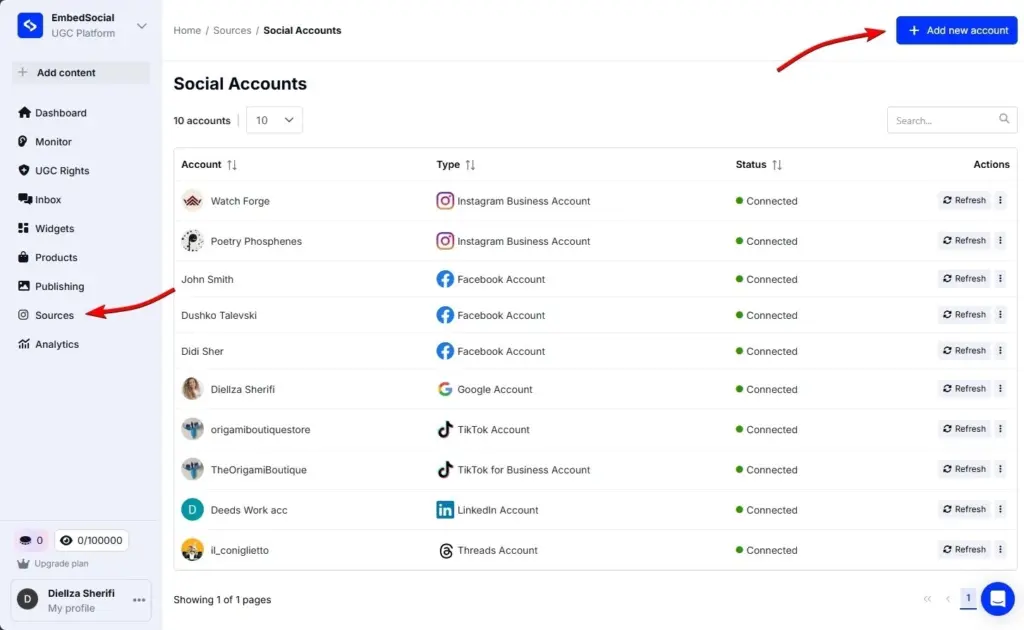
- Allez à ‘Sources’ followed ‘Gérer les comptes’ et appuyez sur ‘Ajouter un nouveau compte’.
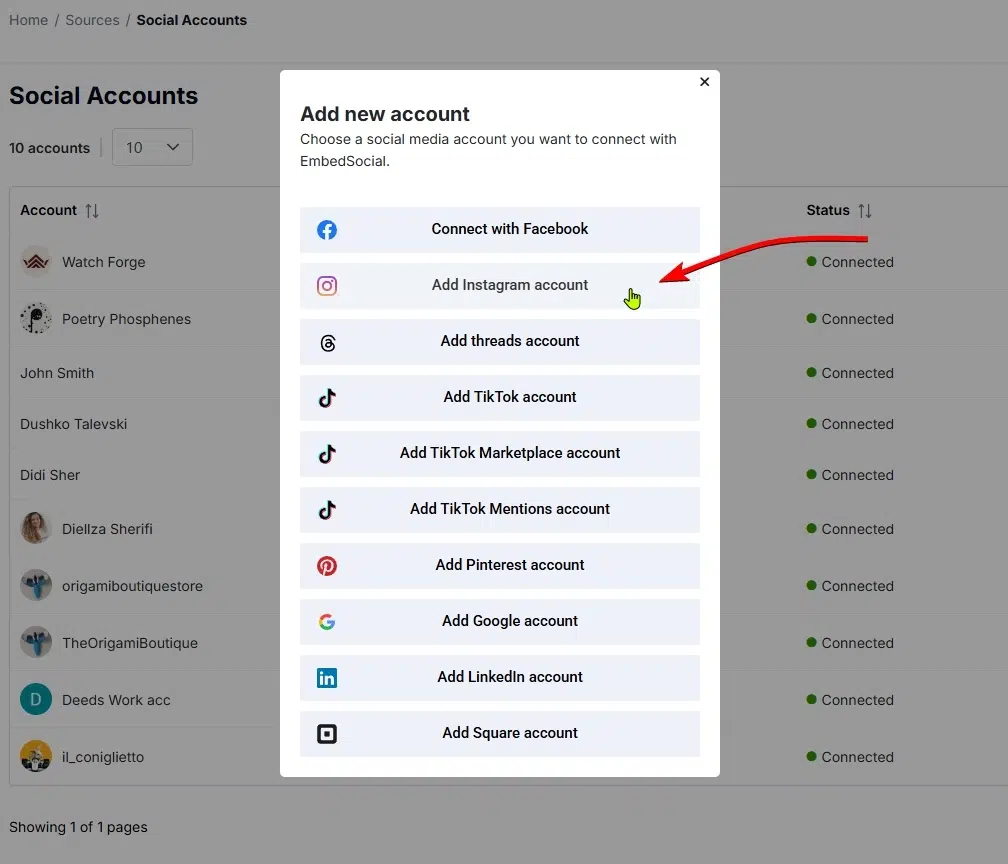
- Appuyez sur ‘Ajouter un compte Instagram’ et approuvez la connexion d’EmbedSocial à votre Instagram.
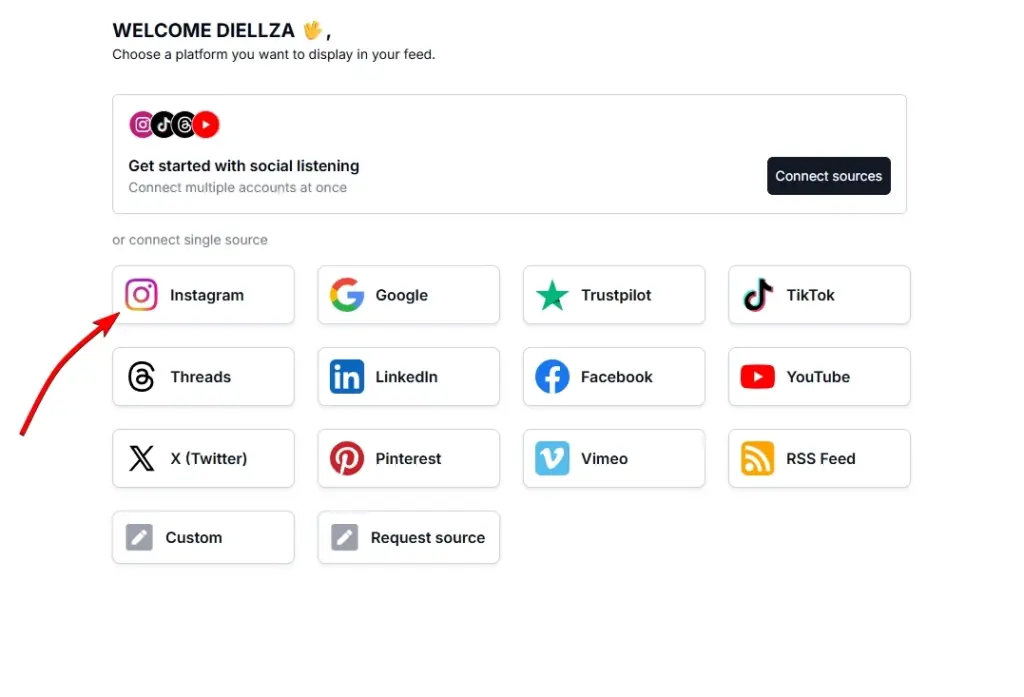
- Retournez à ‘Sources’ followed ‘Ajouter une nouvelle source’ et appuyez sur ‘Instagram’.
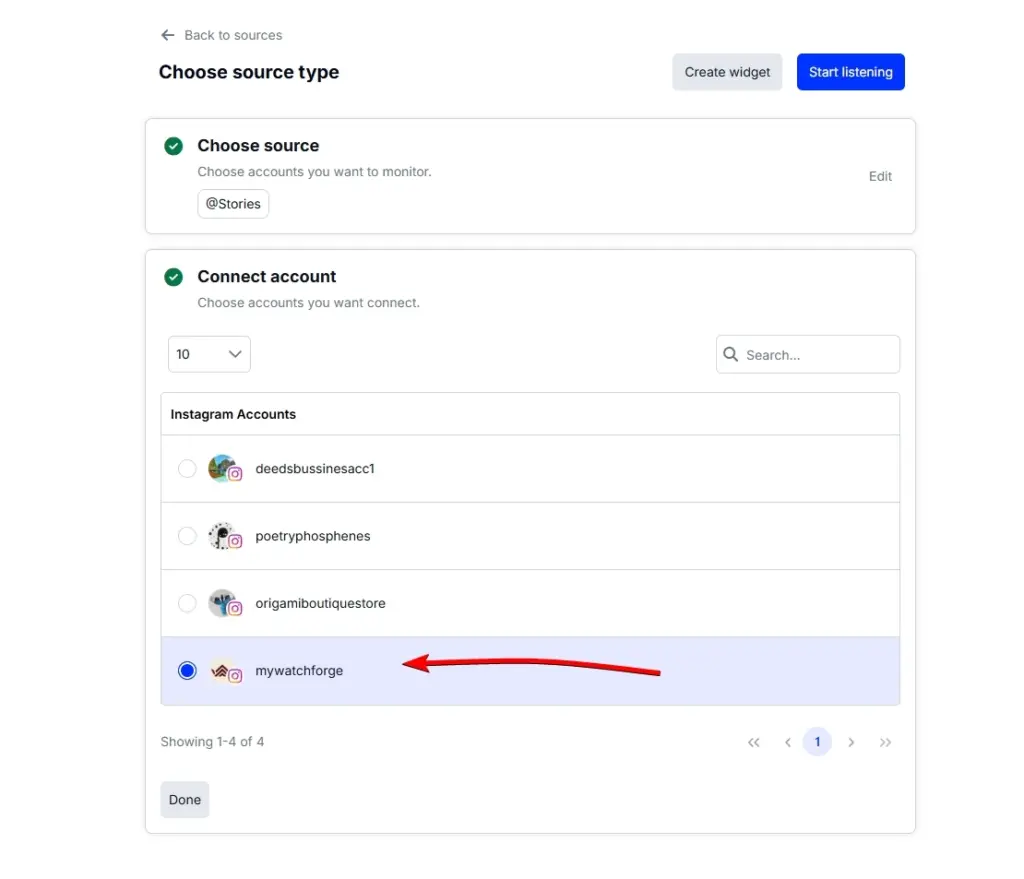
- Choisissez @Stories comme source et sélectionnez votre compte IG dans la liste.
- Appuyez sur ‘Créer un widget’, sélectionnez votre modèle de widget et concevez votre widget.
- Copiez le code du widget depuis l’onglet ‘Intégrer’ et collez-le sur votre site web.
Si vous êtes toujours incertain sur ce qu’il faut faire, regardez cette vidéo interactive du processus:
C’est tout ce que vous aviez à faire, et quand vous avez terminé, vous obtenez quelque chose comme ceci:
Le widget ci-dessus inclut également notre fonctionnalité UGC achetable, qui aide vos clients à accéder immédiatement à vos pages de produits pour acheter l’apparence.
Cependant, avant de procéder, il y a quelques points à garder à l’esprit pour une intégration réussie des stories Instagram, que j’énumère ci-dessous, et ensuite vous obtenez également le guide complet.
Que devez-vous savoir lorsque vous intégrez les stories sur Instagram?
Avant d’intégrer les Instagram stories sur votre site web, comprenez que l’API Instagram exige que votre compte Instagram soit un compte Professionnel ou Créateur.
Avoir un compte Instagram professionnel est nécessaire pour autoriser n’importe quelle application tierce, comme EmbedSocial, à accéder et afficher vos stories.
De plus, seules les stories actives (en direct) des 24 dernières heures peuvent être extraites d’Instagram. Les stories archivées et en vedette ne sont pas disponibles via l’API.
Enfin, une fois la connexion établie, le système récupère et met à jour automatiquement vos dernières stories tant qu’elles restent en direct sur Instagram.
Remarque: Contrairement à certains concurrents, EmbedSocial peut se connecter directement à votre compte Instagram professionnel sans passer par votre page Facebook d’abord. Cela dit, vous devez déjà être connecté à votre compte Instagram sur le bureau.
Guide complet: Comment intégrer les Instagram Stories sur le site web étape par étape
Voici les étapes détaillées pour créer un widget de stories Instagram immersif, le personnaliser, générer son code intégrable et l’intégrer sur votre site web:
Étape 1: Inscrivez-vous à la plateforme UGC EmbedSocial
Avant toute chose, vous avez besoin d’un compte EmbedSocial. Ne vous inquiétez pas, nous offrons également un essai gratuit de 7 jours pour que vous puissiez vérifier toutes nos fonctionnalités avant de vous engager.
Étape 2: Ajoutez votre compte Instagram
Ensuite, vous devez naviguer vers ‘Sources’ et appuyez sur ‘Ajouter un nouveau compte’:
Étape 3: Approuvez la connexion EmbedSocial à votre Instagram
Une fois que vous faites cela, vous devez appuyer sur ‘Ajouter un compte Instagram’ et approuver la connexion:
Étape 4: Ajoutez Instagram comme source dans EmbedSocial
Maintenant qu’Instagram est connecté, il est temps d’ajouter une source Instagram spécifique, ce que vous pouvez faire via ‘Sources’ followed ‘Ajouter une nouvelle source’ et appuyer sur ‘Instagram’:
Étape 5: Choisissez @Stories comme source et sélectionnez votre compte
Vous devrez appuyer sur @Stories à ce moment et sélectionner votre compte IG connecté:
Étape 6: Créez et concevez votre widget
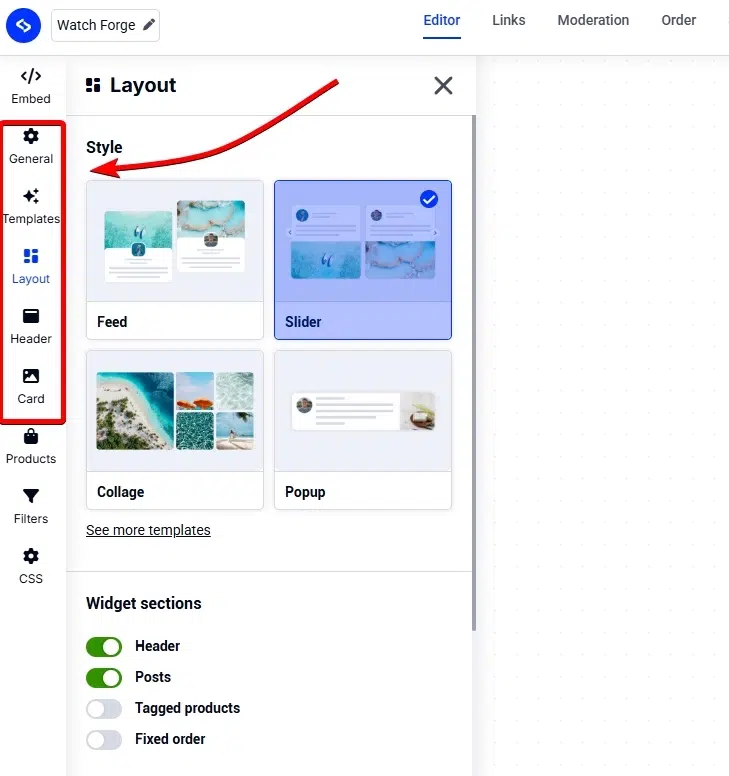
Une fois que vous appuyez sur ‘Créer un widget’, vous serez invité à choisir un modèle de widget et dirigé vers l’éditeur de widget EmbedSocial.
Là, vous pouvez changer chaque petite chose sur l’apparence de votre widget, de la mise en page aux couleurs, polices et aux éléments que votre widget inclura:
Étape 7: Copiez et collez le code du widget sur votre site web
Enfin, vous devez simplement copier le code du widget intégrable, que vous pouvez trouver dans l’onglet ‘Intégrer’ de l’Éditeur (en haut à gauche. Une fois là-bas, cliquez sur ‘Copier le code’:
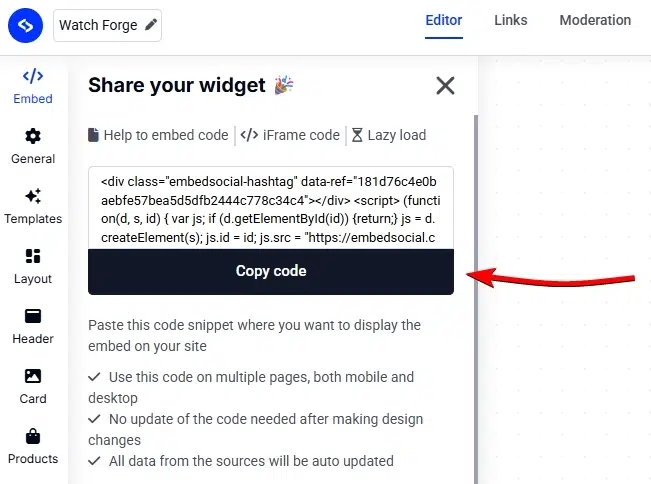
Naturellement, la dernière étape est de coller ce code sur votre site web. Ci-dessous, je couvre le processus de le faire sur tous les constructeurs de sites web et plates-formes CMS populaires.
Guide vidéo: Comment intégrer facilement un widget de story Instagram
Si vous préférez regarder une vidéo sur la façon d’intégrer les flux Instagram, voici une:
Comment ajouter un mur Instagram à votre site web via différentes plates-formes CMS?
Le processus de collage de votre code de widget de story Instagram est similaire sur tous les constructeurs de sites web populaires. Voici comment afficher les publications Instagram sur la plupart d’entre eux:
Pourquoi afficher les Instagram Stories sur votre site web?
Lorsque vous ajoutez un mur Instagram à votre site web qui inclut des Stories, des publications, des vidéos, etc., vous augmentez l’engagement de vos utilisateurs et recueillez des avantages supplémentaires:
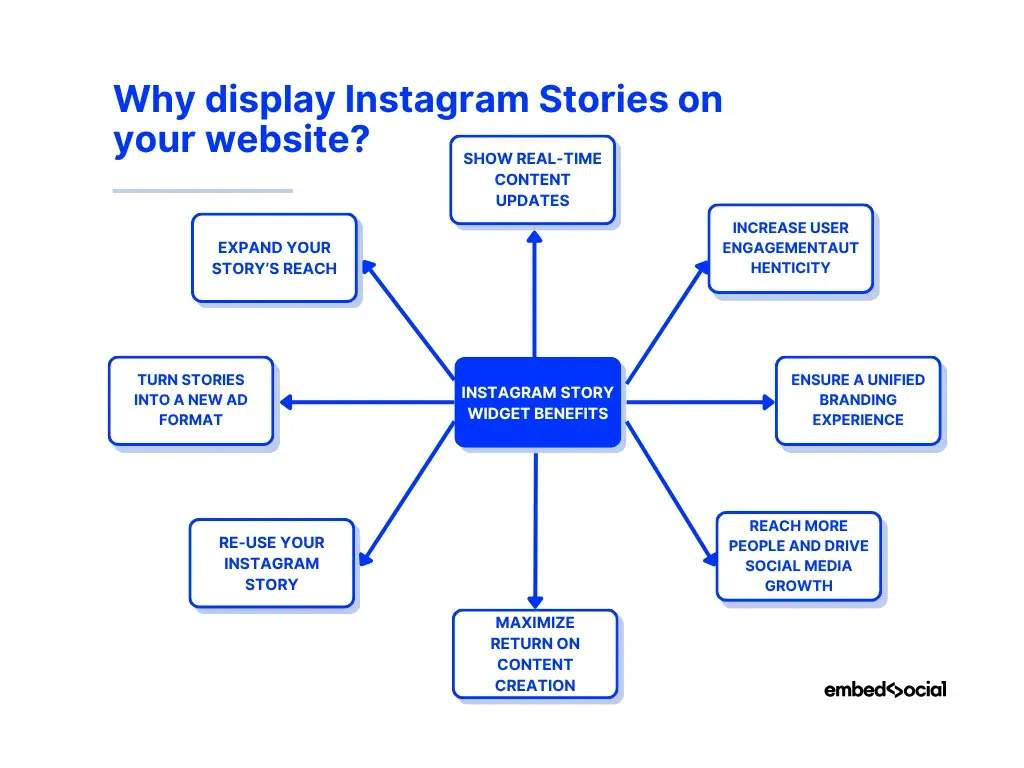
- Affiche les mises à jour de contenu en temps réel. Gardez votre site web vivant avec les synchronisations automatiques de stories qui affichent vos derniers événements, lancements ou moments en coulisse.
- Augmentez l’engagement des utilisateurs. Apportez le format de story familier à votre site web pour captiver les visiteurs avec des autocollants interactifs, des visuels et du storytelling au format court.
- Assurez une expérience de marque unifiée. Étendez votre esthétique Instagram et votre ton à votre site web, créant une expérience transparente entre les deux plates-formes.
- Atteindre plus de personnes et générer la croissance des médias sociaux. Transformez les visiteurs du site web en abonnés Instagram en promouvant votre flux de story actif sur votre site.
- Maximisez le retour sur la création de contenu. Donnez à vos stories une durée de vie plus longue en les présentant au-delà de la limite de 24 heures d’Instagram et en vous assurant que plus de personnes les voient.
- Réutilisez votre Instagram story. Réutilisez vos meilleures stories directement sur votre site en utilisant un widget professionnel qui vous aide à les gérer et les afficher.
- Transformez les stories en un nouveau format d’annonce. Utilisez vos stories intégrées comme des bannières numériques pour mettre en avant les campagnes ou les promotions de fonctionnalités sur tous les sites partenaires et portails web.
- Développez la portée de votre story. Affichez les stories à des audiences qui pourraient ne pas vous suivre sur Instagram, déverrouillant de nouvelles opportunités d’exposition et générant de l’engagement.
Vous présentez plus que simplement votre contenu lorsque vous intégrez les publications ou stories Instagram sur votre site web. Vous connectez votre narration sociale avec la présence numérique de votre marque, générant un engagement constant sur chaque canal que vous possédez.
Remarque: Vous pouvez afficher tous les formats de story dans un widget. photo stories, video stories et même combinez-les avec un flux de stories Pinterest Pin dans un seul widget interactif.
Pourquoi utiliser EmbedSocial pour ajouter des widgets de story Instagram à votre site web?
Si vous voulez rendre l’intégration des Instagram stories sans effort, automatisée et entièrement personnalisable, vous avez besoin d’une plateforme comme EmbedSocial qui optimise votre flux de travail:

Voici pourquoi c’est la solution préférée pour les marques et les créateurs:
- Connexion officielle à l’API Instagram. EmbedSocial se connecte directement à l’API officielle d’Instagram, garantissant que vos stories sont toujours récupérées en temps réel.
- Mises à jour automatiques des stories. Les nouvelles stories se synchronisent automatiquement toutes les 24 heures, gardant votre contenu de site web frais sans téléchargements manuels.
- Widgets personnalisables. Ajustez la mise en page, la taille, les couleurs et les polices pour correspondre parfaitement à votre design de site web et à l’identité de votre marque.
- Conception réactive. Les widgets ont fière allure sur tous les appareils, en s’adaptant automatiquement aux écrans de bureau, tablette et mobile.
- Plusieurs options d’affichage. Choisissez entre les popups, les curseurs, les carrousels ou les grilles pour montrer vos stories dans différents styles.
- Hub de contenu tout-en-un. Combinez les stories de plusieurs comptes Instagram ou mélangez les photo, vidéo et autres formats de story dans un seul flux Instagram.
- Compatibilité multiplateforme. Fonctionne de manière transparente avec les constructeurs de sites web populaires comme WordPress, Shopify, Wix et Squarespace.
- Analyses avancées. Suivez les vues de story et les métriques d’engagement directement depuis votre tableau de bord EmbedSocial pour mesurer les performances.
Comme vous pouvez le voir, avec EmbedSocial, l’intégration d’un flux de stories Instagram est une configuration unique avec plusieurs avantages: économiser du temps, améliorer le design et augmenter l’engagement.
De plus, vous pouvez créer et ajouter un mur Instagram à votre site web qui contient plus que vos Stories. Vous pouvez les combiner avec des Reels et des publications également.
Exemples de widgets de story Instagram
EmbedSocial offre plusieurs modèles de widget de story Instagram prêts à l’emploi que vous pouvez adapter complètement à vos besoins. Ou, vous pouvez même créer un nouveau modèle à partir de zéro.
Voici certains des widgets de story Instagram que nous offrons:
Conclusion: Maximisez la portée de vos Instagram stories au-delà de 24 heures!
L’intégration des Instagram stories sur votre site web vous aide à étendre leur visibilité et garder votre public engagé même après qu’elles disparaissent de l’application.
Lorsque vous connectez votre présence sociale avec votre site web de cette manière, vous donnez aux visiteurs du contenu frais et dynamique à explorer qui se met à jour tout seul.
C’est-à-dire, si vous vous inscrivez à une plateforme comme EmbedSocial qui synchronise automatiquement, personnalise et affiche vos stories n’importe où en ligne sans aucun coding.
Donc, si vous cherchez à gagner du temps et à tirer plus de valeur de chaque story que vous créez sur votre compte Instagram, intégrez le widget de story Instagram sur votre site web.
Développez la portée de vos Instagram stories dès aujourd’hui avec EmbedSocial!



![Comment intégrer des témoignages sur un site web en 2026 [2 méthodes + conseils]](https://embedsocial.com/wp-content/uploads/2022/11/testimonials-dark-single-slider.jpg)

![Comment intégrer une galerie vidéo sur les sites web [+ 5 modèles de widgets]](https://embedsocial.com/wp-content/uploads/2026/02/video-gallery-widgets.jpg)