


What is an Instagram widget for Elementor?
An Instagram widget for Elementor connects your Instagram content to a live, customizable feed that you can place on any Elementor page without manual screenshots or copy-pasting. Instead of updating a gallery by hand, you publish one embeddable widget and your Elementor Instagram feed stays fresh as new posts go live.

You can match the widget to your design, choose layouts such as slider, grid, carousel, or masonry, and display content from your Instagram account, brand mentions, or hashtag campaigns. That makes an Instagram widget for Elementor a practical way to add visual social proof, keep landing pages updated, and bring more life to product, service, and homepage sections.
Why use EmbedSocial for an Elementor Instagram feed?
EmbedSocial gives you an end-to-end flow for building an elementor instagram feed, from source connection to publish-ready widgets. Once your Instagram source is connected, the widget updates automatically and new posts can appear on your Elementor pages without extra manual work.
If you are comparing options for an elementor instagram plugin, this setup is usually simpler: generate the widget, copy the embed code, open Elementor, add an HTML widget, and paste the code.
EmbedSocial is a social media aggregation platform that helps you collect, manage, and display Instagram posts in high-converting layouts built for modern websites.
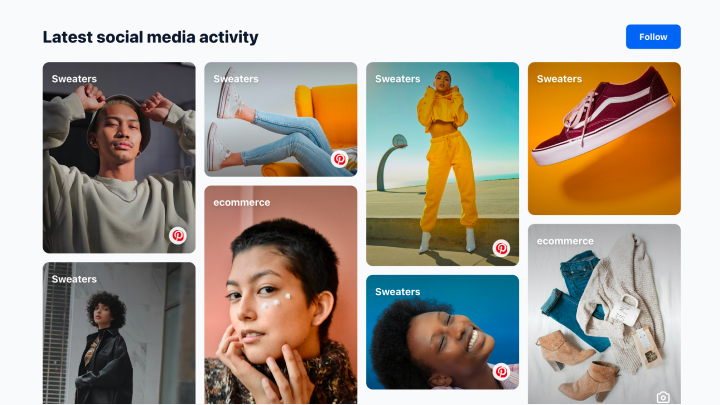
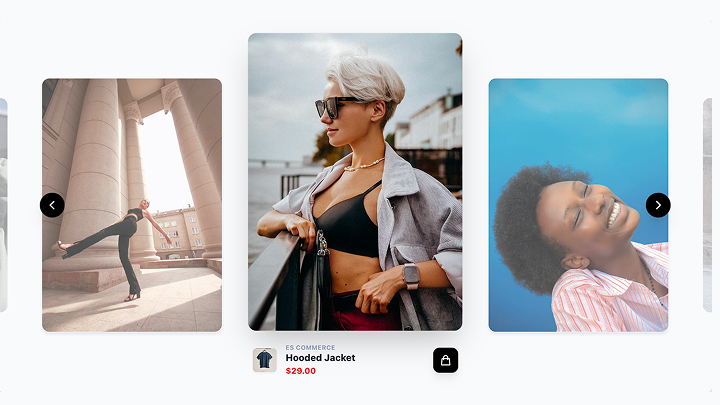
Create sliders, walls, collages, carousels, and shoppable feeds for Elementor sections where you want more engagement. You can also moderate content, filter posts, tag products, and reuse the same source across multiple widgets and placements.
Need a live instagram widget for elementor that matches your brand?
Use ready-made templates, prompt-based AI design changes, and advanced styling controls to make the feed feel native to your page instead of pasted on top of it.
No coding is required beyond copy-paste in Elementor.
Why this Instagram widget Elementor setup converts
A live Instagram widget Elementor setup does more than decorate a page. It keeps your site updated with real visual content from your brand and your customers, which helps visitors trust what they see and stay engaged.
Core outcomes you get from this setup include:
- Fresh on-page Instagram content that keeps Elementor pages from feeling static
- More visual social proof on landing pages, product pages, and service pages
- Longer time on site thanks to engaging photos, captions, and Reels
- Better support for conversions with real customer and brand content
- Faster publishing across multiple Elementor sections and pages
- Less manual work because your feed auto-syncs after setup
- More opportunities to turn visitors into Instagram followers or shoppers
Instagram widget Elementor features
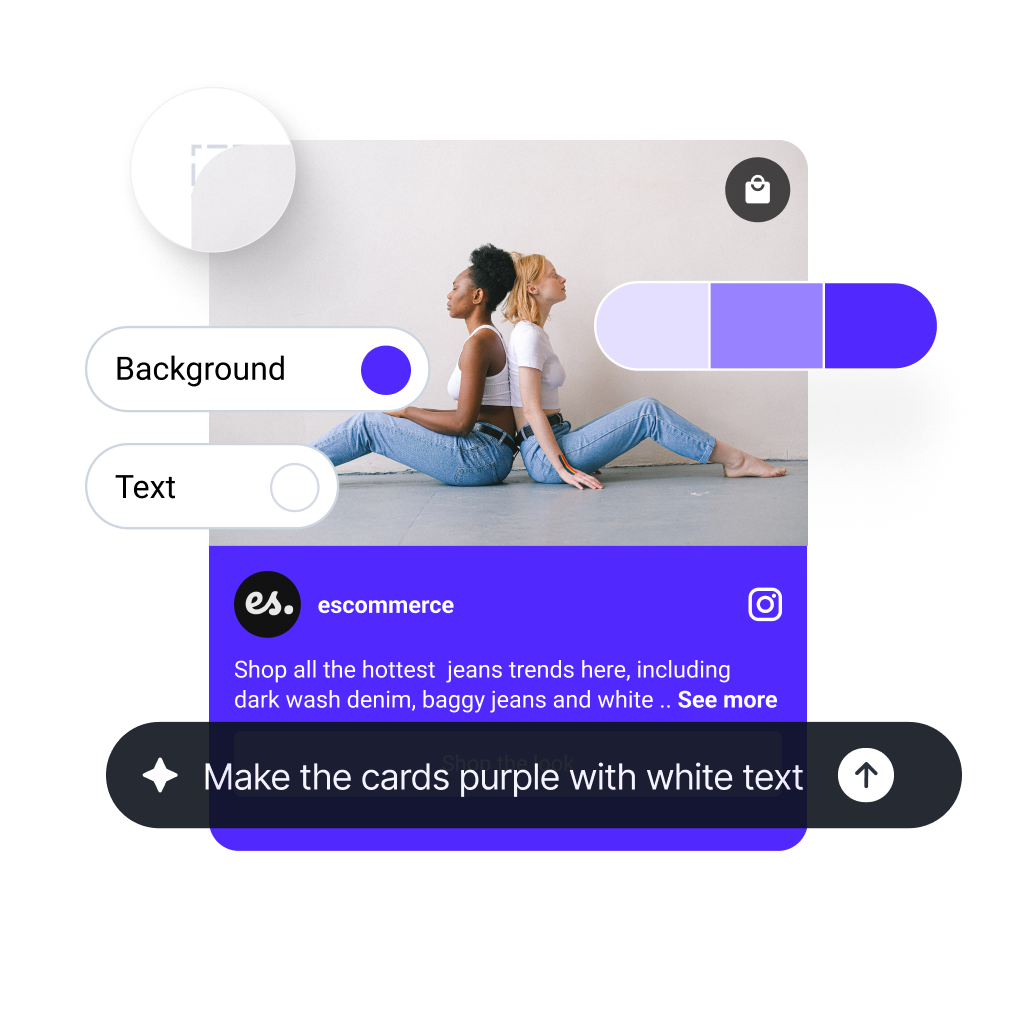
- Automatic Instagram sync – Pull in fresh content from your Instagram source so your Elementor instagram feed stays updated automatically.
- Elementor-ready embed flow – Copy your widget code, drag the Elementor HTML widget into place, paste, and publish.
- AI editor and templates – Start from a ready-made design or prompt the AI editor to generate the layout, card style, and text treatment you want.
- Multiple source types – Build feeds from your Instagram account, mentions, hashtags, or curated user-generated content.
- Moderation and filters – Handpick posts, filter by keywords, apply tags, and keep only the content that fits each Elementor page.
- Responsive layouts – Choose slider, grid, carousel, collage, or masonry layouts that look great across desktop, tablet, and mobile devices.
- Follow buttons and CTAs – Add profile links, custom calls to action, and social buttons that drive more interactions.
- Shoppable Instagram feeds – Add product links to posts and turn your instagram widget for elementor into a direct path to product and checkout pages.
- Analytics and reports – Track clicks and engagement to understand which feeds and posts perform best on your website.
- Custom CSS and brand styling – Fine-tune spacing, colors, text, and card appearance to match your Elementor design system.
Besides the many features, the widget gives you practical Elementor-friendly controls such as:
- Set the number of posts, rows, or columns in the widget.
- Choose from different layouts like grid, slider, carousel, collage, or masonry.
- Show captions in a lightbox, on hover, or directly in the card layout.
- Create single-source widgets or combine multiple Instagram sources.
- Filter posts by tags, keywords, or moderation rules.
- Adjust padding, colors, buttons, and the general look of the widget.
- Add follow buttons, product links, or custom CTA buttons.
- Optimize the widget for responsive Elementor sections across all devices.
How to add Instagram to Elementor
Here are the steps on how to add instagram to elementor and publish a live feed on your page:
Step 1: Create your EmbedSocial account
Sign up for a free EmbedSocial account and open your widget dashboard. You can start from a pre-built template or use the AI editor to describe the look you want for your Elementor Instagram feed.
Step 2: Connect your Instagram profile
Go to the Sources tab, click Add new source, choose Instagram, and connect the account you want to use. Then choose the type of feed you want to build, such as an account feed, hashtag feed, or mentions-based widget.
Step 3: Customize your Elementor Instagram feed
Pick the layout, adjust branding, show or hide captions, set filters, and moderate the posts you want to display. This is where you shape the final instagram widget elementor design so it fits your page perfectly.
Step 4: Copy your embed code
Open the widget editor, click the Embed tab, and copy the generated code. This is the code you will paste into Elementor.
Step 5: Add the widget in Elementor
Open the target page in Elementor, drag the HTML widget into the section where you want the feed, paste the code into the HTML field, and click Update. Your live Instagram widget for Elementor will appear immediately on the page preview.
If you need help during setup, reach out to our support team via live chat or email and we’ll help you get your widget published faster.
Please note: The free plan is a great way to test a basic live Instagram widget. Paid plans unlock more source types, advanced moderation, multiple widgets, analytics, and deeper customization options for larger Elementor projects.
For a full click-by-click walkthrough on how to add Instagram to Elementor, use the tutorial below.
See the full Elementor tutorial →
EmbedSocial vs. other Elementor Instagram widget tools
| Feature | EmbedSocial | Native Instagram embeds | Basic Instagram plugin |
|---|---|---|---|
| Full live feed in Elementor | ✅ HTML widget + paste code | ❌ Mostly single posts | ⚠️ Varies |
| Auto-sync new Instagram posts | ✅ | ❌ Manual re-embed | ⚠️ Varies |
| Account, hashtag, and mentions feeds | ✅ | ❌ | ⚠️ Varies |
| AI editor and templates | ✅ | ❌ | ❌ |
| Moderation and filters | ✅ | ❌ | ⚠️ Varies |
| Shoppable links / CTA buttons | ✅ | ❌ | ⚠️ Varies |
| Multiple widgets across pages | ✅ | ❌ | ✅ |
| Works beyond Elementor too | ✅ | ✅ | ⚠️ Often WordPress-only |




Browse 200+ Instagram widgets & Instagram templates










Embed Instagram widget on any web platform in seconds




FAQs about our Instagram widget for Elementor
Have a specific question about our Instagram widget for Elementor?
Check these FAQs or click the bottom right chat icon and talk with us.
Create or open your Instagram widget in EmbedSocial and copy the embed code. In Elementor, open the page editor, drag the HTML widget into the section where you want the feed, paste the code, and click Update.
No. You can publish your Instagram widget for Elementor with EmbedSocial’s standard embed code. The fastest setup is to paste that code into Elementor’s HTML widget, so you do not need a separate Elementor-only addon just to show a live Instagram feed.
Yes. Depending on your plan and source setup, you can create an Elementor Instagram feed from your own account, brand mentions, or hashtag campaigns, then publish each one as a separate widget or use multiple widgets across your site.
Yes. Once your Instagram source is connected, new content syncs automatically, so your Elementor page keeps showing fresh posts without manual updates.
Yes. Use moderation controls, keyword filters, tags, and manual approval options to decide which posts appear before they go live on your Elementor page.
Yes. EmbedSocial offers a free way to test a basic Instagram widget. Paid plans unlock more feed types, advanced moderation, additional widgets, analytics, and more customization options.
Yes. You can choose layouts such as grid, carousel, slider, masonry, or wall, then adjust colors, spacing, captions, buttons, and custom CSS so the widget fits your Elementor design system.
No. The widget is designed to be lightweight and embeddable with a single code paste. It is built for modern website builders and optimized for responsive loading on desktop and mobile.
Yes. You can build different widgets for your homepage, product pages, landing pages, blog posts, or campaign pages and manage them all from one EmbedSocial account.
Yes. You can add product links or CTA buttons to Instagram posts and turn your widget into a shoppable feed that sends visitors to product or checkout pages.
No. The same widget can also be embedded on WordPress, Shopify, Squarespace, Wix, Webflow, and other websites that accept HTML or JavaScript embed code.