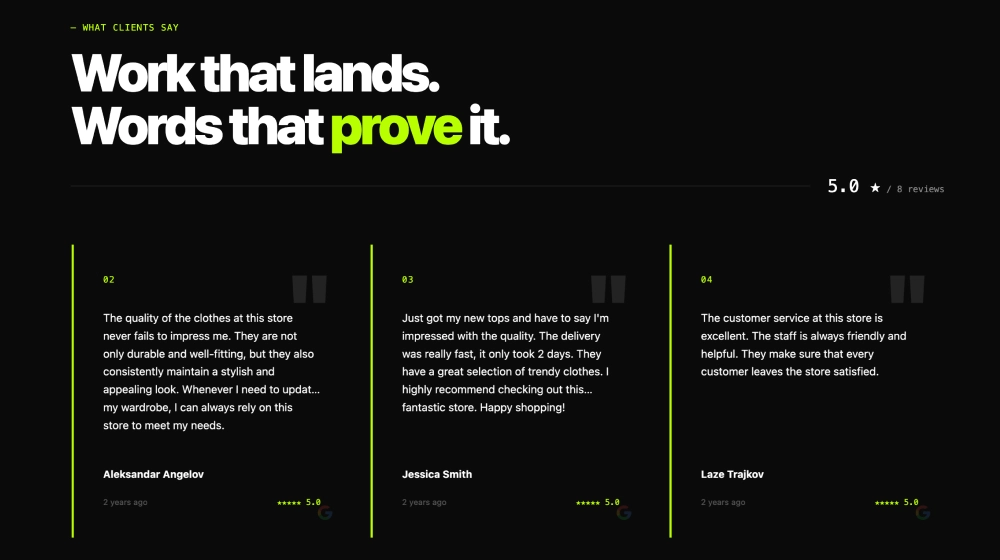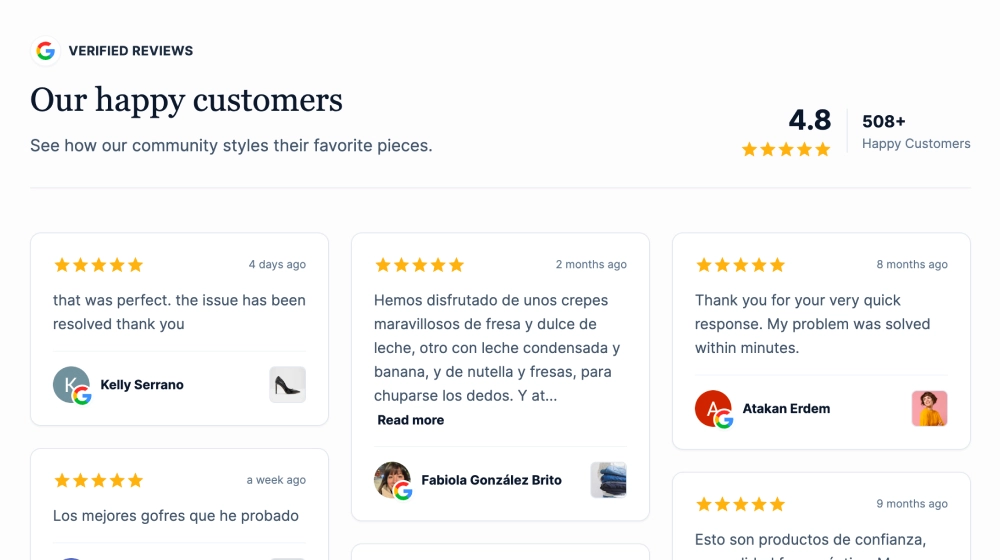
A review carousel shows your customer reviews as swipeable cards, so visitors can browse real feedback without leaving the page. This template pulls your Google reviews with star ratings, reviewer names, photos and dates, and keeps them in sync. It’s built on the EmbedSocial Google reviews widget, and you can find more styles on the Google reviews slider page.
What the review carousel shows and where to place it
A review carousel is a sliding website section that displays customer reviews as cards visitors move through with arrows or a swipe. It fits a lot of social proof into a small space.
Use it when you have more good reviews than room to show them. It works well for local businesses, ecommerce stores, service providers and SaaS products.
A Google review carousel adds trust because every review comes from your Google Business Profile. New reviews sync on their own, so the section never goes stale.
Long reviews show a Read more preview, so cards stay the same size. You can change colors, fonts, shadows and spacing to match your site.
- Homepage: shows visitors your rating and real feedback before they scroll further.
- Pricing page: eases doubts at the point where visitors decide whether to buy.
- Product pages: puts verified buyer feedback next to the add to cart button.
- Landing pages: gives a campaign page social proof without a long review section.
How to add a review carousel to your website
- Log in or sign up for your EmbedSocial account.
- Connect your Google Reviews source.
- Select the Google Reviews Slider template from the gallery.
- Customize the card style, colors, carousel settings, and moderation options.
- Copy the generated embed code.
- Paste it into your website or CMS (Shopify, WordPress, Wix, etc.).
WordPress
Open your page in WordPress, add a Custom HTML block and paste the embed code. Click Update to publish.
If you use the EmbedSocial plugin, paste the widget shortcode into a Shortcode block instead.
Shopify
Copy the embed code from the widget editor. In Shopify admin, go to Online Store, then Themes, then Customize. Add a Custom Liquid section.
Paste the code where the carousel should appear, such as a product or checkout page template, and save.
Wix
In the Wix editor, click the Add (+) button and choose Elements, then Embed Code, then Embed HTML.
Paste the code into the field, click Update and publish the page.
Squarespace
Add an Embed Block where the carousel should go, click it and choose the Code Snippet option.
Paste the embed code, then save and publish.
Carousel vs other layouts
| Layout | Best for | Shows | Template |
|---|---|---|---|
| Carousel | Many reviews in limited space | Swipeable review cards with arrows | Google Reviews Carousel for Your Website |
| Grid | Several reviews visible at a glance | A card grid with your overall rating | Classic Google Reviews Grid |
| Marquee | A slim strip that keeps reviews moving | An auto-scrolling row of review cards | Google Reviews Marquee Slider |
Review carousel best practices and common mistakes
- Filter, don’t edit: Set a minimum rating to keep the carousel focused, but never change a review’s wording. Edited quotes cost more trust than they win.
- Keep it near a decision: A common mistake is placing reviews at the very bottom of the page. Put the carousel close to a pricing table, a product description or a sign-up button.
- Keep it current: Screenshots of reviews go stale and can’t be verified. A synced Google review carousel adds new reviews as customers post them.
- Let short reviews lead: Long reviews crowd the card. Use the Read more preview, and favor short, specific reviews when you moderate.
- Test it on mobile: Check that cards are easy to swipe and that text stays readable on a small screen.