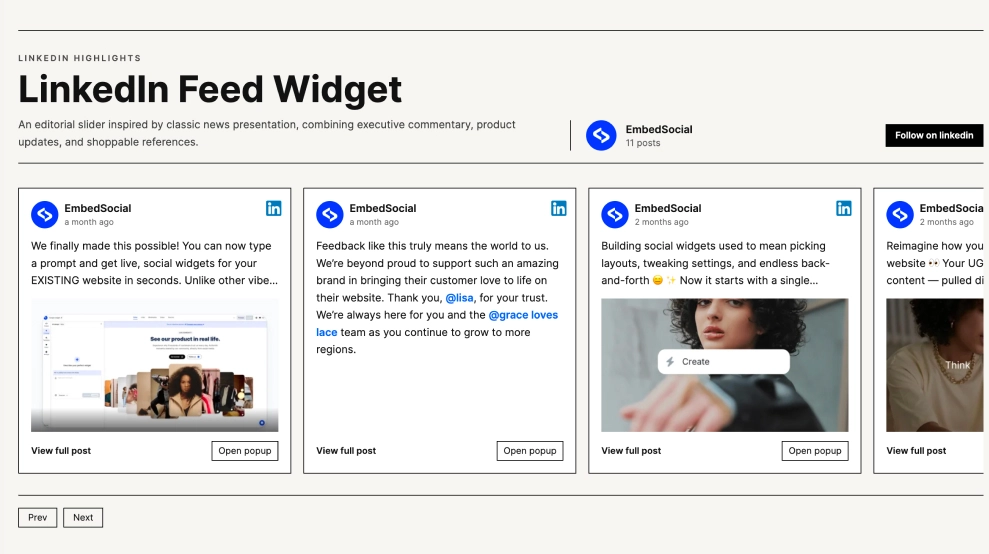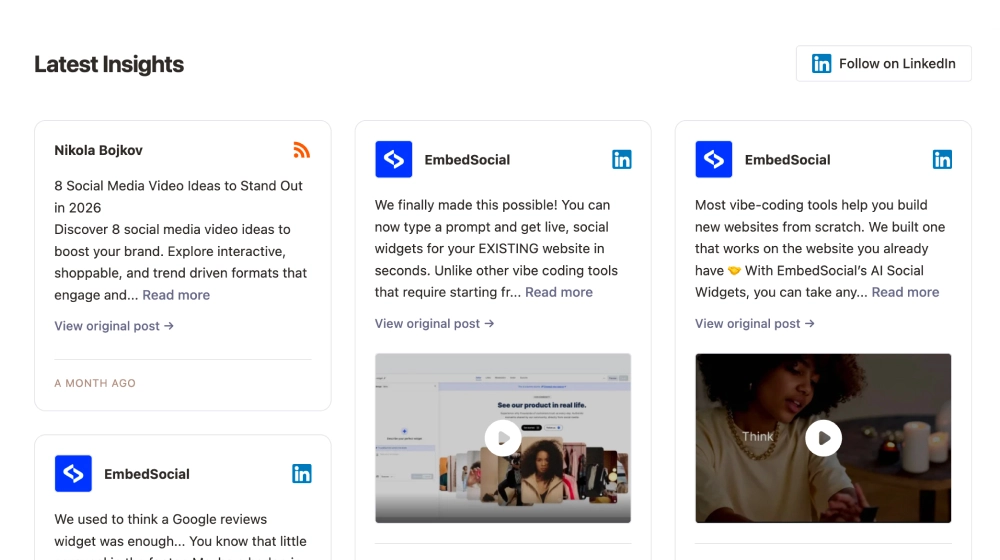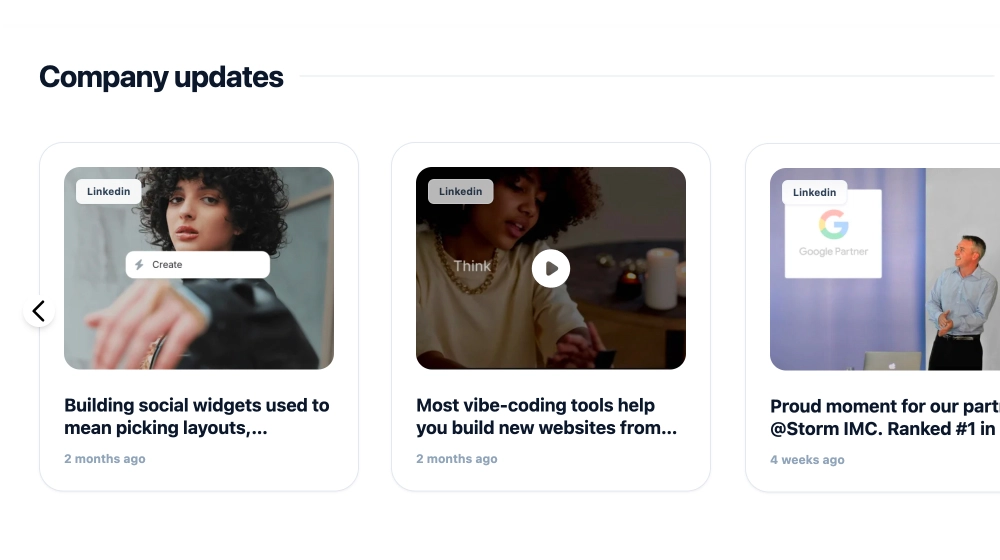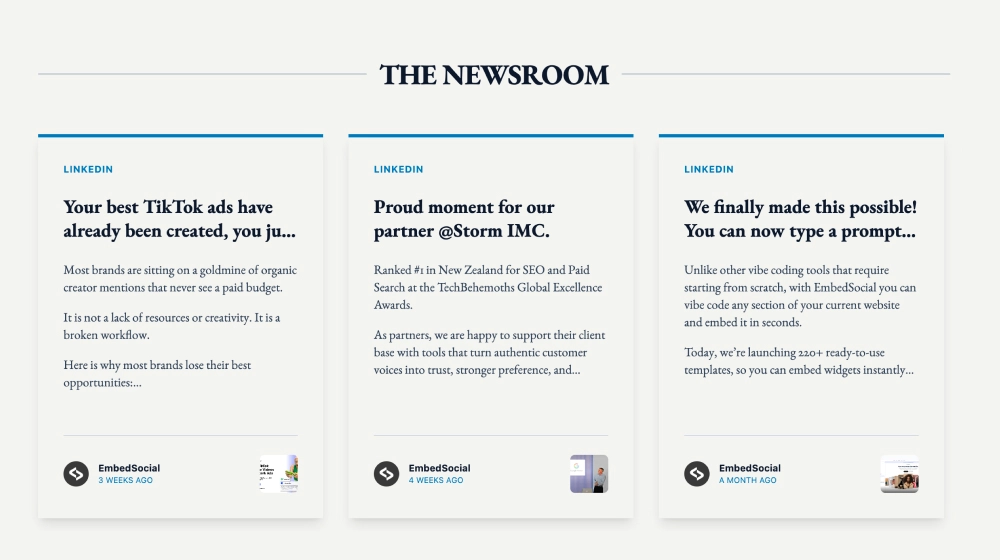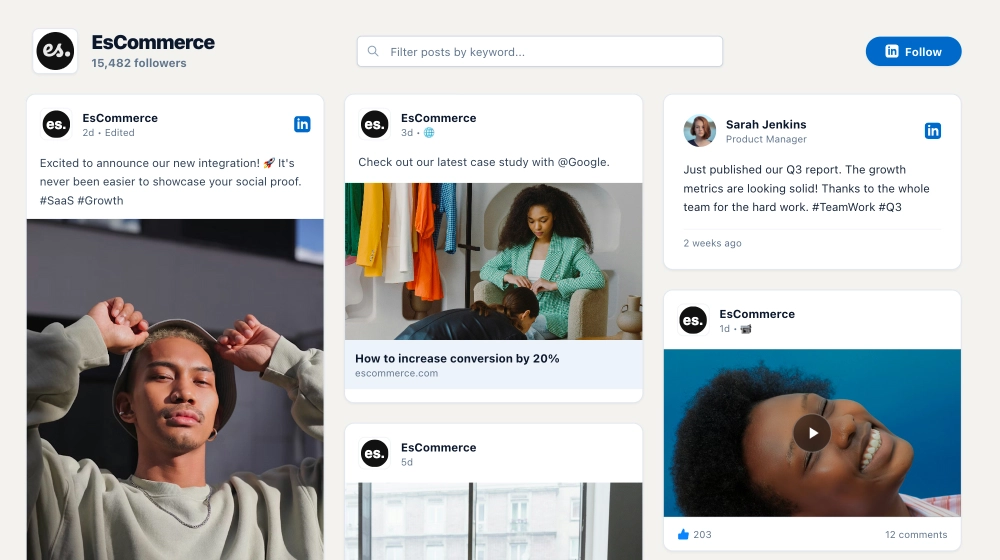
A LinkedIn company feed widget shows your company page posts on your website and keeps them current without manual updates. This template arranges posts in a masonry layout, so text updates, images, links and video previews sit together in flexible columns. It’s one of the layouts for the EmbedSocial LinkedIn feed widget.
What the LinkedIn company feed widget shows and where to place it
A LinkedIn company feed widget is an embedded section that pulls posts from a LinkedIn company page you manage and displays them on your site. You connect the page once, and new posts sync automatically.
Use it when your LinkedIn page already carries company news, hiring updates or customer stories. Visitors see that activity without leaving your site.
A LinkedIn masonry feed suits pages with mixed post types. Each card keeps its natural height, so a long text post and a short image post sit side by side without awkward gaps.
Visitors can search the feed by keyword from the top bar and follow your page with one click. Every card opens the original post on LinkedIn.
- Homepage: shows first-time visitors that the company is active and posting.
- Pricing page: recent customer stories and product updates give context while visitors compare plans.
- Product pages: launch posts and feature updates back up the product details.
- Landing pages: event, webinar and industry posts support the page’s message with real activity.
How to add a LinkedIn company feed widget to your website
- Connect your LinkedIn company page as a source in EmbedSocial.
- Select the LinkedIn Feed Masonry template from the widget templates.
- Customize the header area (logo, follower count), enable Follow, and adjust spacing/card styling.
- Copy your embed code (JavaScript or iFrame).
- Paste it into your CMS or site builder (WordPress, Shopify, Wix, Squarespace, or custom HTML).
- Publish. Your feed updates automatically as you post on LinkedIn.
You can try the template on a 7-day free trial before you publish it.
WordPress
Copy the embed code from EmbedSocial, open your page in WordPress and add a Custom HTML block. Paste the code, then click Update.
Prefer shortcodes? Install the EmbedSocial plugin and paste the widget shortcode into a Shortcode block. The full walkthrough is in the LinkedIn feed WordPress guide.
Shopify
Install the EmbedSocial: Shoppable UGC app from the Shopify App Store, connect your LinkedIn page and copy the code from the Embed tab.
In Shopify admin, go to Online Store, then Themes, then Customize. Add a Custom Liquid section. Paste the code where the feed should appear, such as your homepage.
Wix
In the Wix editor, open the page and click the Add (+) button. Choose Elements, then Embed Code, then Embed HTML.
Paste the widget code into the field, click Update and publish the page. The full walkthrough is in the LinkedIn feed Wix guide.
Squarespace
Open the page in Squarespace and add an Embed Block where the feed should go. Click the block and choose the Code Snippet option.
Paste the widget code into the field, then save and publish your changes.
Masonry vs other layouts
| Layout | Best for | Shows | Template |
|---|---|---|---|
| Masonry | Long feeds with mixed post types | Text, images, links and video previews in flexible columns | LinkedIn Masonry Feed Widget for Company Pages |
| Grid | Tidy rows on content-heavy pages | Equal-size post cards in a tile grid | LinkedIn Grid Widget |
| Slider | Sections with limited space | Article-style cards in a sliding row | LinkedIn Slider Widget for Company Pages |