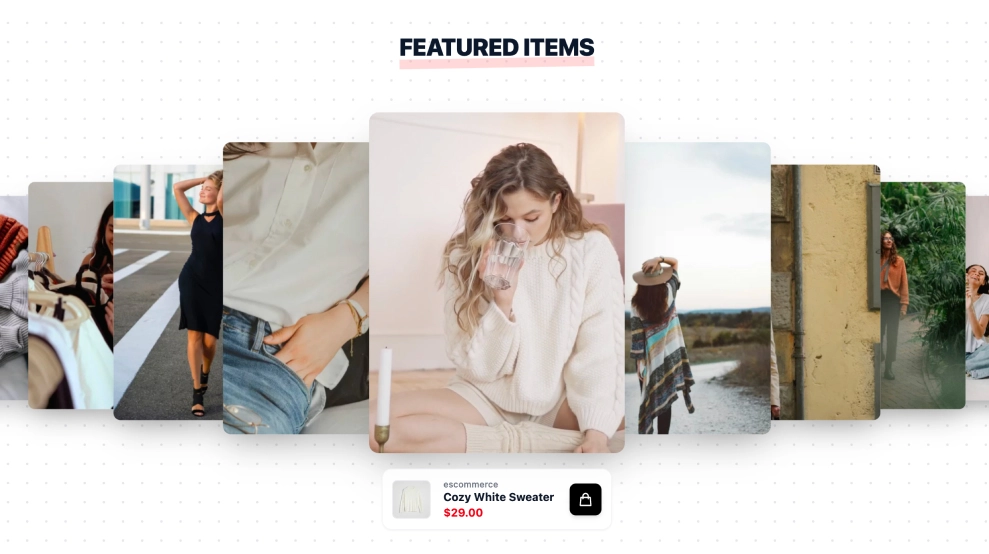
A shoppable UGC video widget shows customer videos on your site with the featured product right under each one. Shoppers see the item in real use and can click through to buy it. This template uses a coverflow slider with one centered card and a product bar showing thumbnail, name and price.
What the shoppable UGC video widget shows and where to place it
A shoppable UGC video widget is an embedded gallery of customer videos where each video is linked to the product it features. It turns content your customers already made into a path to checkout.
With the shoppable widget, you tag products on synced posts with a price, an image and a checkout link. The widget also reports views and clicks, so you can see which videos send people to product pages.
Shoppable UGC works best when the product is easier to judge in motion: fashion, beauty, home goods and gadgets. If you are new to the format, start with what shoppable video is and the examples in that guide.
This template fits homepages, collection pages and campaign landing pages. It has a Featured Items header, a quick shop icon and swipe gestures on mobile.
- Homepage: a Featured Items slider puts best sellers in front of new visitors with real customer proof.
- Pricing page: for subscription or bundle offers, videos of the product in use support the purchase decision.
- Product pages: customer videos answer fit, size and quality questions next to the Add to cart button.
- Landing pages: campaign traffic sees the product in use and can shop without browsing the full store.
How to add a shoppable UGC video widget to your website
- Connect your Instagram/UGC source in EmbedSocial.
- Choose the template from the shoppable templates library.
- Map each featured post to a product (name, price, image, and product URL).
- Customize the header text (e.g., Featured Items) and enable the shop button/icon.
- Copy the embed code (JavaScript or iFrame).
- Paste it into your site (Shopify, WooCommerce, WordPress, Wix, Squarespace, or custom HTML) and publish.
WordPress
- Open the page in the block editor and add a Custom HTML block.
- Paste the EmbedSocial embed code into the block.
- Preview the page, then click Update or Publish.
Shopify
- In your Shopify admin, go to Online Store, then Themes, and click Customize.
- Open the page or product template where the widget should appear and add a Custom Liquid section.
- Paste the embed code into the section and click Save.
Wix
- Open the Wix Editor and click Add Elements.
- Choose Embed Code, then Embed HTML, and place the element on the page.
- Click Enter Code, paste the embed code, click Update and publish the site.
Squarespace
- Edit the page and click Add Block where the widget should go.
- Choose Code and paste the embed code into the block.
- Save the page and check the result on the live site.
Coverflow slider vs other layouts
| Layout | Best for | Shows | Template |
|---|---|---|---|
| Coverflow video slider | Featuring a few hero products | One centered video card with a product bar | Shoppable UGC Video Widget |
| Autoplay video carousel | Grabbing attention on scroll | Several playing video cards with name and price | Autoplay Shoppable Video Widget |
| Shoppable grid | Browsing many looks at once | Lifestyle images with product tags | Shoppable Grid |