You can now add a live social media feed, Google reviews, and UGC to any Framer site by dragging one component from the Insert panel. No custom code, no dev on standby.
Here’s the problem: a Framer site can look flawless and still lose the deal. Polished design says “we’re professional.” It doesn’t say “real people trust us.”
That gap used to mean pasting JavaScript into a Custom Code block and hoping it survived the next redesign. Non-technical clients hated touching it, and one wrong paste could break the whole page.
EmbedSocial just closed that gap with the EmbedSocial component in the Framer Marketplace, and this walks you through exactly how to use it, from your first EmbedSocial account to a published widget.
Why static Framer sites lose deals
Visitors decide whether to trust a business in seconds, and they’re looking for one thing: proof someone else already took the risk.
A site with no reviews, no social feed, and no visible customers reads as untested, even if the design is gorgeous. Agencies feel this pressure most, because a client’s site has to convert on day one, not eventually.
On the other hand, a live social media feed and real Google reviews tell a visitor, in half a second, that this business is real and other people like it.
For a wider look at how social proof works beyond Framer, see our guide to the best social proof tools.
Framer plugin vs. Framer component: what’s the difference
Framer has two separate systems for extending a site, and it’s easy to confuse them. Getting this right matters, because it changes where you go to find EmbedSocial.
Where each one lives in Framer’s interface
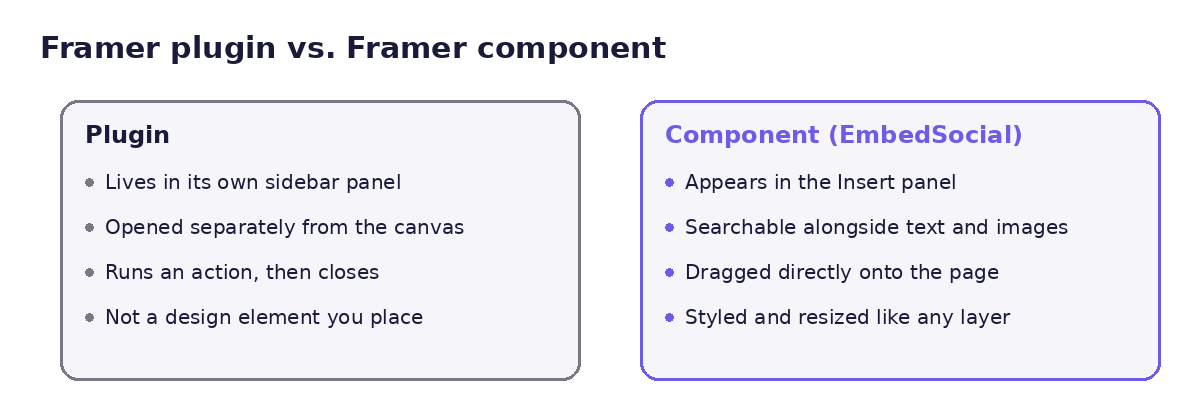
A Framer plugin lives in its own sidebar panel. You open it, run an action, and close it. It doesn’t sit on your canvas as a design element.
A Framer component appears directly in the Insert panel, alongside text, images, and stacks. You search for it, drag it onto your page, and style it like any other layer.
Why EmbedSocial ships as a component, not a plugin
EmbedSocial ships as a component because that’s the format that behaves like a real design element: resizable, draggable, and visible right on the canvas.
A plugin would mean leaving your page to run a separate tool. A component stays where you’re already working, which is faster for agencies building multiple pages a week.
What the EmbedSocial component is (and where to find it in the Framer Marketplace)
The EmbedSocial widget component is listed under Components > Embeds in the Framer Marketplace, built and maintained by the EmbedSocial team.
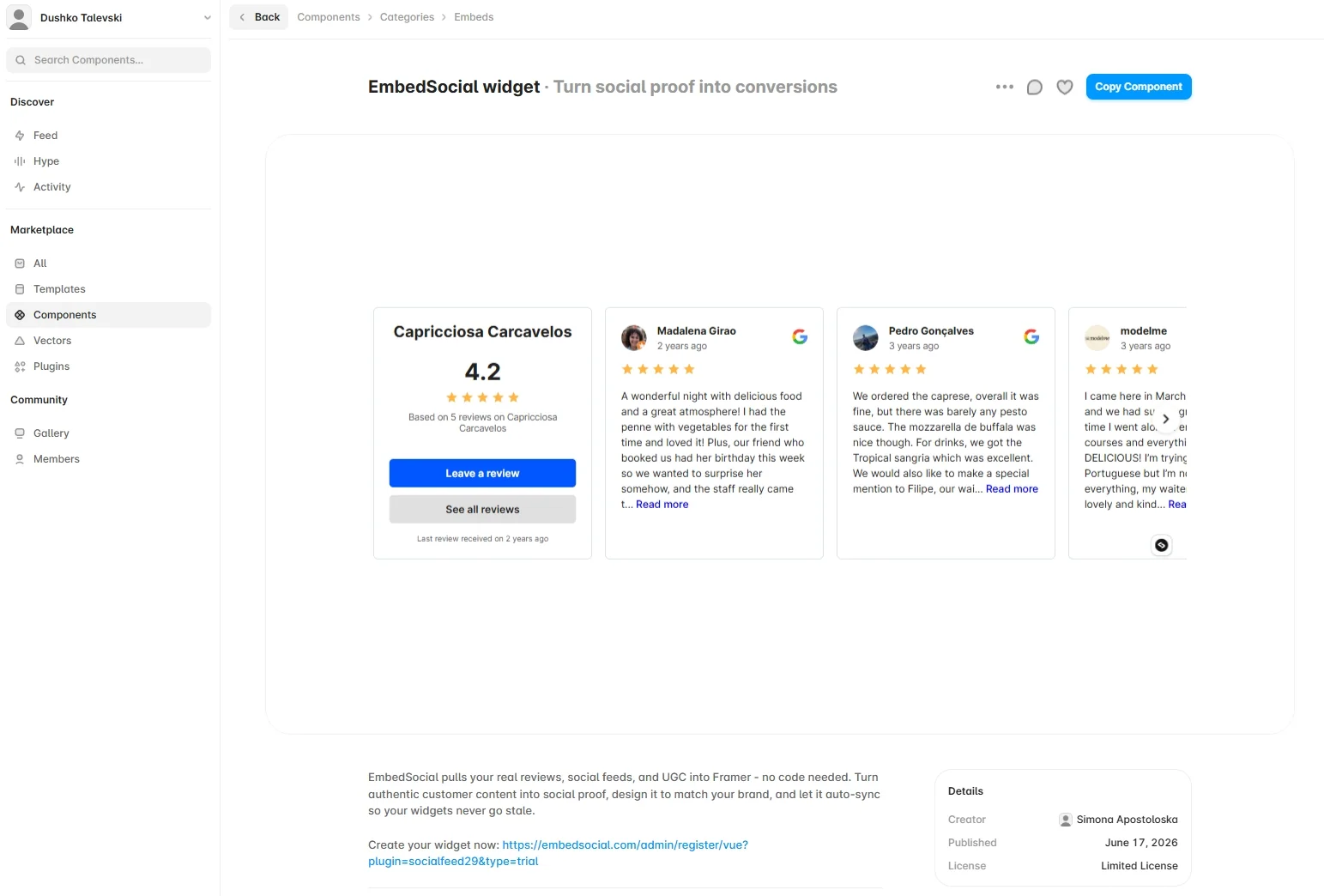
After tapping ‘Copy Component’ you just have to paste it in your Framer project.
You can also search “EmbedSocial” from any Framer project’s Insert panel and the tile appears, the same way Cal.com, Intercom, and Hubspot show up for their categories.
However, before you copy or drag it onto a page, you need one thing from EmbedSocial itself: a widget ref. Here’s how to get one.
Set up your EmbedSocial widget first
The Framer component only renders a widget you’ve already built in EmbedSocial. Three quick steps get you from zero to a widget ref.
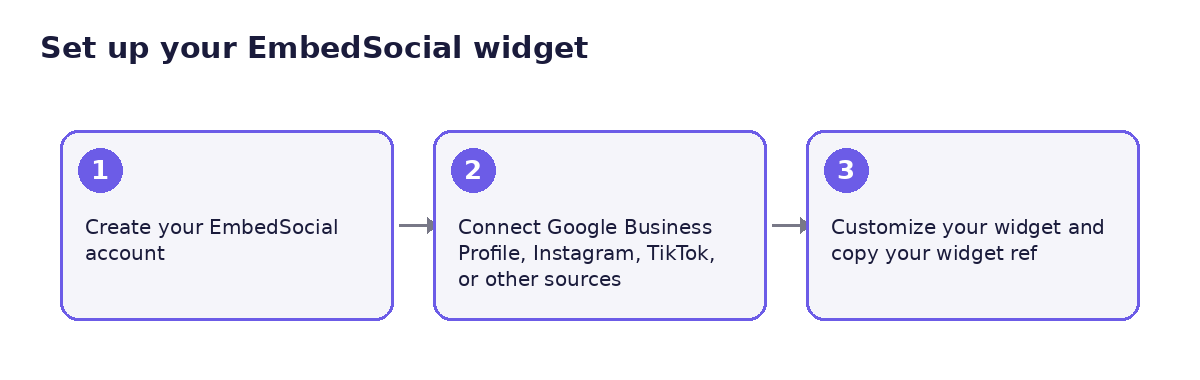
Step 1: Create your EmbedSocial account
Sign up for an EmbedSocial trial account. You can also check out our free plan, which supports a Google Business Profile source with a review badge, showing five random reviews.
Note: You can also connect an Instagram, TikTok, or a Facebook source.
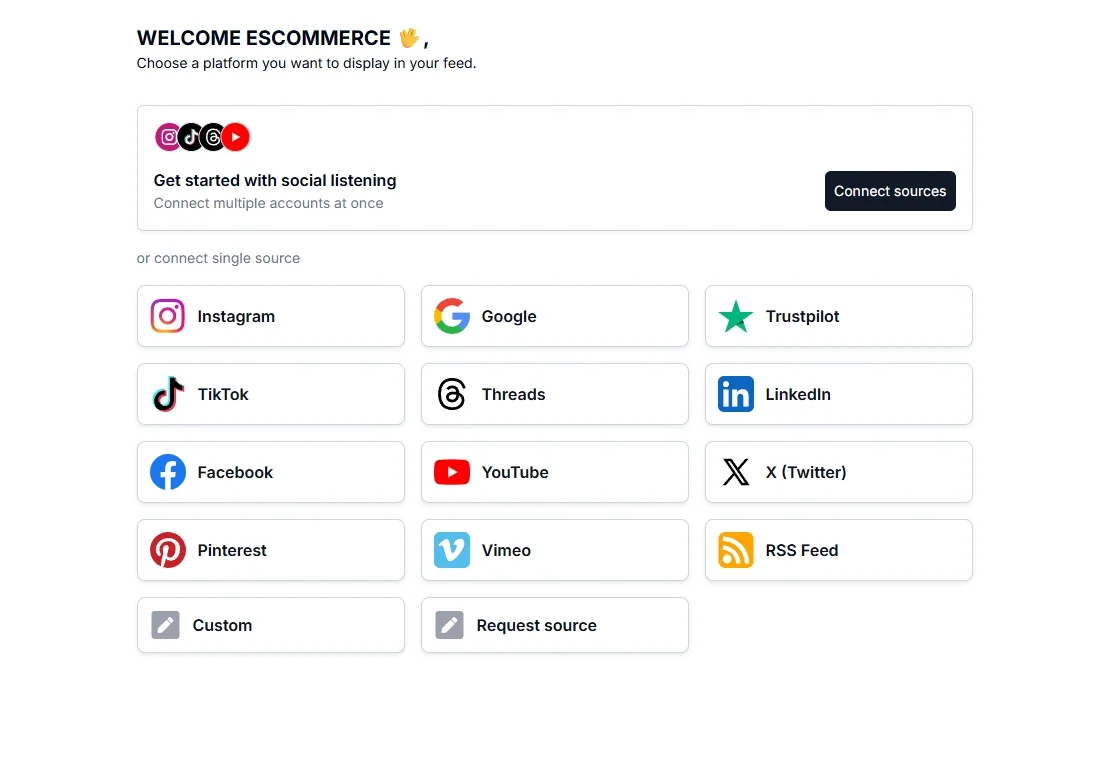
Step 2: Connect your Google Business Profile, Instagram, TikTok, or other sources
Under ‘Sources’, connect the source you want to display: your Google Business Profile for reviews, your Instagram or TikTok account for a feed, or multiple sources at once for a combined wall.
No API key or developer account needed on your end. EmbedSocial holds the official API integrations, so connecting a source is a login, not a setup project.
Step 3: Customize your widget and copy your widget ref
Once your source(s) are connected, head on over to the ‘Widgets’ section to generate and customize your new widget using our advanced AI widget builder.
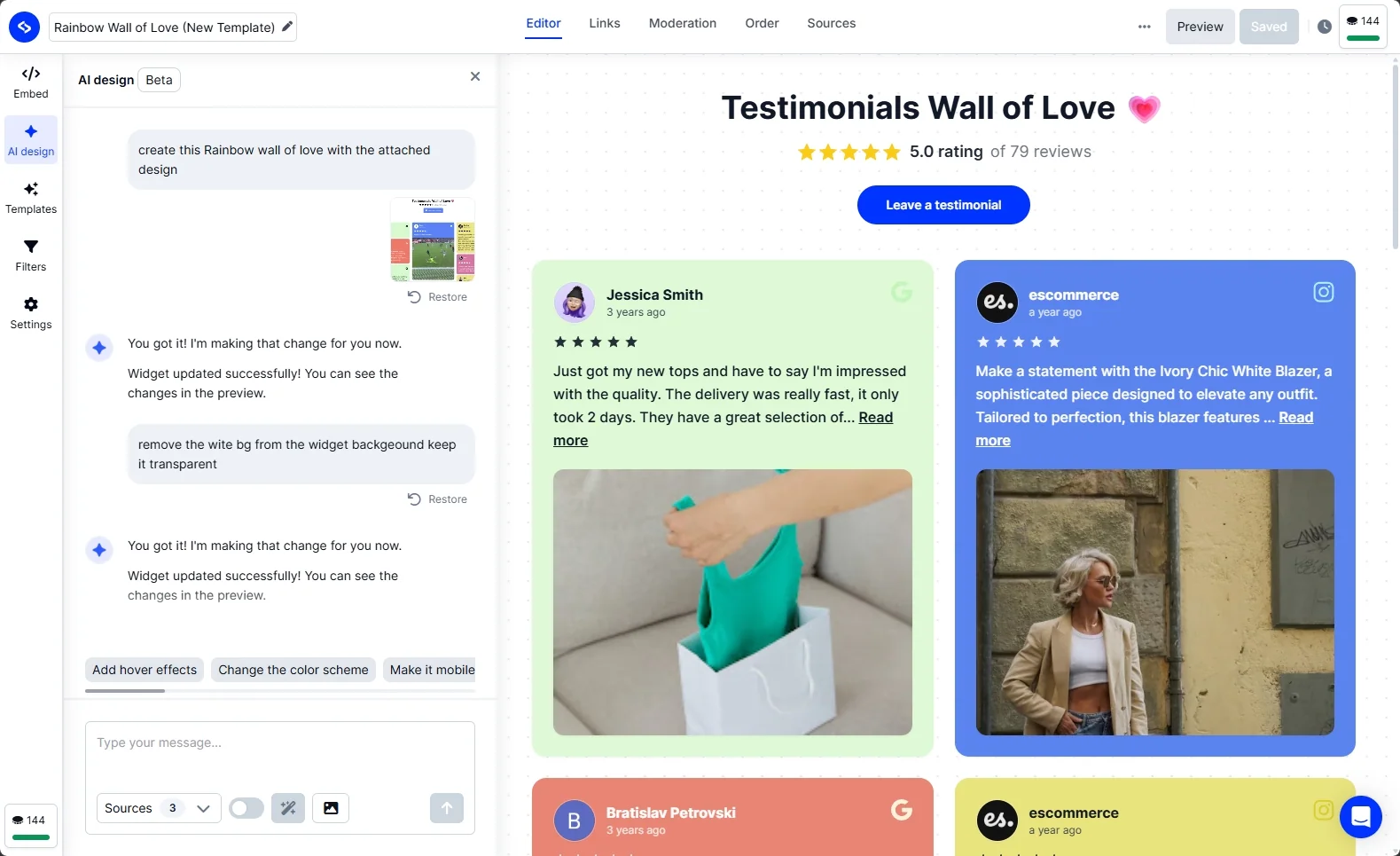
The AI Widget Builder handles most of this with a prompt: describe your brand colors, fonts, or layout, and it applies the changes. The widget itself is fully responsive, so it adapts automatically to Framer’s mobile, tablet, and desktop breakpoints without extra configuration on your end.
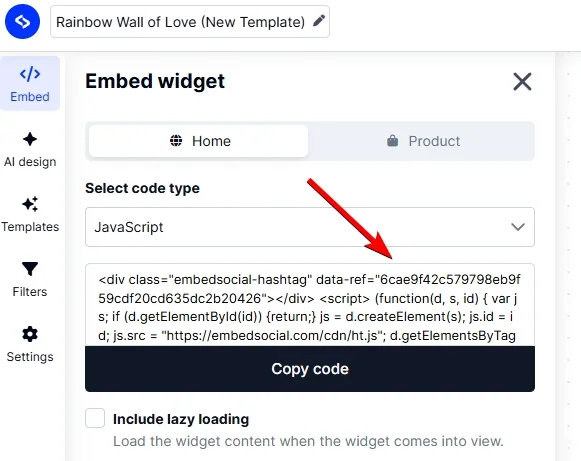
Once you are done, open the widget’s ‘Embed’ tab and copy the data-ref value. That string is your widget ref. Keep it handy, it’s the only piece of information Framer needs from you.
Add the EmbedSocial component to your Framer site
With a widget ref copied, installing it in Framer takes three steps and no code editor.
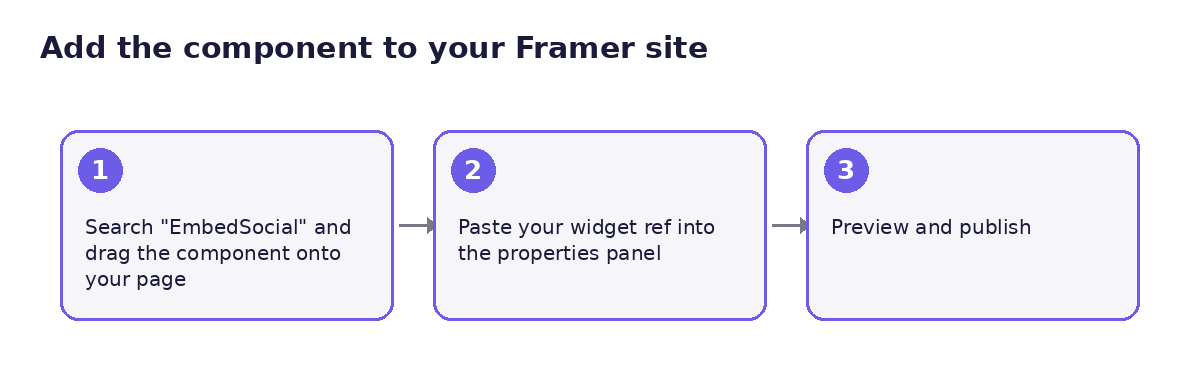
Step 1: Paste the component into your Framer project
It’s simple, just open your Framer project and tap paste to add the component anywhere on the page. You can then move it around and place it wherever you want on the canvas.
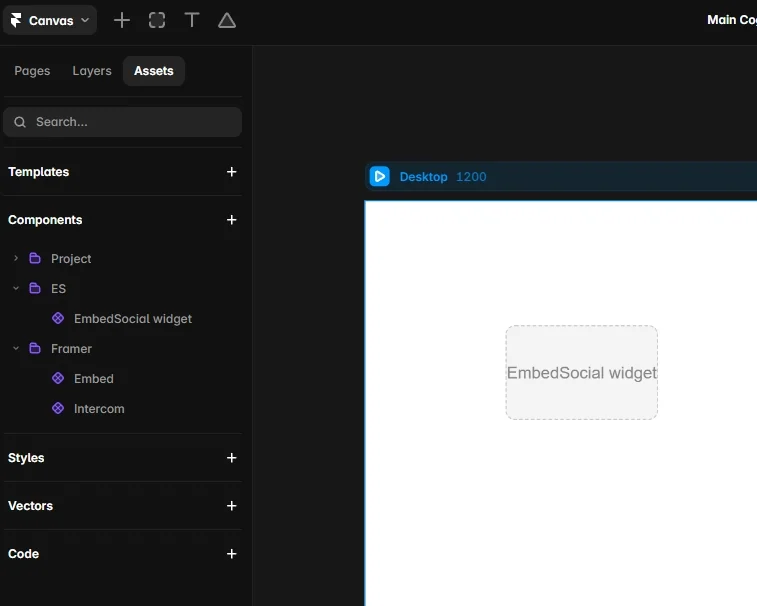
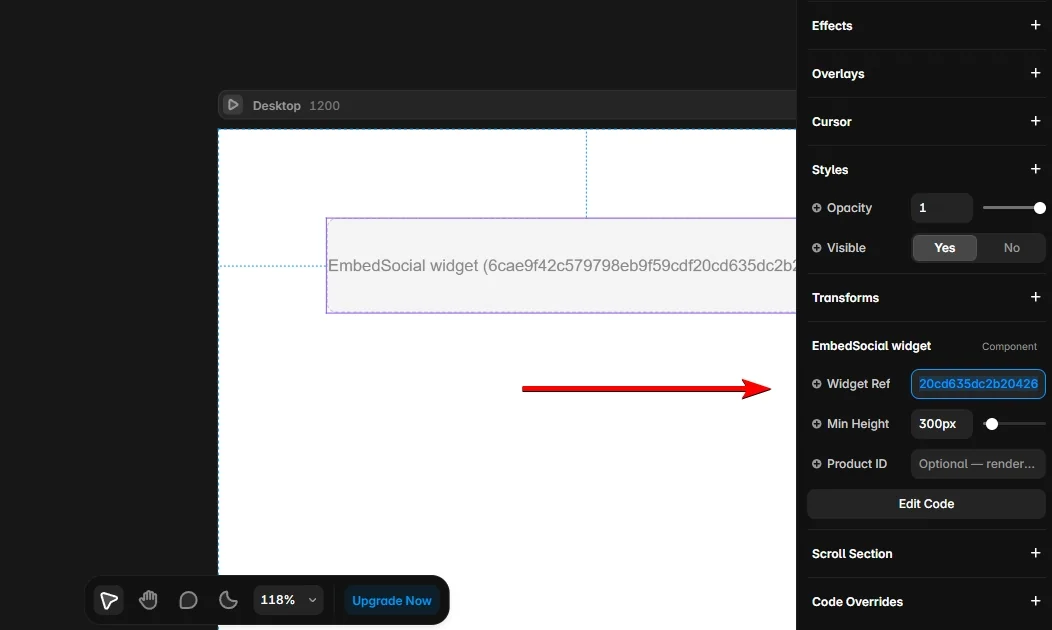
Step 2: Paste your widget ref
Select the component and find the Widget Ref field in the right-hand properties panel. Paste the value you copied from EmbedSocial.
Step 3: Preview and publish
Click the ‘Preview’ (play button) at the top to confirm your feed or reviews load correctly, adjust height and width to fit your layout, then publish. That’s the entire process.
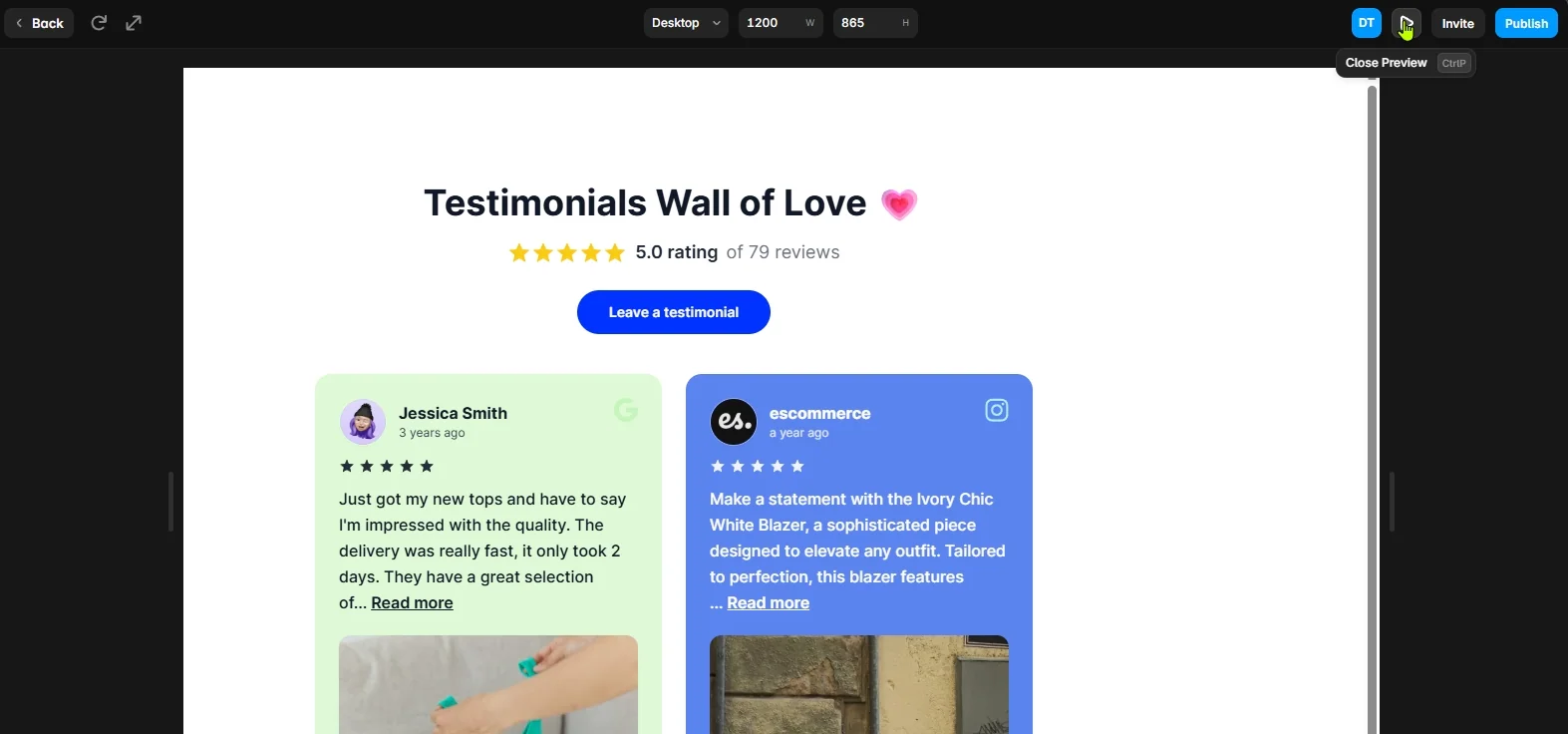
The component isn’t limited to one content type. It renders whatever widget you point it at. Here’s what that looks like across the sources people ask about most.
What you can add to your Framer site
I picked three live templates for each source below so you can see exactly what lands on the page. Copy the widget ref from any of them and it drops into the Framer component the same way.
Add Google reviews to your Framer site
Show your star rating, review count, and individual reviews with photos and names, pulled live from your Google reviews widget and synced roughly every 10 minutes.
This is the fastest trust-builder on a Framer site: a real star rating next to real names does more for a first-time visitor than another paragraph of marketing copy.
See template: Google Reviews Slider
Add Instagram and TikTok feeds to your Framer site
Display your latest posts, reels, or TikTok videos in a grid, carousel, or autoplay layout, powered by the same Instagram widget and TikTok widget engines used across EmbedSocial’s other integrations.
A live feed signals that the business is active today, not just when the site was built. That’s useful on homepages and portfolio pages alike.
See template: Instagram Feed Widget
Add testimonials and shoppable UGC to your Framer site
Combine reviews from multiple platforms into one testimonial wall, or tag products inside UGC posts with the shoppable widget to turn the feed into a shoppable gallery.
See template: Testimonial Wall
Pro tip: Build once in EmbedSocial, reuse across sites. The same widget ref can render on a Framer page, a Webflow page, or a WordPress site, so a client rebrand doesn’t force you to rebuild the widget from scratch.
Old custom-code method vs. the new component
If you’ve used EmbedSocial on Framer before, you likely pasted a script into a Custom Code block. Here’s how that compares to the component.
| Custom code (old) | Component (new) | |
|---|---|---|
| Setup | Paste JavaScript into Embed or Custom Code block | Copy component code or drag component from Insert panel |
| Editing | Requires re-opening the code block | Edit visually in properties panel |
| Discoverability | Requires knowing the embed code exists | Searchable in Insert panel |
| Best for | Full HTML customization | Fast, no-code setup |
Both methods still work. The custom code approach is still there if you need more control over placement. But for most builds, the component is faster and harder to break.
Conclusion: Install the EmbedSocial component and turn your next Framer site into proof
A well-designed Framer site still needs evidence that real customers exist. The EmbedSocial component gets you there without a single line of code, from account setup to a published widget in minutes, not a dev sprint.
Search “EmbedSocial” in your next Framer project’s Insert panel and see what a live social media feed or a row of real Google reviews does for a page that used to be static. You can also find it at this link.


