Your social media portfolio is only as current as your last screenshot. Land a new brand deal, shoot a new reel, or land a great review, and the page you built in Canva still shows last month’s work until you go back in, re-export, and re-upload. Do that every week and your “portfolio” quietly turns into a part-time maintenance job.
There is a faster fix, and it does not involve leaving Canva. Instead of pasting in a static image grid, you can embed a live EmbedSocial widget that pulls your actual Instagram, TikTok, or video posts straight into the page. Post something new, and the portfolio updates itself. No re-export, no re-upload, no second job.
This guide walks through why that gap exists, exactly how to close it in three steps, and which widgets to lead with if your portfolio is built on images and video (which, if you are a UGC creator or social media manager, it almost certainly is).
Why social media portfolios go stale
The real cost of a Canva portfolio is not the design. It is the upkeep. Every new piece of content means opening the file again, cropping a new screenshot, swapping it in, and re-exporting. Miss a few weeks and your “recent work” section is quietly out of date the moment a client clicks through.
Part of the reason so many portfolios end up static is a genuine platform limitation: Canva does not accept JavaScript or iframe embed codes. That rules out the usual way tools like EmbedSocial add a live feed to a website, so most creators default to the next easiest option: a screenshot.
The good news is that limitation has a clean workaround, not a dead end. Canva supports embedding by link, through its built-in Embed app, and that is all a widget needs.
The fix: embed a live widget instead of a screenshot
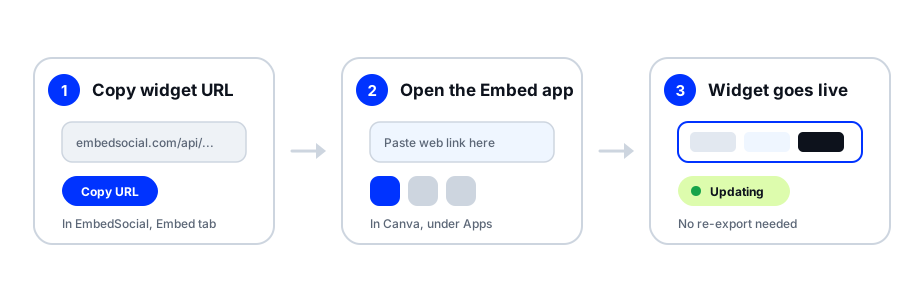
Here is the entire process. It takes about two minutes once your widget exists.
Step 1: Create your EmbedSocial widget
Pick the widget that matches the work you want to show. A Feed widget (Instagram, TikTok, LinkedIn, YouTube) is the right call for showing off actual content, and a Reviews or UGC widget works if you want to lead with client testimonials instead.

Start from a template or from scratch, then connect the account whose work you want on the page. EmbedSocial connects Instagram, TikTok, Threads, LinkedIn, YouTube, Facebook, Pinterest, Vimeo, and more, so the source list covers wherever your best work actually lives.

One thing worth knowing if you set up a widget a while ago: all Feed widgets, including older ones built before this update, now support Canva embedding, along with UGC Reviews widgets. You do not need to rebuild anything to use this method.
Step 2: Copy the widget’s URL embed link
Open your widget in EmbedSocial and click the Embed tab (the </> icon in the left sidebar). Switch the format dropdown to URL, then click Copy URL. That single link is what makes the whole thing work in Canva.

Step 3: Paste it into Canva’s Embed app
Back in your Canva design, open Apps in the left toolbar and search for “Embed.” Select the Embed app, paste your widget URL into the Paste web link here field, and press Enter. Your widget appears right on the canvas, and you can resize or reposition it like any other element.

Official tutorial: How to embed social media feeds in Canva →
The best widgets to lead your portfolio with (images and video first)
If your work is visual, which it is for most UGC creators, social media managers, and content freelancers, lead your portfolio with a widget that shows the work itself, not just claims about it.
Instagram Feed widget
Your main visual work-sample grid. Every new post you publish is pulled in automatically, so the portfolio’s “recent work” section keeps pace with your work instead of drifting months behind it. See the Instagram Feed widget or the free Instagram widget if you are just starting out.
Instagram Reels widget
If you are a video-first creator, screenshots undersell you. An Instagram Reels widget embeds your actual reels, motion, sound, and all, so a potential client can watch your work instead of imagining it from a thumbnail.
TikTok Feed widget
Same logic for creators whose best work lives on TikTok. The TikTok Feed widget keeps your latest videos front and center without you touching the Canva file again.
Video gallery widget
Want a curated highlight reel instead of just your latest posts? The video gallery widget lets you hand-pick your strongest video work across platforms and present it as one polished gallery.
LinkedIn Feed widget
If your “work” is campaigns, case studies, and B2B content rather than reels, the LinkedIn Feed widget is the more relevant lead widget for a social media manager or marketing portfolio.
Multi-platform social wall
Post across several platforms and do not want to pick just one? A multi-platform social wall pulls content from multiple channels into a single embed, which suits generalist creators well.
Best practices for your Canva social media portfolio
A live widget solves the freshness problem. These five habits solve everything else that makes a portfolio actually convert a viewer into a client. Each one below is paired with a template from the widget template library that already does the job, so you can see the pattern before you build it.
Add social proof next to your work
Work samples show what you can do. Testimonials show that someone already hired you and was happy about it, which is a different kind of trust signal entirely. Put the two next to each other: the feed proves you can make the work, the reviews prove you were good to work with. Brands hiring a UGC creator or social media manager are trying to judge risk, not just taste, so pair your grid with a wall of love for client quotes or a testimonial widget for a more structured layout.
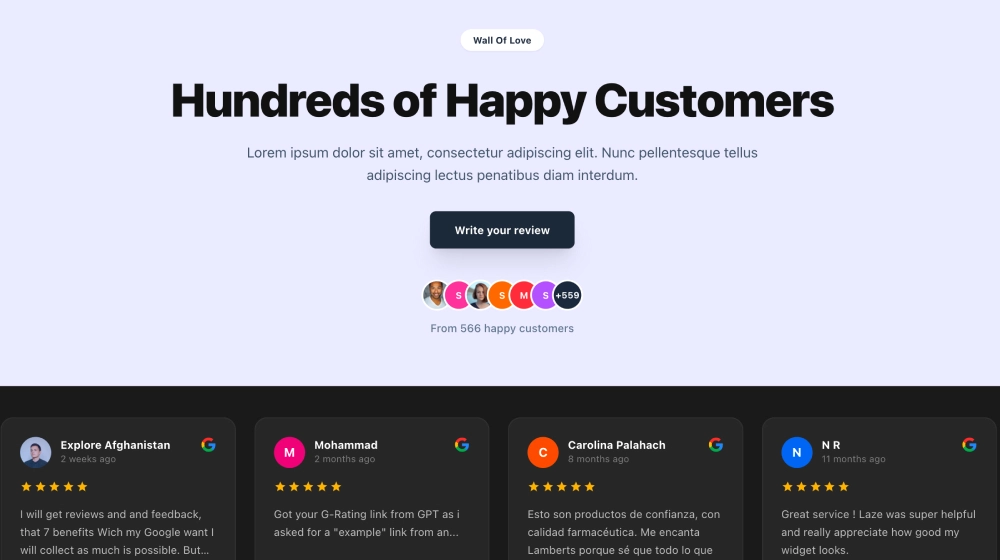
Template to copy: Dark Wall of Love. It leads with a headline and a review count, then lays the quotes out as cards, which reads as a credentials section rather than an afterthought bolted to the bottom of the page.
Keep your bio and contact info above the fold
Do not make a client scroll past your entire feed before finding out who you are or how to reach you. A short bio and a clear contact method belong near the top, before the widget. The people who bounce are usually the ones who liked the work but could not tell in three seconds whether you were available, what you do, or how to reach you.
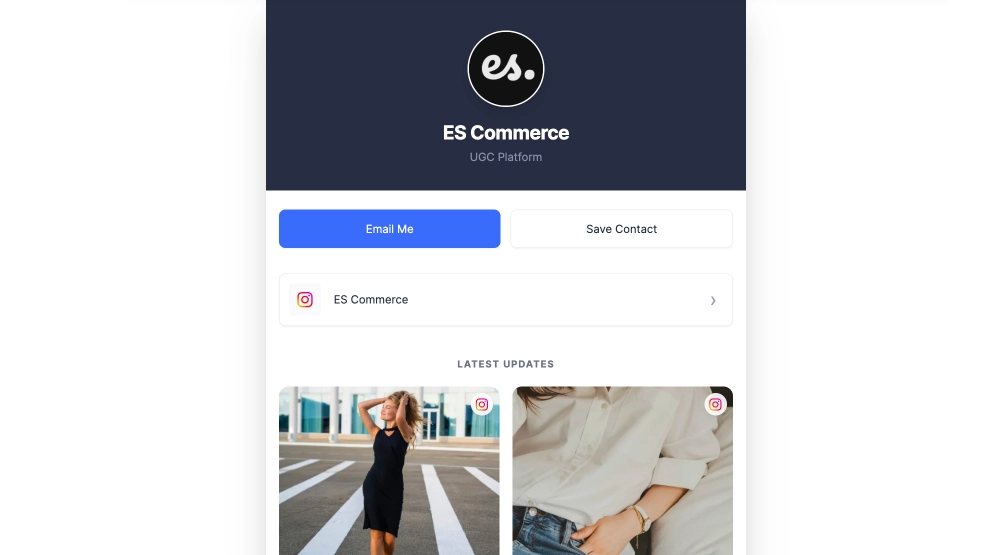
Template to copy: Professional Link-in-Bio Page. Note the order: name, role, then contact buttons, and only then the work. That is the sequence to mirror at the top of your Canva page, whether or not you use a link-in-bio page as well.
Curate quality over quantity
A live widget does not mean an unfiltered dump of everything you have ever posted. Use your widget’s settings to show your best work, not just your most recent, so a first-time visitor sees your strongest content first. A feed of your last nine posts is a timeline; a feed of your nine best is a portfolio, and the difference is entirely in the settings.
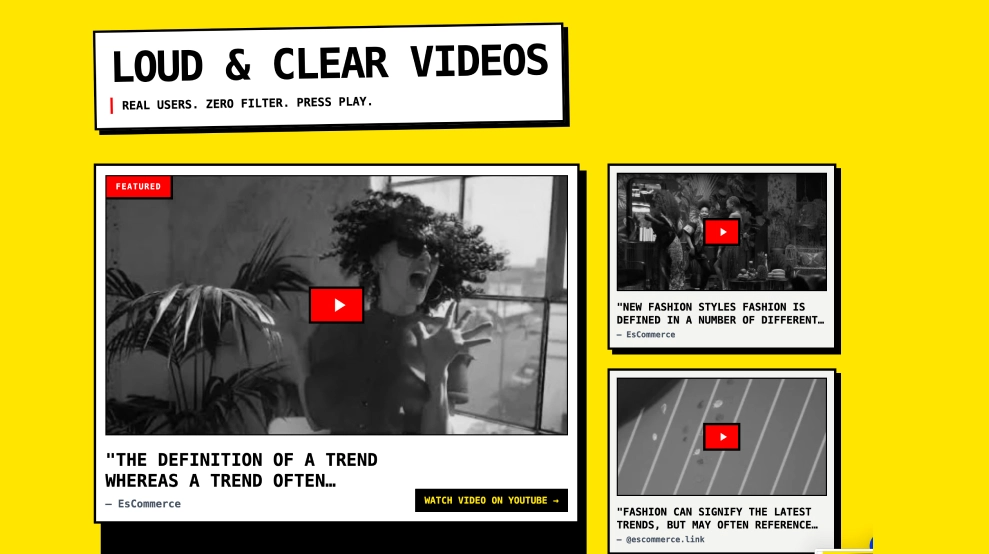
Template to copy: Futuristic Video Gallery. It is built for a hand-picked set rather than a chronological dump, which is the right shape when your best three pieces of work are worth more than your last thirty.
Match your widget to your strongest platform
Lead with the format that best represents you: a video-first creator should open with Reels or TikTok, a B2B marketer should open with LinkedIn, and a generalist should open with a multi-platform wall. The lead widget is the first impression, so make it the one that is actually your strongest work, not the platform you post on most often out of habit.
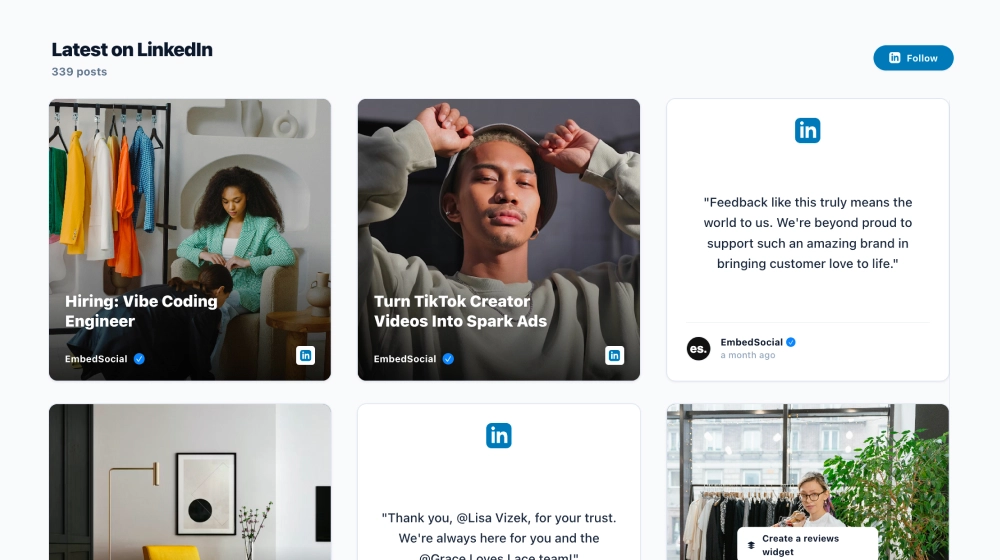
Template to copy: LinkedIn Grid Widget if your case studies and campaign write-ups live on LinkedIn. Swap in a Reels or TikTok layout instead if your strongest work is video; there is a matching layout for every source EmbedSocial connects to.
End with a clear call to action
A portfolio that ends after the last post is a dead end. Tell the visitor exactly what to do next: book a call, send a message, or check your pricing. Do not assume they will figure it out on their own.
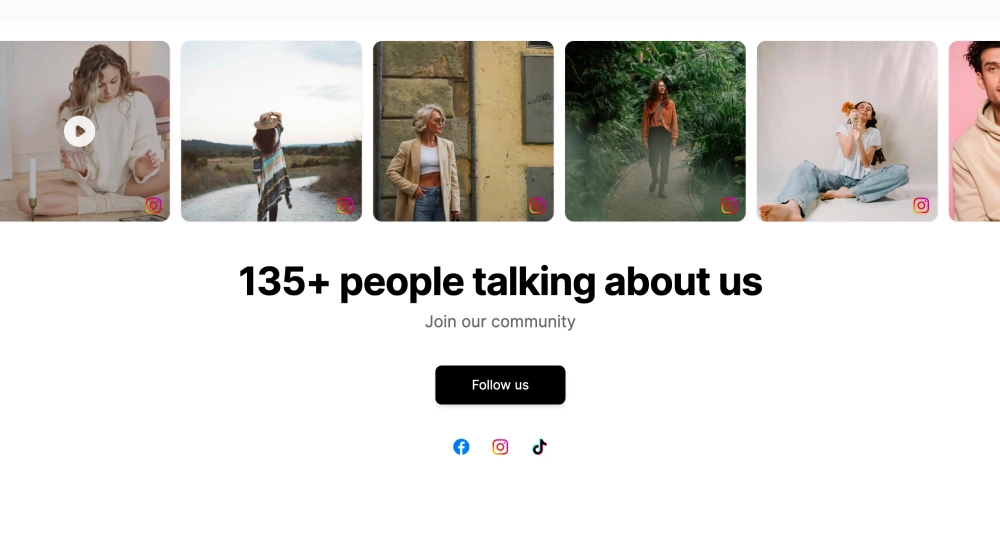
Template to copy: Community Social CTA. It closes on content and then asks for the next step in the same block, which is the pattern to copy at the bottom of your portfolio page.
Canva templates to start from
You do not have to design a portfolio layout from scratch before adding your widget. EmbedSocial has two templates built specifically for this:
Start from one of these, then follow the three steps above to swap in your live widget. Canva’s own portfolio templates work as a base layout too, if you want to build the surrounding design yourself first.
Social media portfolio examples: static vs. live
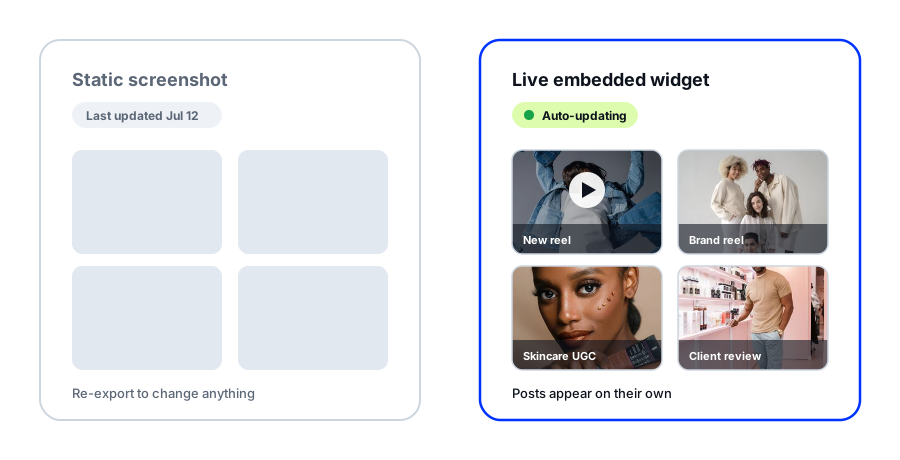
Picture two versions of the same portfolio page. The first is a screenshot grid, frozen on whatever you posted last month, that you have to manually refresh every time you land new work. The second is the same layout, but the grid is a live embedded feed: this week’s posts, this week’s reel, pulled in automatically on your plan’s sync schedule, with no file to reopen.
That is the entire difference this guide is about. For a broader look at real creator portfolio examples and formats, EmbedSocial’s guide to UGC portfolio examples is worth a look, especially if your portfolio leans more toward brand collaborations and UGC-specific presentation. And if you’d rather have a page that stays in sync with your posts instead of a static export, build it with the UGC portfolio builder.
If the format itself is new to you, start with what counts as user-generated content, then look at the UGC platforms brands hire through to see where a portfolio link actually gets opened.
One more option worth knowing about: if your portfolio doubles as a storefront, a shoppable UGC widget lets you tag products on those same posts, so a visitor who likes a piece of work can click straight through to the product or checkout page for it.
Conclusion
A static portfolio is a snapshot. A live embedded widget makes it a moving picture of your best work, one that keeps itself current as you post instead of waiting on you to rebuild it. The whole setup, from copying a widget’s URL to pasting it into Canva’s Embed app, takes minutes, not a redesign.
If your Canva portfolio has been quietly falling behind your actual work, this is the smallest change that fixes it for good.
Turn your next post into portfolio proof, automatically
EmbedSocial widgets keep your Canva portfolio showing your actual, current work: your latest posts, your best reels, your real reviews, all without a single re-export.