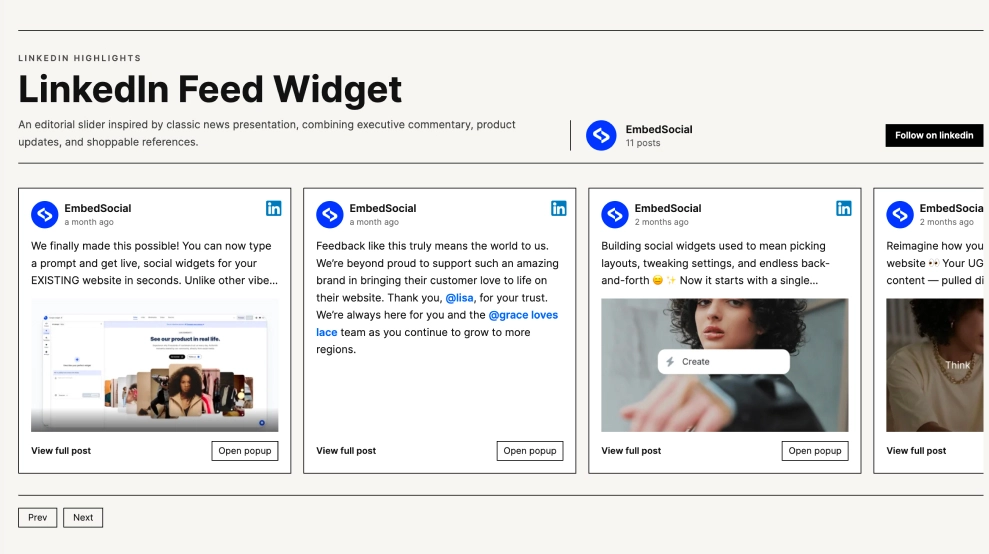
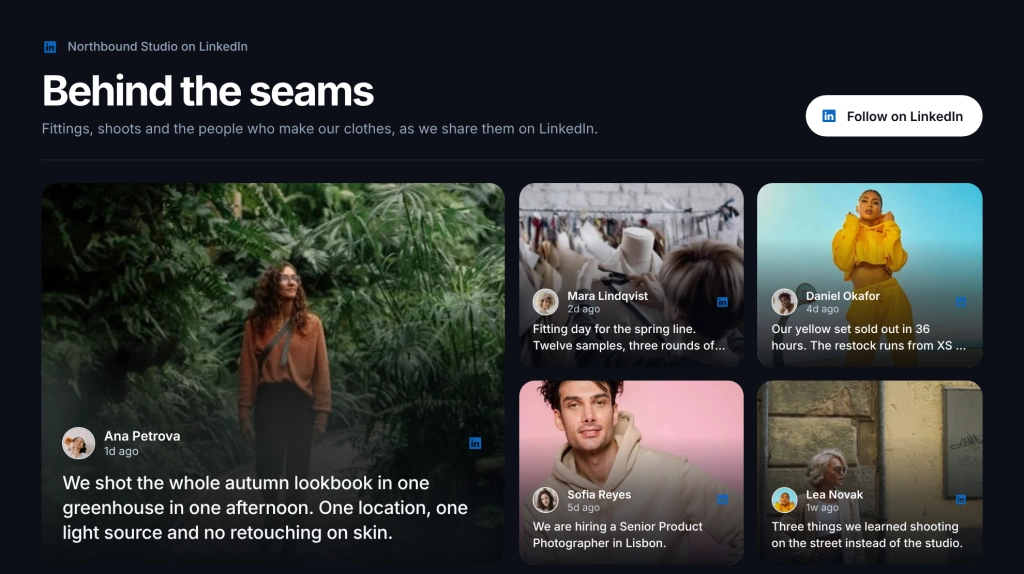
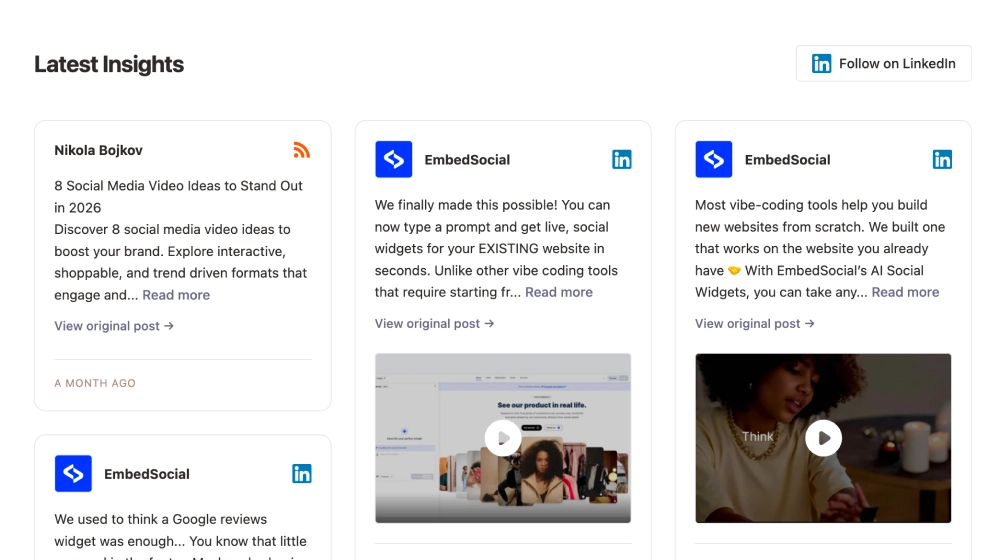
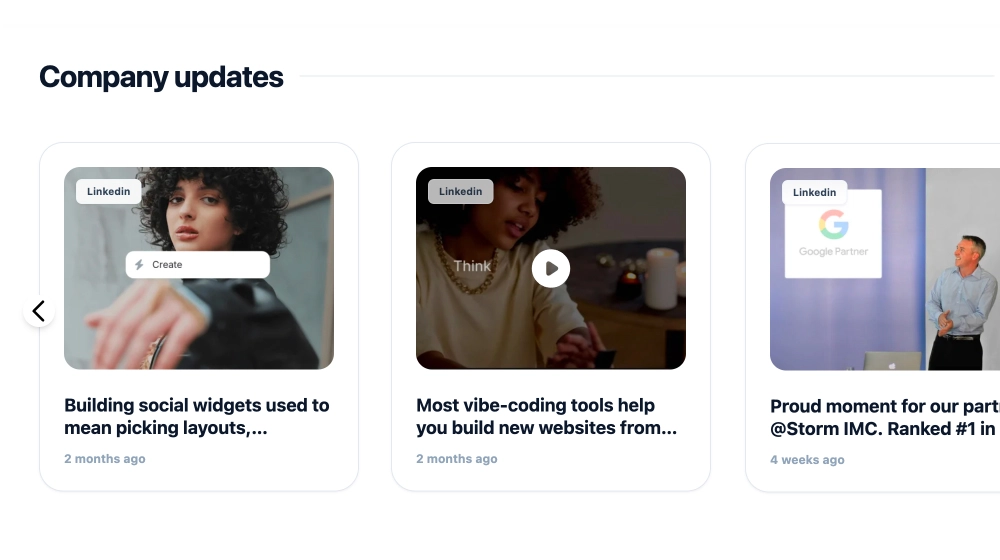
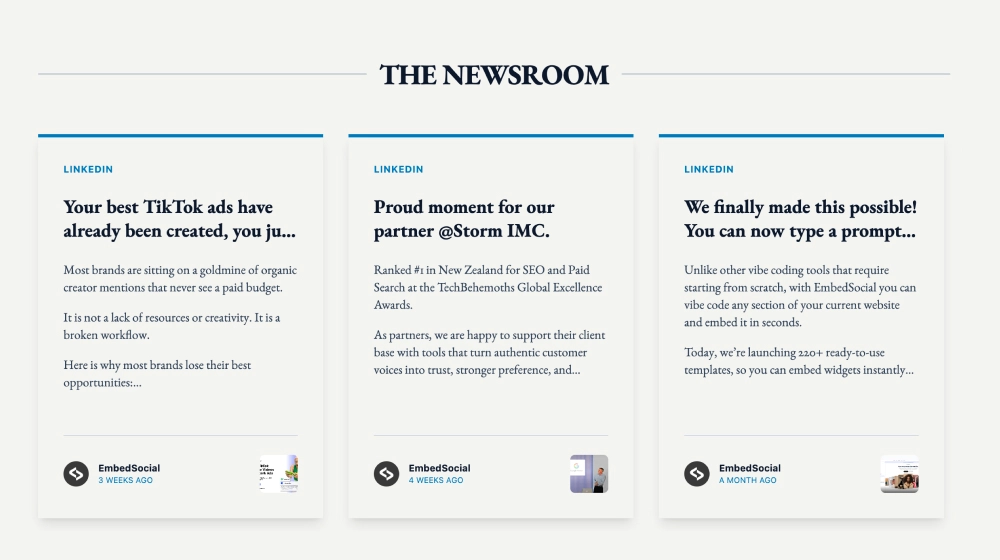
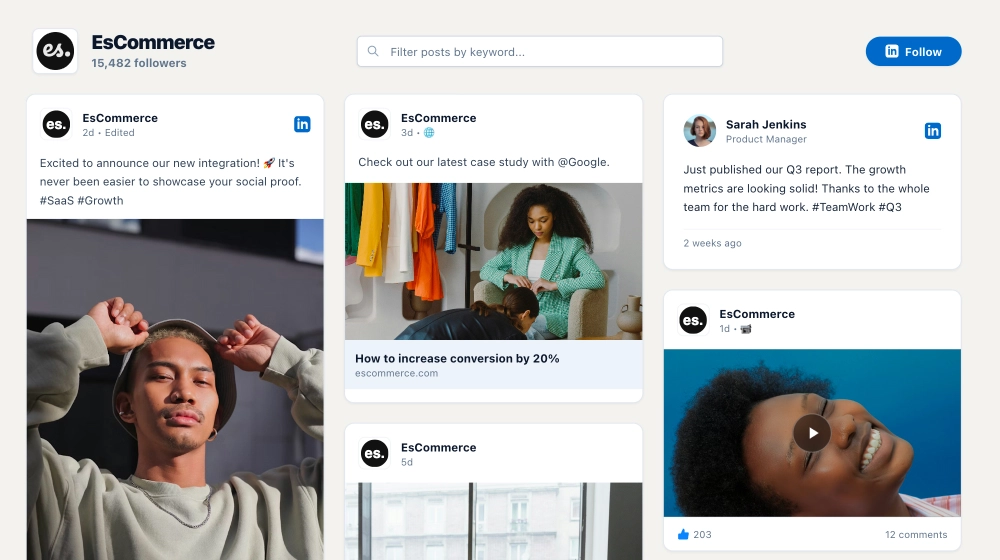
A LinkedIn follow strip is a slim section on your website with a Follow button for your LinkedIn company page and your latest LinkedIn posts in a row beside it. Visitors see what your company shares on LinkedIn without leaving your site, and the button takes them straight to your page to follow it. Clicking a post opens it in a lightbox with the full text.
What the strip shows
- Your LinkedIn logo, company page name and a Follow button that opens your page
- A row of square post tiles that visitors swipe or scroll sideways
- A lightbox for each post with the image, the author, the date, the full text and a View on LinkedIn button, plus Previous and Next to move through the posts
It fits a footer, a careers or about page, or the end of a long landing page, anywhere a full feed would take too much room. It suits B2B companies, agencies and employers that want more followers on their company page.
How to add the LinkedIn strip to your website
You need admin access (Super Admin or Content Admin) to the LinkedIn company page you want to show.
- Click Try this template to start your 7-day free trial on Pro, the plan that includes LinkedIn page posts.
- Click + Add source and, under or connect single source, choose LinkedIn.
- Pick LinkedIn Account to show your page’s own posts, then click Next: Connect account and Connect with LinkedIn. To show posts that tag your page instead, pick LinkedIn Mentions.
- Choose your profile, select your company page from the list and click Connect source. When you’re asked to pick a widget template, choose LinkedIn Follow Strip.
- In the widget editor, click Embed, then Copy code, and paste it into your website builder’s custom HTML or embed block.
The full walkthroughs are in our LinkedIn source guide and embed guide.
Strip or full LinkedIn feed?
The strip shows a few recent posts in a small space and puts the Follow button first. If you only need the button, a plain link to your LinkedIn page works too. For a full grid, a wall or a slider of LinkedIn posts with their text on the page, start from the LinkedIn widget, and see how to embed a LinkedIn feed for every method side by side.