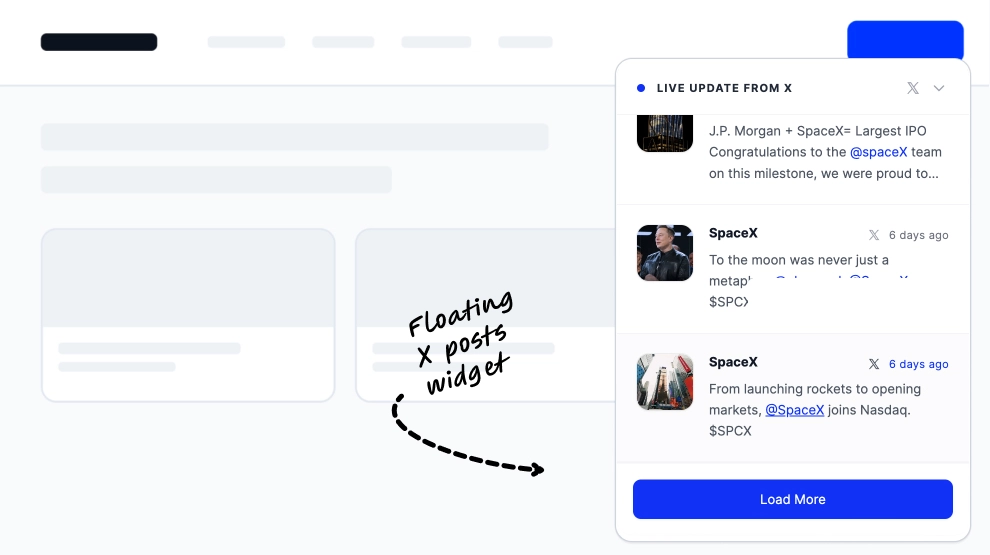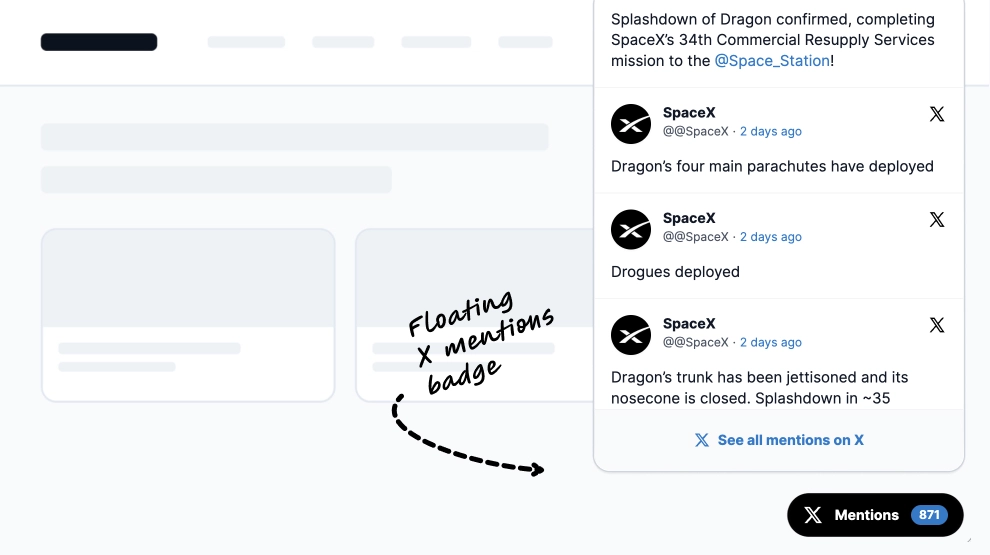
A Twitter hashtag wall collects public X posts that use your hashtag and shows them on your website or on a screen at your event. This template opens the wall in a popup, so visitors can follow the conversation from any page. New posts sync automatically once you connect the hashtag.
What the Twitter hashtag wall shows and where to place it
A Twitter hashtag wall is a display of X posts that share one hashtag, gathered in a single place. In this template the wall sits in a popup, so it stays one click away without taking over the page.
Use it during campaigns, product launches and events, when people post under a branded tag. The wall turns that activity into visible proof that others are taking part.
A hashtag wall can also mix X with other networks. For that, see the hashtag social wall, which combines hashtags, mentions and profiles from several platforms.
- Homepage: a popup keeps hashtag activity visible without pushing other content down.
- Event pages: show attendees what others are posting before, during and after the event.
- Event screens: run the wall on a TV, projector or signage display at the venue.
- Landing pages: add posts to campaign pages that ask people to use your hashtag.
How to add a Twitter hashtag wall to your website
- Connect your X hashtag source in EmbedSocial.
- Choose the X Hashtag Popup Widget template.
- Customize the title, visible post details, follow button, and popup placement.
- Set how posts should paginate and how the popup should appear on the page.
- Copy the embed code.
- Paste it into your website, landing page, or CMS and publish.
WordPress
In the WordPress editor, add a Custom HTML block where the wall should appear. Paste the embed code and click Update. Guide: WordPress integration
Shopify
Go to Online Store, then Themes, and click Customize. Add a Custom Liquid section, paste the embed code and save. Guide: Shopify integration
Wix
In the Wix editor, click Add Elements, then Embed Code, and choose Embed HTML. Paste the code, adjust the frame size and publish. Guide: Wix integration
Squarespace
Edit the page, click Add block, choose Embed and select Code snippet. Paste the code, save and resize the block if needed. Guide: Squarespace integration
Popup vs other hashtag wall layouts
| Layout | Best for | Shows | Template |
|---|---|---|---|
| Popup | Websites where space is tight | Hashtag posts in an overlay that opens on click | X (Twitter) Hashtag Wall Widget |
| Grid feed | Full page walls and event screens | Hashtag posts in a grid with author and media | Classic X (Twitter) Hashtag Feed |
| Multi source wall | Mixing X with other networks | Posts from several platforms in a grid or masonry feed | Social Wall Widget |
Use it at events and on screens
The wall runs on any screen with a web browser and updates on its own schedule. That makes it easy to show on a TV, a projector or digital signage at conferences, trade shows, launches and festivals.
For a big screen, pick a full layout such as the Classic X (Twitter) Hashtag Feed. It fills the space better than a popup and is easier to read from a distance.
You stay in control of what appears. Turn on manual approval to review posts before they go live, or use keyword and sentiment filters to hide unwanted posts automatically.
AI scoring ranks posts and brings the strongest ones forward. Tags let you sort posts by category or campaign, so one hashtag source can feed different walls.