Canva does not run JavaScript or iFrame embed codes, but it does accept a widget URL through its built-in Embed app. That means adding your EmbedSocial widget to a Canva design takes no code at all, just a link.
If you still don't have an EmbedSocial account, click to start a 7-day trial.
Before we begin, first generate your widget in your EmbedSocial account.
How to embed a widget in Canva
Copy your widget URL. Open your widget and click the Embed tab (the
</>icon) in the left sidebar. Switch the format dropdown from the default code snippet to URL, then click 'Copy URL'.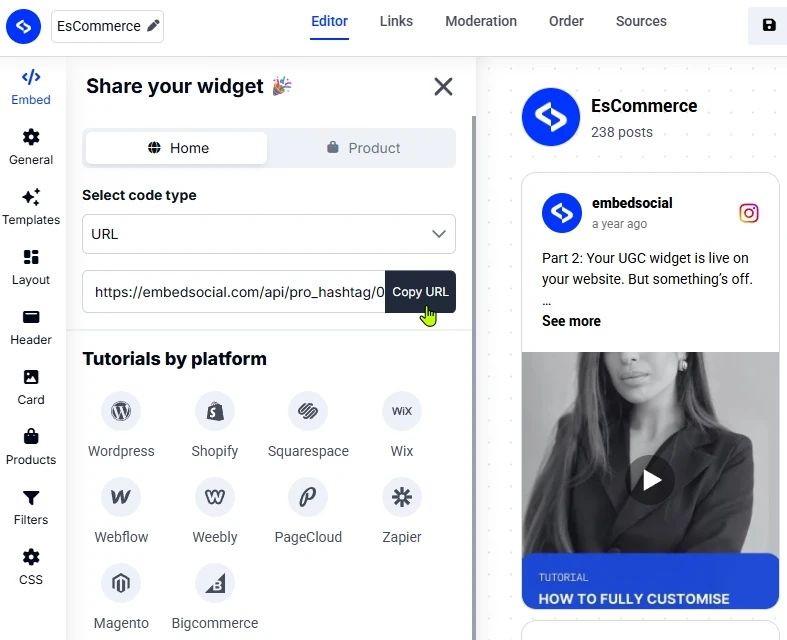
Open your Canva design. Go to your design and click 'Apps' in the left toolbar.
Search for the Embed app. Type 'Embed' in the apps search box and select it.
Paste the URL. Paste your widget URL into the field the Embed app gives you and press Enter. The widget appears on the canvas, where you can resize or reposition it like any other element.
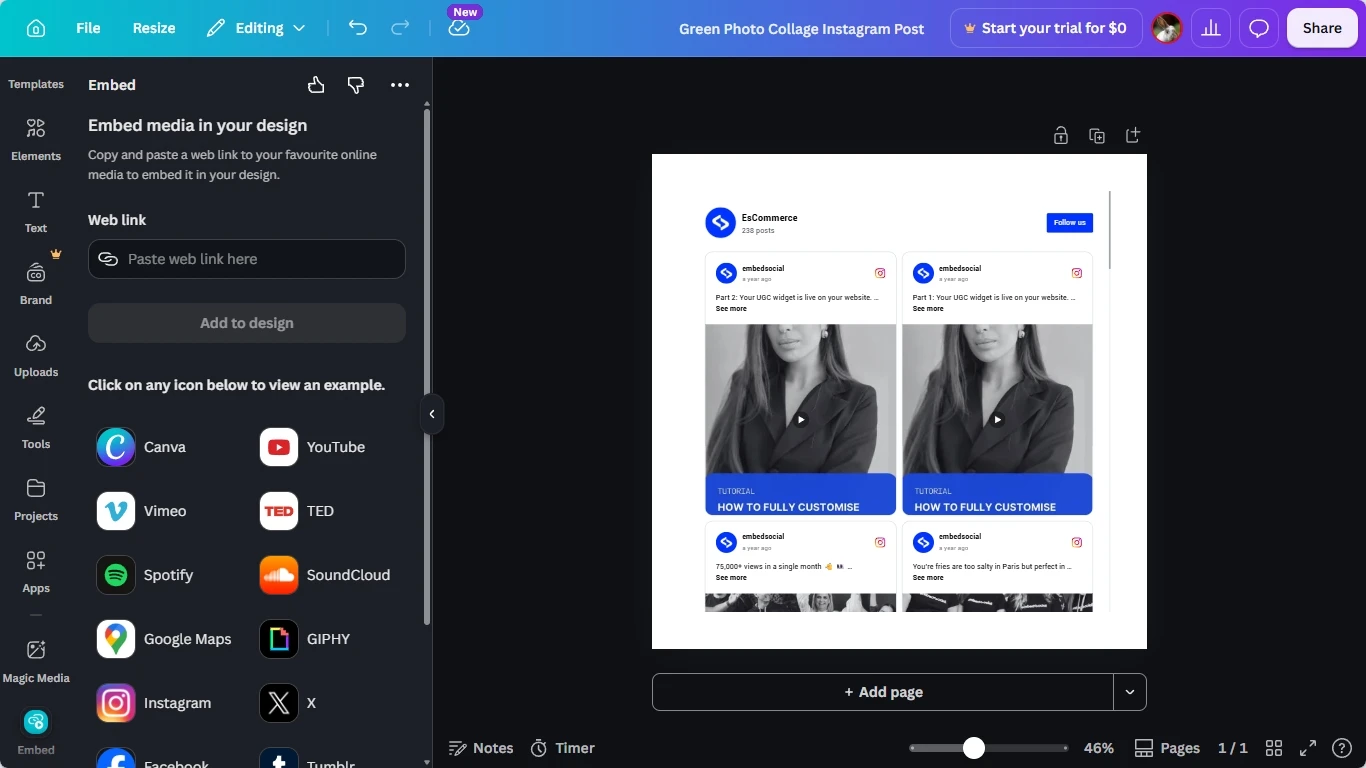


The widget renders live inside Canva, so any change you make in EmbedSocial (new posts, moderation, layout) updates automatically wherever the design is published.

If you have any questions, click the bottom right chat icon to talk with our customer success team or send us an email at support@embedsocial.com We're here for you 🙏
FAQ
Do I need to paste a code snippet into Canva?
No. Canva does not support JavaScript or iFrame code, so EmbedSocial gives you a widget URL instead. Switch the Embed tab's format dropdown to 'URL' to get it.
Will the widget update automatically inside Canva?
Yes. The Embed app loads the widget live, so new posts, moderation changes, and design updates you make in EmbedSocial show up wherever the Canva design is published.
Can I resize the widget once it's embedded?
Yes. Once the Embed app adds it to the canvas, it behaves like any other Canva element: drag its corners to resize it or move it to reposition it.
What's next
Set up Moderation to control which posts appear before you publish the design, or check Widget analytics to see how the embed performs. Browse the full list of EmbedSocial integrations for other platforms you can embed on.
If you have any questions, click the bottom right chat icon to talk with our customer success team or send us an email at support@embedsocial.com We're here for you 🙏