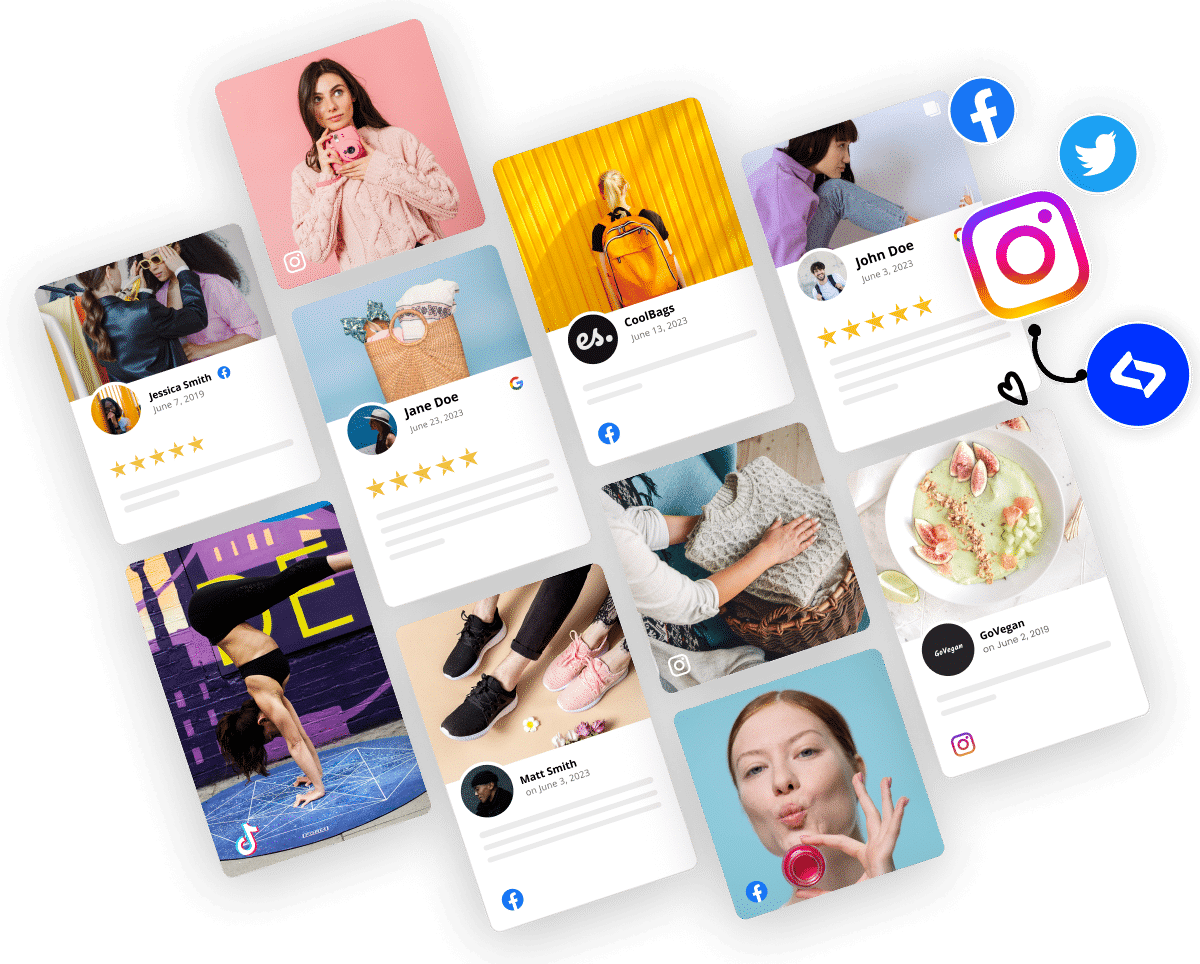
Used correctly, an image carousel on your website becomes more than just a rotating banner. It can be a conversion engine that turns attention into trust and trust into sales.
So, while most websites use carousels as decoration with static stock photos and generic sliders, you have to think differently: use strategy and showcase your social proof.
Competition intensifies, so businesses need more than static product pages. You need dynamic visual proof that builds trust instantly. Just think about it: global retail e-commerce sales reached about $6 trillion in 2024 and continue to grow, and you need to stand out!
If and when you start using auto-updating image carousels powered by real customer content, you’ll start separating yourself from the crowd and winning customer interest.
So, I’m showing you 10 high-converting image carousel examples you can embed today using EmbedSocial. Before that, let’s see what carousel images actually are.

Embed Instagram feed on your website without lifting a finger!
Generate and embed Instagram widget with your feed, mentions, or hashtags directly to your website.
FYI: You can automatically embed an Instagram widget with a social media aggregator, bringing your website to life with fresh content.
What is an image carousel?

An image carousel is a rotating display of multiple images shown in a single section of a website. Users can swipe, click arrows, or watch slides auto-rotate.
In simple terms, a carousel image uses one screen space, multiple slides, i.e., visuals, and interactive navigation. As such, they are great for:
- Showcasing products,
- Highlighting customer reviews,
- Displaying Instagram feeds,
- Featuring before-and-after transformations,
- Promoting campaigns or events.
But here’s the distinction most businesses miss: while a static slider shows images, a dynamic carousel shows proof, which determines whether it drives conversions or wastes space.
Why image carousels work for business websites?
Most image carousels fail because they’re treated like decoration. So, when used strategically, they solve very specific business problems.
An effective carousel image does five things exceptionally well:
- Compresses social proof into one visible section;
- Extends visitor attention without adding clutter;
- Improves mobile engagement through swipe behavior;
- Showcases momentum (recent reviews, new posts, active customers);
- Reinforces buying decisions at critical conversion points.
Each of these outcomes maps directly to revenue.
Instead of forcing users to hunt for testimonials, browse galleries, or scroll endlessly, a carousel surfaces proof instantly. It reduces cognitive load while increasing activity.
That’s the real advantage. When powered by dynamic content—like online reviews or synced social media posts through EmbedSocial — the carousel compounds value over time. Every new piece of content strengthens the page automatically.
With more than half of global website traffic now coming from mobile devices, swipe-based interaction patterns make image carousels a natural fit for modern browsing behavior. So, used this way, an image carousel isn’t a design feature. It’s a credibility accelerator.
10 image carousel examples for your website
These video and image carousel examples show how brands can turn static website sections into dynamic, trust-building, conversion-focused experiences:
- Facebook Carousel Widget
- Dark Slider Shop
- TikTok Video Testimonials Widget
- Reels Website Section
- Testimonials Carousel
- Social Media Carousel
- YouTube Video Carousel
- Instagram Spotlight Carousel
- Shoppable UGC Video Slider
- Social Media Slider
1. Facebook Carousel Widget
This Facebook carousel image widget automatically displays your latest posts in a clean, swipeable format, keeping your website aligned with your social activity in real time.
• Keeps your website fresh with auto-synced Facebook content;
• Increases visibility of campaigns, promotions, and announcements;
• Boosts engagement by extending social browsing onto your site;
• Eliminates manual uploads with automatic updates.
👉 Check out the Facebook Carousel Widget
2. Dark Slider Shop
The Dark Image Slider Shop is a high-contrast, shoppable Instagram carousel designed to guide visitors from inspiration to purchase within a sleek, premium layout.
• Turns Instagram posts into a direct shopping experience;
• Highlights featured products with built-in CTA buttons;
• Creates a premium brand feel with dark-mode styling;
• Encourages deeper browsing through swipe-based interaction.
👉 Check out the Dark Slider Shop
3. TikTok Video Testimonials Widget
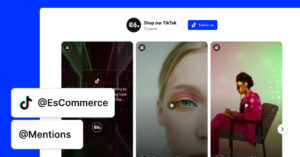
This TikTok-powered image carousel showcases real customer testimonial videos, transforming short-form UGC into high-impact social proof on your website.
• Builds trust with authentic customer video reviews;
• Leverages short-form video for higher engagement;
• Strengthens credibility with visible ratings and attribution;
• Keeps visitors engaged without redirecting off-site.
👉 Check out the TikTok Video Testimonials Widget
4. Reels Website Section
The Reels Website Section displays vertical short-form videos in a familiar, scrollable format that mirrors native social browsing behavior.
• Captures attention with motion-first content;
• Showcases real product reactions and customer moments;
• Increases time on page through immersive video interaction;
• Automatically updates as new Reels are published.
👉 Check out the Reels Website Section
5. Testimonials Carousel
This elegant testimonial image carousel highlights customer reviews with large visuals, star ratings, and expandable text for deeper storytelling.
• Condenses multiple testimonials into one focused section;
• Reinforces credibility with visible star ratings and source badges;
• Encourages browsing through smooth slider navigation;
• Adds social proof without disrupting your design.
👉 Check out the Testimonials Carousel
6. Social Media Carousel
The Social Media Carousel aggregates posts from platforms like Instagram and Facebook into one dynamic, interactive slider.
• Centralizes multiple social feeds into one display;
• Keeps homepage sections visually fresh and current;
• Supports campaigns with real-time content updates;
• Transforms live social proof into measurable engagement.
👉 Check out the Social Media Carousel
7. YouTube Video Carousel
This YouTube-powered image carousel presents video thumbnails in a structured, card-style slider that encourages exploration without overwhelming the page.
• Promotes educational and explainer content visually;
• Drives clicks through strong visual play indicators;
• Supports brand authority and thought leadership;
• Maintains a clean layout while expanding content depth.
👉 Check out the YouTube Video Carousel
8. Instagram Spotlight Carousel
The Instagram Spotlight Carousel emphasizes one central image at a time, creating a “spotlight” effect that naturally directs visitor attention.
• Highlights key products or campaigns visually;
• Increases engagement with center-focused browsing;
• Showcases influencer collaborations and UGC;
• Adds motion while maintaining visual clarity.
👉 Check out the Instagram Spotlight Carousel
9. Shoppable UGC Video Slider
The Shoppable UGC Video Slider converts TikTok and Instagram videos into interactive, product-tagged shopping experiences.
• Bridges social proof directly to checkout;
• Enables clickable product tags inside videos;
• Boosts conversions through authentic customer content;
• Creates a seamless social commerce experience.
👉 Check out the Shoppable UGC Video Slider
10. Social Media Slider
The Social Media Slider blends product tags, captions, and user-generated visuals into a high-impact, ecommerce-focused carousel.
• Showcases real-life product usage from customers;
• Adds pricing and product labels directly to posts;
• Combines social proof with shopping functionality;
• Auto-syncs content across multiple platforms.
👉 Check out the Social Media Slider
Full guide: How to add an image carousel to your website?
Adding or creating your own carousel image widget to a website is very straightforward. You just have to sign up for an EmbedSocial trial account and follow these steps:
- Define your image carousel widget using AI.
- Connect your social media source.
- Select and apply a pre-existing template.
- Further customize the template via AI prompts.
- Copy the carousel widget embed code.
- Paste the code in your website editor.
Step 1: Define your image carousel widget using AI
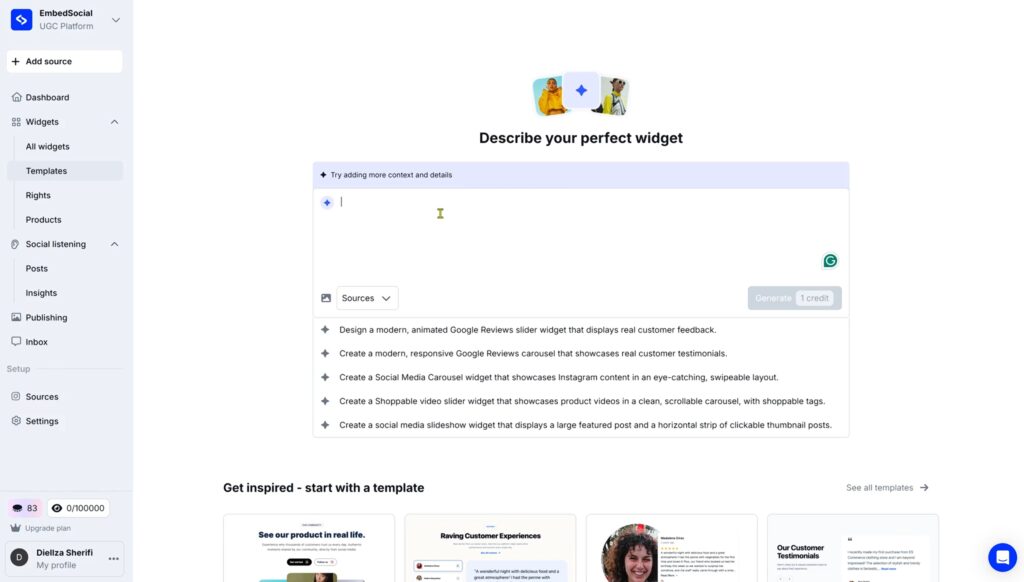
Enter a description of your ideal widget into the AI prompt, and the builder will analyze your brand requirements to automatically choose the most suitable layout, color palette, and interaction style to bring your vision to life:

If you’re not sure where to start, you can select one of our ready-made widget prompts to instantly generate a tailored design:
Step 2: Connect your social media source
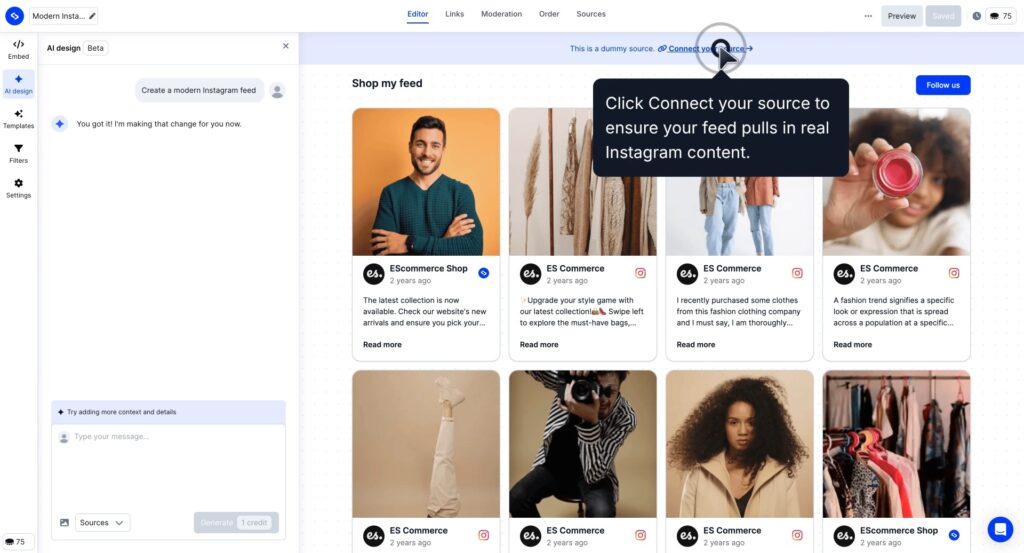
Select “Connect your source” to link your social media account, then choose the type of account from which you want to pull your content:
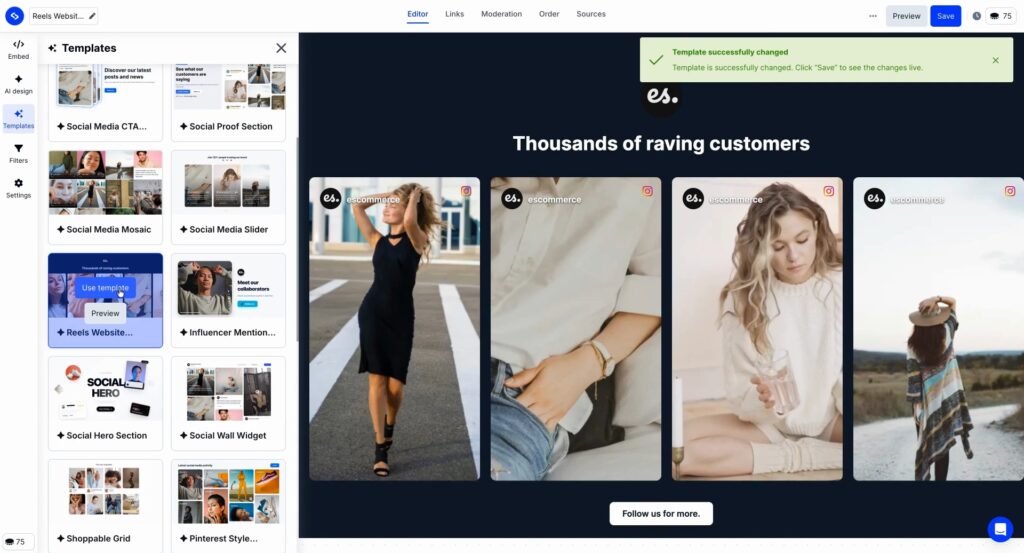
Step 3: Select and apply a pre-existing template
Browse our full template library to find a carousel layout that fits your website’s design. Click “Use template” to instantly populate it with your content:
Step 4: Further customize the template via AI prompts
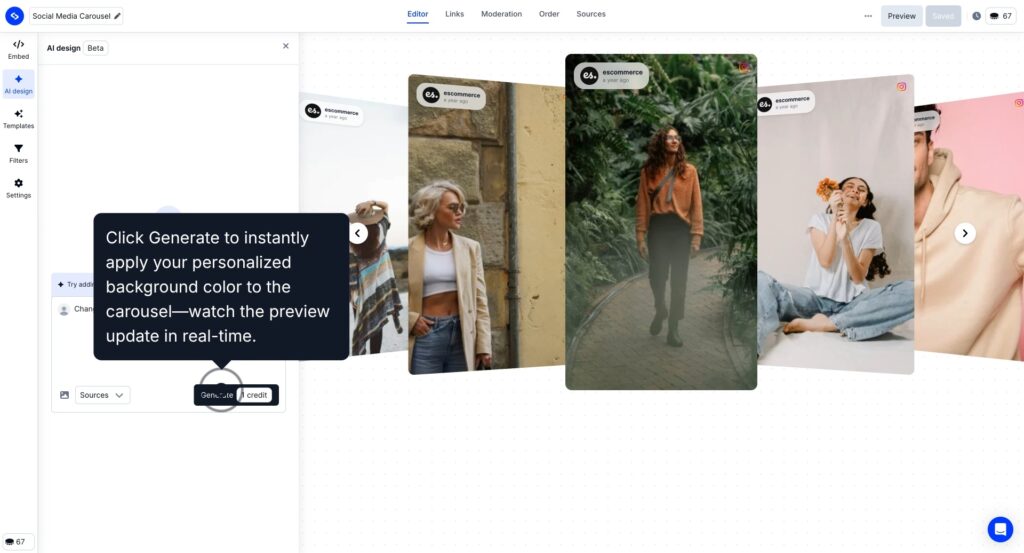
You can make small refinements or complete design changes to your carousel widget by continuing the conversation with our AI editor and describing the adjustments you’d like:
Step 5: Copy the carousel widget embed code
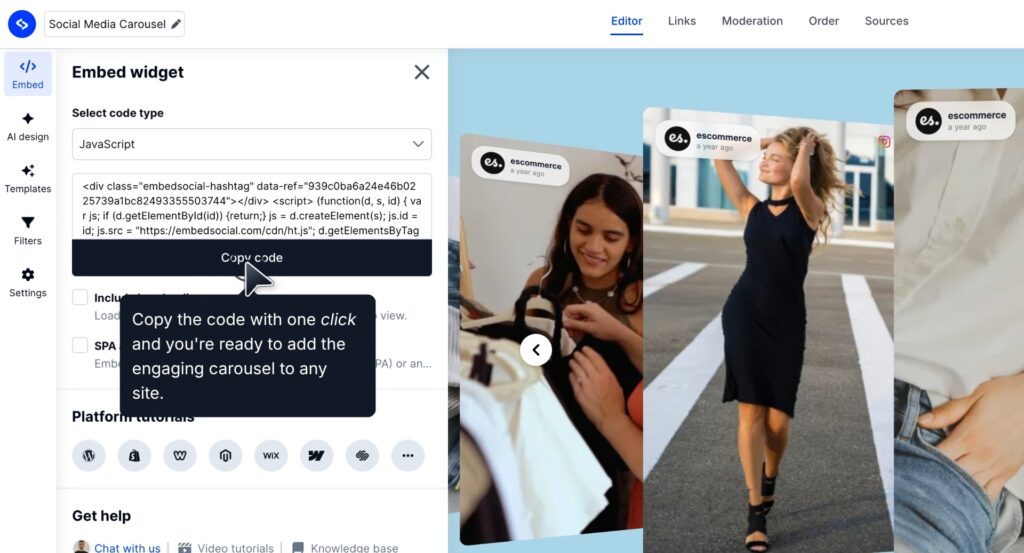
Once you’ve saved your changes, go to the “Embed” tab and click “Copy code” to copy the generated snippet. You can then paste this code into any HTML block or widget area on your website to publish the carousel instantly:
Step 6: Paste the code in your website editor
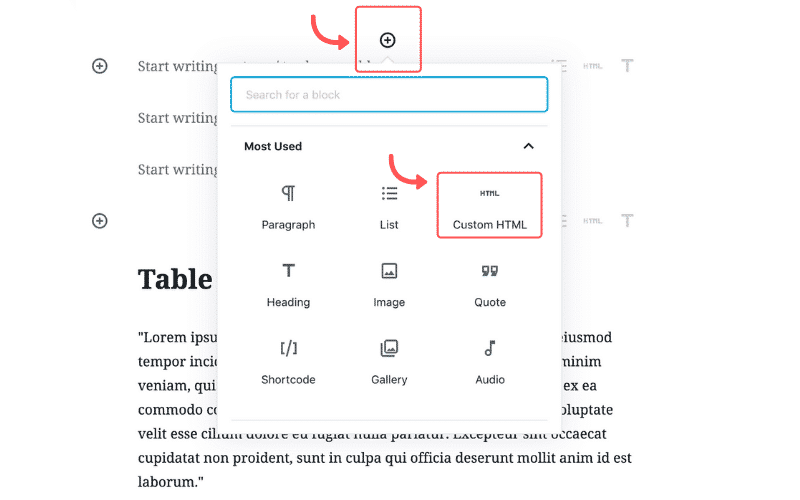
Finally, open the page on your website where you want the widget to appear and paste the Instagram widget embed code. For example, in WordPress, you simply add an empty HTML block and insert the code there to publish the carousel.
That’s all you had to do! Now, you have genuine, third-party social proof boosting your online image. You can also embed Google reviews for free in the same widget.
How to embed your image carousel across all popular website builders?
Here’s how to finalize the process of adding an image carousel to your website across all popular website builders and content management systems:
How to add image carousel in WordPress

Here’s how to embed UGC on WordPress sites:
- Once you create your EmbedSocial widget, go to your WordPress admin page;
- Sign in to your account and open the page where you want to add the UGC widget;
- Click the + button in the editor and choose Custom HTML to paste the widget code;
- Click “Save” when you’re done.
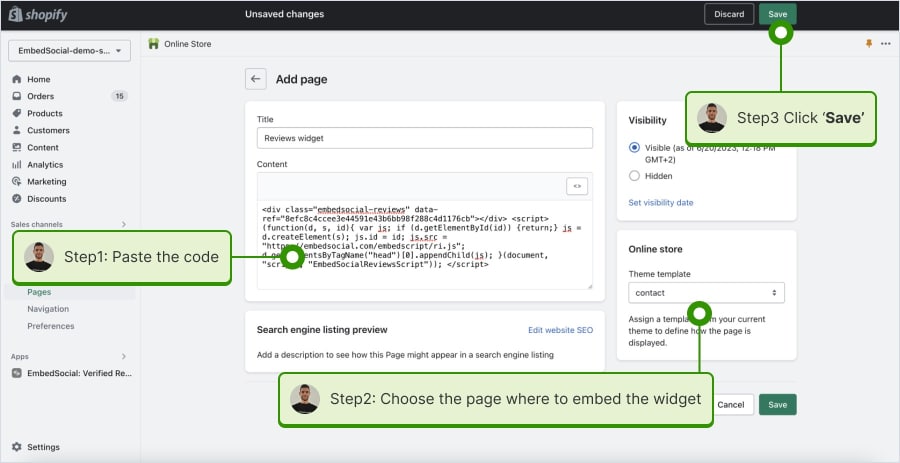
How to add image carousel in Shopify

Here’s how to embed UGC on Shopify sites:
- Log into your Shopify account after copying the embeddable widget code in EmbedSocial;
- Navigate to the ‘Pages’ tab and click ‘Add page’;
- In the ‘Content’ field pages the embeddable code;
- Select the page where you want the code to appear and press ‘Save’.
How to add image carousel in Squarespace

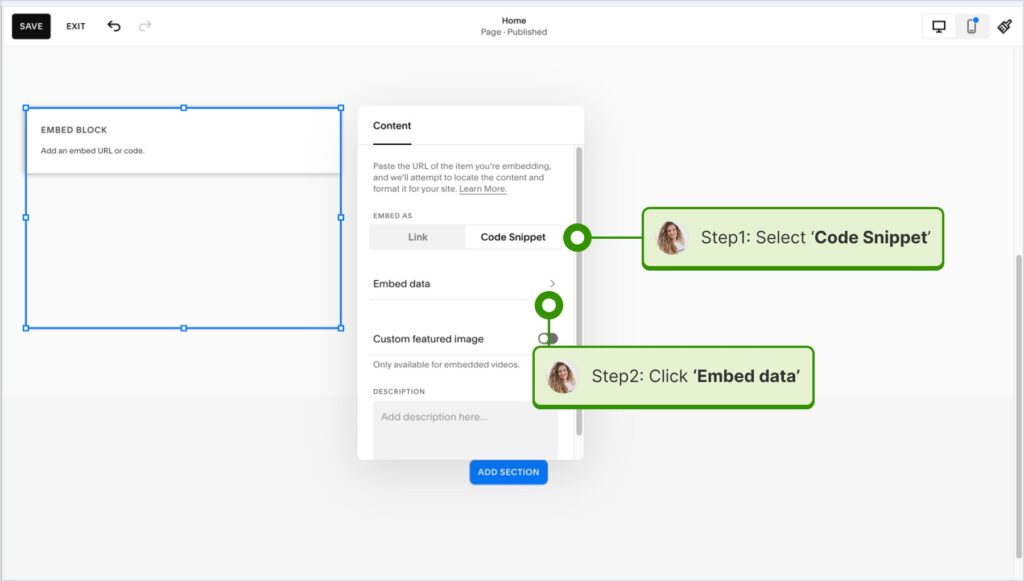
Here’s how to embed UGC on Squarespace sites:
- Copy your EmbedSocial widget code and log into your Squarespace account;
- Choose the page where you want the reviews to appear;
- Click ‘Add new section’ and then ‘Add block’ where you want to display the widget;
- From the blocks list, choose ‘Embed‘;
- Click on the block, select ‘Code snippet’, and click ‘Embed data’;
- Finally, in the code box, paste the copied reviews code;
- Make sure to save and publish your changes on Squarespace.
How to add image carousel in Wix

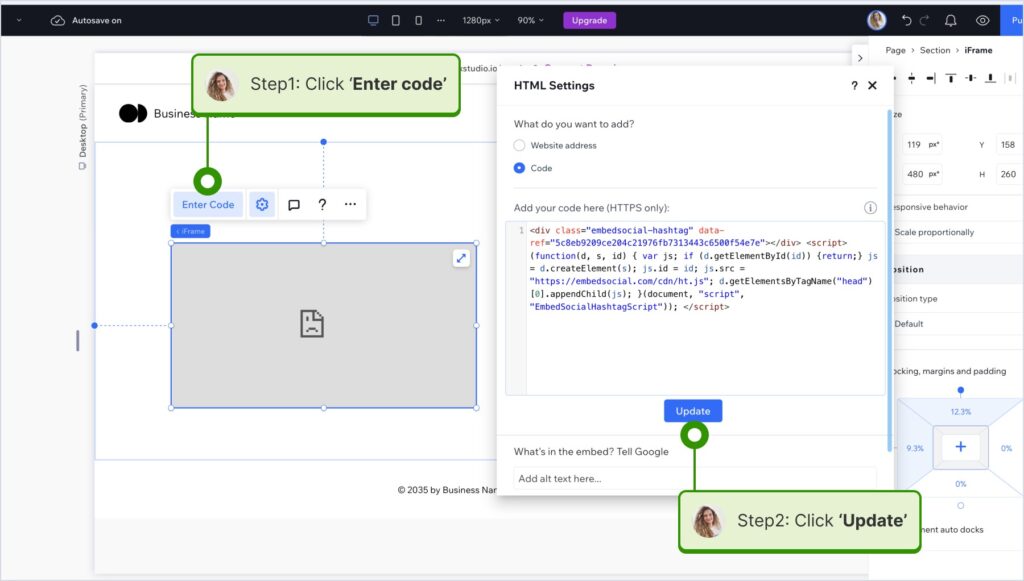
Here’s how to embed UGC on Wix sites:
- Log into your Wix editor and choose the page and location to add the widget;
- Click the “+” icon in the top-left corner to add a new element;
- Find the ‘Embed & Social’ section and tap ‘Embed Code’;
- Paste the code and tap ‘Update’.
How to add image carousel in Google Sites

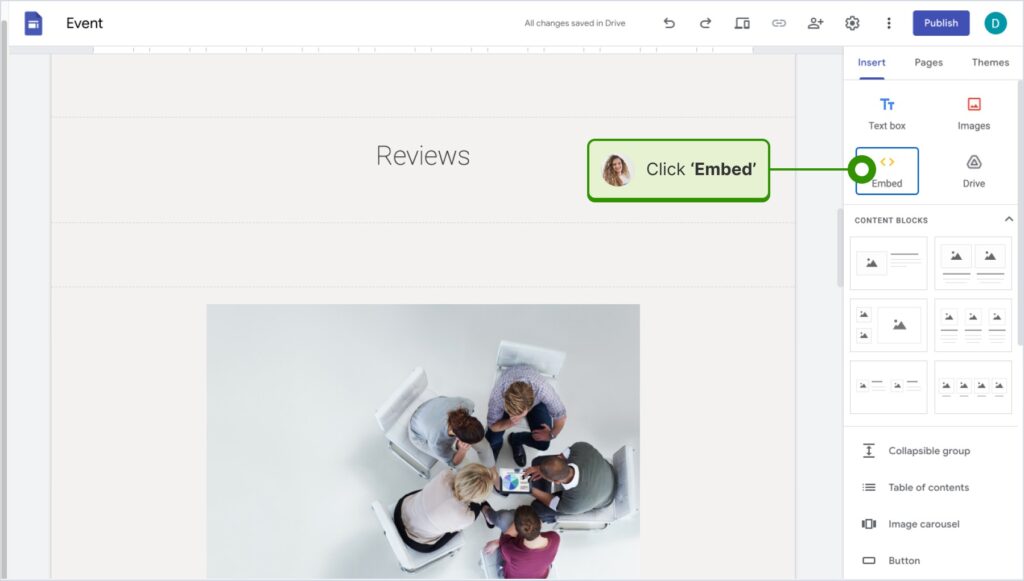
Here’s how to embed UGC on Google Sites:
- Once you copy your embeddable widget code in EmbedSocial, log in to your Google Sites account;
- Navigate to the page where you want to embed the widget;
- Use the ‘Insert’ tab in Google Sites and choose where you want to place the widget;
- Choose ‘Embed‘ from the menu and paste the copied code in the dialog box;
- Click ‘Next‘ and then ‘Insert‘ to finalize the embedding.
How to add image carousel in Elementor

Here’s how to embed UGC in Elementor:
- Log in and navigate to the page where you want to add the reviews;
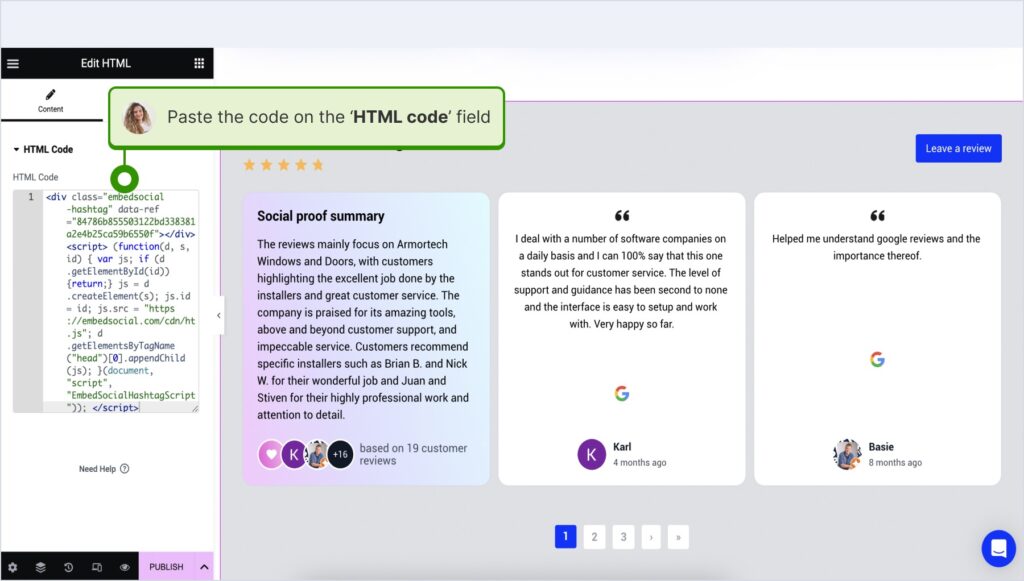
- Tap an empty section and choose the ‘HTML’ block from the left ribbon section;
- Drag and drop it on the page and paste the widget code in the empty field;
- Update and publish the page to see the live widget.
How to add image carousel in HTML

Here’s how to embed UGC on HTML sites
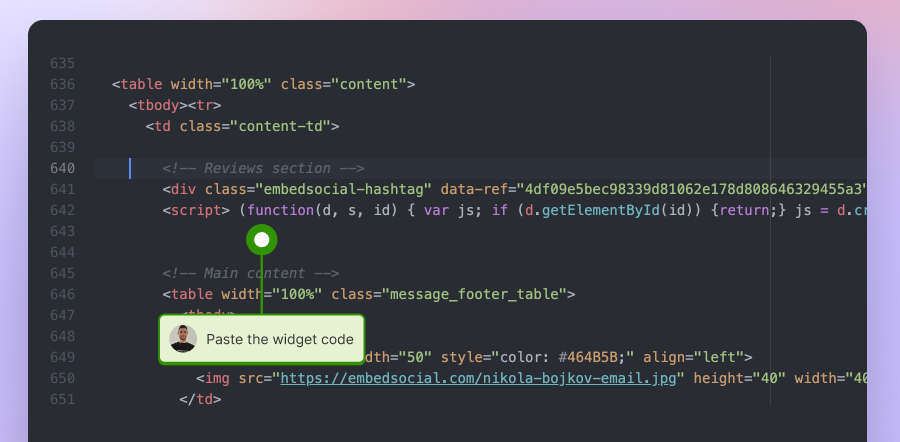
- Copy the EmbedSocial widget review from the ‘Embed’ tab in the top-left corner of the Editor;
- Open the HTML file of your website, which could be either a new page or an existing one;
- Paste the copied EmbedSocial embed code where you want the reviews to display.
6 best practices for optimizing your image carousel widget
You need to take care of several things when implementing your image carousels so you make the most out of their conversion power. Here are the main principles I typically follow:
1. Don’t overload slides
When visitors see too many rotating visuals, their attention fragments. So, keep the slide count tight and intentional if you want to keep it efficient.
Clarity always converts better than volume.
Pro tip: Keep your primary carousel to 3–6 high-impact slides and rotate content dynamically using EmbedSocial’s website widgets instead of stacking everything at once.
2. Mobile-first sizing
More than half of website traffic now comes from mobile devices, which means swipe behavior matters more than hover behavior. Therefore, if your image carousel looks perfect on desktop but awkward on mobile, you’re losing engagement where it matters most.
Remember: Design for mobile screens and thumbs first.
Pro tip: Preview your carousel on mobile before publishing and prioritize vertical or square formats (like Instagram’s 1080×1080 or 1080×1350 ratios) for maximum clarity. Thankfully, EmbedSocial comes out of the box with mobile-friendly carousel templates.
3. Autoplay caution
Autoplay seems engaging — but it often creates friction. Sometimes, fast-moving slides can feel intrusive, especially when users are trying to read reviews or product details. Movement should guide attention, not steal it.
Control beats chaos most of the time.
Pro tip: If you use autoplay, slow the transition speed and always allow manual navigation so users stay in control.
4. Use social proof, not stock photos
Stock imagery may look polished, but it rarely builds trust. Real customer feedback and real product usage outperform staged visuals because they reduce skepticism instantly.
Authenticity scales better than aesthetics.
Pro tip: Replace one generic hero slide with a live review or UGC carousel powered by EmbedSocial and measure the difference in engagement.
5. Optimize load speed
Heavy sliders are conversion killers. Large image files, bloated plugins, and stacked scripts slow down your site, and slower sites lose visitors before they even interact.
Performance is part of persuasion.
Pro tip: Use compressed images and lightweight embedded widgets instead of multiple slider plugins to maintain fast page load times. Plus, EmbedSocial comes with lazy loading functionality, which means the widget content will appear only when it comes into view.
6. Add schema where possible
Search engines don’t “see” your carousel the way users do. Structured data helps Google understand that your carousel contains reviews, ratings, or products, which are the gateway to rich snippets in search results, such as your overall Google star rating.
Visibility doesn’t stop at your homepage.
Pro tip: Use schema-enabled review carousels so your star ratings can appear directly in search results, increasing click-through rates before users even land on your site.
Image carousel examples: What high-performing brands do differently?
Most brands add an image carousel because it looks modern. High-performing brands use it because it compounds trust. When implemented strategically and automated through EmbedSocial, it becomes a living asset instead of basic building blocks.
The difference isn’t in the animation. It’s in how the carousel is powered, refreshed, and aligned with conversion goals. Here’s what that looks like in practice:
Natali Bolgar: Turning Instagram into a conversion engine
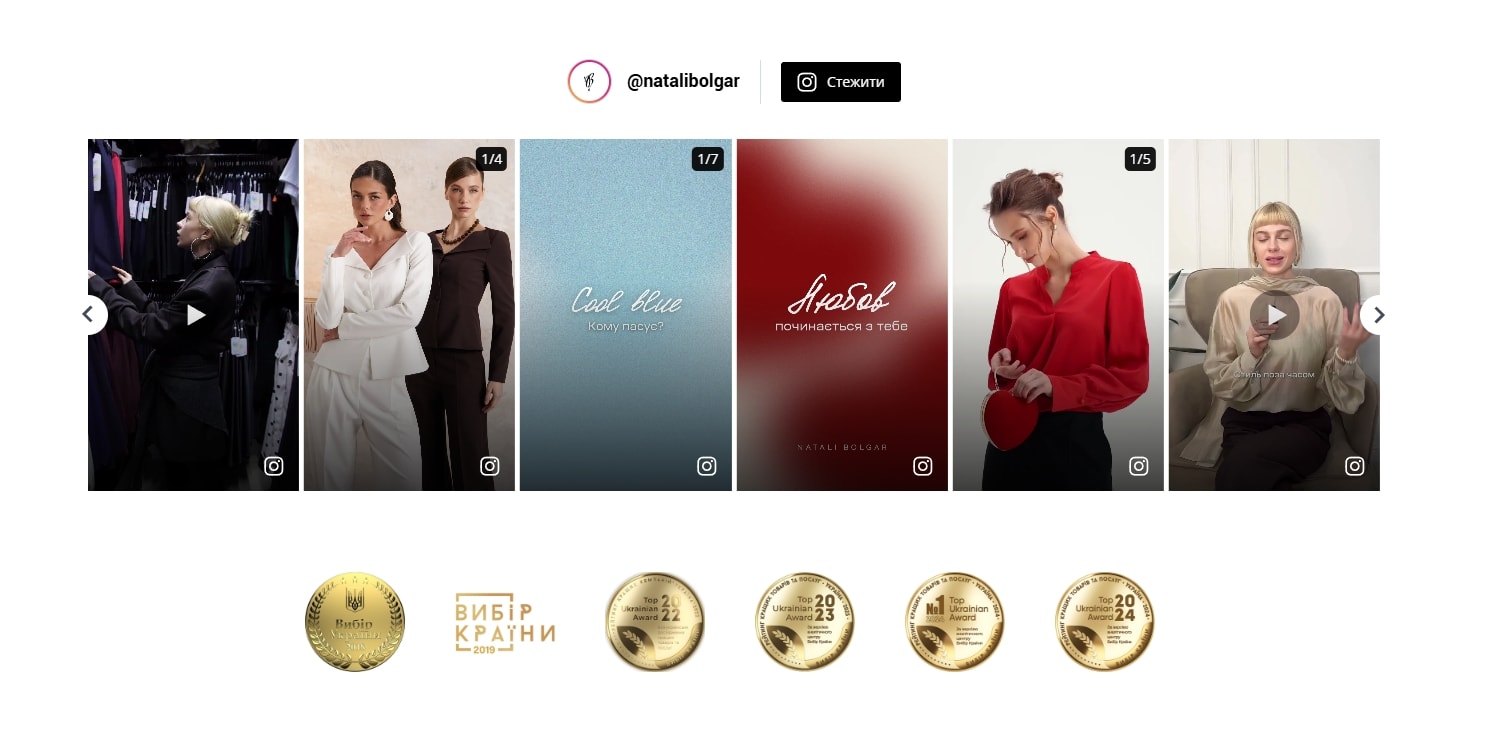
Natali Bolgar, a fashion e-commerce brand, doesn’t treat its image carousel as decoration. It uses it as a visual storefront extension.
Instead of stock photography, the carousel highlights real visual content from Instagram—styled outfits, product moments, short-form videos—directly on the website. This creates continuity between social discovery and on-site shopping.
What they do differently:
- Real content over stock, reinforcing brand authenticity;
- Automation over manual uploads, with Instagram content syncing directly into the site;
- Integrated product visibility, connecting inspiration with shopping intent;
- Consistent refresh cycles that keep collections visually current;
- Embedded social proof that reduces hesitation during product browsing.
Because the carousel auto-syncs through EmbedSocial, every new post strengthens the website without requiring manual updates, so the site evolves with the brand.
Best Day Brewing: Building lifestyle proof through community content

Best Day Brewing uses its image carousel to showcase lifestyle-driven, user-generated content under the hashtag #BestDayYet.
Instead of telling customers what the brand represents, they show it: outdoor adventures, real moments, real people enjoying the product. The carousel becomes a rolling proof-of-experience section.
What they do differently:
- Use social proof instead of staged marketing visuals;
- Feature community content that reinforces brand positioning;
- Maintain fresh content through automatic hashtag aggregation;
- Encourage participation by spotlighting customer experiences;
- Integrate subtle calls to action that drive deeper engagement.
With EmbedSocial automatically collecting tagged Instagram content, the carousel stays dynamic without manual curation bottlenecks.
As you can see, the pattern is clear: High-performing brands look at carousels as automated trust systems that are powered by real content, refreshed continuously, and aligned with measurable engagement outcomes through EmbedSocial.
Conclusion: Turn your image carousel into a conversion engine
It’s a busy online marketplace, and you need every advantage you can get nowadays. Embedding image carousels on your website is one such strategy.
Thankfully, there are UGC platforms out there that can automate all that for you. EmbedSocial, with its AI UGC widgets and official API connections, is one of the best choices.
Once you sign up, just plug in your social media sources and wait for all that high-quality content to pour in. Then you just copy and paste a single code to put it into action.
So, don’t wait for things to change when you can move the needle yourself.
Get your EmbedSocial trial account today to see all it can do!
FYI: You can embed an Instagram Reels widget automatically with a social media aggregator and UGC platform. Start a free trial to display your social media widgets now.

FAQs about image carousel widgets
What does image carousel mean?
An image carousel means a rotating display of multiple images shown within a single section of a website. Instead of taking up extra space, it lets visitors swipe or click through visuals in one interactive block. With EmbedSocial, an image carousel can automatically pull reviews, social posts, or UGC so it stays fresh and conversion-focused.
What is an image carousel widget?
An image carousel widget is an embeddable tool that lets you display rotating images, reviews, or social content on your website without custom coding. It typically connects to a content source and generates a responsive slider. EmbedSocial’s widgets go further by auto-syncing reviews and social media posts in real time.
How to create an image carousel?
To create an image carousel, you either build one manually with code or use a widget that generates it for you. The easier method is connecting your Instagram, TikTok, or review platform inside EmbedSocial, customizing the layout, and generating an embed code instantly.
How do I add an image carousel to website?
You add an image carousel by embedding a generated HTML snippet into your website’s code block or widget area. With EmbedSocial, you connect your content source, customize the carousel design, copy the embed code, and paste it into platforms like WordPress or Squarespace.
Do image carousels hurt SEO?
Image carousels can hurt SEO if they slow down page speed or lack structured data. However, optimized, lightweight widgets with schema markup, like EmbedSocial’s, can actually enhance visibility by supporting rich snippets and improving engagement signals.
How many images should a carousel have?
Most high-performing carousels include 3 to 6 focused slides to maintain clarity and attention. If you’re using EmbedSocial, you can rotate larger volumes of content dynamically while displaying only the most relevant visuals at a time, keeping the experience clean and effective.
How do I make an image carousel responsive?
To make an image carousel responsive, use flexible image ratios and mobile-friendly layouts that adapt to screen size. EmbedSocial widgets are built to adjust automatically across desktop and mobile, ensuring swipe behavior, image clarity, and loading speed optimizations.