
It’s the last Thursday of the month. Your VP of Marketing wants the LinkedIn slide by tomorrow: who talked about us, which posts worked and what we do next.
For most B2B teams, that means an afternoon of scrolling notifications, screenshotting posts and guessing which ones mattered.
With the right setup, it’s three prompts in one chat.
Claude and ChatGPT for LinkedIn work once you give the assistant a bridge to your company page data. That bridge is an MCP (Model Context Protocol) server.
A Claude LinkedIn connection through the EmbedSocial LinkedIn MCP lets Claude or ChatGPT read your page posts and every post that tags your page, then summarize, rank and report on them for you.
Below, I cover the setup, the three LinkedIn jobs B2B teams run every month, and the limits to know before you promise leadership or a client anything. If you’re still comparing options, start with our guide to social media MCP servers.
ChatGPT for LinkedIn: what the official app can’t do
Search “ChatGPT for LinkedIn” and the first result is LinkedIn’s own app inside ChatGPT. It’s useful, but it solves a different problem.
The app looks up professionals. It shows a person’s title, company, location and follower count, then links to their profile. That’s great for interview prep or a sales call.
It doesn’t read your company page. It can’t tell you who tagged your brand this month, which of your posts drove traffic or what to put in the board report. And LinkedIn hasn’t published an MCP server for company page content for Claude or ChatGPT either.
| LinkedIn app in ChatGPT | EmbedSocial MCP | |
|---|---|---|
| Built for | Looking up people | Working with your company page |
| Reads your page posts | No | Yes |
| Reads posts that tag your page | No | Yes |
| Works in Claude | No | Yes |
| Reports and widget analytics | No | Yes |
| Access | Profile lookup | Read-only, your connected sources only |
Use both. LinkedIn’s app tells you who someone is. The EmbedSocial MCP tells you what people are saying about you.
Three LinkedIn jobs you can run from Claude or ChatGPT
B2B LinkedIn work sorts into three jobs, and one read-only MCP covers all three:
| Job | What you ask for | Data it reads |
|---|---|---|
| 1. Listen | Who tagged your page, what they said, who needs a reply | LinkedIn Mentions source |
| 2. Measure | Which posts and themes drive clicks to your site | LinkedIn Account source + widget analytics |
| 3. Report | A monthly summary for leadership or each client | Everything above |
Because the EmbedSocial MCP only reads, it’s safe to leave connected all day. It can’t post, comment, react or change anything on your company page.
That’s the main difference from our Instagram playbook, where publishing needed a second MCP with write access. On LinkedIn, the work that pays off for B2B teams is listening and reporting, so one connection does the job.

How to connect LinkedIn to Claude or ChatGPT
Every setup has two links: LinkedIn to EmbedSocial, then EmbedSocial to your AI assistant. If you don’t have an account yet, create your EmbedSocial account first. The free trial is enough to test everything below.

Add your LinkedIn page to EmbedSocial
-
In the social media aggregator, click Sources then + Add new source.
-
Pick LinkedIn as your source.
-
Choose LinkedIn Account (posts your company page publishes) or LinkedIn Mentions (posts from other people that tag your page). Most B2B teams add both.
-
Sign in with a LinkedIn profile that’s an admin of the page. The page list only shows pages that profile administers.
-
Repeat for every page you manage. Each page counts as one source on your plan.

The full walkthrough, with screenshots, is in the LinkedIn source docs.
Claude LinkedIn setup: add the EmbedSocial connector
-
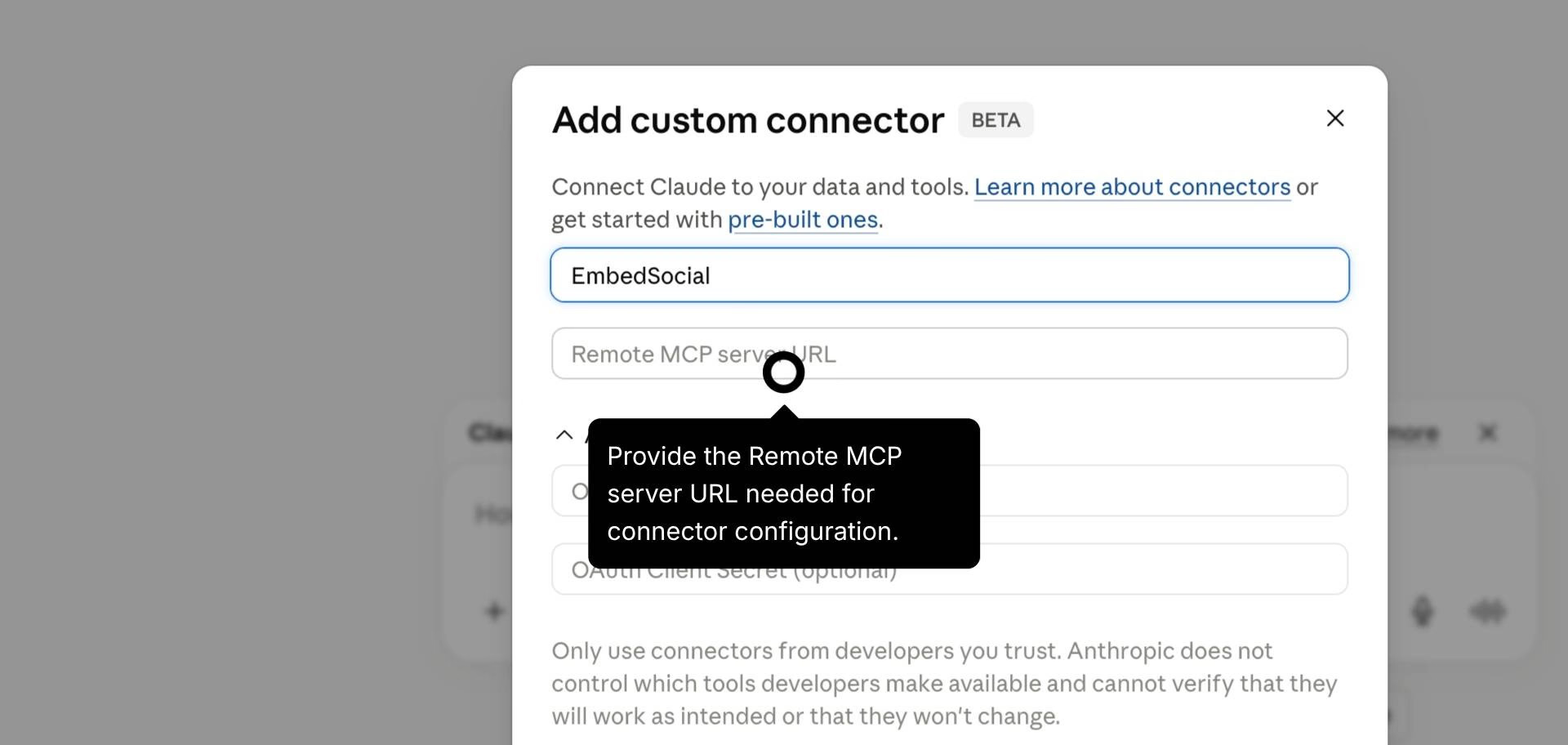
Open the Claude app or claude.ai, click the + icon, choose Add connector and then Add custom connector.
-
Name it EmbedSocial and paste https://embedsocial.com/admin/mcp. Click Add.
-
Open Settings > Connectors, find EmbedSocial, click Connect and authorize it.
-
Test it: “Using the EmbedSocial MCP, list my connected LinkedIn sources.”
If Claude names your sources, you’re live. Ready-made prompts are on the LinkedIn MCP page. The Claude MCP connector docs cover each screen.
ChatGPT LinkedIn setup: plugin or custom connector
ChatGPT gives you two routes:
-
Plugin (fastest): open the EmbedSocial plugin in ChatGPT, click Install plugin and sign in with your EmbedSocial account. No Developer mode needed.
-
Custom connector: go to Settings > Security, turn on Developer mode, then in Plugins click +, name it EmbedSocial, paste the same URL and click Create. Sign in to approve the tool permissions.
Official tutorial: Connect EmbedSocial to ChatGPT with MCP →
Run the same test prompt. Your ChatGPT LinkedIn connection is ready when your sources come back by name. The ChatGPT MCP connector docs show both routes.
One tip that saves hours later: the assistant finds data by source and widget name. Name sources so a prompt can’t mix them up, for example “Northloop | LinkedIn mentions” and “Northloop | LinkedIn page.”
Job 1: hear what people post about your page
The most valuable LinkedIn content about your brand isn’t on your page. It’s on other people’s profiles: a customer sharing a win, a partner announcing an integration, a prospect asking their network for vendor advice.
Those posts also travel further. In Metricool’s 2026 LinkedIn study, personal profiles averaged a 2.60% engagement rate versus 1.74% for company pages (Metricool). Every tag is a post that reaches people your page doesn’t.
What the MCP returns for LinkedIn mentions
The LinkedIn Mentions source collects posts where people tag your company page, using LinkedIn’s official API. Through the MCP, Claude or ChatGPT can search them by date range or keyword and open a single post. Each result includes the text, media, author and date.
Two details shape how you use it:
-
Tags only. A post that names your brand without tagging the page won’t show up.
-
History is limited. When a source is created, EmbedSocial pulls up to 50 mentioned posts from LinkedIn’s Pull Organizational Notifications API. That API only returns notifications from the last 60 days, so older mentioned posts cannot be pulled. Connect early and run your monthly report inside that window.
For the full picture of what LinkedIn’s API allows, read our guide to LinkedIn social listening and the walkthrough on how to track LinkedIn mentions.
Prompts for themes, advocates and objections
Prompts that work well for B2B teams:
-
“Using the EmbedSocial MCP, list LinkedIn posts that mentioned Northloop | LinkedIn mentions in the last 30 days. Summarize each in one line and flag any that need a reply.”
-
“Group this month’s mentions by theme: product feedback, hiring, partnerships, events. Give a count and one example link per theme.”
-
“Find mentions where people compare us to a competitor or ask about pricing. Quote the line and suggest a reply.”
-
“Which authors tagged us more than once in the last 60 days? List names, links and what they posted about.”
The second prompt is where an assistant beats a dashboard. When prompted, it reads every post and writes the summary an analyst would write if they had a free afternoon. That’s AI social listening without a new tool to learn. For the method behind it, see AI sentiment analysis and brand sentiment. Need reply wording? Borrow from our ChatGPT prompts for online reputation management.
For always-on coverage the chat can’t give you, like alerts and a shared inbox, EmbedSocial’s brand monitoring, social inbox and crisis management features run in the background.
Turn mentions into leads and alerts
Connect Slack, Google Sheets or HubSpot in your assistant and the same data starts working for marketing and sales. Three ready-made automations cover it:
-
Send LinkedIn mentions to Slack: a weekly digest of every post that tagged your page, one line each, with the ones that need a reply flagged.
-
Track LinkedIn mentions in Google Sheets: URL, author, date, summary, sentiment and recommended action per mention, appending only new ones on every run.
-
Turn LinkedIn mentions into HubSpot leads: flags people asking about your category or comparing vendors and creates a HubSpot contact with the post link and a suggested follow-up.
That turns listening into pipeline, which is the whole point of B2B social listening. EmbedSocial’s lead generation and sales prospecting tools cover the same ground across other networks.
Job 2: see which posts perform
Here’s an honest constraint first. The EmbedSocial MCP doesn’t pull LinkedIn’s native analytics, such as impressions or follower growth. Those stay in your LinkedIn Page analytics.
What it does read is your page posts plus the click analytics of every widget you build from them. That answers a question LinkedIn can’t: which posts get clicked in your website widgets.
Rank page posts by website widget clicks
Start by putting your LinkedIn posts on your site. Follow our guide to embed a LinkedIn feed or build one with the LinkedIn widget. Ready-made layouts like the LinkedIn feed widget and the glassmorphic slider take a few minutes to set up. Browse every option in the LinkedIn feed templates.
The MCP reads each widget’s post clicks, icon clicks, lightbox opens and CTA clicks over any period. Then ask:
- “Using the EmbedSocial MCP, show widget analytics for Northloop | LinkedIn careers widget for the last 30 days. Compare post clicks and CTA clicks with the previous 30 days.”
Here’s the trick that makes this a performance test: build one widget per theme. Put product posts in one widget, customer stories in another and hiring posts on the careers page. Now the assistant can compare themes by real website behavior, not by likes.
Want third-party proof on the site too? The LinkedIn mentions widget embeds the posts where customers and partners tag you.

Find the themes behind your top posts
Your page posts carry the other half of the answer. Ask:
- “Pull my LinkedIn page posts from the last 90 days. Group them by topic and format (text, image, video, document) and by posting day. Which themes did we post most, and which did we neglect?”
The Analyze LinkedIn post performance in Google Sheets automation runs this for the last 90 days and exports a raw data tab plus a summary of what to post more of.
Then close the loop with LinkedIn’s own numbers. Export your Page analytics from LinkedIn and upload the file into the same chat. Ask the assistant to match each post’s impressions and engagement to the themes it just built.
You get a ranking LinkedIn won’t give you: which topics earn reach on LinkedIn and widget clicks on your website. That’s the brief for next month’s content calendar. Pair it with a plan to schedule LinkedIn posts so the winning themes go out on the winning days.
Job 3: report to leadership or clients
Leadership doesn’t want a list of posts. They want to know what the posts mean and what you’ll do next.
Monthly LinkedIn summary for leadership
Run this on the last working day of the month:
“Using the EmbedSocial MCP, pull this month’s LinkedIn page posts and the posts that mentioned our page. Build a one-page LinkedIn report: mention volume vs. last month, top 3 themes with example links, sentiment, top advocates, our most-clicked widget, and three recommendations. Keep it under 300 words.”
Prefer slides? The monthly LinkedIn analytics report in Gamma automation turns the same data into a Gamma-ready outline with slide titles and copy. Connect Google Sheets, Gamma or Slack in your assistant and the report lands where leadership reads it. A report that ends in recommendations gets read. A report that ends in charts gets filed.
To decide what goes into it, our list of social listening metrics is a good starting point. For trends over months, EmbedSocial’s social insights dashboard keeps the history. If leadership asks how you stack up, add competitor tracking and market research to the brief. New to listening as a discipline? Start with our social listening primer.
Multi-page reports for agency clients
Agencies run the same prompt, once per client. The naming system does the work:
-
Client | LinkedIn page
-
Client | LinkedIn mentions
-
Client | LinkedIn widget
Then: “Build the monthly LinkedIn report for Northloop using only sources that start with ‘Northloop |’.” A new account manager can run any client’s month from day one. EmbedSocial’s agency plans keep every client’s pages in one login.

Click counts do not measure unique visitors, sales or conversions.
LinkedIn AI agent for B2B and agency teams
LinkedIn is where B2B buying happens. In an October 2020 article, LinkedIn reported 65 million decision-makers on the platform. Most of the work around them is still manual: checking who tagged the page, screenshotting posts for the report, copying wins into the CRM.
An assistant with the EmbedSocial MCP connected works like a LinkedIn AI agent that only reads. When prompted, it reads the pages you connect, flags what needs a human and writes a first draft of the report. You keep the judgment. It does the scrolling.
One chat, every client page
A practical monthly rhythm we’d set up for any B2B team or agency:
| When | Job | Prompt to run |
|---|---|---|
| Every Monday | Listen | Last 7 days of mentions, flagged for replies, sent to Slack |
| Every Monday | Leads | Mentions that ask about the category, sent to HubSpot |
| Mid-month | Measure | Widget clicks by theme vs. last month |
| Month end | Report | One-page summary per page, sent to Sheets or Gamma |
Four prompts per page. Everything else is review and decisions, which is the part clients and leadership pay for. All six LinkedIn prompts are in the automation library, ready to copy.
Rank your brand advocates
Your employees, customers and partners are your best LinkedIn channel. According to LinkedIn, employees have 10 times more first-degree connections than their company has followers (LinkedIn).
Find out who already carries your brand:
- “Pull LinkedIn posts that mentioned our page in the last 60 days and group them by author. Tag each author as employee, customer or partner using [employee list]. Rank them by post count and add a suggested thank-you or outreach angle.”
The Rank LinkedIn brand advocates in Google Sheets automation runs this prompt and exports profile links, example posts and outreach angles. The output is your advocacy shortlist: people to thank, feature or invite to a case study. For sharper monitoring keywords, see how to choose social listening keywords.
Add Instagram to the same workflow
Many agencies run LinkedIn for the B2B side and Instagram for the brand side of the same client. The same connector reads both. Our Claude and ChatGPT for Instagram playbook covers mentions, reposts and reports on Instagram, so one chat can report on both networks. For reviews, UGC and widgets beyond social, see the EmbedSocial MCP in Claude guide.
What the EmbedSocial MCP can’t do on LinkedIn
Know these before you pitch the workflow to leadership or a client:
-
It doesn’t post. It’s read-only. Publishing, comments and DMs stay in LinkedIn or your scheduler.
-
Company pages only. Personal profiles and hashtags aren’t supported, and you need admin access to every page you connect.
-
Mentions mean tags. Untagged brand mentions aren’t collected. At source creation, EmbedSocial pulls up to 50 mentioned posts from LinkedIn’s Pull Organizational Notifications API. That API only returns notifications from the last 60 days.
-
No native LinkedIn analytics. Impressions, followers and engagement rates stay in LinkedIn Page analytics. Upload the export if you need them in the chat.
-
It only sees what you connect. If a page isn’t an EmbedSocial source, the assistant can’t find it.
-
Plan matters. LinkedIn page posts need the Pro plan or higher, and LinkedIn Mentions is a Pro Plus source. Check pricing before you scope a retainer.
If you’d rather build this into your own app, the same page posts, mentions and widget analytics are available through the social media API. And if you’re comparing dedicated tools, our roundups of the best LinkedIn tools and social listening tools cover the options.
Conclusion: start with mentions, then automate the report
Claude and ChatGPT for LinkedIn pay off when they’re tied to your real page data. The B2B teams that win won’t be the ones scrolling notifications. They’ll be the ones who turn every mention into a decision: reply, thank, follow up or report.
Connect your LinkedIn page and mentions to EmbedSocial, add the MCP to Claude or ChatGPT, and run the Monday mentions prompt. If the digest saves you an hour, add the month-end report.
Start with the LinkedIn MCP and a free trial. For always-on monitoring beyond the chat, add EmbedSocial social listening.


![12 Best Twitter (X) Monitoring Tools in 2026 [Compared]](https://embedsocial.com/images/blog/twitter-monitoring-tools/featured.avif)


