Embedding a YouTube Live stream on your website is technically simple. But, keeping it working every time you go live is where most businesses struggle.
Also, know that live streaming is no longer experimental content. According to Statista, live video has become one of the most widely consumed online video formats globally, reflecting a major shift toward real-time digital engagement.

That shift matters. Imagine hosting webinars, running live shopping events, streaming church services, or launching products in real time. When you embed YouTube Live on website pages, you keep the traffic on your domain—instead of pushing it back to YouTube.
So, I’ll show you how to embed a YouTube live stream on website, how the YouTube live embed code works, and how to eliminate manual updates using a scalable approach via EmbedSocial.
Let’s start with the basics. Here’s a brief video covering the best method:
Can you embed YouTube live on a website?
Yes. YouTube allows you to embed livestreams on virtually any website that supports iframe code.
Note: Your stream must be public, and embedding must be enabled. Once those conditions are met, YouTube generates an iframe snippet that can be placed anywhere on your site.
A livestream typically exists in three states:
It may be scheduled before it starts, live while broadcasting, or available as a replay after it ends. All three versions can be embedded. What changes each time is the unique video ID attached to that stream—and that detail matters more than most people realize.

FYI: You can automatically embed a YouTube widget with a social media aggregator, bringing your website to life with fresh content.
Official method: How to embed YouTube live stream on any website?
This is the standard iframe method. It works across custom HTML sites, CMS platforms, and website builders. Put simply: you copy and paste a single code:
Step 1: Locate the YouTube live embed code
Open your livestream on YouTube. Click the Share button beneath the video and select Embed:
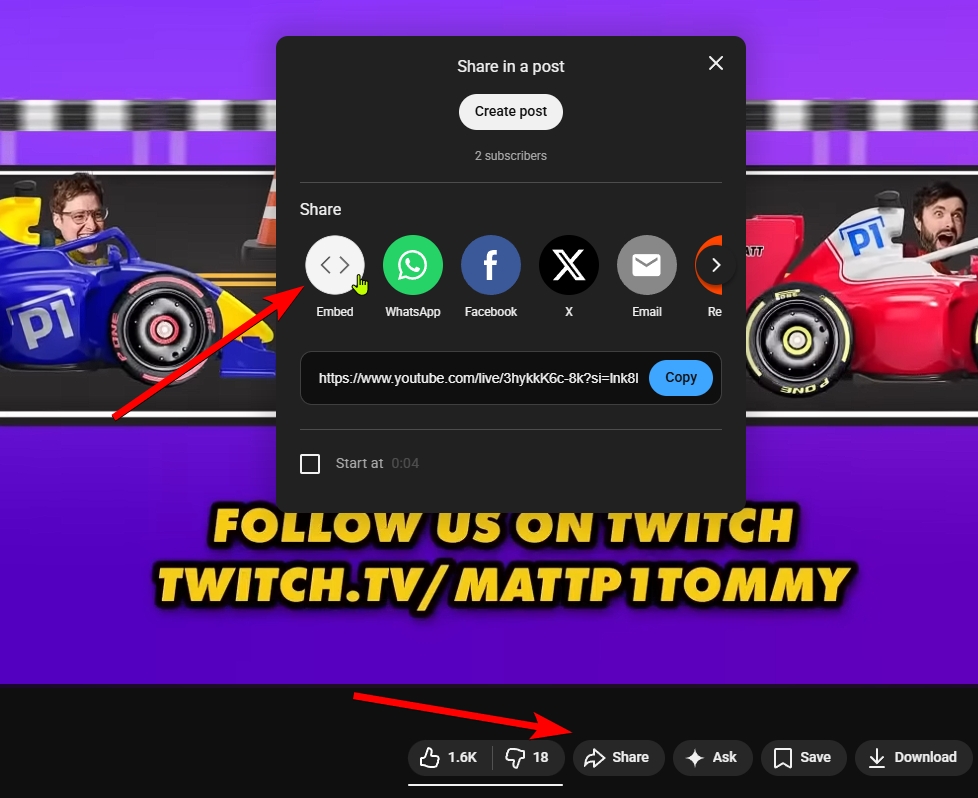
You will see code similar to this:
<iframe width="560" height="315"
src="https://www.youtube.com/embed/VIDEO_ID"
title="YouTube live stream"
frameborder="0"
allowfullscreen>
</iframe>
The string labeled VIDEO_ID is unique to that specific broadcast.
Step 2: Add the embed code to your website
The placement depends on your platform, but the principle is consistent.
If you manage a custom HTML site, paste the iframe directly into your page where the livestream should appear. However, if you use a website builder or CMS, insert an embed or custom HTML code element and paste the iframe inside.
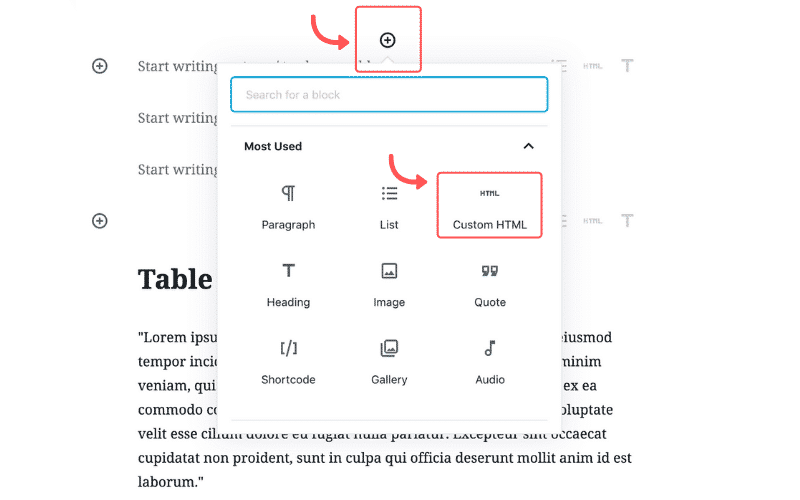
For instance, to embed a YouTube live stream on WordPress, open your page, navigate to the line where you want the video to appear, and add a Custom HTML element:
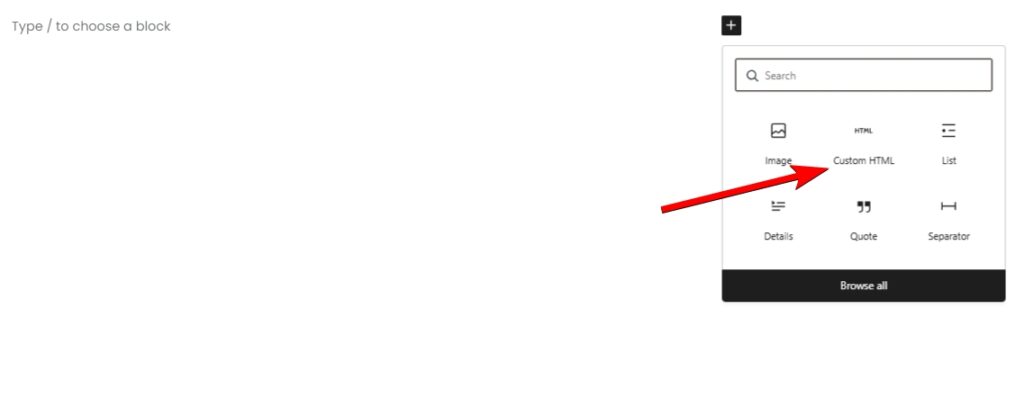
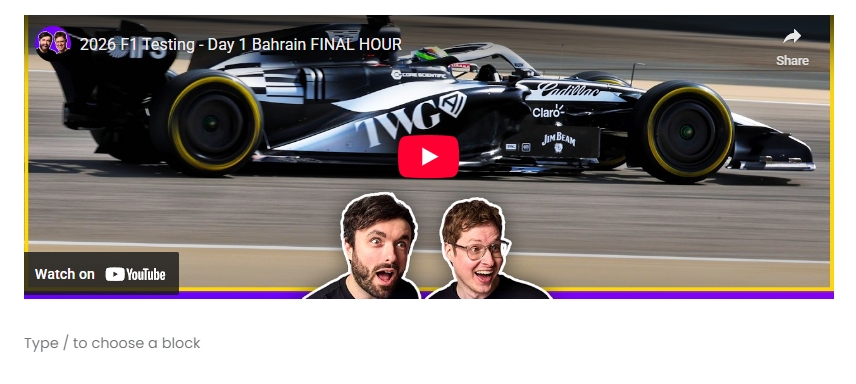
Then you simply have to paste the code inside. After publishing, your livestream will display on your site. Here’s what it’ll look like:
Step 3: Customize the YouTube live embed code
You can refine the viewing experience by modifying the embed URL with parameters.
Most browsers require muted autoplay, which is why mute=1 is often necessary. The modestbranding=1 parameter reduces visible YouTube branding for a cleaner presentation.
Small adjustments like these improve usability on event landing pages.
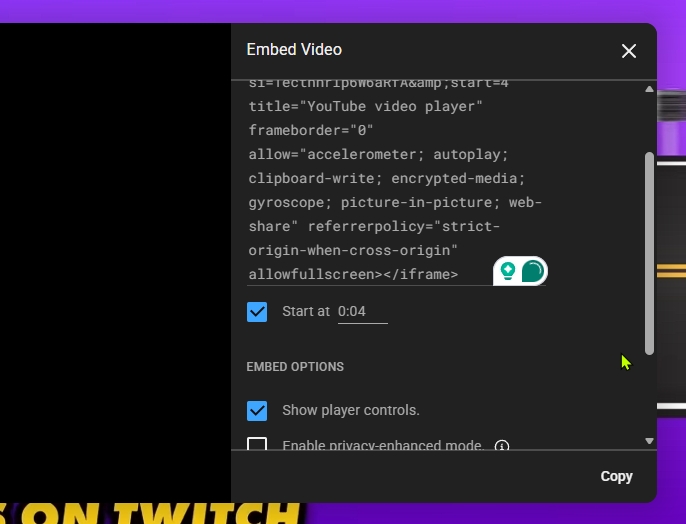
Plus, when accessing the ‘Embed Video’ section, you can toggle on parameters like ‘Start at [specific time]’ and whether or not to show the player’s controls:
The limitation most tutorials ignore
The iframe method works perfectly for a single livestream. However, there’s a problem if you stream regularly and want to showcase all your past streams.
Every new broadcast generates a new video channel ID. That means if you host weekly webinars or recurring events, you must replace the embed code every time. So, if you forget, visitors may see an outdated replay or encounter a broken player during peak traffic.
This becomes more critical as live streaming becomes commercially significant. According to Statista, global live-streamed e-commerce revenue reached hundreds of billions of U.S. dollars in 2024, with Asia alone accounting for nearly $370 billion.
So, your embedding process cannot rely on manual updates!
Manual YouTube Embed vs EmbedSocial Feed
MANUAL IFRAME
- Requires updating video ID each stream
- Risk of outdated replay
- No automatic switching to live
- Maintenance every broadcast
EMBEDSOCIAL WIDGET
- One permanent embed code
- Auto-detects active livestream
- Automatically shows replay after live ends
- No manual updates required
Best method: How to create a permanent YouTube live embed with EmbedSocial?
Instead of looking for workarounds for a permanent embed link for recurring livestreams, such as embedding each scheduled livestream or embedding your whole YouTube channel, you can create an EmbedSocial trial account, which is a complete UGC platform.
This way, you don’t embed separate video IDs for each new stream, but you connect your YouTube Live to a website widget that dynamically displays your active livestream.
Just follow a few simple steps:
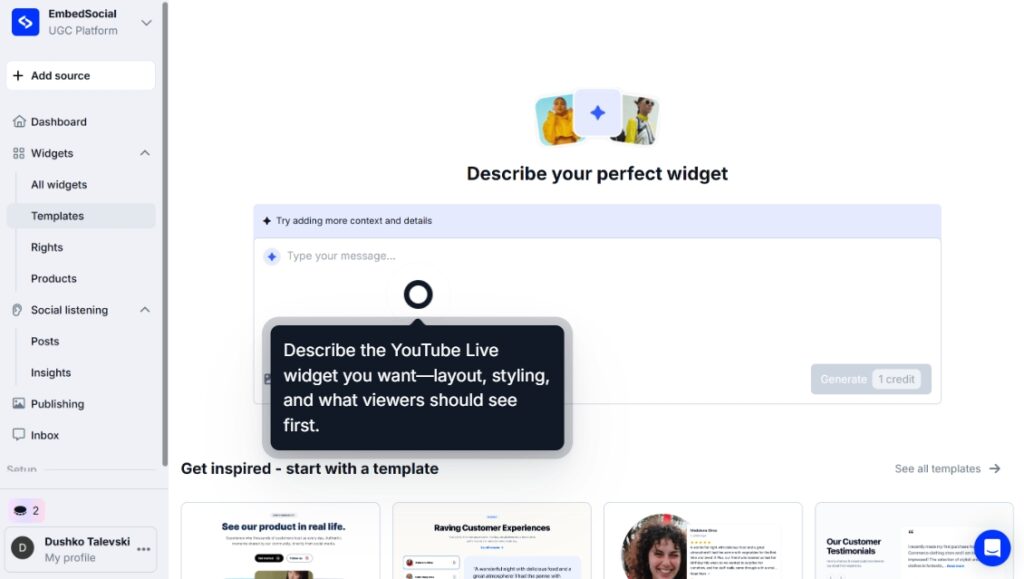
Step 1: Add your AI UGC widget prompt
To do so, head on over to the ‘Widgets’ section after logging in, and press ‘Generate with AI’. You’ll be presented with a prompt field where you can describe your widget:
Step 2: Connect your YouTube Live source
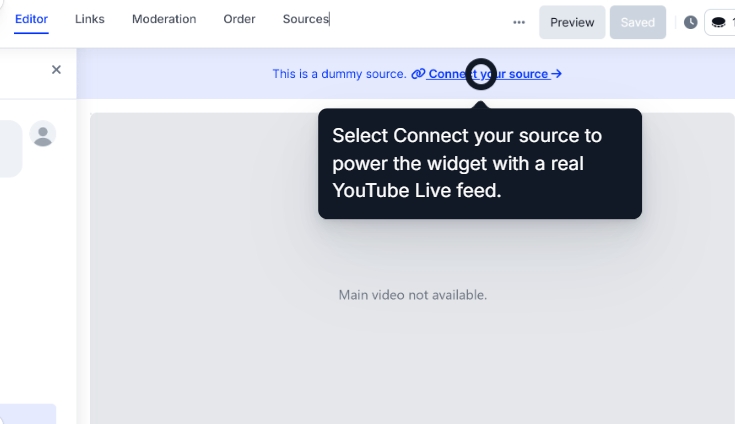
Next up: You need to connect your YouTube Live source so EmbedSocial can pull all your past and future Live streams. You can do so by tapping ‘Connect your source’ at the top of the editor:
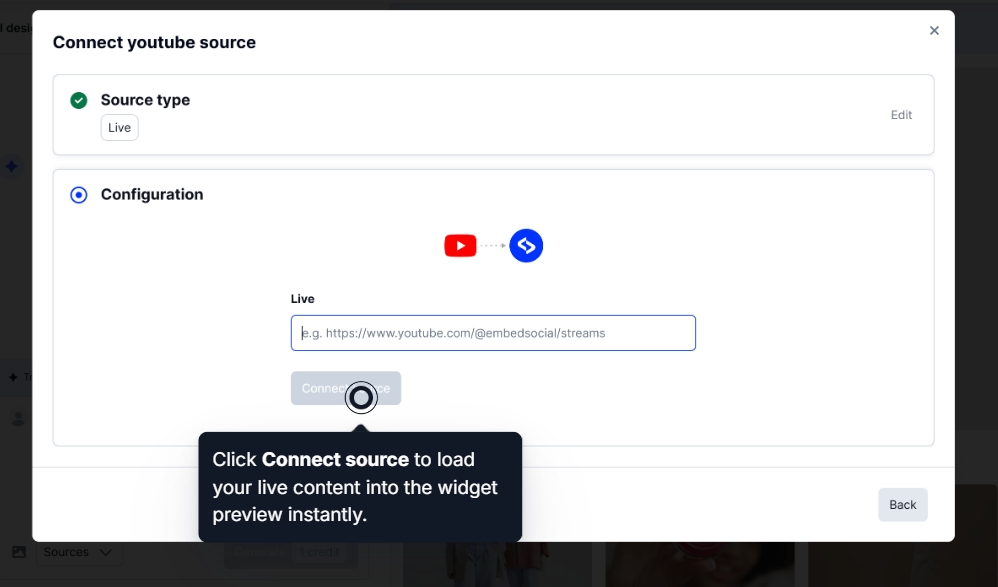
Then, you have to follow a few steps until you paste your YouTube channel link:
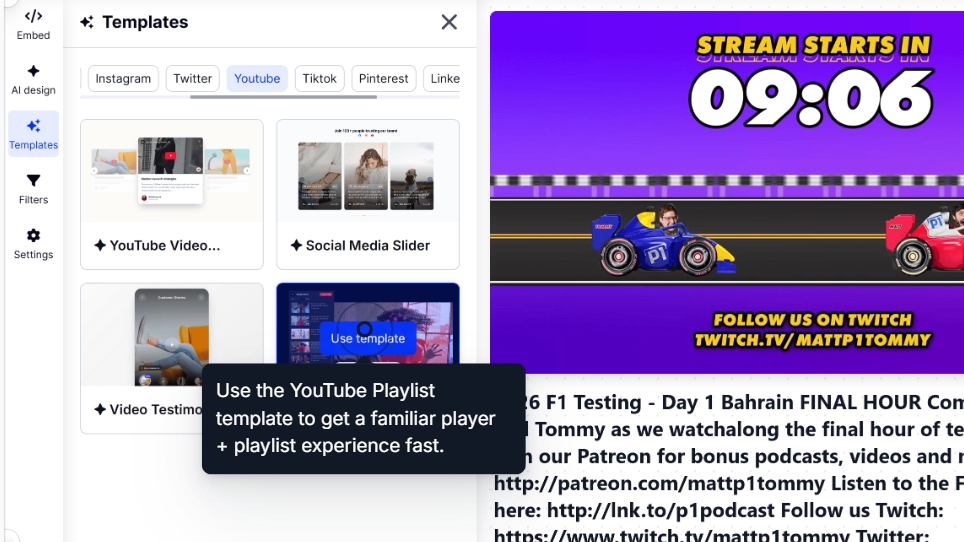
Step 3: Choose a YouTube widget template (optional)
Why not pick a ready-to-go UGC widget template, which you can further customize? That way, you won’t have to start from scratch:
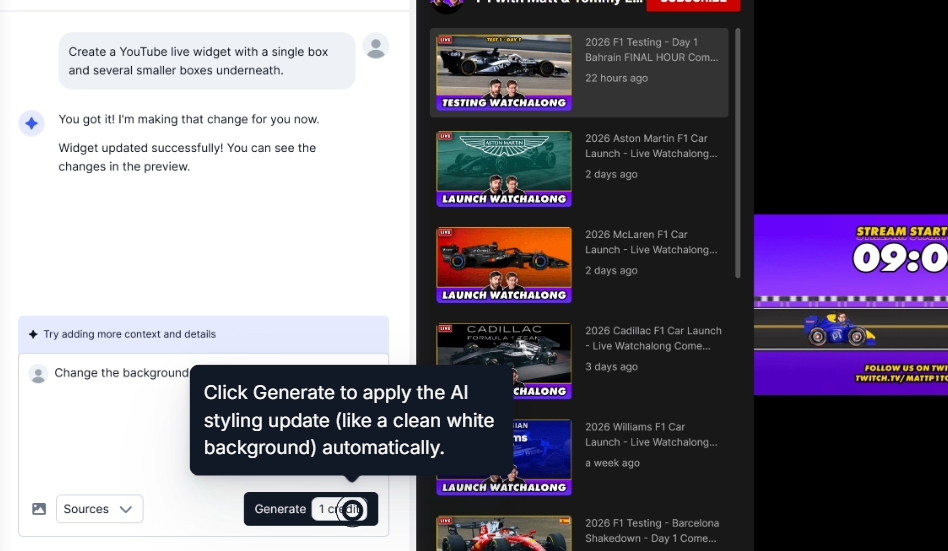
Step 4: Further customize the widget via AI prompts
It’s extremely straightforward to adjust your UGC widget. You just describe what you want to change, such as the shape of the cards or the background color:
Step 5: Copy the embeddable widget code
When you’re done with everything, simply navigate to the ‘Embed’ tab (top-left corner) and simply copy the embeddable widget code:
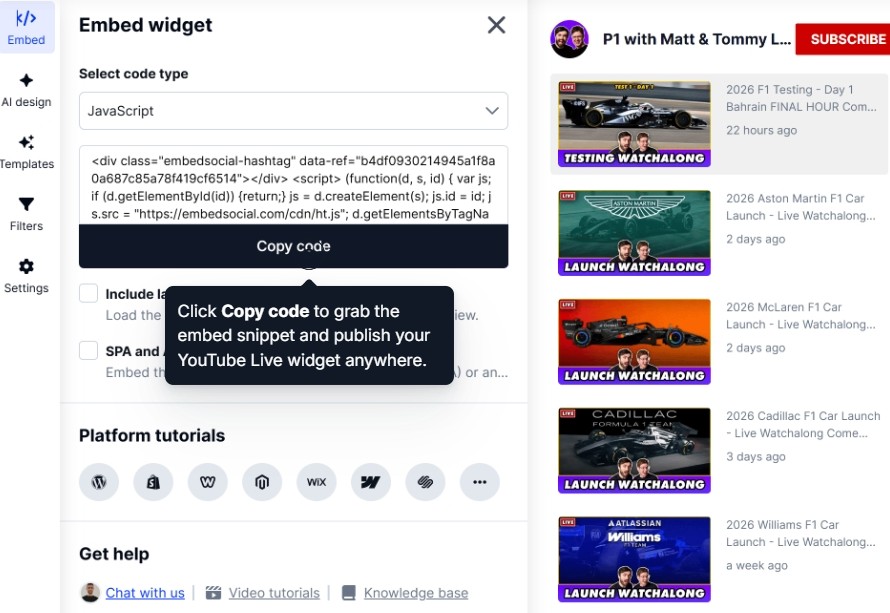
Step 6: Paste the widget code into your website
The last step involves pasting the widget code into your website. Just choose the page where you want the widget to appear, add an HTML element, and paste the code.
Before You Go Live
- ✔ Stream visibility set to Public
- ✔ Embedding enabled in YouTube settings
- ✔ Autoplay muted (if enabled)
- ✔ CTA placed near video
- ✔ Replay strategy prepared
- ✔ Page tested for performance
How to embed YouTube Live on any website builder?
Although interfaces differ, the workflow remains the same (even if you are embedding other videos like Vimeo): you typically add an empty HTML box, paste the widget code, and save the page.
Here’s how to embed social media posts across all popular website builders.
How to embed UGC on WordPress?

Here’s how to embed UGC on WordPress sites:
- Once you create your EmbedSocial widget, go to your WordPress admin page;
- Sign in to your account and open the page where you want to add the UGC widget;
- Click the + button in the editor and choose Custom HTML to paste the widget code;
- Click “Save” when you’re done.
How to embed UGC on Shopify?

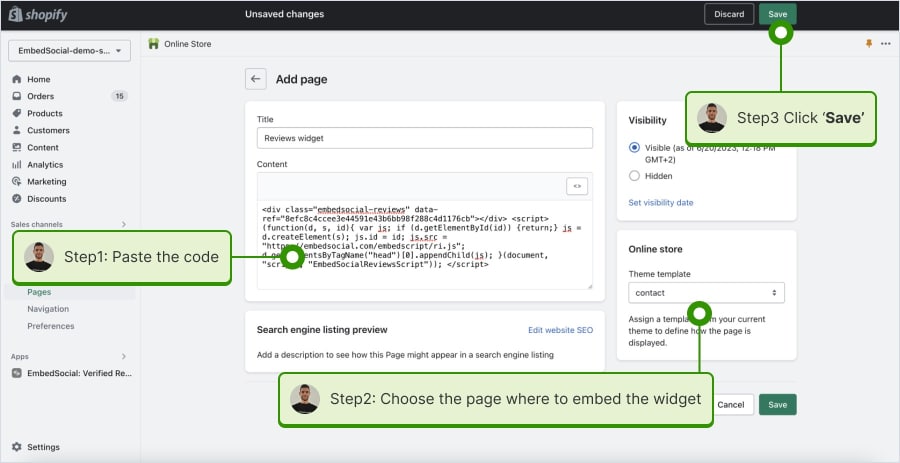
Here’s how to embed UGC on Shopify sites:
- Log into your Shopify account after copying the embeddable widget code in EmbedSocial;
- Navigate to the ‘Pages’ tab and click ‘Add page’;
- In the ‘Content’ field pages the embeddable code;
- Select the page where you want the code to appear and press ‘Save’.
How to embed UGC on Squarespace?

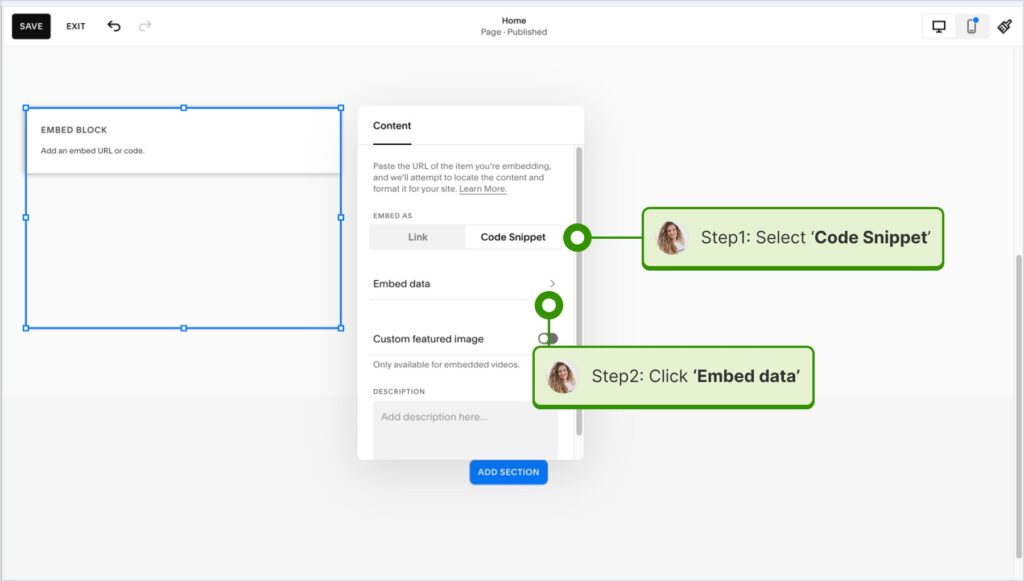
Here’s how to embed UGC on Squarespace sites:
- Copy your EmbedSocial widget code and log into your Squarespace account;
- Choose the page where you want the reviews to appear;
- Click ‘Add new section’ and then ‘Add block’ where you want to display the widget;
- From the blocks list, choose ‘Embed‘;
- Click on the block, select ‘Code snippet’, and click ‘Embed data’;
- Finally, in the code box, paste the copied reviews code;
- Make sure to save and publish your changes on Squarespace.
How to embed UGC on Wix?

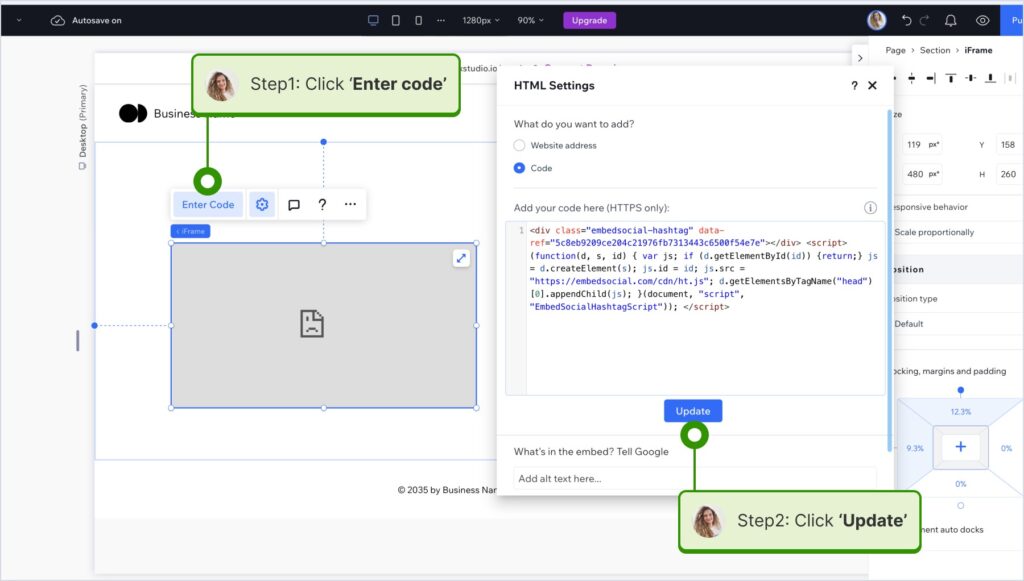
Here’s how to embed UGC on Wix sites:
- Log into your Wix editor and choose the page and location to add the widget;
- Click the “+” icon in the top-left corner to add a new element;
- Find the ‘Embed & Social’ section and tap ‘Embed Code’;
- Paste the code and tap ‘Update’.
How to embed UGC on Webflow?

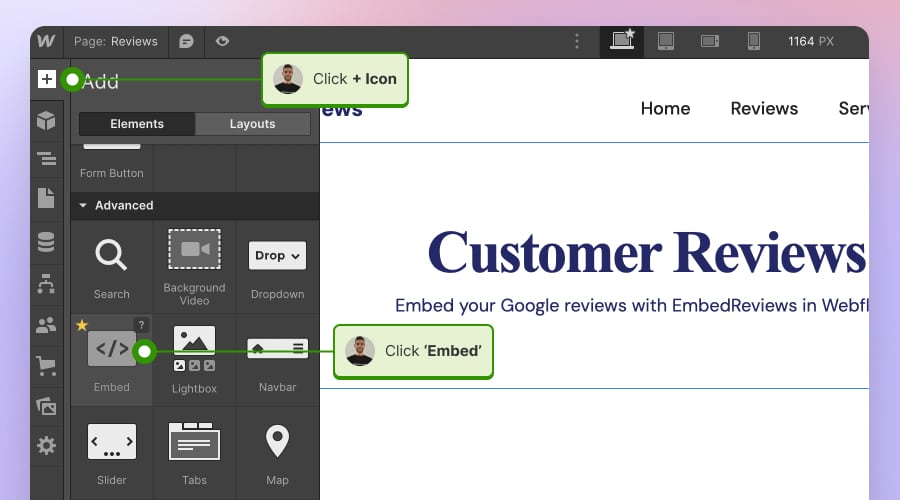
Here’s how to embed UGC on Webflow sites:
- After creating the widget in EmbedSocial, log in to your Webflow account;
- Go to the edit view of your website within Webflow;
- Choose to ‘Add element’ in Webflow and select the ‘Embed’ element;
- Drag and drop it where you want your reviews to appear;
- In the input field, paste the copied EmbedSocial code.
How to embed UGC on Pagecloud?

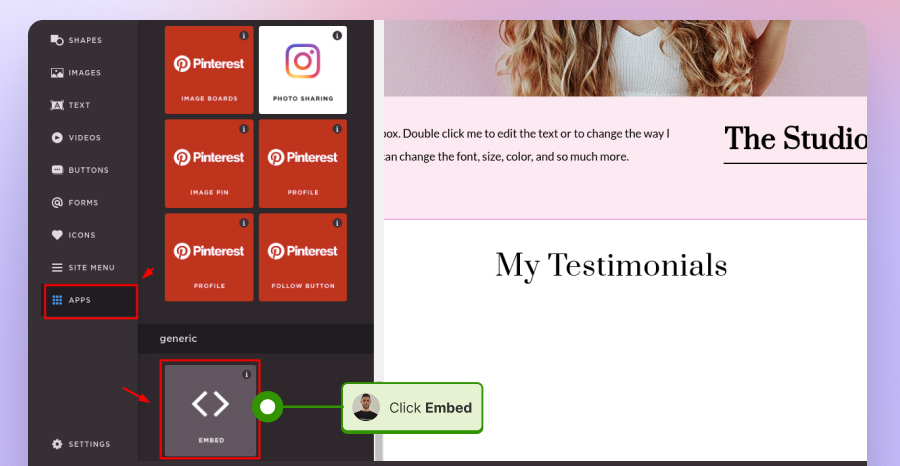
Here’s how to embed UGC on Pagecloud sites:
- After copying the EmbedSocial code, log in to your Pagecloud account;
- Start editing the webpage where you want the reviews to appear;
- Tap on ‘Apps’ from the left ribbon menu and select ‘Embed’;
- Paste the EmbedSocial code into the popup field and click ‘Ok’ to complete the process.
How to embed UGC on Google Sites?

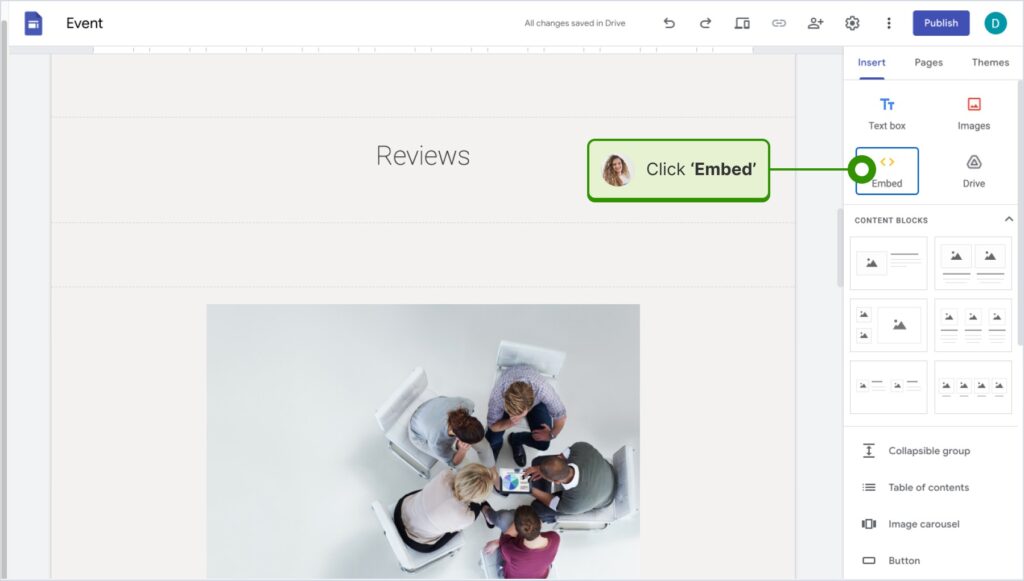
Here’s how to embed UGC on Google Sites:
- Once you copy your embeddable widget code in EmbedSocial, log in to your Google Sites account;
- Navigate to the page where you want to embed the widget;
- Use the ‘Insert’ tab in Google Sites and choose where you want to place the widget;
- Choose ‘Embed‘ from the menu and paste the copied code in the dialog box;
- Click ‘Next‘ and then ‘Insert‘ to finalize the embedding.
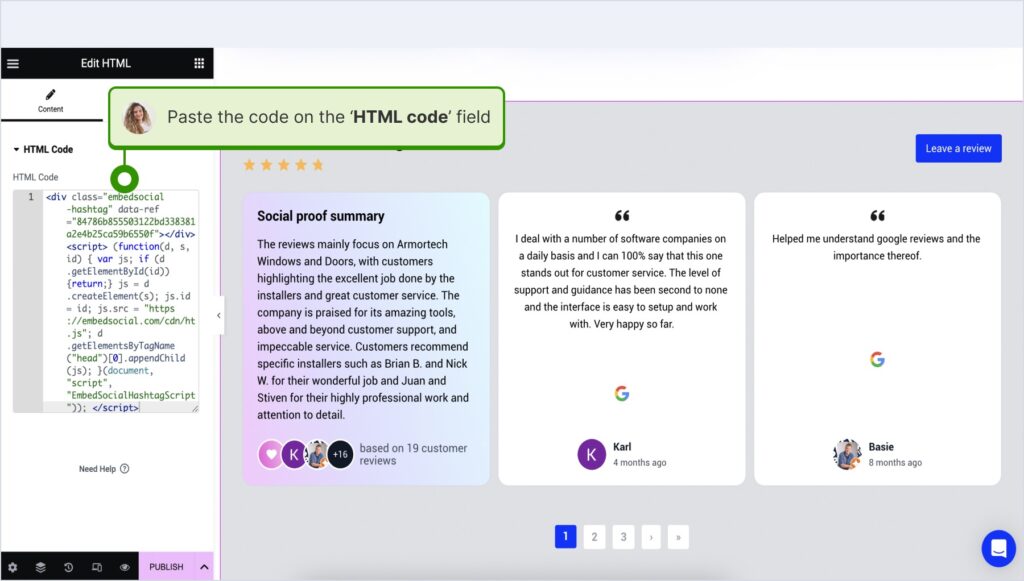
How to embed UGC on Elementor?

Here’s how to embed UGC in Elementor:
- Log in and navigate to the page where you want to add the reviews;
- Tap an empty section and choose the ‘HTML’ block from the left ribbon section;
- Drag and drop it on the page and paste the widget code in the empty field;
- Update and publish the page to see the live widget.
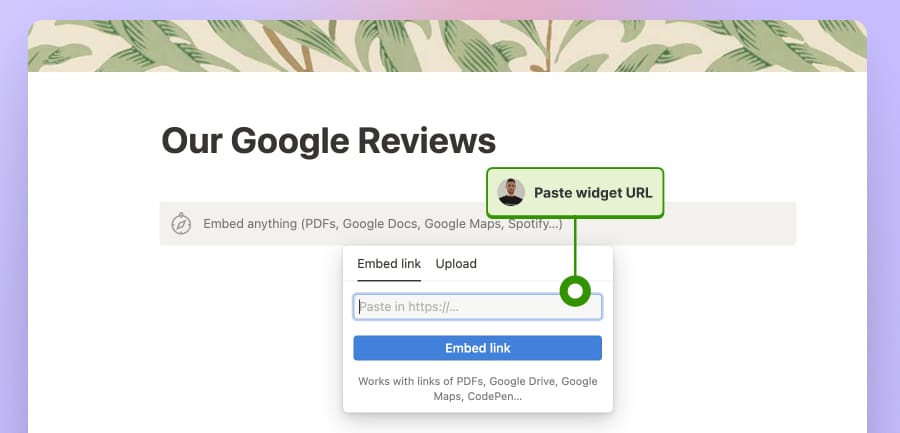
How to embed UGC in Notion?

Here’s how to embed UGC in Notion:
- After copying the widget code, log in to Notion, and go to the relevant page;
- Type the /embed command, and from the dropdown, choose the ‘Embed’ option;
- Paste the URL and click the ‘Embed link’ button to add your reviews to Notion.
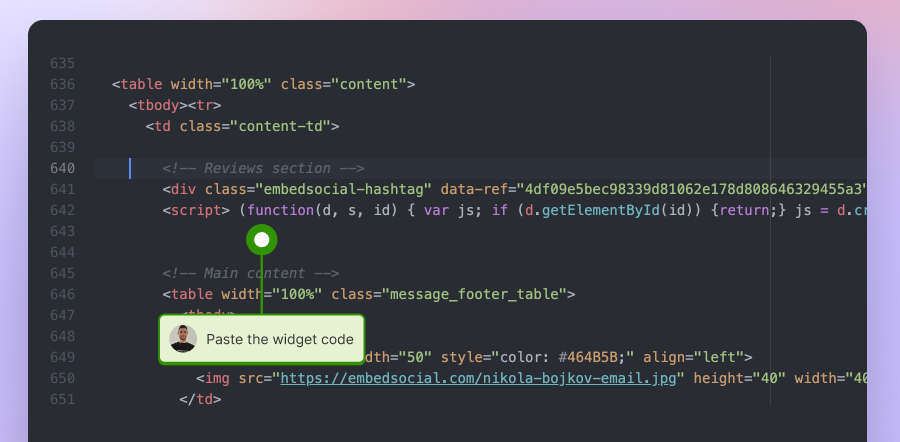
How to embed UGC on HTML websites?

Here’s how to embed UGC on HTML sites
- Copy the EmbedSocial widget review from the ‘Embed’ tab in the top-left corner of the Editor;
- Open the HTML file of your website, which could be either a new page or an existing one;
- Paste the copied EmbedSocial embed code where you want the reviews to display.
Read our help article:
Why embed YouTube live via EmbedSocial?
If you stream consistently, you need a scalable solution like EmbedSocial, as you don’t want to keep track of individual video IDs and remember to change them constantly.
Direct API integration for live sync
With EmbedSocial, you connect your YouTube Live channel once. The widget pulls your streams automatically and displays the active livestream when you go live.
You use one permanent embed code. When a new livestream starts, your website updates automatically. When the broadcast ends, the replay remains visible.
This allows you to maintain a consistent landing page URL, which helps consolidate UGC SEO authority instead of fragmenting traffic across multiple pages.
Best widgets design on the market
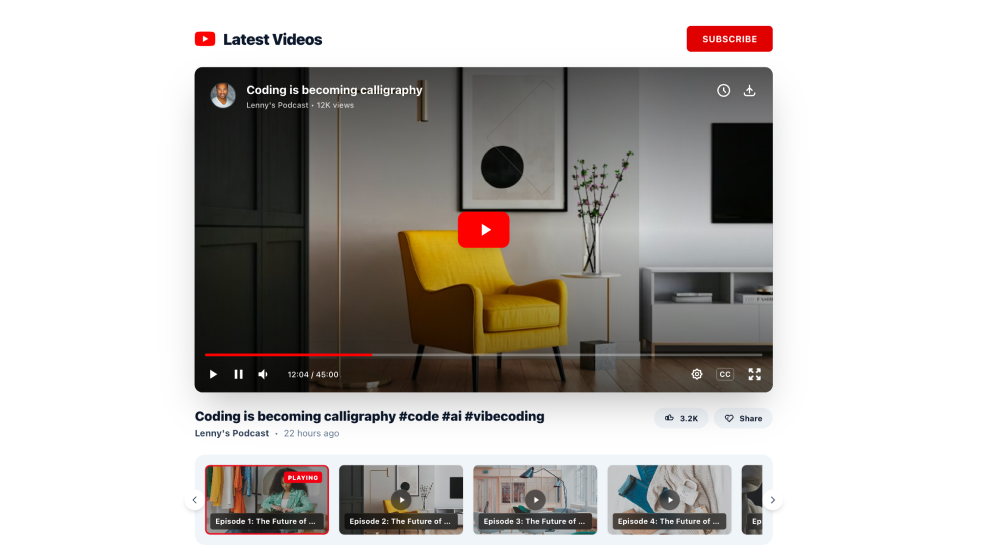
EmbedSocial has a built in AI editor that brings vibe coding to existing websites. With the AI assistant yo uare now able to generate any design imaginable and to fully customize it with your branding.
Form sliders, to playlists, you can browse our YouTube widgets library to find the one that fits you.
Try the Video Player Template and embed it on your website now.
If livestreaming is part of your recurring marketing strategy, embedding your feed instead of individual videos transforms livestreaming from a recurring task into stable infrastructure.
4 common YouTube live embed problems and how to fix them
If you encounter issues embedding YouTube live streams, they tend to follow predictable patterns, such as these:
- If you see “Video unavailable”, confirm that the stream is public and embedding is enabled.
- If your page shows a replay instead of a live broadcast, you likely embedded an outdated video ID.
- If autoplay does not function, ensure the stream is muted or remove autoplay entirely.
- If the embed appears distorted, adjust your responsive container styling or ensure the iframe width is flexible.
However, these issues typically occur when you manually try to embed a single YouTube live stream. If you rely on EmbedSocial’s solution, everything is automatic.
5 best practices for embedding YouTube Live on a business website
Embedding is only the technical layer. The way you structure the page around your livestream determines whether it drives engagement. Here’s how to make the most of it:
1. Keep your livestream on a permanent URL
One of the biggest mistakes businesses make is creating a new page for every livestream.
Every time you do that, you reset SEO equity. Backlinks get fragmented. Search signals weaken. Returning visitors don’t know where to go.
Instead, create a dedicated “Live” or “Events” page that remains constant. When you go live, the content updates, but the URL does not.
Pro tip: If you run recurring webinars or product demos, optimize that single live page for long-tail queries like “live product demo” or “weekly training session.” Over time, the page compounds authority instead of starting from zero every month.
A feed-based embed approach makes this easier because the stream updates without forcing you to create new URLs.
2. Design the page for conversion, not just viewing
A livestream alone does not convert. Context converts.
Place your primary call to action near the video instead of below a long scroll. If viewers are watching live, they are engaged in the moment. That is high-intent attention.
Think about what you want them to do next:
Should they buy? Register? Book a demo? Join a waitlist?
Design the layout so the next action is visually adjacent to the video.
Pro tip: On desktop, place your CTA beside the stream rather than below it. On mobile, ensure the CTA appears immediately after the video ends so you capture post-watch momentum.
3. Prepare for the replay phase before you go live
Most livestream pages go dark after the broadcast ends. That’s wasted traffic. Your video replay will continue receiving views for days or even weeks.
Treat it as evergreen content and add a short summary below the video once the stream ends. Include timestamps. Update the CTA to match post-live intent. You can also repurpose highlights into evergreen content like embedded YouTube Shorts.
For example, change “Join us live” to “Watch the replay and download the slides.”
Pro tip: If you keep the same URL for every broadcast, add an archive section below the live player (for example, an embedded YouTube playlist of past sessions), so older sessions remain accessible without cluttering your main navigation.
4. Optimize loading performance
Video embeds are heavy. If your livestream page loads slowly, you lose visitors before the stream even starts. So, avoid placing multiple large embeds above the fold. Consider lazy loading the video so it initializes only when visible.
Do not force autoplay on mobile unless absolutely necessary. It can increase bounce rates and create friction.
Pro tip: Run your live page through a performance tool before major broadcasts. Traffic spikes amplify performance problems.
5. Maintain visual consistency with your brand
A raw YouTube iframe can feel disconnected from your site’s design. That visual inconsistency reduces perceived professionalism.
Match spacing, background colors, and surrounding typography to your brand guidelines. The livestream should feel like a native part of your website — not an embedded afterthought.
Pro tip: If you run live shopping or high-stakes launches, consider embedding via a customizable widget that aligns visually with your site. Design cohesion increases trust, especially during revenue-driving events.
Conclusion: Build a livestream system, not just an embed
Embedding YouTube Live on your website is easy.
Building a livestream setup that works every single time you go live without manual fixes, broken pages, or outdated video IDs requires more intention.
If you host occasional events, the standard YouTube embed code is perfectly fine. Copy the iframe, paste it into your site, and you’re done.
But if livestreaming is part of your recurring marketing engine (weekly webinars, live commerce, product launches, services, recurring demos), manually swapping video IDs becomes a structural weakness. One missed update can cost visibility, trust, and revenue.
The real shift is this: start embedding your live content source.
When your livestream lives on a permanent URL, updates automatically, and transitions cleanly into replay mode, it stops being a recurring task and starts functioning as infrastructure.
Ready to turn your YouTube Live into a permanent, scalable system? Try EmbedSocial today and connect your YouTube channel only once!
FYI: You can automatically embed a YouTube widget with a social media aggregator, bringing your website to life with fresh content.
FAQs about embedding YouTube Live on websites
Can you embed a YouTube live stream on a website?
Yes, you can embed a YouTube live stream on any website using YouTube’s iframe embed code.
Just copy the code from the Share → Embed option and paste it into your site. Or use EmbedSocial to display your live stream automatically without manual updates.
How to embed YouTube live videos?
Open your livestream on YouTube, click Share → Embed, and copy the iframe code.
Paste it into a Custom HTML block on your website. For recurring streams, EmbedSocial lets you connect your channel once and auto-display every live session.
Why does my YouTube live embed show the wrong video?
This happens because each livestream has a unique video YouTube channel ID. If you don’t update the ID, your site may show an old replay instead of the live broadcast. With EmbedSocial, the active livestream updates automatically.
Is there a permanent YouTube live embed link?
No, YouTube assigns a new video ID to every broadcast. There’s no native permanent live embed link. To avoid switching IDs, use EmbedSocial to embed your YouTube channel feed instead.
Is YouTube Live Streaming API free?
Yes, YouTube’s Live Streaming API is free to use within Google’s quota limits. However, it requires technical setup and ongoing management. Tools like EmbedSocial simplify this with a no-code solution.
Can you embed YouTube live stream on website builders?
Yes, most website builders support iframe or custom HTML blocks. Simply paste the YouTube live embed code into the page. With EmbedSocial, you can use one permanent widget across any builder.
How to embed YouTube live stream on WordPress website?
Open your WordPress page, add a Custom HTML block, and paste the YouTube embed code. Update the page, and your livestream will display. For automatic updates without changing video IDs, use EmbedSocial’s YouTube Live widget.
How do I embed YouTube live stream without updating it every week?
Instead of embedding individual video IDs, connect your YouTube channel feed. A feed-based solution displays the active livestream automatically. EmbedSocial lets you use one permanent embed code that updates every time you go live.