If you want to embed a Twitter feed in HTML, the official method is simple: copy the code, paste it into your HTML page, and you’re done. But that’s only half the story.
Most websites need a responsive and live Twitter widget that’s branded, fast-loading, and controlled. So, we need to do better than just copying the snippet.
Here, I show you the exact HTML method to embed a Twitter feed, explain the real-world limitations, and then walk you through a more scalable way to do it using EmbedSocial.
First, we’ll start with the native approach.
FYI: You can embed Twitter feed widget automatically right now. Start a free trial and display your X feed now.

Show Twitter shoutout widget in a wall of love page on your website automatically!
Try EmbedFeed and add Twitter, Vimeo, TikTok, Instagram, YouTube, or Facebook feeds on your website with just a few clicks.
All PRO features | Cancel any time.
The official way to embed a Twitter feed in HTML
Twitter (X) provides a web tool called Twitter Publish that generates embed code for posts, profiles, hashtags, and timelines. Here’s the process:
- Go to publish.twitter.com
- Paste your Twitter profile URL
- Choose “Embedded Timeline”
- Copy the generated HTML snippet
1. Go to the Twitter Publish website
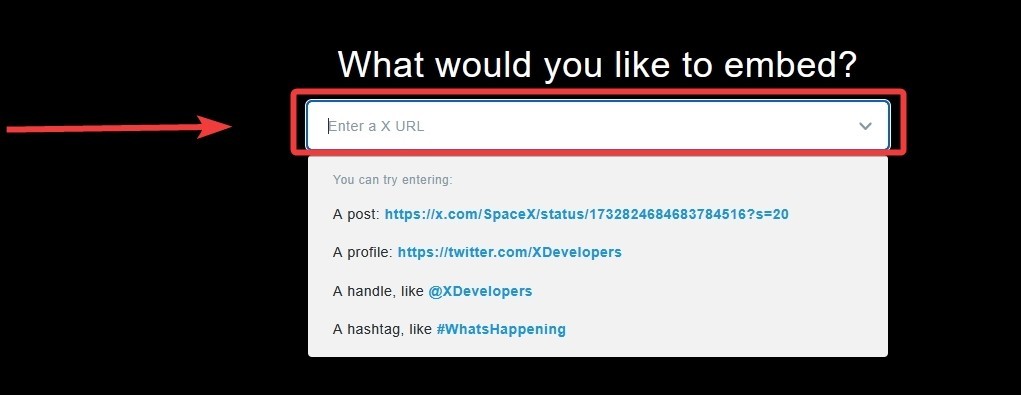
Open https://publish.twitter.com in your browser. This is Twitter’s official tool for generating embed code—no API keys or developer setup required:
2. Paste your Twitter profile URL
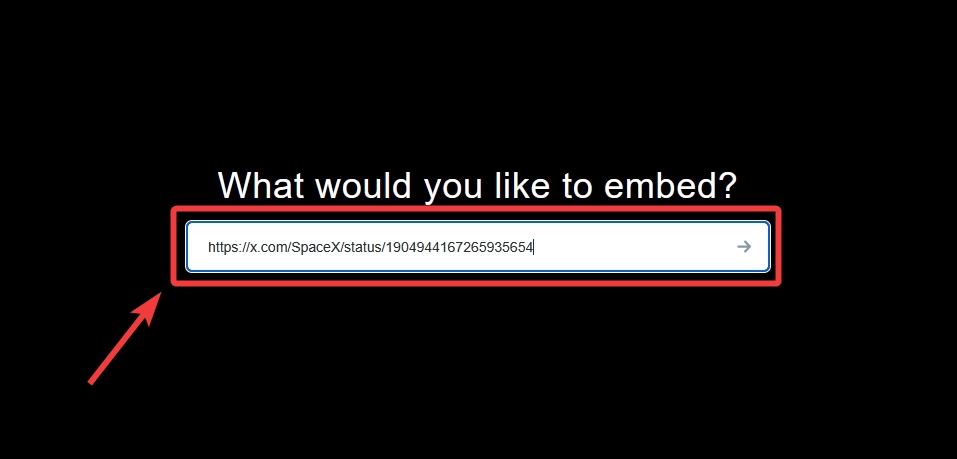
Copy your public Twitter URL (e.g., https://twitter.com/yourusername) and paste it into the input field. Make sure the account is public, or the feed won’t generate:
3. Choose “Embedded Timeline”
Select “Embedded Timeline” to create a live, auto-updating Twitter timeline feed. This option ensures new posts automatically appear on your website:
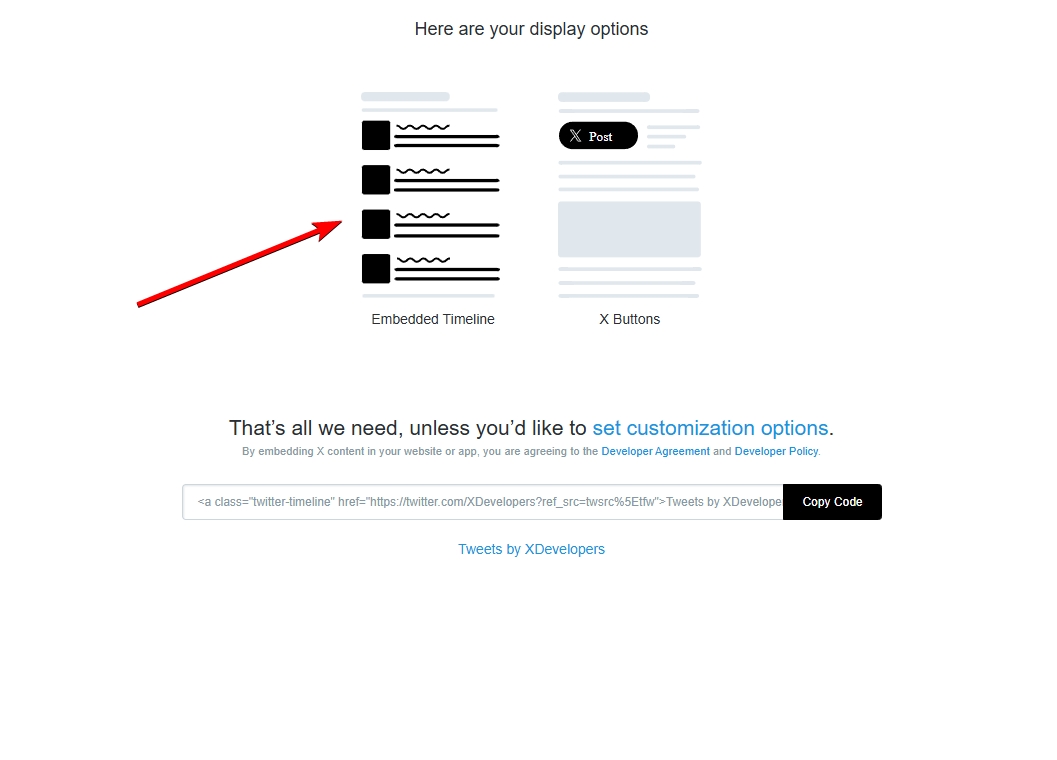
4. Copy the generated HTML snippet
Click ‘Copy Code’ and paste the provided HTML code into your page’s <body> where you want the feed to display. The included script will render the timeline automatically:
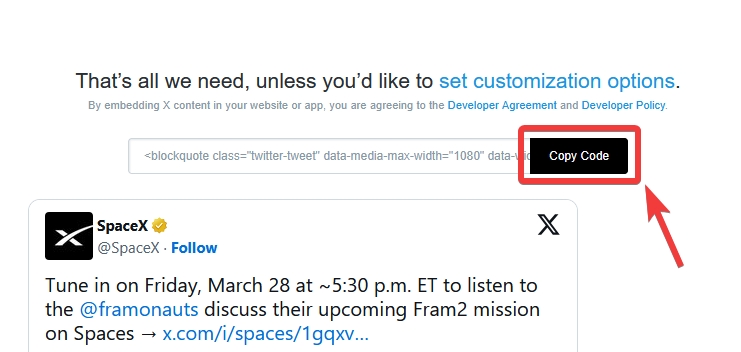
The code will look similar to this:
<a class="twitter-timeline" href="https://twitter.com/yourusername">
Tweets by yourusername
</a>
<script async src="https://platform.twitter.com/widgets.js" charset="utf-8"></script>
Note: You can only embed public Twitter content via the above method. Therefore, posts from protected accounts are not compatible with this method.
Embedding a single tweet vs a full Twitter timeline
There’s a big difference between embedding one tweet and embedding a live feed.
If you embed a single tweet, you’re adding a static reference. It works well in blog posts, case studies, or product announcements where context matters.
On the other hand, if you embed a full Twitter timeline, you’re creating a dynamic section of your website that updates automatically as you post.
For most businesses, a full timeline is more powerful because it keeps the page fresh without manual updates. But it also introduces more design and performance considerations.
How to embed a Twitter feed on a website using raw HTML
The core embed code doesn’t change across platforms. What changes is how your CMS handles scripts. On a static HTML site, you simply paste the code into your page file:
- On WordPress, you use a Custom HTML block.
- On Webflow, you add an Embed element.
- On Shopify, you place it inside a custom section or theme file.
Where people often get stuck—something I’ve seen repeatedly in developer forums—is script stripping. Some builders automatically remove <script> tags for security reasons.
When that happens, the timeline won’t render. You’ll just see a plain link. So, if your Twitter embed isn’t loading, that’s the first thing to check.
5 common problems when embedding a Twitter feed in HTML
Most tutorials stop after showing the snippet. But, there are some issues that come up in real-world implementation, including, but not limited to, the following:
1. The feed isn’t loading
If you see a link but no timeline, the widgets.js script isn’t executing. That could be because your platform blocks external scripts, an ad blocker is interfering, or JavaScript is disabled.
2. The layout looks broken on mobile
This is almost always a container width or CSS conflict issue. Temporarily remove custom styles to isolate the specific cause.
3. You can’t embed a private account
Only public Twitter accounts can be embedded. Private profiles won’t render.
4. Your page speed drops
When you embed a Twitter feed, you’re loading a third-party script. That introduces additional HTTP requests and external dependencies.
For a small blog, this may not matter. For a performance-optimized SaaS homepage, it might. Thankfully, there are third-party solutions with lazy loading scripts that solve this issue, such as EmbedSocial’s advanced AI UGC widgets.
5. Your website uses a strict Content Security Policy (CSP)
If your server restricts external scripts and doesn’t explicitly allow https://platform.twitter.com, the feed won’t render even if the HTML snippet is correct.
You need to whitelist Twitter’s domain in your CSP settings, or use a managed embed solution like EmbedSocial that minimizes direct third-party script dependencies.
These are manageable issues—but they add up quickly if you’re building something more serious than a hobby site, so you have to stay on top of them!
The limitations of the native Twitter embed widget
The official Twitter embed is intentionally simple, and as such, it’s designed for quick sharing, not advanced control. Here’s how it’s limited:
- You don’t get content moderation.
- You can’t redesign the layout.
- You can’t merge multiple accounts.
- You can’t combine Twitter with Instagram or other platforms.
- You can’t deeply optimize performance.
If all you want is a feed on your sidebar, that’s fine. However, if you’re thinking about brand consistency, conversion impact, and automation, the native widget starts to feel restrictive.
This is where using a managed solution changes the game.
A better way to embed a Twitter feed in HTML using EmbedSocial
Instead of pasting Twitter’s raw script into your HTML, you can connect your Twitter account to EmbedSocial to generate a fully customizable feed.
The difference is simple: you move from “script rendering” to “content management”. Using a social media aggregator designed for that purpose makes all the difference. You connect your Twitter account through official API integration, so new posts automatically sync.
After all, EmbedSocial offers a coding-free tool that can collect anything you want from Twitter and display it in customizable Twitter widgets anywhere you’d like.
Before you proceed, create your EmbedSocial account. Then, follow these steps to embed your Twitter feed in an HTML website:
- Define your X (formerly Twitter) website widget
- Link your Twitter account as the content source
- Select a layout template for your Twitter feed
- Adjust the design and settings of your X (Twitter) widget
- Copy the generated embed code
- Insert the code into your website
You need a Twitter API key if you want to collect and embed all types of X (Twitter) content, including hashtags, mentions, and keywords.
1. Define your X (Twitter) website widget
Start by describing your ideal X (Twitter) widget inside the AI widget editor. Once you’re happy with the description, click “Generate” to use one credit and create your initial widget:
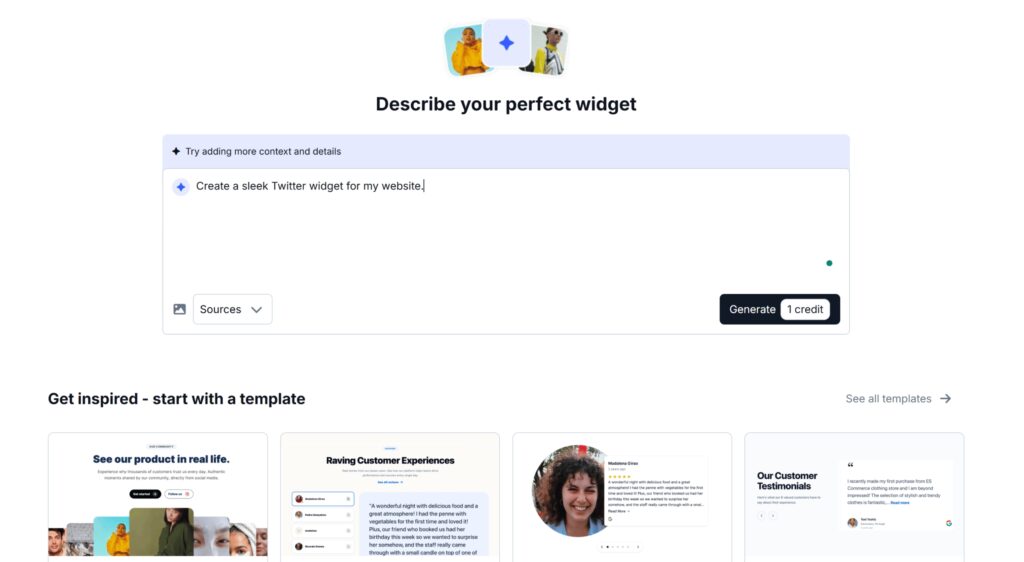
2. Link your Twitter account as the content source
Next, head to the “Sources” tab and link your X (Twitter) account so EmbedSocial can pull in your content automatically. After connecting, select the specific Twitter handle you want to display:

3. Select a layout template for your Twitter feed
Choose one of the ready-made templates to structure your feed. You can also pick an AI-powered template and continue refining it using prompts:

4. Adjust the design and settings of your X (Twitter) widget
To adjust your widget, simply describe the changes you want—such as modifying colors, layout, or spacing—and the editor will update the design accordingly:
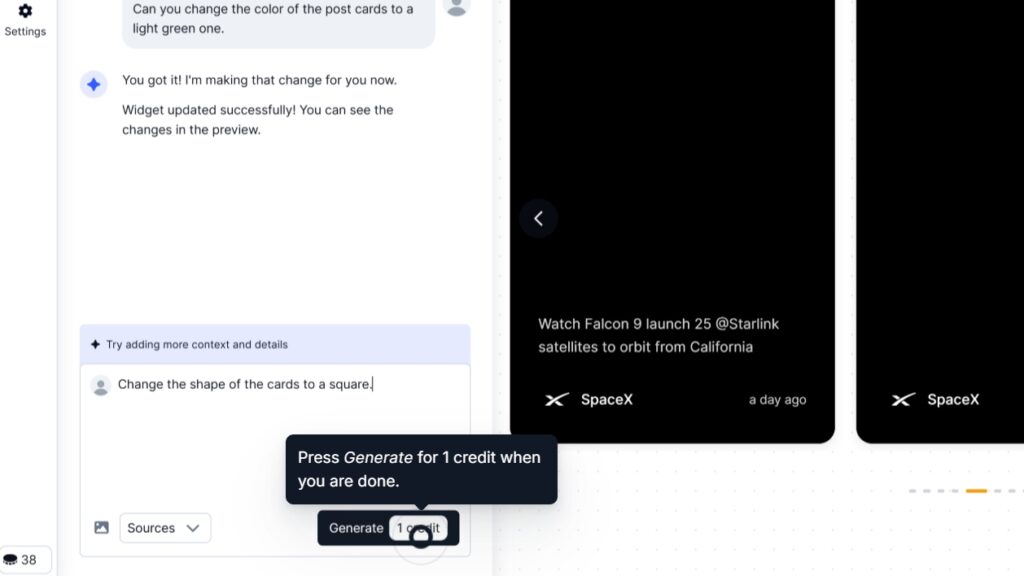
5. Copy the generated embed code
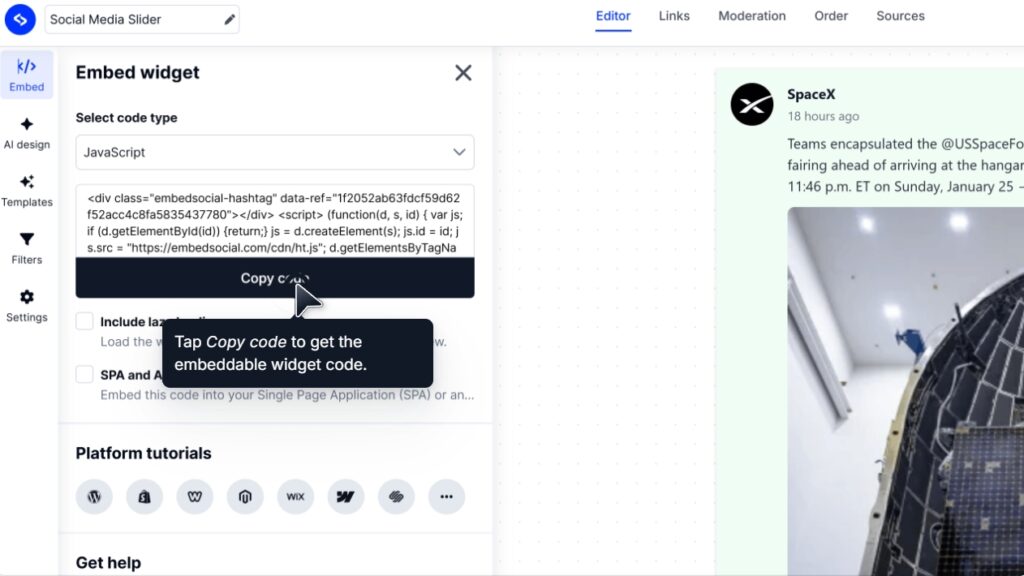
When everything looks right, open the “Embed” tab within the EmbedSocial widget editor, click “Copy code”, and prepare to add it to your website:
6. Insert the code into your website
Insert an empty HTML block in your site builder, paste the widget code, and save your page to publish the feed live. When done, you might expect a result like this:
Remember: you can control what appears on your site. You can approve or hide posts before they go live. You can filter by hashtag. You can combine multiple Twitter accounts into one feed. You can even merge Twitter with Instagram to create a unified social wall.
FYI: You can embed Twitter feed widget automatically right now. Start a free trial and display your X feed now.
Show Twitter shoutout widget in a wall of love page on your website automatically!
Try EmbedFeed and add Twitter, Vimeo, TikTok, Instagram, YouTube, or Facebook feeds on your website with just a few clicks.
All PRO features | Cancel any time.
Manual HTML embed vs EmbedSocial: what’s the difference?
Here’s where the distinction becomes strategic:
| Feature | Native Twitter embed | EmbedSocial |
|---|---|---|
| Branding control | Minimal | Full customization |
| Moderation | No | Yes |
| Multi-account feeds | No | Yes |
| Cross-platform aggregation | No | Yes |
| Layout flexibility | Fixed | Various templates |
| Performance control | External dependency | Optimized embed |
| Scalability | Limited | Built for growth |
If you need something quick and disposable, native works.
If you’re building a brand asset, automation and control matter.
Use cases where embedding a Twitter feed drives real results
Embedding a Twitter feed isn’t decorative when done intentionally. It directly influences trust, engagement, and conversions. Here’s how it plays out:
SaaS homepage: turning product updates into live credibility
Most SaaS homepages claim transparency. Few prove it.
Imagine a B2B startup that ships weekly product updates. They regularly post changelogs, customer wins, and roadmap teasers on Twitter. Instead of hiding that activity behind a social link in the footer, they embed their live Twitter feed directly on the homepage.
Now every visitor sees:
- Ongoing product momentum
- Real customer interactions
- Founder visibility
- Public support responses
This does two things: it builds trust (prospects see proof of activity) and it reduces friction (social validation happens without leaving the site).
With EmbedSocial, the company can moderate posts, highlight feature announcements, and design the feed to match their UI so it reinforces credibility rather than distracting from it.
E-commerce product pages: turning customer mentions into social proof
Social proof sells.
Imagine a DTC fashion brand that encourages customers to tag them on Twitter. Instead of manually screenshotting testimonials, they embed a live hashtag feed on their product pages.
Now, shoppers don’t just see polished product photos. They see your real Twitter followers wearing the product. That changes behavior.
It answers unspoken objections:
- “Does this look good in real life?”
- “Are other people buying this?”
- “Is this brand legit?”
Using EmbedSocial, the brand can filter out irrelevant mentions, highlight positive posts, and even combine various social media sites create a unified UGC wall.
The result is higher purchase confidence.
Event landing pages: amplifying live momentum
Events thrive on energy.
Imagine a tech conference launching a new product. Attendees are tweeting quotes, photos, and reactions in real time. If that content stays on Twitter alone, website visitors miss the momentum.
By embedding feeds tied to the event hashtag, the event page becomes dynamic.
Now visitors see:
- Real attendee reactions
- Speaker quotes in real time
- Community participation
- Visual proof of attendance
This increases FOMO and encourages signups for future events.
With EmbedSocial, organizers can curate the best posts instead of showing an unfiltered stream, keeping the feed professional and brand-safe.
Founder-led brands: building authority through public presence
For solopreneurs and founder-led companies, Twitter is often their primary content channel.
Imagine a consultant who shares industry insights daily. Their website lists services—but their Twitter feed shows thinking in action.
When embedded strategically on their homepage or about page, the feed demonstrates:
- Consistency
- Expertise
- Engagement with peers
- Real-time relevance
Instead of claiming authority, they show it.
Using EmbedSocial, the founder can design the feed to feel integrated into their site’s brand rather than looking like a generic social widget.
Authority becomes visible.
Agencies and consultants: showcasing client wins publicly
Agencies often share client results and testimonials on Twitter.
Imagine a growth agency tweeting screenshots of performance improvements and client praise. By embedding that Twitter feed on their case study page, they create a living portfolio.
Visitors don’t just read static claims. They see public validation.
This reduces skepticism and shortens the decision cycle.
With moderation and layout customization in EmbedSocial, agencies can highlight wins while hiding irrelevant chatter—keeping the narrative focused.
7 benefits of embedding Twitter (X) content on your website according to experts
Here is what 7 thought leaders had to say when asked about the advantages of embedding Twitter (X) content on their brand and company websites:
Embedded UGC Lifts Onsite Trust and Conversions
When you link to X, you’re essentially purchasing traffic but redirecting it back to the place from which it originated. Our findings show that embedding content keeps the user inside of your ecosystem while providing a “real time” signal as opposed to a static website. This will create an increase in the levels of credibility because users can see the interaction that is occurring in real time, and thus have a base for measuring the authenticity of the interaction, which is much harder to fake than a traditional testimonial block.
Therefore, the biggest win for user generated content (UGC) is the increase in conversion rates as a result of the UGC. Nosto has found that UGC can increase conversion rates on the web by up to 29%, and we have seen time and again how the live feed UGC acts as a trust bridge and validates that the brand is presently active and responsive. The measurable result is that it validates your claims based on real-user-generated content from the voices of the community instead of just using your own marketing material. Just be aware of the technical side of this; if the embed is not optimized, then page load speed will be negatively affected, which will diminish any benefit to your SEO from using social proof to increase sales.
Digital trust building is an ongoing fight against skepticism in marketing. Having an unfiltered, real-time, digital feed of community activity acts as a proof point showing you have nothing to hide. It provides the opportunity to turn one-way marketing messages into two-way conversations that occur at the same point as the transaction.
Amit Agrawal, Founder & COO, Developers.dev
——————————————-
Embedded X Cuts Time to Purchase 17%
Embedding X on our website reduced the time between the first product page visit and purchase by 17%. We noticed a pattern where users started by visiting our Product Page. They then went to the FAQ section, read a few blogs, saw the coverage map and exited the website.
Considering travel connectivity buyers don’t shop emotionally, their hesitation was about uncertainty. Will the SIM activate immediately and how well will it work in rural areas? What happens if my flight is delayed?
The information on our blog and resource section answered these questions in rigid copies that read like policy. What we posted on X and the comments from our customers clarified their doubts. The time to conversion dropped by 17% as customers made faster decisions. We also noticed they stopped looking for more information beyond our FAQ and website.
Oleksii Sosnovenko, Digital Marketer, Mobal
——————————————-
Embed Social to Keep Visitors Focused
Embed X content on your website to keep visitors focused on the content and context of their visit. Providing an external link to a social network diverts a client’s attention from the content on your site to everything else on the Internet. By embedding, the conversation will remain on your site and you can be assured that clients are engaging with content relevant to the business.
Therefore, integrate social conversations to ensure that feedback supports the overall message you want to convey, rather than being located separately on a social media platform.
I believe the inclusion of embedded content causes visitors to spend more time on the site and allows them to interact with the content in a structured manner. From a marketing perspective, I believe it provides a simple method to create a single source of visibility, thought leadership, and messaging.
John Karsant, Founder and CEO, LevelUp Leads
——————————————-
X Embeds Build Trust and Spark Engagement
Embedding Twitter (X) content brings one of the most important aspects, trust and credibility. Earlier, without embedding Twitter posts within the content, viewers had to leave the current tab and switch to social media platforms for social proof.
By including external social media links, people can get live reactions and comments without even leaving the browsing screen. This also increased the longer stay time on the page, highlighting that the current traffic perceives the content as a value-added thing.
While we have learnt from our clients that people like the transparency of social proof, this also naturally pushes the audience to engage by commenting and reacting. Again, this is a win-win thing, or what I might call hitting two birds with a single arrow. In simple words, this also brings in higher engagement on social media platforms.
Tyler Denk, Co-founder & CEO, beehiiv
——————————————-
Feature Screenshot Tweets to Boost Credibility
When I worked as a social media content strategist for Dr. Aditi Nerurkar, we found that embedding Twitter posts with their corresponding engagement helped build credibility on less active social media channels. It can work on the website too, but we found it worked better as a testimonial “tweet” from an active user that you are featuring on the website. Linking an X profile (or a link in general) doesn’t really work well since it decreases engagement, but using a screenshot to feature credibility works. These days, X has almost completely disappeared, but you can use the same concept with threads.
Michelle Gean, Marketing Coordinator, Achievable
——————————————-
Live Feeds Lift Time on Page and Leads
When you embed live Twitter (X) content on your website, it builds trust with your visitors and encourages them to spend more time on your site rather than driving them to other sites. A good way to do this is to show the visitor the live, current conversations from your customer base, via live posts, reviews, or hashtag conversations about your business on all of your important landing pages as well as creating instant, visual credibility.
Embedding a live customer hashtag feed on high-intent product pages caused an increase in time spent on those pages of greater than 20%, and a 15% increase in inquiries submitted through the online inquiry form. Customers were able to engage with the authentic user-generated content without having to leave the site; therefore, the bounce rate was decreased, and the length of the decision cycle was also decreased.
Real customers’ public postings of their own experiences showed the same level of transparency that static testimonials cannot provide. So here’s what we have learned so far: keep your social proof on your website. Embedded live feeds can build credibility, cause measurable increases in engagement, and convert passive viewers into active leads without losing traffic to external sites.
Kellon Ambrose, Managing Director, Electric Wheelchairs USA
——————————————-
Live X Feeds Strengthen SEO and Retention
Embedding Live Tweets (X) has dramatically increased both the engagement with customers and the ability for users to find your company through search results. As opposed to simply linking to social media or blogs where you are posting about your project, and therefore not creating fresh, crawling-friendly content, live feeds provide an opportunity to integrate real-time information and customer testimonials directly onto your service pages, which in turn increases the frequency at which Google will crawl your site, as well as enhances your SEO performance.
A recent example of this was when we added a live tweet feed on one of our service pages to highlight completed projects and include feedback from clients; since then, we have seen a 18% decrease in bounce rate, and continually increasing organic traffic to that page. Because the visitors feel like they are viewing a “live” and current version of your business, they tend to spend more time reviewing your website and therefore view more pages. Our strategy is simple: convert each of your social media posts into continuously updating, crawler-friendly website content that generates both trust and discoverability for your company.
Andrew Bates, COO, Bates Electric
Conclusion: embed your Twitter feed the right way
If your goal is simply to embed a Twitter feed in HTML, the official method will get you live in minutes. But you can do so much more with so little effort!
Plus, if you care about your branding, content moderation, marketing performance, and long-term flexibility, you need more than a working snippet.\
In every scenario, embedding a Twitter feed works when it does one thing: It reduces the gap between claim and proof. But raw embeds are passive.
You must move beyond raw scripts and turn your Twitter feed into a structured, conversion-ready asset by powering it with a UGC platform like EmbedSocial.
FYI: You can embed Twitter feed widget automatically right now. Start a free trial and display your X feed now.
Show Twitter shoutout widget in a wall of love page on your website automatically!
Try EmbedFeed and add Twitter, Vimeo, TikTok, Instagram, YouTube, or Facebook feeds on your website with just a few clicks.
All PRO features | Cancel any time.
FAQs about embedding a Twitter feed in HTML
How do I embed a Twitter feed in HTML without plugins?
Use Twitter Publish to generate the embed code and paste it into your HTML file. If you want more control without relying on plugins, use EmbedSocial to manage and generate your feed.
How can I embed a Twitter feed on my website via EmbedSocial?
In EmbedSocial, connect your X (Twitter) account as a Source, pick a Twitter widget template, customize the design, then copy the embed code from the Embed tab and paste it into your site. This gives you an auto-updating feed with moderation and branding control.
How to embed live Twitter feeds on Webflow sites?
Create your feed in EmbedSocial, then in Webflow, add an Embed element (HTML block) where you want it to appear and paste the EmbedSocial widget code. Publish the site, and your live Twitter feed will render and keep updating automatically.
Why is my Twitter feed only showing a link to a profile without embedding the widget?
That usually means the Twitter widgets.js script isn’t loading or is being stripped by your CMS/theme, so only the raw link remains. EmbedSocial avoids this fragile setup by providing a clean embed snippet that’s less likely to get blocked and is easier to control.
Has anyone figured out how to embed Twitter (X) on their WordPress website?
Yes—use a Custom HTML block in WordPress and paste either the Twitter Publish embed or (more reliably) an EmbedSocial widget code. With EmbedSocial, you also get moderation and a layout that matches your theme without fighting WordPress script restrictions.
How to embed an X (Twitter) feed on a website automatically?
Use EmbedSocial to connect your Twitter account once and let it continuously sync new posts into your widget. You embed the code a single time, and the feed stays fresh without you revisiting publish.twitter.com.
Can you make a Twitter feed for your website using JavaScript?
Yes, the native method relies on JavaScript (platform.twitter.com/widgets.js) to render embeds, and custom builds usually require the Twitter/X API. EmbedSocial is the faster route: it handles the syncing and rendering for you and gives you a ready-to-paste widget that works across site builders.
Why is my Twitter embed not working?
In most cases, your CMS is blocking the widgets.js script, or an ad blocker is interfering. Ensure external scripts are allowed or use an optimized embed solution like EmbedSocial.
Can I embed a private Twitter account?
No. Only public accounts can be embedded. Even managed platforms require public visibility to sync content.
How do I make my Twitter feed responsive?
Wrap the embed inside a flexible container and avoid fixed widths. If you want built-in mobile optimization, use a customizable feed solution like EmbedSocial.
Does embedding Twitter slow down my website?
It can, because it loads external JavaScript. Using an optimized and managed feed can help reduce conflicts and improve stability.
Can I customize the Twitter embed colors?
Native embeds allow limited styling. For full design control and branding consistency, you’ll need a customizable feed solution like EmbedSocial.