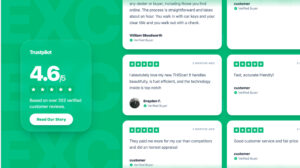
You should embed Trustpilot reviews on website pages, as it’s an excellent way to boost your credibility and showcase genuine and credible social proof of your brand.
That way, you help potential customers see real experiences with your brand, significantly increasing conversions by influencing buying decisions.
Not only do embedded reviews build trust, but they are also fresh content that search engines love for SEO purposes—you boost your rankings by embedding reviews!
In this guide, I’ll show you a couple of methods for embedding Trustpilot reviews, including the official TrustBox widget and EmbedSocial‘s advanced AI widgets.
First, here’s a brief video on how to embed Trustpilot reviews via vibe-coding:
What is a Trustpilot reviews widget?
A Trustpilot reviews widget is a tool that allows businesses to display customer reviews and ratings from Trustpilot directly on their website.
‘Trustpilot reviews widget’ definition
Embedding Trustpilot reviews on your website is as simple as copying and pasting a single line of code, and it can be done via Trustpilot’s paid version or EmbedSocial’s website widgets.
Here’s an example of a demo Trustpilot widget by EmbedSocial showcasing its features:

Full guide: Embed Trustpilot reviews with EmbedSocial
For a more straightforward and faster solution for embedding Trustpilot reviews, you should try out our Trustpilot widget, which can be set up in no time at all.
However, before we proceed further, you will need to create a Premium EmbedSocial account and get a Trustpilot API key via the Trustpilot Business account settings.
Once you meet these criteria, follow these steps:
- Use AI to describe your widget
- Connect your Trustpilot source
- Choose a professional template
- Customize your widget template
- Copy the unique widget code
- Paste the widget code into your website
Step 1: Use AI to describe your widget
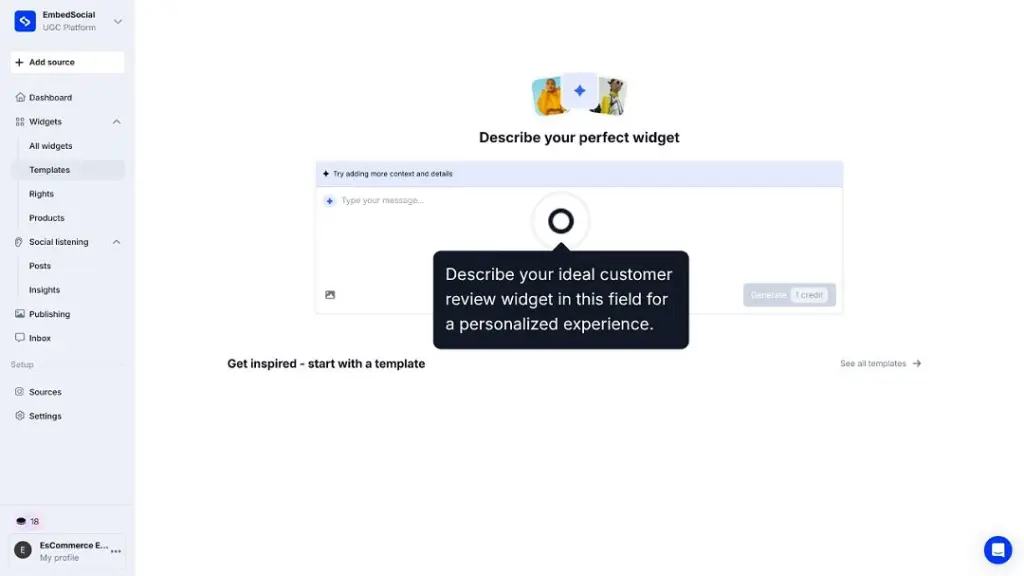
Start by using the EmbedSocial AI design tool for widgets to describe your ideal review display. Simply enter a prompt to begin the generation process:
Step 2: Connect your Trustpilot source
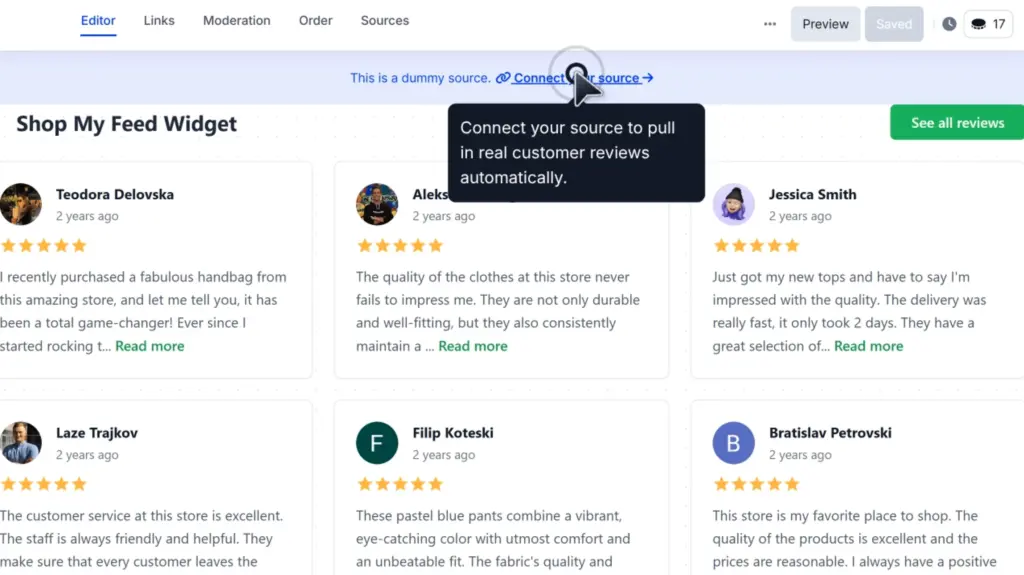
To pull in real-time data, you must connect your Trustpilot account to EmbedSocial and pull all your reviews. Simply tap the ‘Sources’ tab at the top and search for (or connect) your Trustpilot account:
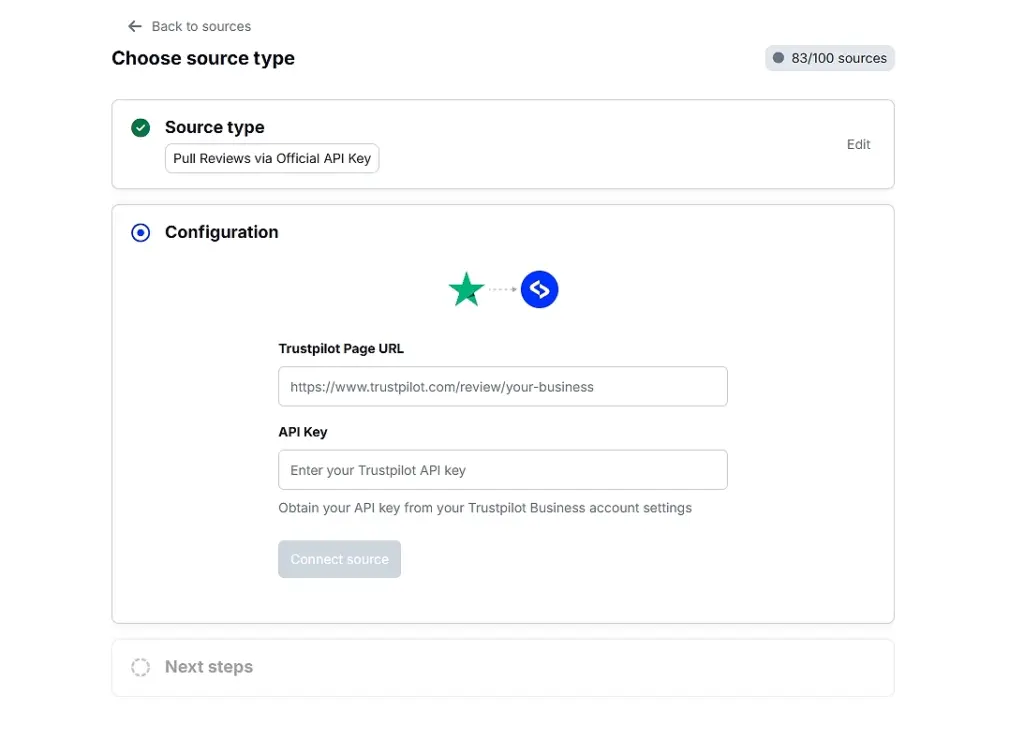
You will have to provide your Trustpilot Page URL and your API Key:
Step 3: Choose a professional template
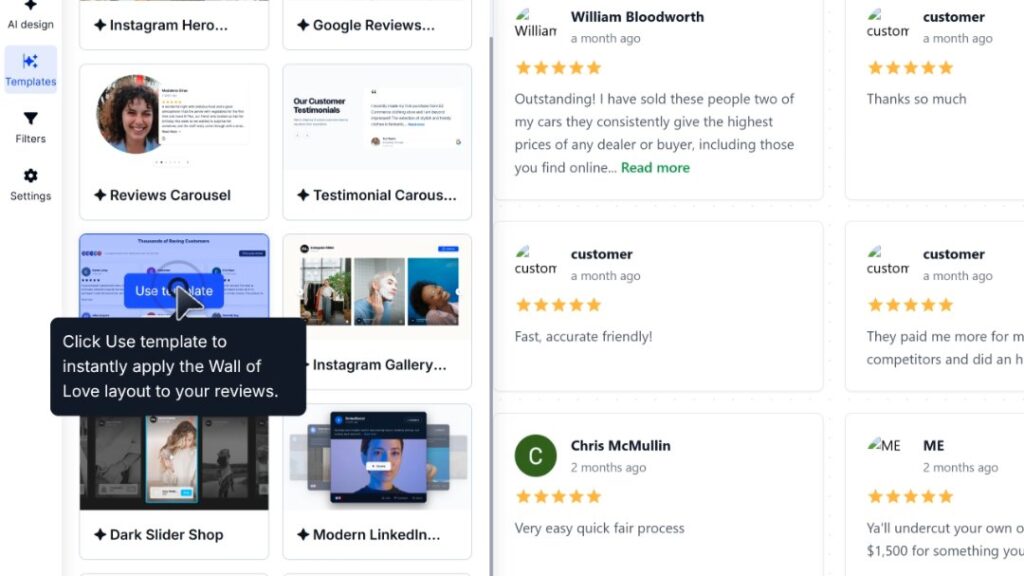
Open the ‘Templates’ section from the left ribbon menu to browse professional layouts. Hover over your preferred design, such as the Wall of Love, and click ‘Use template’:
Step 4: Customize your widget template
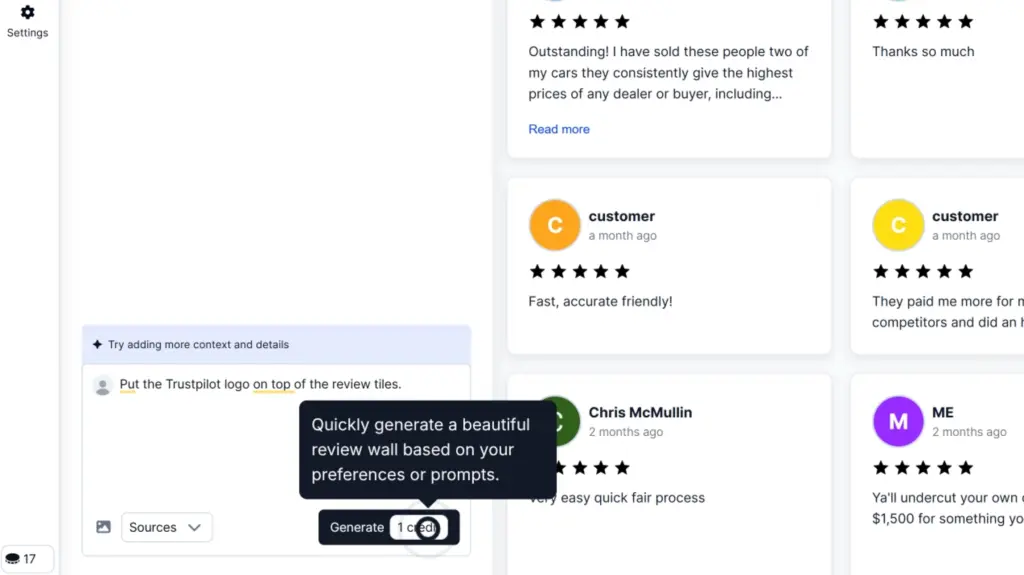
You can further customize the AI widget template by providing further prompts, such as: “Add a custom logo on top”, or “Change the size of the review tiles.”:
Step 5: Copy the unique widget code
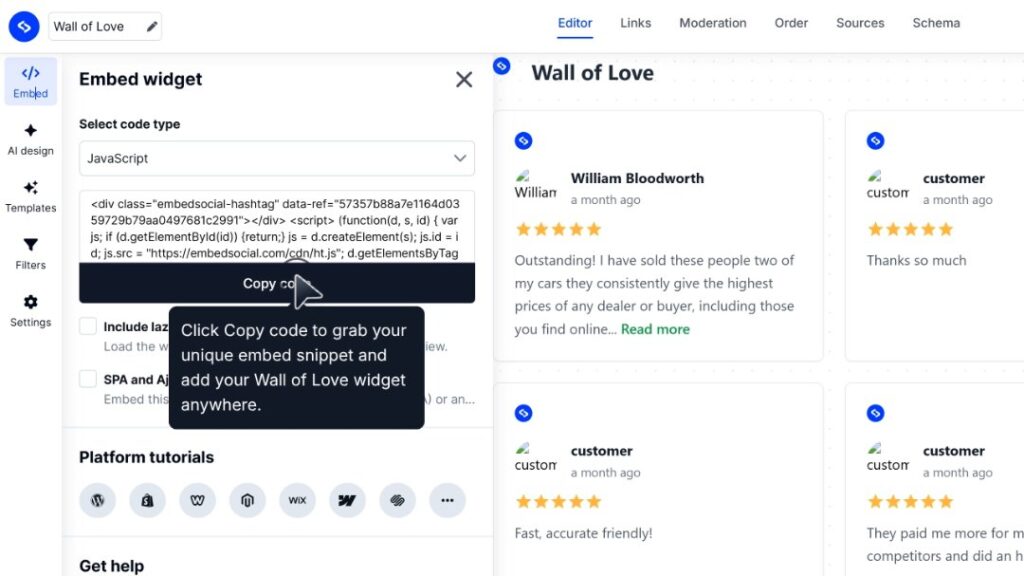
Once you are fully satisfied with the widget’s look, head over to the ‘Embed’ tab (top-left corner) and tap ‘Copy code’ before you paste it onto your website:
Step 6. Paste the widget code into your website
The last thing you have to do is paste the code into an HTML element on your website and update the page. This functionality is supported by all website builders, and I go over it below.
How to embed Trustpilot review widget across all popular website builders?
Here are brief tutorials about adding Trustpilot reviews widgets on all CMS platforms out there:
How to embed UGC on WordPress?

Here’s how to embed UGC on WordPress sites:
- Once you create your EmbedSocial widget, go to your WordPress admin page;
- Sign in to your account and open the page where you want to add the UGC widget;
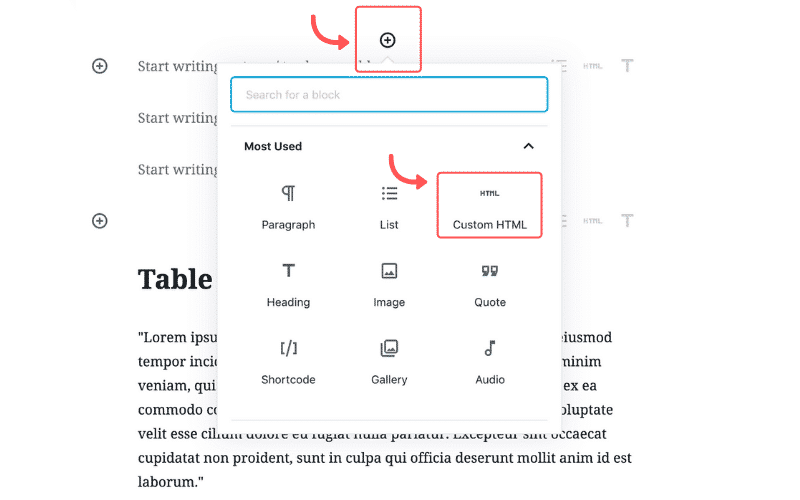
- Click the + button in the editor and choose Custom HTML to paste the widget code;
- Click “Save” when you’re done.
How to embed UGC on Shopify?

Here’s how to embed UGC on Shopify sites:
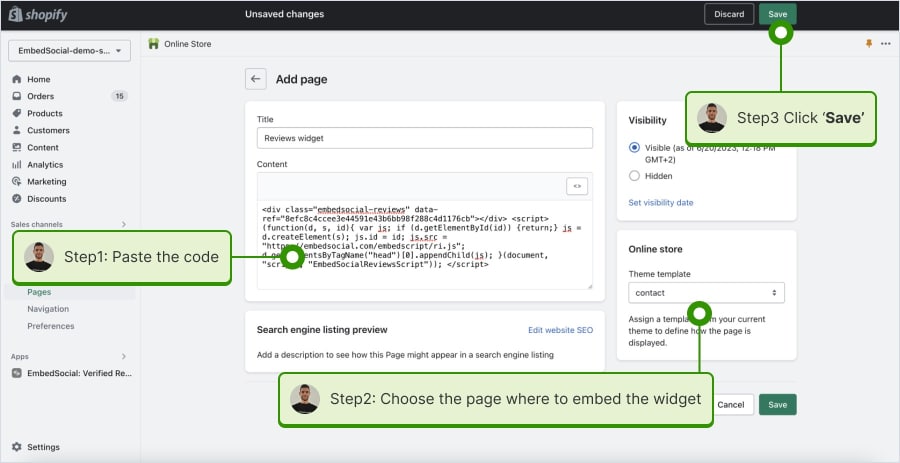
- Log into your Shopify account after copying the embeddable widget code in EmbedSocial;
- Navigate to the ‘Pages’ tab and click ‘Add page’;
- In the ‘Content’ field pages the embeddable code;
- Select the page where you want the code to appear and press ‘Save’.
How to embed UGC on Squarespace?

Here’s how to embed UGC on Squarespace sites:
- Copy your EmbedSocial widget code and log into your Squarespace account;
- Choose the page where you want the reviews to appear;
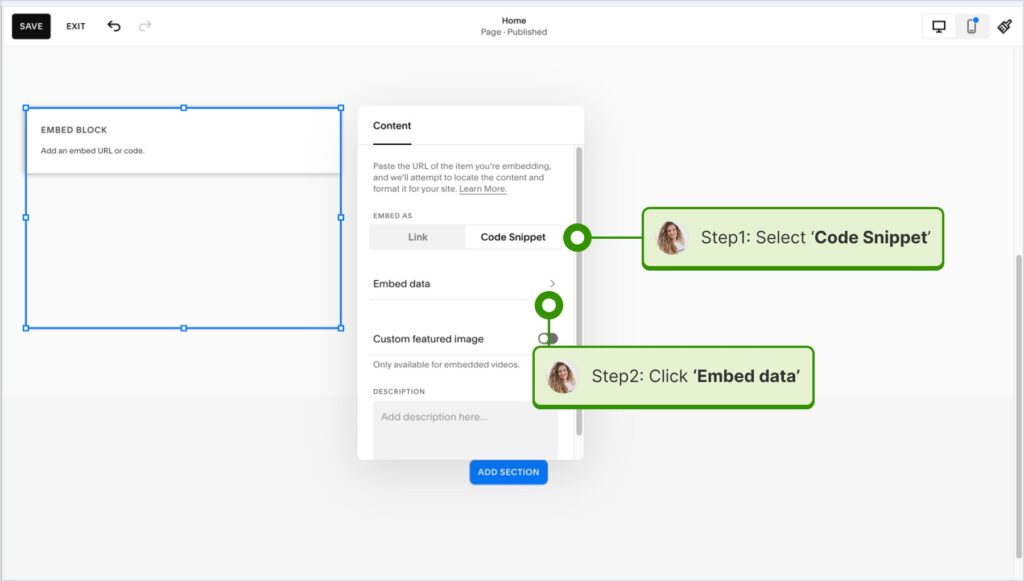
- Click ‘Add new section’ and then ‘Add block’ where you want to display the widget;
- From the blocks list, choose ‘Embed‘;
- Click on the block, select ‘Code snippet’, and click ‘Embed data’;
- Finally, in the code box, paste the copied reviews code;
- Make sure to save and publish your changes on Squarespace.
How to embed UGC on Wix?

Here’s how to embed UGC on Wix sites:
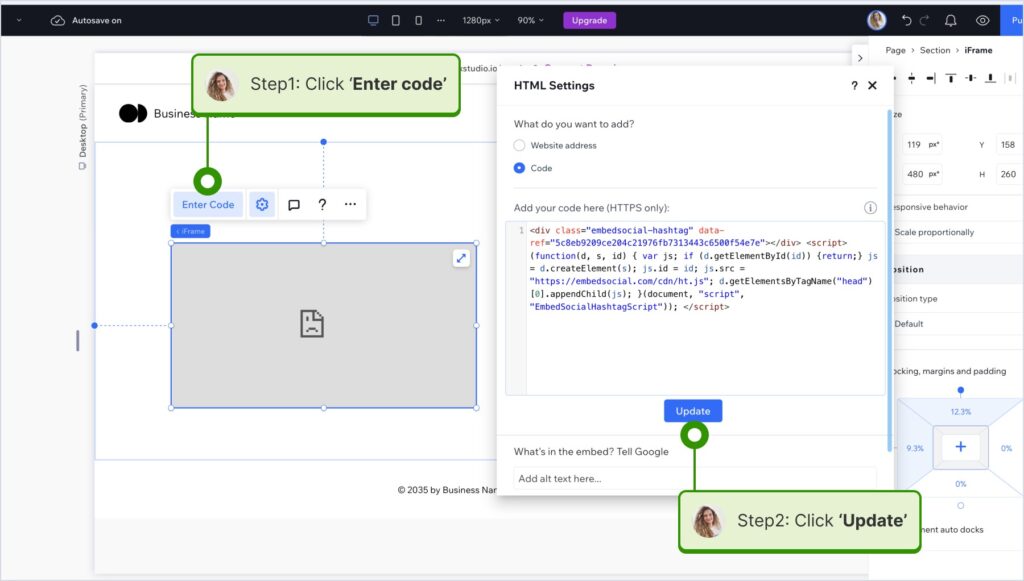
- Log into your Wix editor and choose the page and location to add the widget;
- Click the “+” icon in the top-left corner to add a new element;
- Find the ‘Embed & Social’ section and tap ‘Embed Code’;
- Paste the code and tap ‘Update’.
How to embed UGC on Webflow?

Here’s how to embed UGC on Webflow sites:
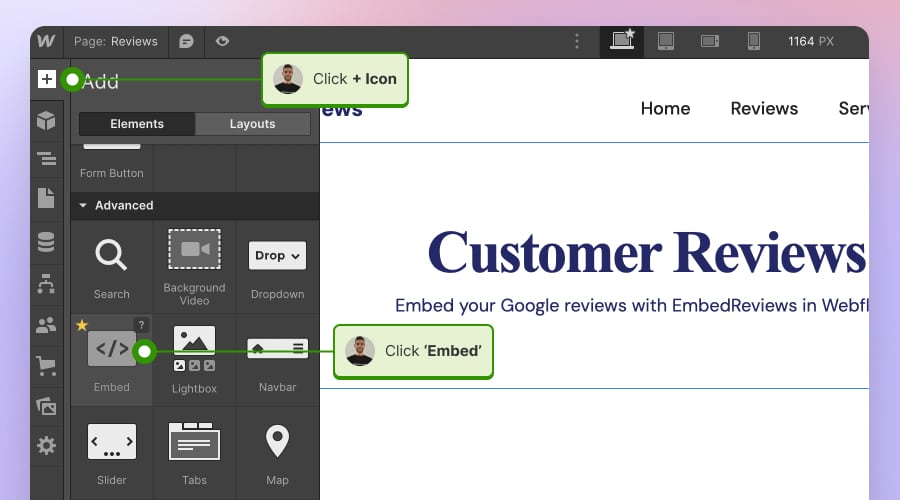
- After creating the widget in EmbedSocial, log in to your Webflow account;
- Go to the edit view of your website within Webflow;
- Choose to ‘Add element’ in Webflow and select the ‘Embed’ element;
- Drag and drop it where you want your reviews to appear;
- In the input field, paste the copied EmbedSocial code.
How to embed UGC on Pagecloud?

Here’s how to embed UGC on Pagecloud sites:
- After copying the EmbedSocial code, log in to your Pagecloud account;
- Start editing the webpage where you want the reviews to appear;
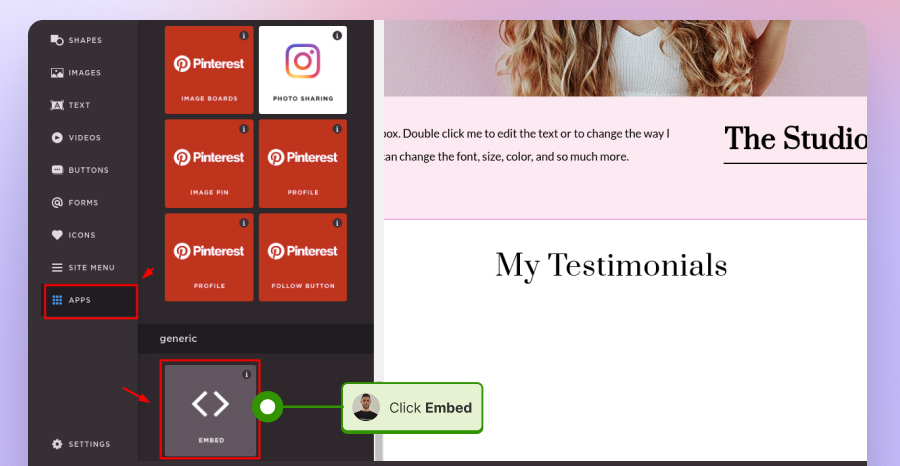
- Tap on ‘Apps’ from the left ribbon menu and select ‘Embed’;
- Paste the EmbedSocial code into the popup field and click ‘Ok’ to complete the process.
How to embed UGC on Google Sites?

Here’s how to embed UGC on Google Sites:
- Once you copy your embeddable widget code in EmbedSocial, log in to your Google Sites account;
- Navigate to the page where you want to embed the widget;
- Use the ‘Insert’ tab in Google Sites and choose where you want to place the widget;
- Choose ‘Embed‘ from the menu and paste the copied code in the dialog box;
- Click ‘Next‘ and then ‘Insert‘ to finalize the embedding.

How to embed UGC on Elementor?

Here’s how to embed UGC in Elementor:
- Log in and navigate to the page where you want to add the reviews;
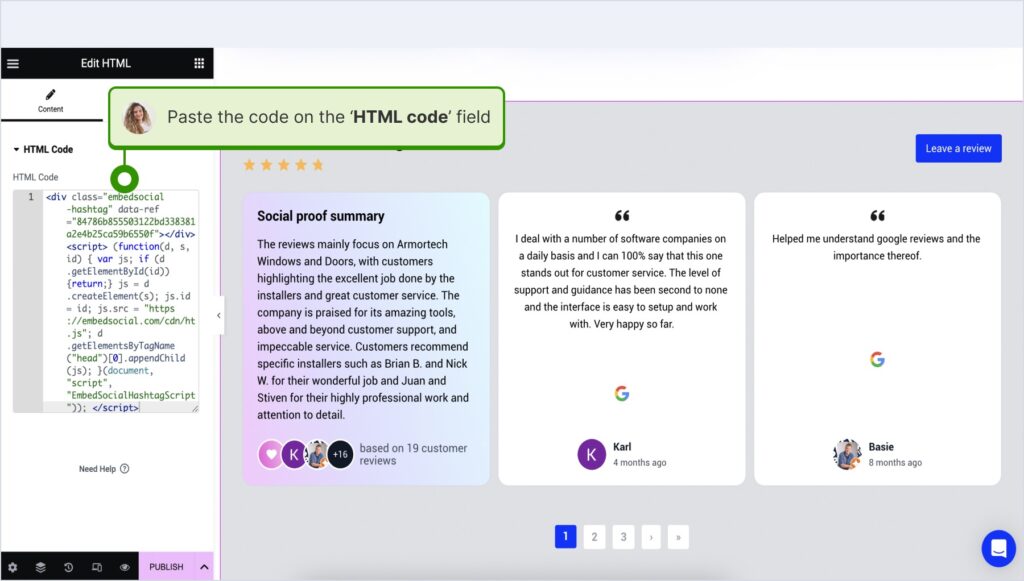
- Tap an empty section and choose the ‘HTML’ block from the left ribbon section;
- Drag and drop it on the page and paste the widget code in the empty field;
- Update and publish the page to see the live widget.
How to embed UGC in Notion?

Here’s how to embed UGC in Notion:
- After copying the widget code, log in to Notion, and go to the relevant page;
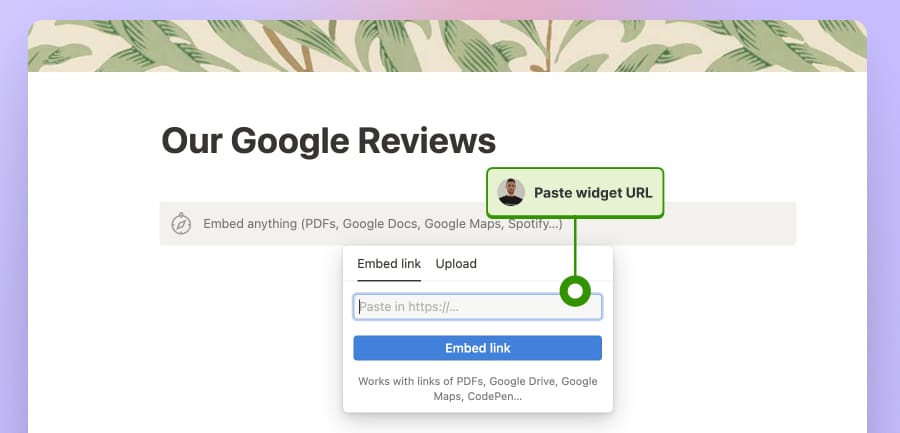
- Type the /embed command, and from the dropdown, choose the ‘Embed’ option;
- Paste the URL and click the ‘Embed link’ button to add your reviews to Notion.
How to embed UGC on HTML websites?

Here’s how to embed UGC on HTML sites
- Copy the EmbedSocial widget review from the ‘Embed’ tab in the top-left corner of the Editor;
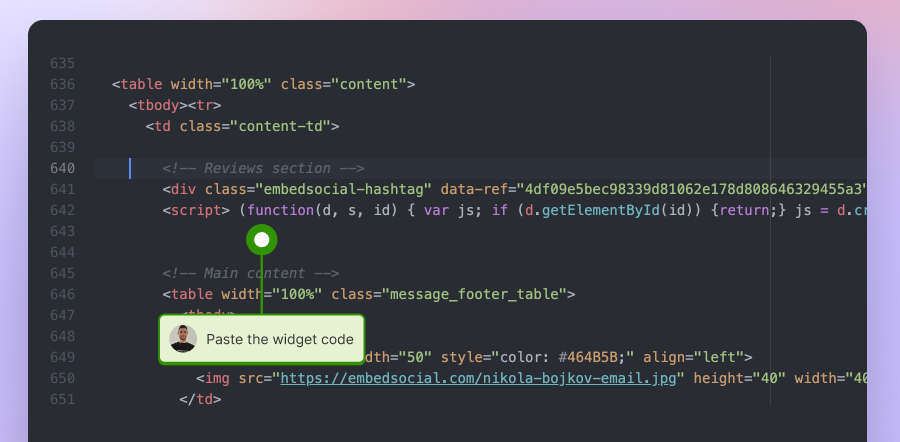
- Open the HTML file of your website, which could be either a new page or an existing one;
- Paste the copied EmbedSocial embed code where you want the reviews to display.
Why choose EmbedSocial for Trustpilot review embedding?
EmbedSocial comes with plenty of useful features in addition to allowing you to easily pull and embed your Trustpilot reviews. Here’s everything you get:
- Connect multiple review sources – you can pull reviews from multiple locations from different review platforms, including Trustpilot and Google reviews;
- Automatically updateable widgets – whenever you get a new review, your embedded widgets will automatically update with the latest feedback;
- Customizable and mobile responsive widgets – your widgets will look great on any device, especially mobile phones and tablets;
- Review reports for insights – get valuable insights on review performance, customer feedback, and interactions with your Google Business Profile;
- Easily respond to all reviews – write and send out all your review responses from a single dashboard and streamline the process via AI;
- Generate free schema code – show aggregated star rating in Google search results with a free code to embed together with your Trustpilot widget.
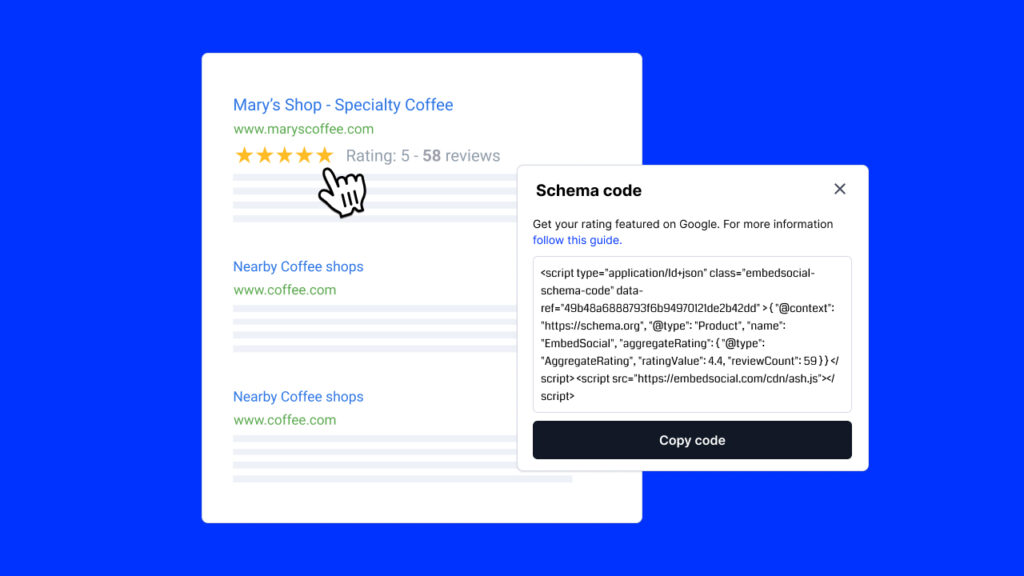
As you can see, you get almost everything you need to easily manage your customer feedback without having to maintain multiple profiles on all the major review platforms.
Official method: Embed Trustpilot reviews via a TrustBox widget
To help businesses take advantage of the reviews they collect on Trustpilot, the platform offers the TrustBox widget—a native option to embed reviews on websites.
The process to utilize these TrustBox widgets is straightforward:
Step 1: Choose your Trustpilot widget
Create and log into your Trustpilot Business account. Then, from the dashboard, navigate to the ‘Share & promote’ tab and select ‘All Widgets’:
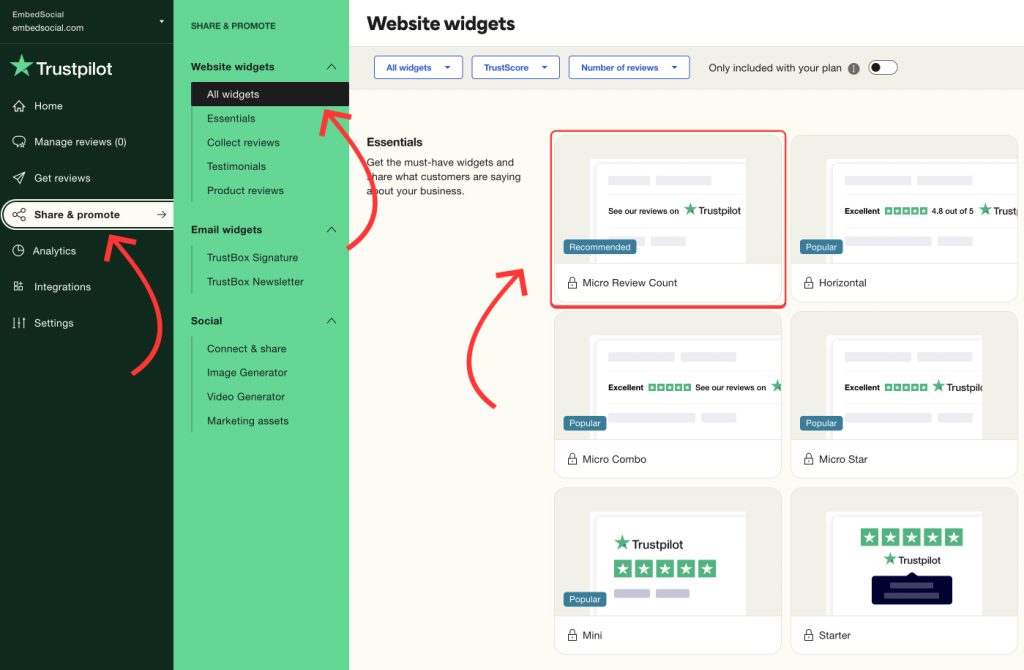
Here, you’ll find various TrustBox widget options, including styles such as Grid, Carousel, List, Product reviews widgets, Badges, Reviews collector button, etc. Choose the one that best fits your website’s layout and design.
Step 2: Customize your TrustBox widget
Once you’ve selected your widget, you can customize it to match your brand’s look and feel. Adjust the widget’s width, height, color schemes, language, and the type of reviews to display (e.g., star ratings). Trustpilot allows you to tailor the widget to your website:
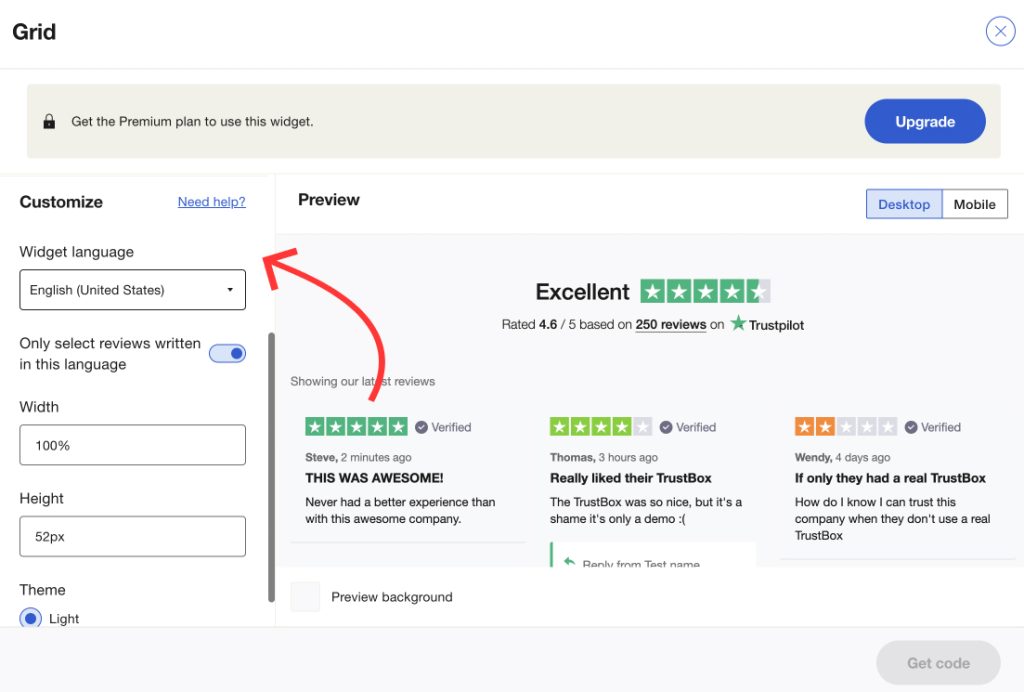
Step 3: Generate and copy the embed code
After customization, click the “Copy code” button to get the JavaScript and the HTML code for your TrustBox widget. Trustpilot will provide two sets of code: one script to add in the head and another for displaying the widget on your webpages at specific locations:
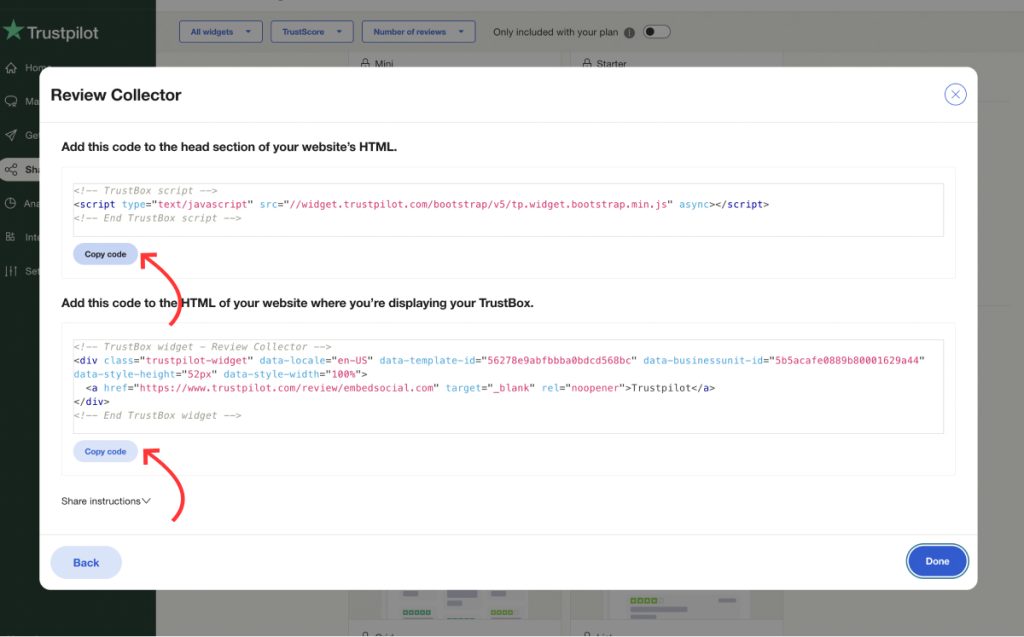
Step 4: Add the code to your website
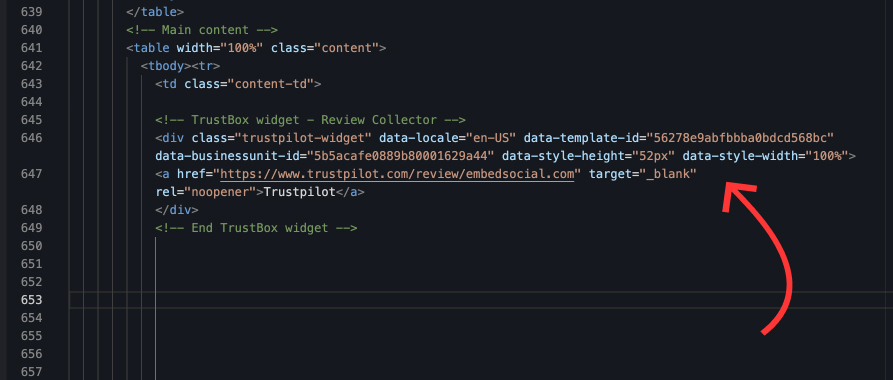
Once you copy the codes, log into your website’s editor (WordPress, Wix, HTML, or another), locate where you want to embed the reviews, such as your homepage or product pages, and add a new custom HTML block if available. Then, simply paste the widget code in the box:
Step 5: Test the integration
Once you’ve added the code, publish or update your website. Visit the live page to ensure the reviews are displayed correctly. Also, remember to test both desktop and mobile versions to verify that the widget is responsive and functioning smoothly.
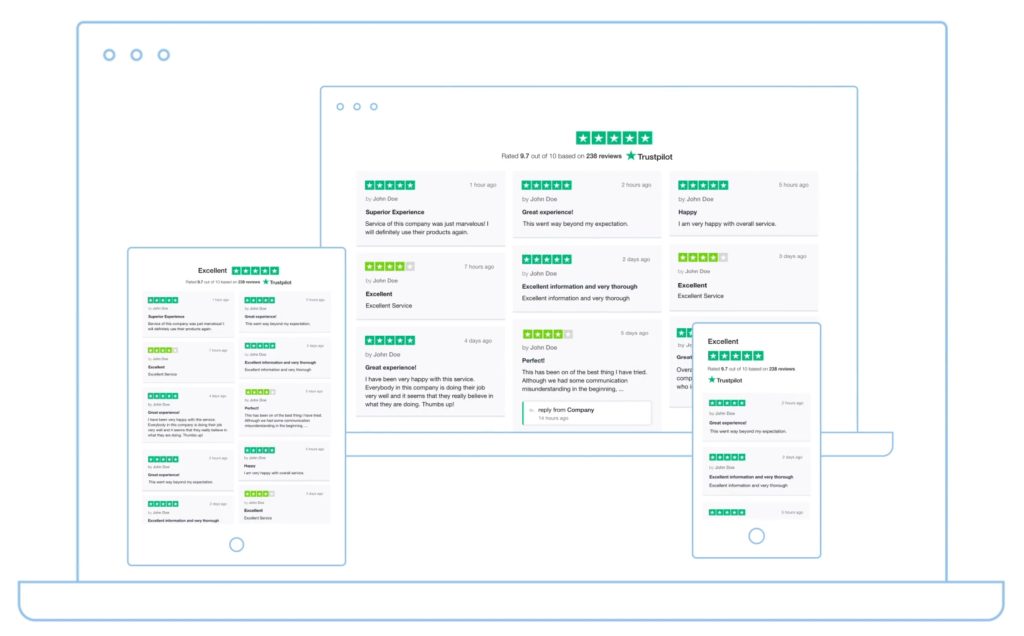
Here’s an example of how the TrustBox widgets should appear on your website when embedded:
Why embed Trustpilot reviews?
If and when you embed reviews on Trustpilot, you get several benefits that elevate your brand’s online presence and customer trust, including the following:
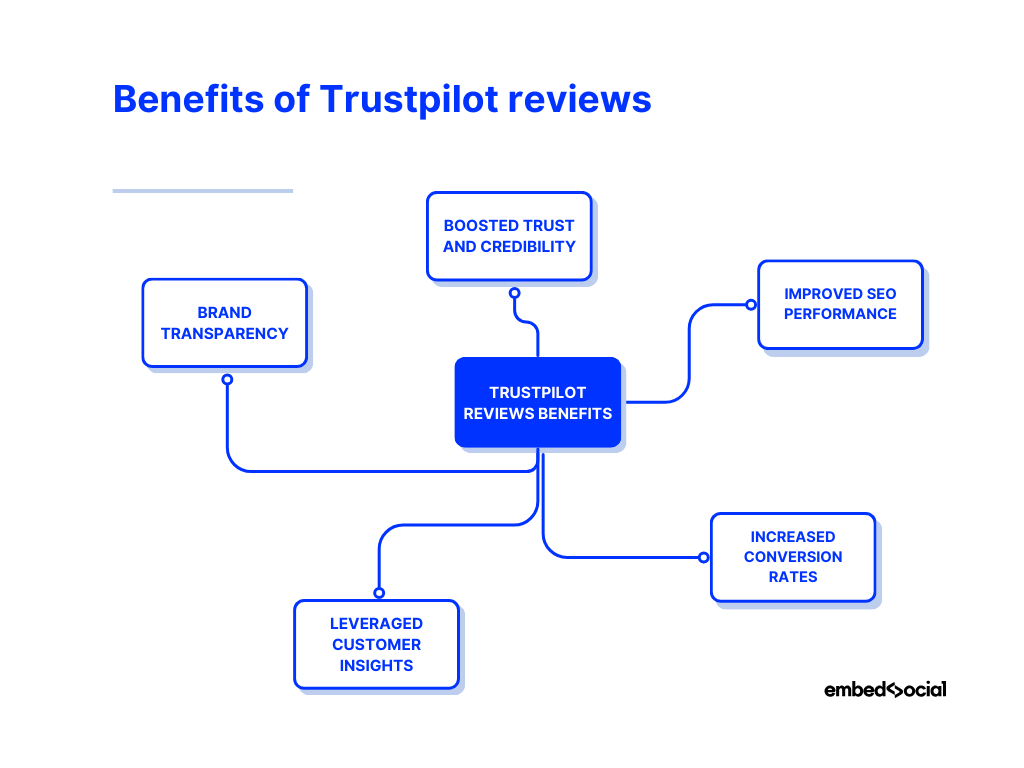
- Boosted trust and credibility – potential consumers are more likely to trust businesses that display genuine reviews;
- Improved SEO performance – regularly updated reviews help improve your site’s visibility in search engines;
- Increased conversion rates – social proof plays a huge role in driving potential customers to make a purchase decision;
- Leveraged customer insights – reviewers provide valuable feedback that can help you improve your products and services;
- Brand transparency – showcasing real, unfiltered reviews demonstrates that you value customer feedback.
As you can see, embedding even a few Trustpilot reviews strengthens your brand’s reputation and creates an engaging online experience for your audience.
Learn more:
Check out all popular review sites that may be relevant to your business!
7 measurable business impacts of embedding Trustpilot reviews
Here is what 7 thought leaders had to say about the impact of Trustpilot reviews on business performance:
Reviews Lift Local Rankings and Deliver Hot Leads
I have 20 years of experience building high-conversion websites and lead systems, specializing in a proprietary method that guarantees results for local service businesses. I focus on turning “near me” searches into measurable ROI for industries like HVAC and electrical by establishing immediate authority.
By embedding automated social proof through my GetReviews4.Us app, I’ve seen client traffic increase dramatically and helped owners like Alyssa Timmons scale enough to leave corporate roles for full-time entrepreneurship. This specific integration leverages a measurable 78% offline conversion rate from local searches by validating the business’s service quality in real-time.
The most significant impact is the boost in organic search rankings, as consistent review data signals to Google that your business is the most trusted local leader. This creates a steady flow of “hot leads” and eliminates the financial risk typically associated with digital marketing.
Josh Preece, Owner, J&A Digital Solutions
——————————————-
Verified Reviews Build Credibility, Lift Engagement and Conversions
As a NYC agency founder with 20+ years of experience, I know you won’t get the business you deserve if you don’t look like “The Best.” Embedding verified reviews is the fastest way to establish the target-market credibility needed to turn a website into a lead-generating asset.
For our client HVAC Construction, focusing on authentic proof helped drive a 48% increase in engaged sessions. These trust signals “slow the scroll,” keeping visitors on the page well beyond the critical 10-second bounce threshold where most leads are lost.
In eCommerce builds like Frederique’s Choice, verified reviews eliminate the technical skepticism that frequently interrupts a seamless shopping experience. Our data analytics show these trust modules are often the final interaction point before a user triggers a conversion event or completes a purchase.
Conrad Strabone, President, e9digital
——————————————-
Social Proof Slashes Bounce, Boosts Enterprise Conversions
Trustpilot reviews generally have a strong positive impact on conversion. This quick social proof creates instant trust with skeptical visitors. bounce rates drop the fuck off because of social validation that works prospects’ interest and engagement in most enterprise contexts. Stars give confidence to customers having confidence that the products have been reviewed by someone and helps one know how much credible a product is. As the chart below shows, transparency is a profitable source of income. When prospects read honest reviews, they move through the sales funnel with less doubt.
Shannon Beatty, Real Estate Investor, House Buying Girls
——————————————-
Trustpilot Stars Elevate Realtor Leads and Sales
Leveraging Trustpilot reviews does wonders for Realtor’s credibility. Often, agencies will experience a rise in website conversions of 23%, after showing verified client feedback on their site. HomeBridge saw organic traffic jump 36% after deploying star widgets to help give their site the attention it deserves from home buyers. Seeing is believing – social proof visibly decreases the bounce rate and increases inquiries. As 70% Prospects Trust online ratings as personal recommendations, these badges literally triple the pace of lead generation and agency sales.
Zack Moorin, Founder, Zack Buys Houses
——————————————-
Trustpilot Reviews Turn Trust into Measurable Growth
Adding Trustpilot reviews is the process of transforming digital trust into physical growth. Companies on average increase conversion rates by as much as 20% when posting verified ratings and reviews. These ratings create immediate trust, and increase average order values as shoppers are more comfortable making larger purchases. Click Through Rates from search engines are generally higher when stars ratings are displayed in snippets. This will reduce your bounce rate while giving you a more loyal following. Displaying actual reviews on your site No doubters to be had here – this is the best way to make believe with 3rd party cred.
Amanda New, Founder, Cash For Houses Girl
——————————————-
Verified Reviews Boost Seller Leads and Confidence
Having Verified Review on website creates instant credibility for potential sellers. This social proof (indication that other people are also participating) frequently results in a tremendous increase of form submissions. Homeowners gain trust in submitting their property information after witnessing some good habits from others. 3rd party endorsements also result in higher click thru and lower exits from site. These ratings are the testament of your professional history. Stands to reason, then, the more you’ve got in prospects (volume of leads), the smaller proportion of spend going out as a %. This honest reveal actually turns skeptical visitors into a buying frenzy.
Zachary Smith, Founder & CEO, Ready House Buyer
——————————————-
Place Reviews by CTAs to Lift Conversions
Including reviews from Trustpilot directly on the website creates a sense of trust while completing purchases online by bridging the “gap” between customers’ anxiety levels at the point they intend to make a purchase.
We have seen an increase in conversion rates of up to 20% on visitors who are making their initial purchase when they view verified user ratings/indexes of products on or near the Add to Cart button, which is typically where consumers struggle with their decision making process.
Our experience managing the eCommerce engineering of many large brands globally has been that there are typically increases of 15-20% in conversion rates with a Trustpilot widget being implemented vs. a non-Trustpilot widget for first time site visitors. Additionally, we have often seen significant increases in the average order value when customers have seen a lot of positive reviews for a product, which shows that they have had a great experience with their purchase, and thus are less likely to experience buyer’s remorse when adding more expensive items to their cart.
The main mistake that brands typically make is to put their reviews on a separate product review page. There is significantly increased engagement with a website when customers can see a customer review in close proximity to where they would typically purchase the product. Our experience is that engagement metrics relating to time on page increase by a significant percentage when customer reviews are interactive and searchable because customers tend to see them as a second more authentic description of the product.
In conclusion, social proof of your product’s quality and brand reliability is your digital storefront and should provide customers assurance they will receive fair treatment by a reputable business and company in a competitive market.
Amit Agrawal, Founder & COO, Developers.dev
6 best practices for embedding Trustpilot reviews
You can get the most out of your Trustpilot reviews if you follow some best practices when embedding them to enhance their functionality and user experience:
- Choose the right reviews to display—focus on showcasing balanced, informative reviews that reflect the true experience of your customers, not just positive customer reviews;
- Keep the design consistent with your website—make sure the widget design blends seamlessly with your site’s colors, fonts, and overall layout;
- Optimize for mobile devices—ensure that your embedded reviews are responsive and look great on both desktop and mobile devices;
- Monitor and update reviews regularly—refresh the reviews on your site to keep the content relevant, especially as new feedback comes in;
- Encourage customers to leave reviews—actively request feedback from your customers to keep your review section dynamic and reflective of current experiences;
- Report fake reviews and respond to bad reviews—you need to showcase real customers with real experiences and bad reviews are part of them. However, if you encounter a fake review, you need to report it for removal as fast as possible.
By following these best practices, you’ll provide your visitors with a more trustworthy and visually appealing review display that enhances your brand’s credibility.
Real-life examples of businesses embedding Trustpilot reviews
Want to see just what an impact Trustpilot reviews can have on your business? Here are two examples of brands embedding Trustpilot feedback on their websites:
1. Smarty welcomes website visitors with Trustpilot reviews

This mobile network leverages around 38,000 Trustpilot reviews with an average score of 4 out of 5 stars to build trust with customers. Smarty embeds these reviews across multiple channels, including Facebook and Twitter, ensuring that potential customers are consistently exposed to social proof throughout the buying journey. That said, the first thing you see when visiting their website is the Trustpilot badge and overall score plus a few chosen reviews.
2. Protect Line proudly showcases a 5-star Trustpilot review score
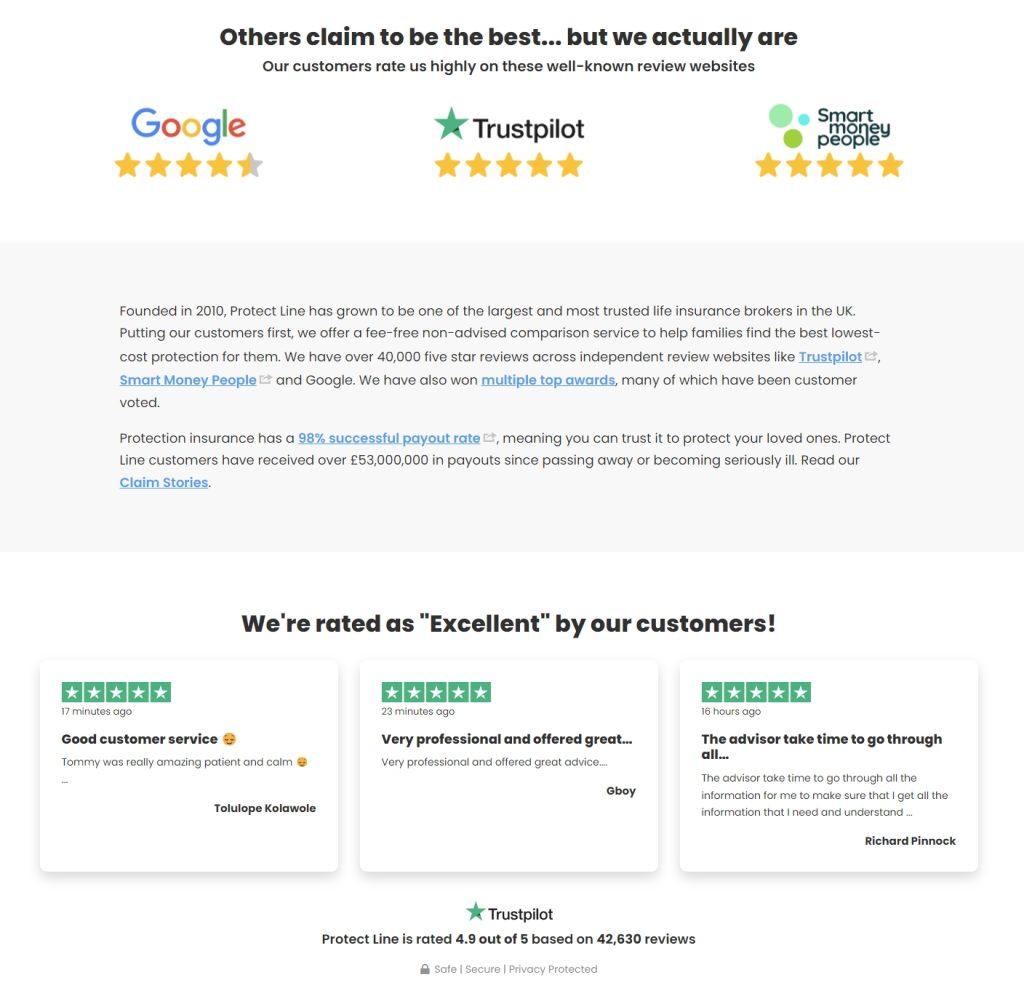
This UK-based life insurance brokerage implemented a few chosen Trustpilot reviews in its ‘About Us’ page, plus a large Trustpilot logo with five stars on top of the page. Furthermore, Protect Line summarizes their clients’ experiences with them by stating they’ve been rated ‘Excellent’ even though they’ve collected a massive number of 42,630 reviews so far.
Conclusion: Utilize your Trustpilot reviews today!
Embedding Trustpilot reviews on your website is one of the most effective ways to boost trust, improve SEO, and drive conversions for your brand.
While you can use the official TrustBox widgets, leveraging an advanced AI widget tool like EmbedSocial will help you get the most out of your Trustpilot widgets.
Then, you’ll be well on your way toward displaying authentic customer feedback that strengthens your brand’s credibility and provides valuable insights.
By following the steps outlined in this guide, you can seamlessly integrate reviews from Trustpilot, offering potential customers the transparency they crave. So, start embedding your Trustpilot reviews today to enhance your online presence and increase customer trust.
FAQs on how to embed Trustpilot reviews
How to embed a Trustpilot widget?
To embed the official Trustpilot widget, you need to log into your Trustpilot account, select the widget you want to use (like TrustBox), customize it, and then copy the embed code. Finally, paste the code into your website’s HTML where you want the reviews to appear.
Can I add Trustpilot reviews to my website?
Yes, you can easily add Trustpilot reviews to your website using TrustBox widgets or other third-party widgets like EmbedSocial’s.
Can I customize the appearance of Trustpilot reviews?
Absolutely! TrustBox widgets allow you to customize the appearance of your reviews by adjusting the layout, color schemes, and fonts. That said, some third-party tools like EmbedSocial offer even more advanced customization options.
Is embedding Trustpilot reviews free?
Embedding basic Trustpilot reviews using their widgets is free, but advanced features such as customization or access to certain TrustBox options may require a paid subscription. Third-party tools might also have different pricing tiers.
How do I add Trustpilot reviews to WordPress?
To add Trustpilot reviews to WordPress, you can use the Trustpilot plugin or paste the TrustBox widget embed code directly into the HTML block of the page or post where you want the reviews displayed.
Can I embed reviews from other platforms alongside Trustpilot?
Yes, third-party tools like EmbedSocial allow you to aggregate reviews from multiple platforms, including Trustpilot, Google, and Facebook, and display them all in a unified widget on your website.
Do embedded reviews improve SEO?
Yes, embedded reviews can improve your SEO by providing fresh, user-generated content on your website. Remember: search engines favor sites with regular, relevant updates, and reviews are a key source of this content.