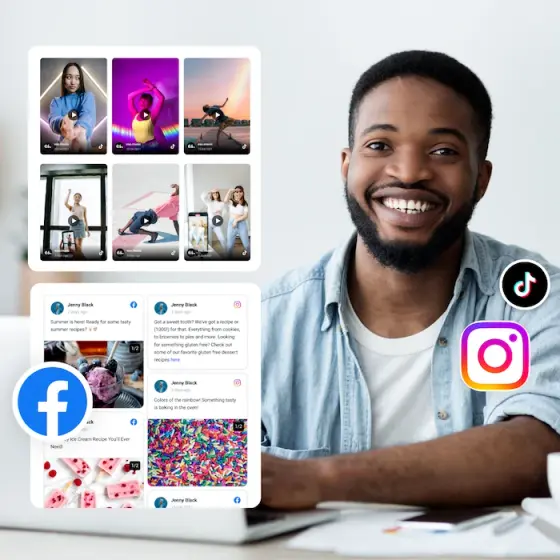
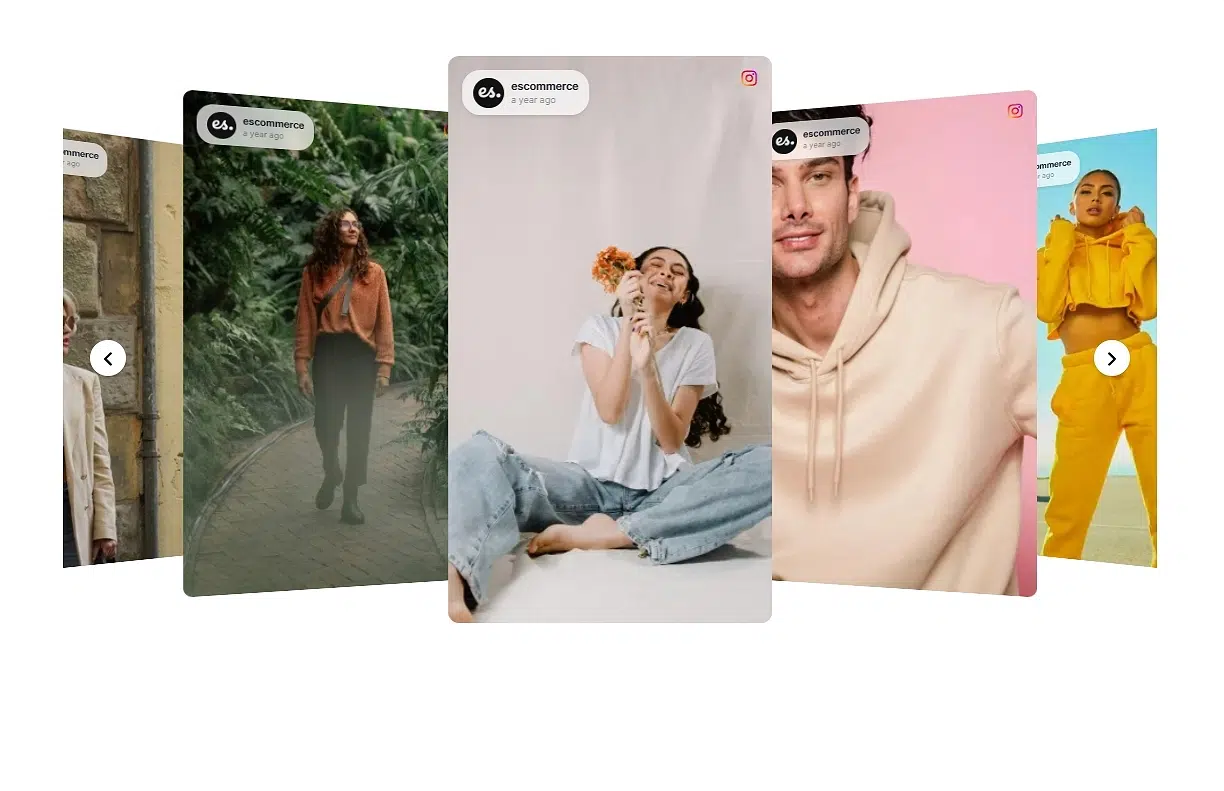
A client pings you on Friday afternoon. They want “that Reel from spring 2023, the one that did really well.”
Nobody can find it. It’s somewhere in an endless feed scroll, an old Drive folder, or the laptop of an account manager who left last year.
Now multiply that by 20 clients.
A social media content library is one searchable place that holds every post, video and piece of user-generated content (UGC) a brand has published or been tagged in.
To maintain one for each client, you connect their accounts, backfill the posts published before you connected, tag and curate them, clear rights on customer content, and let auto-sync keep it current.
Below is the exact system I use: Backfill, Organize, Reuse. It works for agencies with 5 clients or 50, and it doesn’t need an enterprise DAM budget.
What is a social media content library?
A social media content library is a central, searchable store of a brand’s published social content: posts, Reels, videos, Stories highlights, mentions, hashtag content and reviews. Every item keeps its caption, date, source and performance context.
It’s a narrower cousin of the general content library, which can hold anything from ebooks to brand guidelines.
It’s also different from a social media asset library. An asset library is an upload folder for drafts, logos and raw files. A content library is built from what already went live, so it shows what was published and what worked.
| Social media asset library | Social media content library | |
|---|---|---|
| What goes in | Drafts, logos, raw photos | Published posts, videos, UGC, reviews |
| How it fills up | Manual uploads | Automatic sync from connected accounts |
| Includes customer content | No | Yes, mentions and hashtag posts |
| Shows what performed | No | Yes, engagement stays attached |
| Stays current | Only if someone uploads | Yes, it syncs on a schedule |
One quick note, because Google mixes them up. Meta Content Library is a research tool that Meta built for academics and journalists studying public content. It isn’t a marketing tool, and it isn’t what this guide covers.
Why agencies need a social media content library
Content you can’t find is content you pay to make twice. For an agency, a library fixes four expensive problems.
Faster reuse
Your best posts deserve a second, third and fourth life. With a library, recycling a winner takes minutes instead of a reshoot.
Agencies that track top performers per client can rebuild a campaign from proven creative. The social media marketing examples that last longest usually do exactly that.
Faster client onboarding
A new client’s back catalog is the best brief you’ll ever get. A library on day one shows what already worked, before you spend a cent on new content.
Handover and offboarding
Account managers leave. Freelancers rotate. A library stays with the account, not the person. And when a client leaves, you can hand them an organized archive instead of a mess.
Proof at renewal time
Renewal meetings go better with evidence. A library shows everything you produced and collected for a client in one view, including the user-generated content your campaigns attracted.
What to include in a social media content library
Start broad. You can always filter later, but you can’t reuse what you never collected.
| Content type | Where it comes from | Reuse value |
|---|---|---|
| Owned posts and Reels | Instagram, TikTok, Facebook, LinkedIn, YouTube, Threads, Pinterest | High: proven creative, ready to recycle |
| Mentions and tagged posts | Customers tagging the brand | High: authentic social proof |
| Hashtag content | Branded campaigns and contests | High: volume of UGC in one place |
| Reviews | Google, Facebook | Medium: quotes for ads and pages |
| Blog and news posts | RSS feeds | Medium: context for campaigns |
Customer content is where most libraries fall short. Mentions are free creative your client already earned. If you don’t track them, start with TikTok mentions, Instagram mentions and hashtag campaigns.
How to build a social media content library with EmbedSocial (step by step)
Here’s the full system in seven steps, run inside EmbedSocial. Steps 1 to 4 are the Backfill, steps 5 and 6 Organize, and step 7 keeps everything ready to Reuse.

1. Audit each client’s channels
Before you connect anything, list what exists. For each client, write down:
- Every account they own, per platform
- Branded hashtags, past and present
- Roughly how often they get tagged or mentioned
- How long each account has been active
- How often they post
You end up with a one-row-per-client source sheet. It tells you which sources to connect and how big each back catalog is.
2. Create your EmbedSocial account
Copying posts by hand doesn’t scale past two clients. Use the EmbedSocial social media aggregator so posts flow in automatically from every platform.
Here’s how to set up your account:
- Sign up for EmbedSocial (trial or paid account).
- Pick the Free plan or the 7-day free trial with all features. The trial needs card verification, but you aren’t charged during the 7 days.
- Log in. Your dashboard has two tabs: Sources, where you connect accounts, and Widgets, where you display content.
Running more than a couple of clients? Agency sub-accounts come with the Enterprise plan: one sub-account per client, under your main admin account, so each client’s content stays separate from day one. Book a demo to set them up, or see how it works for agencies.
3. Connect each client’s sources
Every account, hashtag or mention stream you connect is a source. To connect a source, work inside the client’s account (or their sub-account on Enterprise):
- Click + Add new source under the Sources menu
- Choose the platform, for example Instagram, TikTok, Facebook or LinkedIn.
- On the Choose source type screen, pick what to pull: the account’s own posts, mentions or a hashtag. Then click Next: Connect account.
- Log in with the account that manages the client’s profile or page.
- Pick the profile in the configuration step and click Connect source.
Repeat for every row in your source sheet. Two things to know: Instagram connects Business accounts only, and Instagram hashtag sources need the Pro Plus plan or higher. For platform specifics, see the Instagram, TikTok and LinkedIn guides, or our roundup of the best social media aggregators.
4. Pull historical social media data
This is the step almost every guide skips, and it’s the one that matters most.
When you connect a source, it imports only the most recent posts. Everything the client published before that stays outside your library. And for a brand that has posted for years, that’s most of their content.
Here’s the math for one client, with the first import bringing in the latest 50 posts:
| Posting frequency | Years active | Posts published | Left outside the library |
|---|---|---|---|
| 2 per week | 3 | ~312 | ~84% |
| 4 per week | 3 | ~624 | ~92% |
| Daily | 3 | ~1,095 | ~95% |
| 4 per week, × 20 clients | 3 | ~12,480 | ~11,480 posts |

At agency scale, that’s over ten thousand proven posts you can’t search, tag or reuse.
The fix is a historical pull. In EmbedSocial, you ask our support team and they pull older posts into the source for you, thousands of posts per source. It’s free, and it’s handled case by case for each request.
It works for Instagram accounts, mentions and hashtags, Facebook, TikTok, YouTube, LinkedIn, Threads, Pinterest and Google Business posts.
Two exceptions to plan around. X only returns public posts from the last 7 days, per the sources docs, and Instagram Stories aren’t part of a historical pull.
Pro tip: Request the backfill during client onboarding, not the day someone asks for an old post. Make it a line in your onboarding checklist.
5. Curate and tag content
A raw archive isn’t a library yet. Curation turns it into one.
- Hide off-brand, outdated or low-quality posts
- Pin proven winners so they surface first, using moderation and pinning
- Tag each post by campaign, product, format and season
Tagging by hand gets old fast. EmbedSocial’s auto-tagging automation applies tags for you, and AI Post Enrichment generates AI tags from each caption. You can then filter by keyword, tag, AI relevance score or rights status with filters.
For a deeper workflow, see our guide to UGC management and how to organize UGC in one place.
6. Clear rights on UGC
Your client’s own posts are theirs to reuse. Their customers’ posts aren’t.
Before customer content goes into an ad, an email or a product page, ask the creator for permission. You can request rights on Instagram posts by DM or by comment, then track the approval inside the library.
Make rights status a field in your library, not a note in someone’s inbox. Our UGC rights management guide covers the exact wording that gets a yes.
7. Keep the library synced
A library you have to update by hand is a library that goes stale.
With auto-sync, new posts flow in on a schedule based on your plan:
| Plan | Sync interval | Monthly media cap per source |
|---|---|---|
| Free | Every 24 hours | 500 |
| Pro | Every 3 hours | 1,500 |
| Pro Plus | Every 3 hours | 5,000 |
| Premium | Every 30 minutes | 30,000 |
| Enterprise | Every 5 minutes | Contact us |
A few platforms set their own pace on every plan: Google reviews refresh every 15 minutes, Facebook reviews and YouTube every 24 hours, and X twice a week.
Size the plan to your busiest client. A brand with heavy hashtag volume can hit a monthly cap long before a quiet B2B account does.
How to organize a content library per client
Structure decides whether anyone actually uses the library. Use the same six-level taxonomy for every client:

| Level | Example values |
|---|---|
| Client | Acme Coffee |
| Channel | Instagram, TikTok, LinkedIn |
| Format | Reel, carousel, photo, video, review |
| Campaign | summer24, launch-q3, evergreen |
| Rights status | owned, approved, pending, none |
| Performance tier | top10, solid, archive |
Turn it into tags with one naming convention: client_channel_format_campaign_rights_tier. For example: acme_ig_reel_summer24_owned_top10.
Three rules keep it clean:
- One space per client. Never share tags or sources across clients.
- Same tags for everyone. A new account manager should find a post in any client’s library within a minute.
- Re-tier every quarter. Yesterday’s top post may be today’s archive.
How to reuse social media content
A library earns its keep when content leaves it. Here’s where proven posts go next.

Website feeds and social walls
Put the client’s best posts on their site with a live social media feed. Filter by tag to show only on-brand, rights-cleared content. See our social wall examples for inspiration.
Shoppable galleries
Tag products on top-performing posts and turn them into a shoppable widget. The posts already proved they convert attention. Now they can convert sales. Read more about shoppable UGC widgets.
Email campaigns
Newsletters need visuals every week. Pull them from the library and embed UGC in email instead of briefing a designer.
Reposts and ad creative
Rights-cleared customer posts make strong ads because they don’t look like ads. Learn how to repost UGC across networks, or use the repost tool to do it in a few clicks.
Reports and AI analysis
Ask questions of the library itself. With the EmbedSocial MCP connector for Claude, you can pull a client’s posts and UGC into a chat and ask which formats performed best last quarter. Here’s our guide to EmbedSocial MCP in Claude and ChatGPT.
Social media archive vs content library
A social media archive keeps everything for the record: every post, deleted or not, often for compliance. A content library is the curated, tagged and reusable part of it.
You need both, in that order. The archive comes first, because you can’t curate posts you never collected. That’s why the historical pull in step 4 matters so much.
And no, Instagram’s built-in Archive doesn’t count. It’s a private place to hide posts from your own profile, not a library you can search, tag or share with a team.
Maintain your content library with EmbedSocial
Everything above runs inside one platform. Here’s which feature handles which job.
Social media aggregator
The EmbedSocial social media aggregator connects accounts, hashtags and mentions from Instagram, TikTok, Facebook, LinkedIn, YouTube, Threads, Pinterest, Google and more. See every supported source, plus platform guides for Instagram, TikTok and LinkedIn.
Historical post import
Connected a client with years of posts? Contact support and ask for a historical pull. It’s free, it’s done case by case, and it brings thousands of older posts per source into the aggregator.
Auto-sync
New posts arrive automatically, from every 24 hours on Free to every 5 minutes on Enterprise. Details in the auto-sync docs.
Moderation and filters
Moderate what shows, pin winners, and filter by keyword, tag, AI relevance score or rights status.
UGC rights
Find customer content with social listening, then request and track creator permission on Instagram posts with UGC rights. It’s all part of the EmbedSocial UGC platform. The setup is in the UGC rights docs.
Agency sub-accounts and team members
On the Enterprise plan, run one sub-account per client under a main admin account. Clients can get their own logins, and billing can be central or per client. Book a demo to set it up. Invite your team as team members on Premium and above. See how it works for agencies.
Widgets, API and MCP for reuse
Publish library content to any site with widget types like feeds, walls and sliders for Instagram, TikTok, Facebook, YouTube, LinkedIn and Threads. Make them shoppable with social commerce. Pull it into your own tools with the social media API and API docs, or run reports through automations.
Ready to build your first client library? Start a free trial, connect one client, and ask support for a historical pull on day one.
Conclusion: Backfill once, then let the library maintain itself
A social media content library isn’t a folder you fill once. It’s a system you maintain.
Backfill every client’s history so years of proven posts aren’t lost. Organize it with one taxonomy across all clients. Reuse it in feeds, shoppable galleries, emails and ads.
Do it once per client, let auto-sync handle the rest, and the next “where’s that Reel from 2023?” takes ten seconds.