Auto tagging is an automation type that adds tags to posts automatically as they come in. You pick the sources to watch and the tags to apply, and every new post collected from those sources is tagged without anyone touching it.
Use it when you are running a campaign or tracking a theme across several hashtags and accounts. It applies the exact tags you type; for AI-chosen tags and categories generated from each post's caption, see AI Post Enrichment instead. Automations live under 'Automations' in the left menu, and auto tagging is the automation type you choose when you create one.
Auto tagging is available on the Premium plan. Before you start, connect at least one source, so the automation has something to watch. See Connect your first source.
How to auto-tag new posts
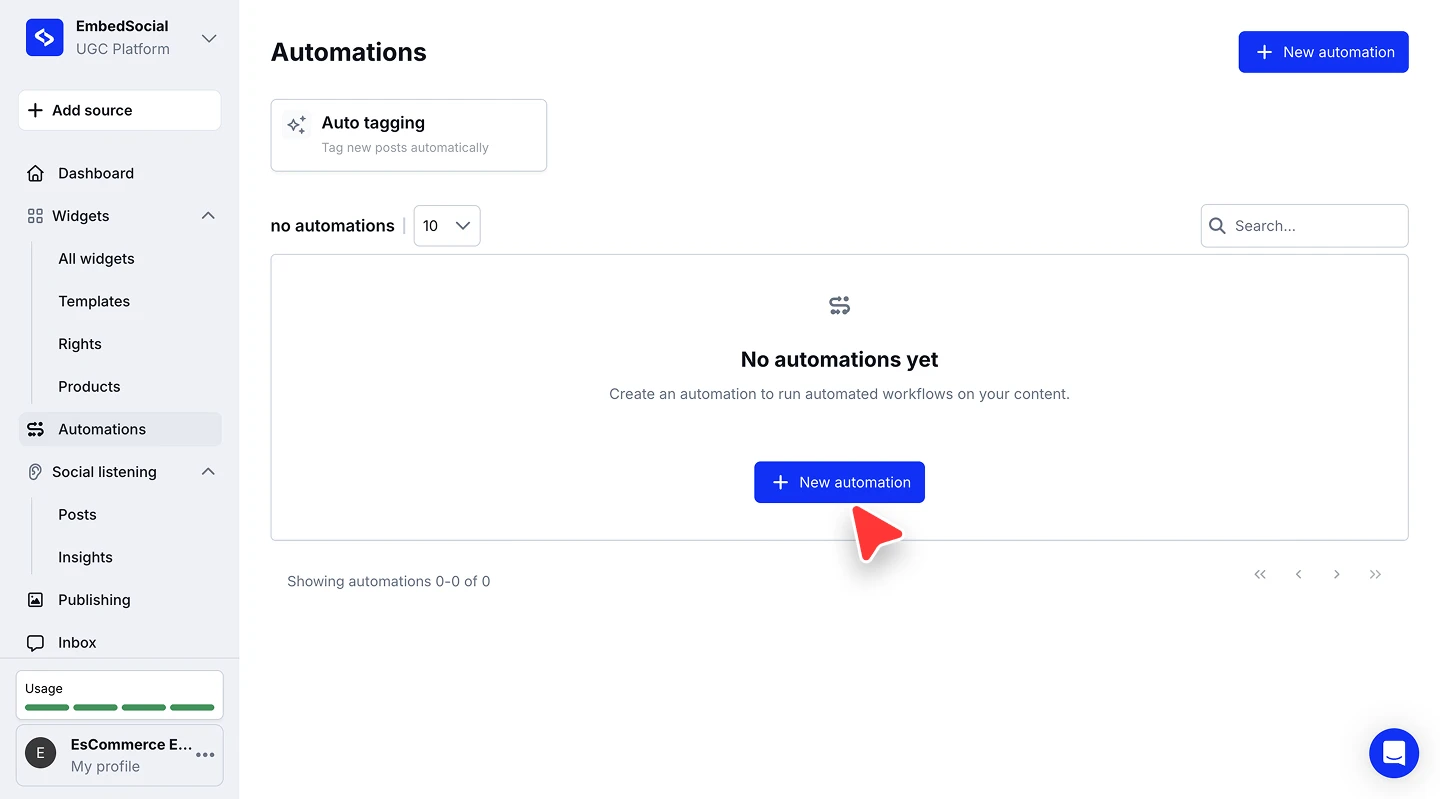
Open Automations. Click 'Automations' in the left menu, then click '+ New automation'.
Name the automation. Type a name in 'Automation name' that describes the campaign or theme you are tracking.
Pick the type and trigger. Set 'Automation type' to 'Auto tagging', and set 'What activity triggers the automation?' to 'New post is collected'.
Choose your sources. In 'Source', select the sources the automation should watch. You can select more than one.
Add the tags. Under 'Add these tags to every new post', type a tag and press Enter, Tab, or comma. Repeat for each tag you want applied.
Decide about existing posts (optional). Tick 'Include existing posts' to also tag posts already collected from those sources. Leave it unticked to tag only posts collected from now on.
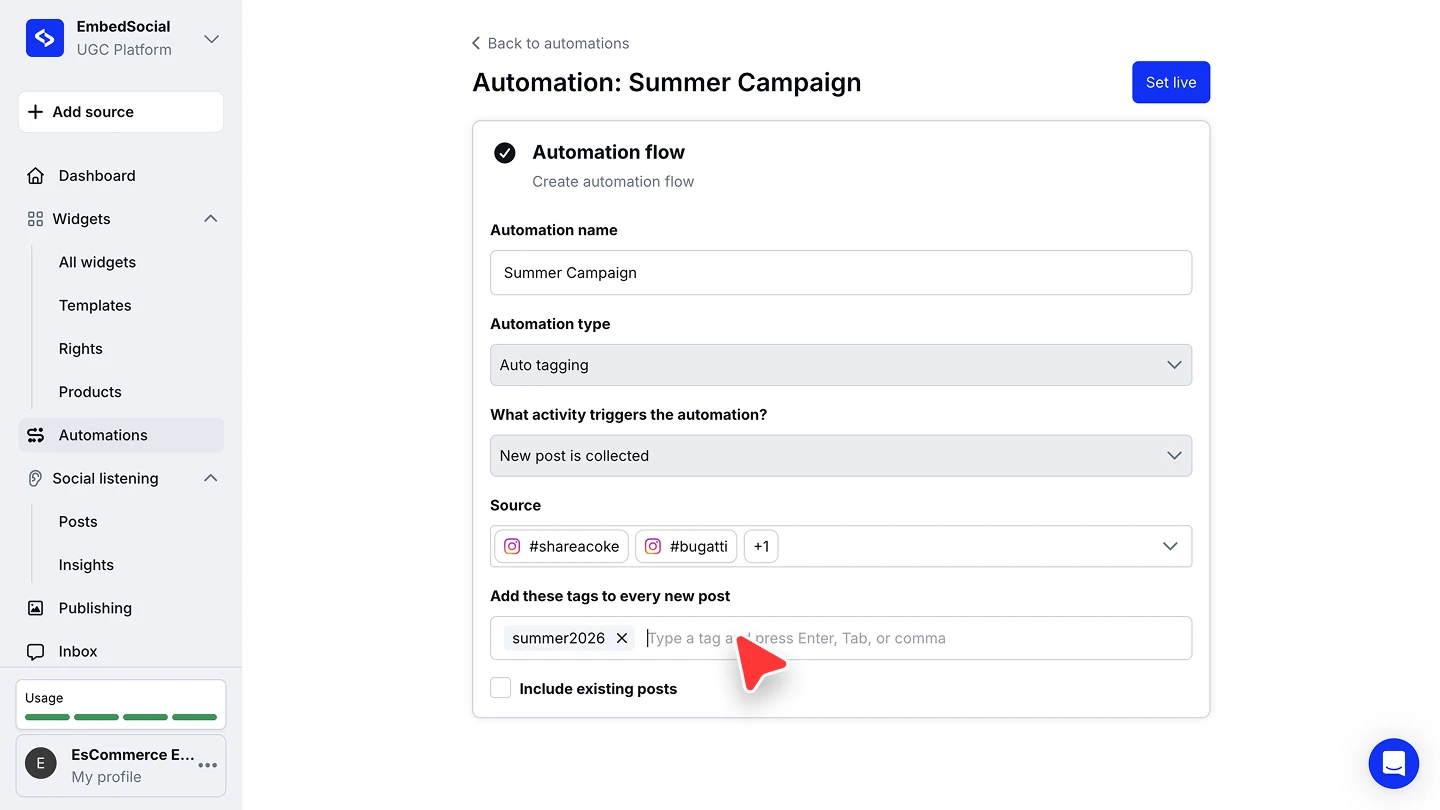
Set it live. Click 'Set live'. The automation appears in the list with the status 'Active' and starts tagging new posts from those sources.
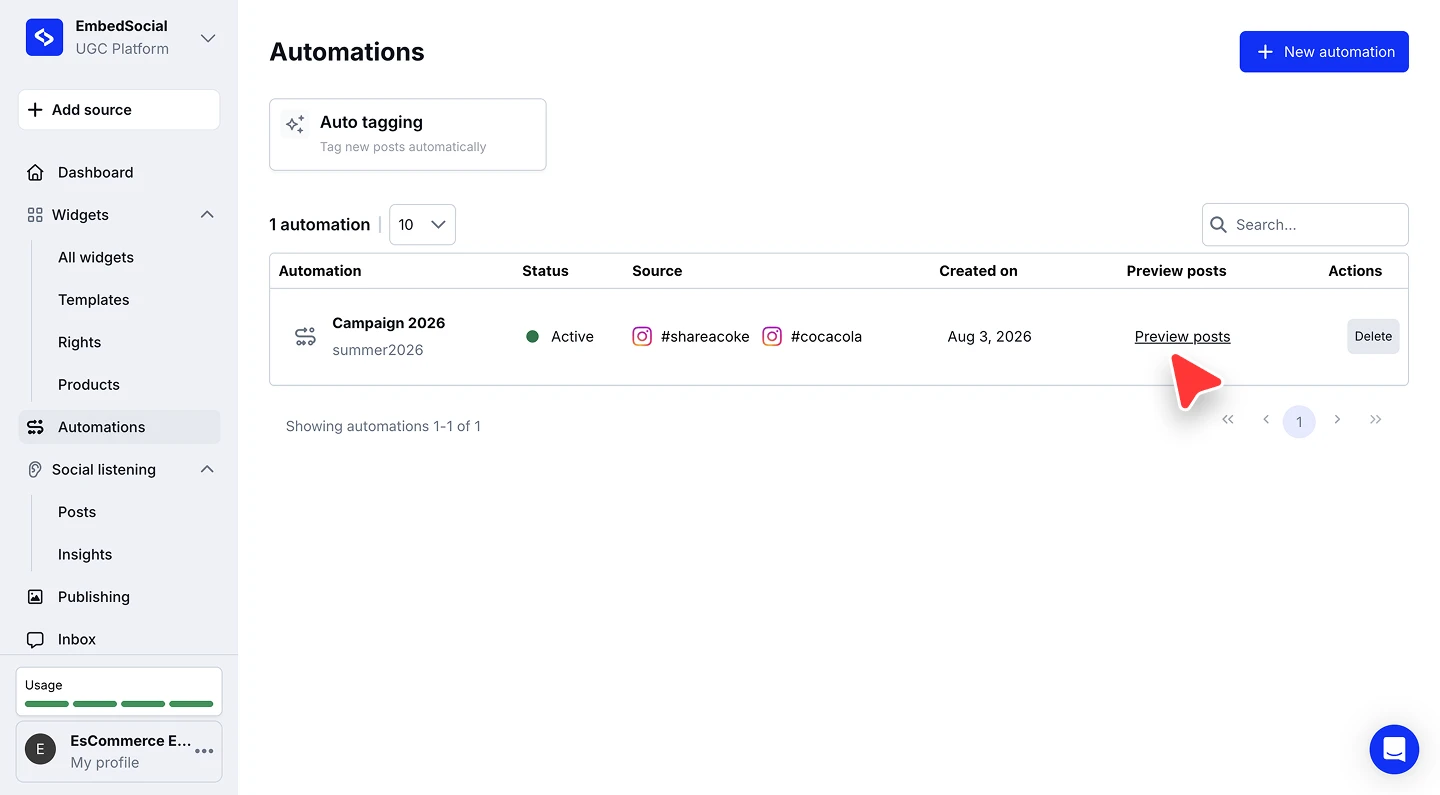


Use 'Preview posts' in the list to see which posts an automation covers before you rely on the tags elsewhere.
Managing your automations
The Automations list shows each automation's name and tag, its 'Status', the sources it watches, and when it was created. 'Preview posts' opens the posts the automation applies to, and 'Delete' in the 'Actions' column removes it.
An automation cannot be edited after you create it. To change the sources or the tags, delete the automation and create a new one with the settings you want.
Ready to keep your incoming content organized automatically?
FAQ
Can one automation watch more than one source?
Yes. The 'Source' field accepts multiple sources, so a single automation can tag posts collected from several hashtags or accounts at once.
Can I add more than one tag?
Yes. In the tag field, type a tag and press Enter, Tab, or comma, then type the next one. Every tag you add is applied to each new post the automation catches.
What happens to posts I already collected?
By default the automation only tags posts collected after you set it live. Tick 'Include existing posts' while setting it up if you also want it applied to posts already in your account.
How do I check which posts an automation affects?
Click 'Preview posts' on that row in the Automations list to see the posts it applies to.
Can I edit an automation after creating it?
Not yet. To change the sources or the tags, delete the automation and create a new one with the settings you want.
Which plan includes auto tagging?
Auto tagging is available on the Premium plan.
How do I remove an automation?
Use 'Delete' in the 'Actions' column of the Automations list.
What's next
Tagged posts are easier to moderate and filter into the right widget. See AI relevance score and filtering for the automated filtering side of the same workflow.
If you have any questions, click the bottom right chat icon to talk with our customer success team or send us an email at support@embedsocial.com We're here for you 🙏