Every widget is a layout applied to your content: the same posts can render as a grid, a collage, a slider, or a small floating element. The layout is set by the template you start from or by what you ask AI design for, and you can change it at any time without touching your sources.
This page covers the layout families, combining several sources into one widget, and how to float a widget over the page.
Widget layouts
- Feed is the classic grid: posts in rows and columns, the layout most social feeds and reviews walls use.
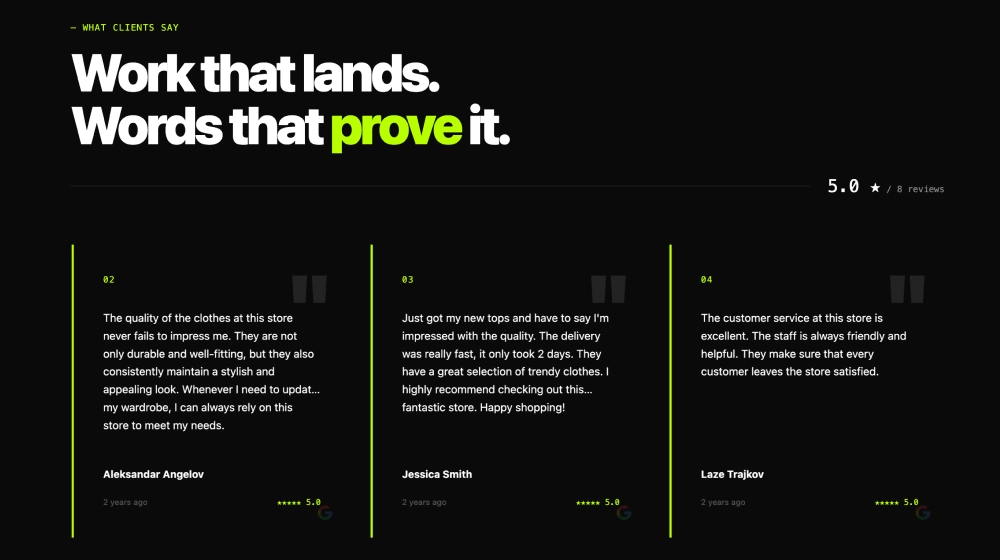
See it live: Agency Google Reviews Widget
- Collage is the masonry option: tiles of mixed sizes packed together, which suits photo-heavy Instagram content.
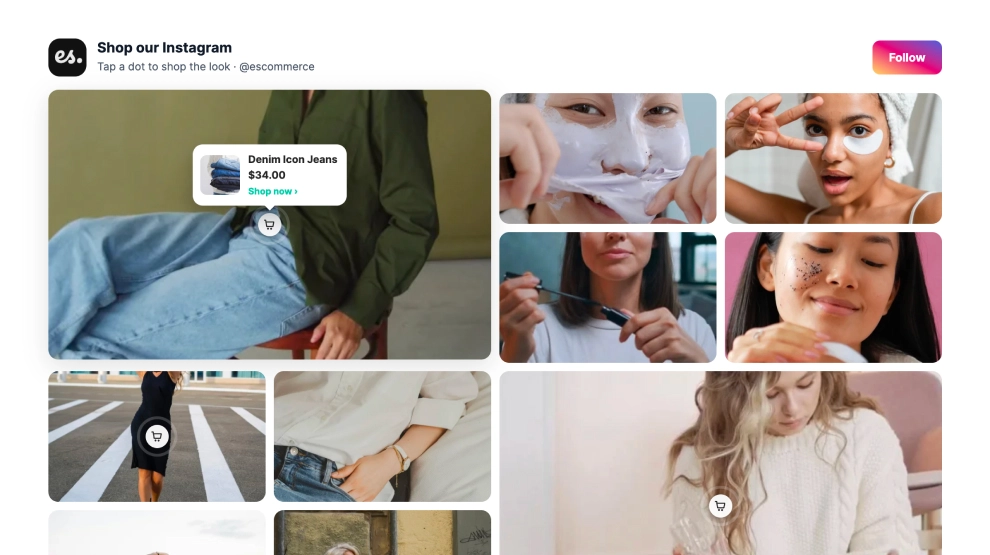
See it live: Free Shoppable Instagram Widget
- Slider scrolls posts horizontally, one or a few at a time, and fits narrow sections like a homepage strip.
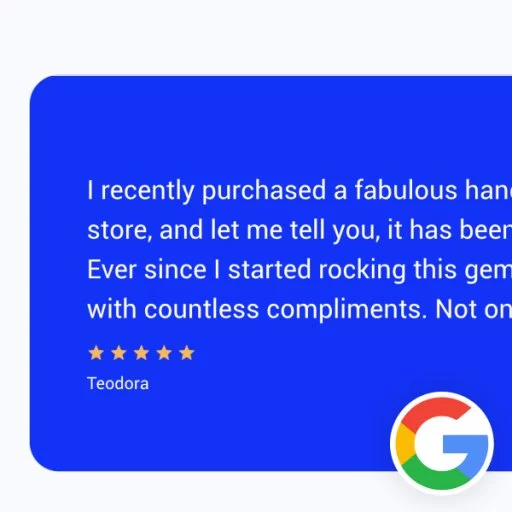
See it live: Blue Single Reviews Slider
- Floating popup floats over the page instead of sitting in it, so it works on every page of your site without a layout change.
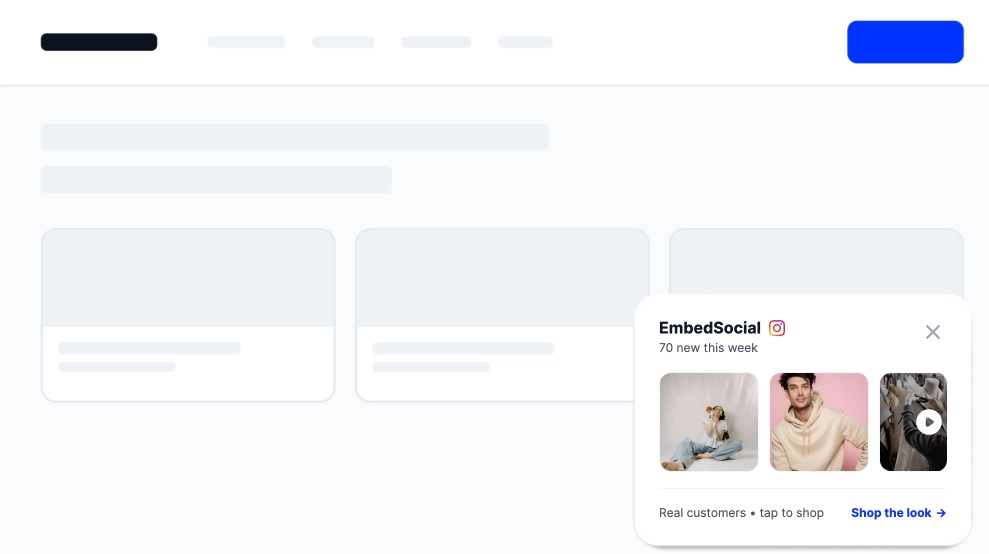
See it live: Floating Instagram Widget
- Badge is the compact floating format: a small rating bar pinned to the page edge, ideal for showing a review score site-wide.
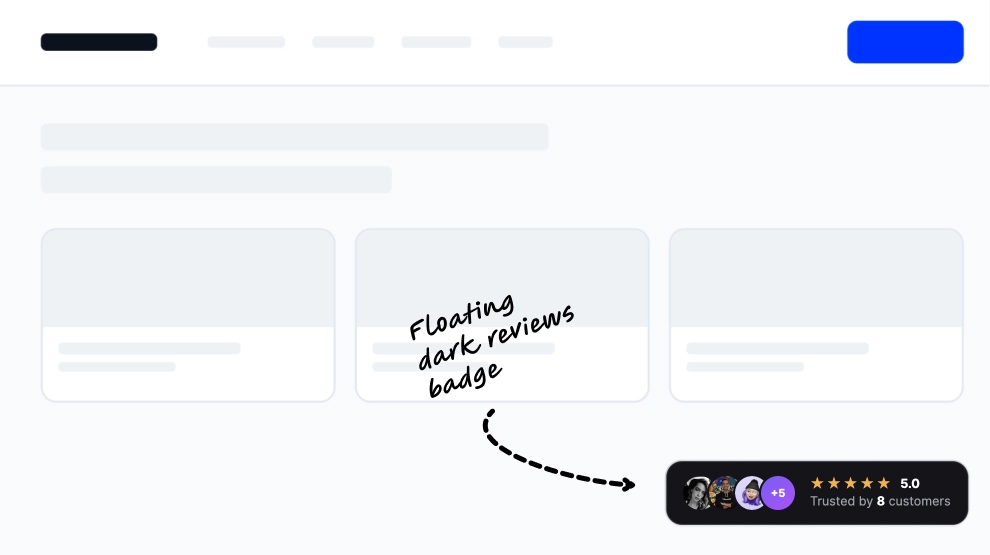
See it live: Dark Floating Badge with Avatars
A social feed wall is the Feed layout given the whole width of a section or page: one grid mixing everything your sources bring in, which is what the app used to call a feed. Combine several sources in one widget (Combo widgets, below) and the wall shows Instagram posts, reviews, and custom entries side by side.
A wall of love is the feed layout at full-page scale: every review and testimonial you have collected, on one page of your own site, which is what people mean by an all-in-one reviews page. Start from a Wall of Love template and give it a page to itself instead of a section.
Browse them all as live widgets in the template library.
Rating badges
A badge shows your aggregated rating instead of the reviews themselves: a compact bar with the average score, the stars, and the review count, pinned to the edge of the page so one embed covers your whole site.
There are two ways to build one. Apply a 'Badge' template from Templates, or describe the badge you want to AI design, for example 'Create a floating Google reviews badge in the bottom right corner of the page'. Either way you can adjust the corner, the colors, and the size afterwards, in 'Settings' or with follow-up prompts.
A badge can also link out. Point it at the original review source, so a click opens your Google or Facebook page, or at a custom URL of your own.
Combo widgets
A combo widget pulls from more than one source at once, so one widget can show your Instagram posts, Facebook posts, and Google reviews together. There is no separate widget type for it. You can select several platforms in 'Bulk sources setup' and finish their source details before creating the widget. For an existing widget, open its 'Sources' tab and enable every connected source it should show.

Sources mix freely: posts from several platforms, reviews from several review sources, reviews together with posts, or several locations of the same business. Each source still counts once against your plan, and the embed code never changes, so a live widget starts showing the added sources without a re-embed.

How to create a floating widget
Any widget can float. The switch is in the widget's settings, not a separate widget type:
Open Settings. In the widget editor, click 'Settings' in the left rail.
Set the position to Floating. Under 'Widget position', pick 'Floating' instead of 'Inline'.
Choose where it floats. Pick a corner in 'Float position', such as 'Bottom right', and the preview shows the widget pinned there.
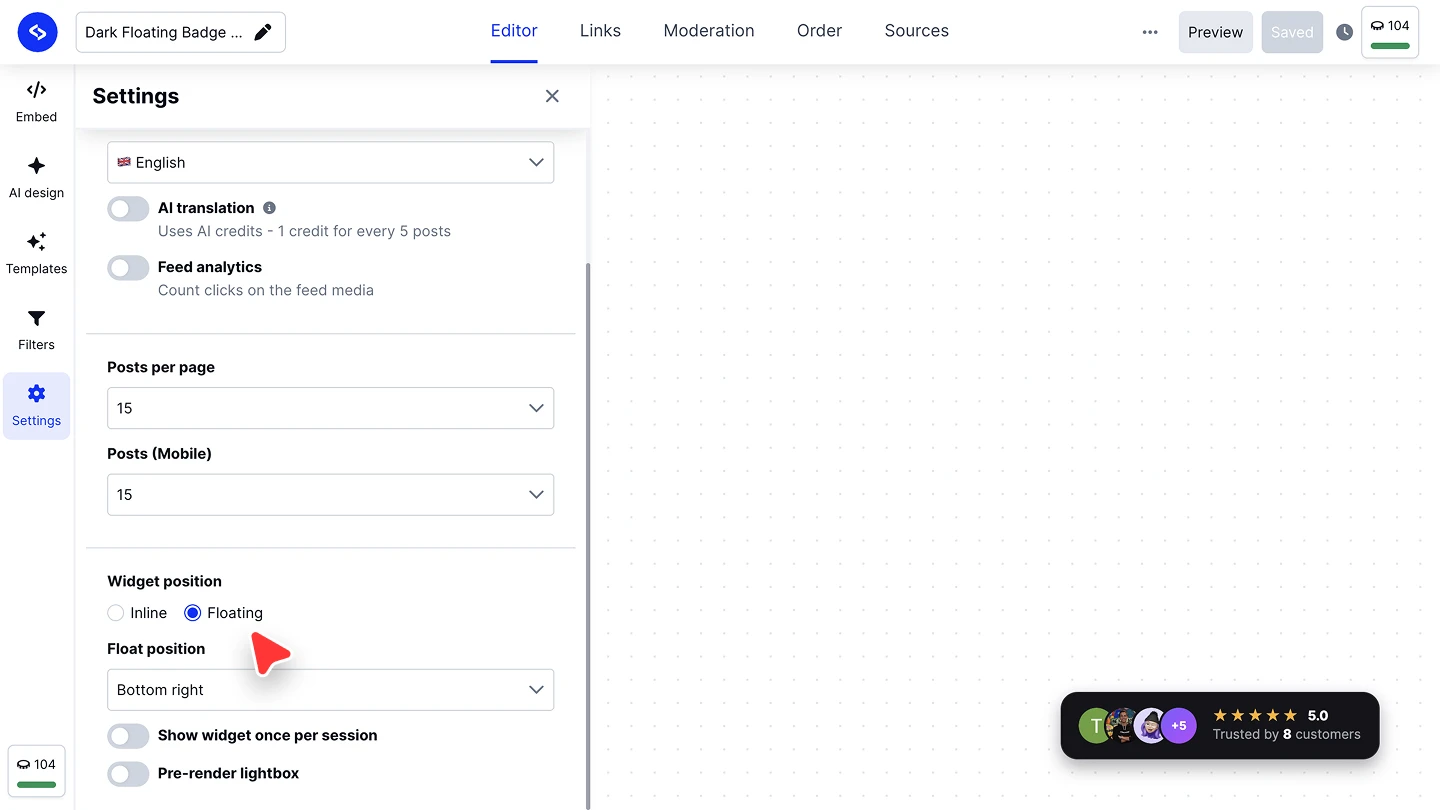
Tune the behaviour (optional). 'Show widget once per session' keeps a popup from reappearing on every page view.

Inline needs the embed code pasted where the widget should appear. Floating only needs the code anywhere on the page, since the widget positions itself.
Ready to pick yours?
FAQ
Can I change the layout after the widget is built?
How many sources can one widget combine?
As many as you have connected. Your plan caps the number of sources on the account, not how many of them a single widget uses.
Do I need to re-embed after adding a source or changing position?
No. The embed code stays the same, so changes appear on your live site automatically.
What is the difference between a floating popup and a badge?
Both float over the page. The popup shows posts or reviews, while the badge is a compact rating bar showing your score.
Where does the embed code go for a floating widget?
Anywhere on the page. Floating widgets position themselves, so the code's location does not matter.
What's next
Pick a starting design in Templates, choose the sources in the 'Sources' tab, then narrow what shows with Filters.
If you have any questions, click the bottom right chat icon to talk with our customer success team or send us an email at support@embedsocial.com We're here for you 🙏