Filters decide which of your collected posts actually appear in a widget. A source brings everything in; filters keep the widget showing only what you want on your site.
Open them from 'Filters' in the left rail of the 'Editor' tab. Changes apply to that widget only, so two widgets on the same source can show different content.
How to filter the posts in a widget
Open Filters. In the widget editor, click 'Filters' in the left rail.
Decide how new posts arrive. 'Auto add new posts' pulls matching posts in as they are collected. Turn it off to freeze the widget at what is already approved.
Filter by keyword. Type into 'Filter by keyword' and press Enter. Each keyword becomes a removable chip.
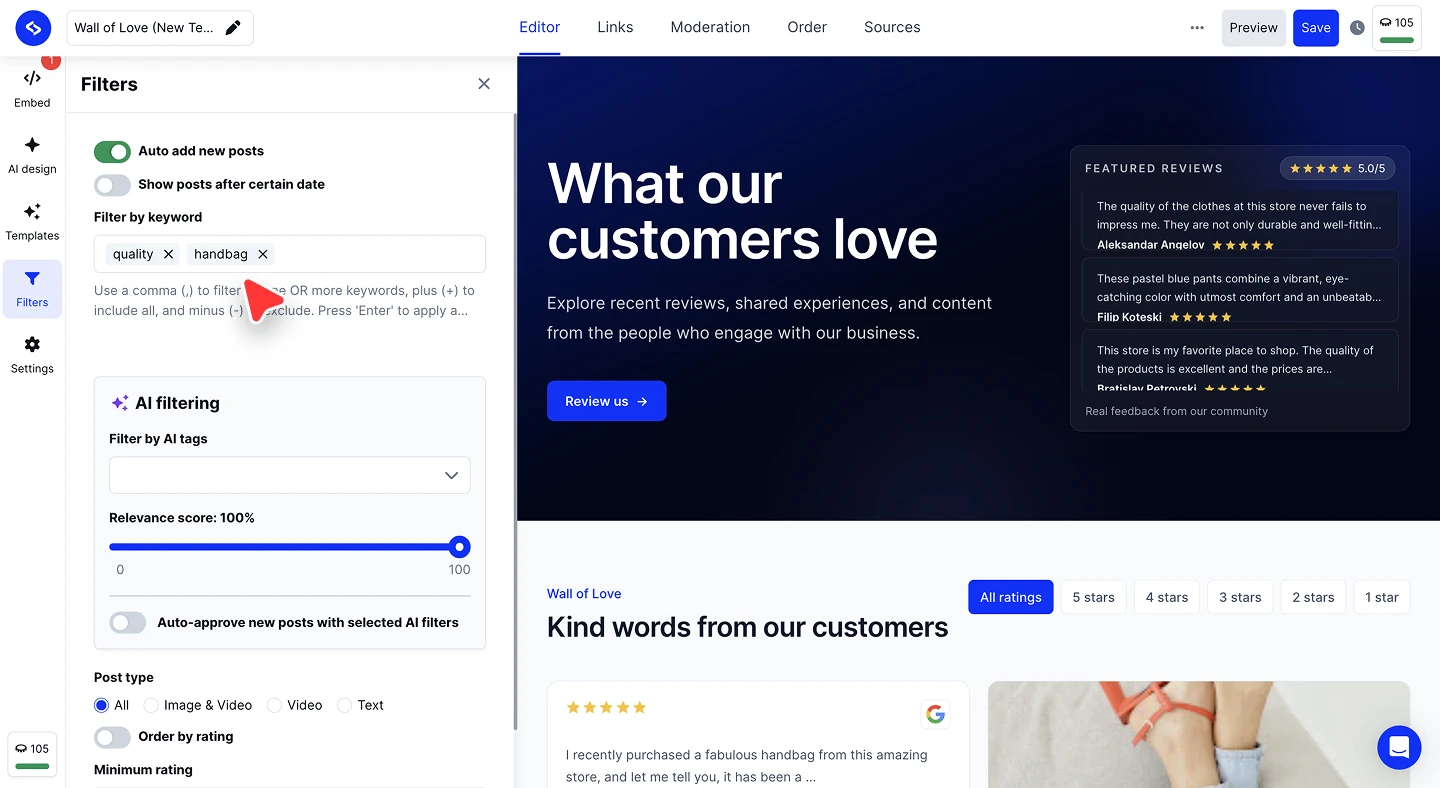
Narrow by tag. Pick 'Manual tags' you applied yourself or had an Auto tagging automation apply, or use 'Filter by AI tags' under 'AI filtering' to use the tags AI Post Enrichment generated from each caption.

Set the relevance score. Drag 'Relevance score' to set how closely a post must match before it qualifies, from 0 to 100.
Set the post type and order. Choose 'All', 'Image & Video', 'Video', or 'Text', then set 'Order by date' or, on review widgets, 'Order by rating' and a 'Minimum rating'.


Keyword syntax
The hint under the field is easy to miss, and the three operators behave differently:
- Comma (
,) matches posts containing one OR more of the keywords - Plus (
+) requires all of them - Minus (
-) excludes posts containing the term
Press Enter to apply each one. Combining them is how you get a tight feed: include your campaign terms with a comma, then exclude the noise with a minus.
AI filtering
'AI filtering' works on the tags and scores our AI applies to incoming posts, rather than on the words in the caption:
- Filter by AI tags limits the widget to posts carrying tags such as
fashionorluggage - Relevance score sets the minimum confidence a post needs to qualify
- Auto-approve new posts with selected AI filters publishes matching posts without you reviewing each one
Auto-approve is the one to think twice about. On a hashtag or mentions source, it puts content from accounts you do not control straight onto your site.
Showing only rights-approved content
On widgets built from other people's posts, 'Only posts that have approved rights' restricts the widget to content whose creator granted permission. It is the safe default for a hashtag campaign feed.

Want tighter control over incoming content?
FAQ
How do I exclude a word instead of including it?
Prefix it with a minus, for example -giveaway, then press Enter.
What is the difference between a comma and a plus?
A comma matches posts containing any one of the keywords. A plus requires every keyword to be present.
Do filters change the posts in my account?
No. Filters only control what a single widget displays. Your collected posts stay untouched, and other widgets are unaffected.
What does the relevance score actually do?
It sets how confident the AI must be that a post matches your criteria before it qualifies. Higher is stricter and shows fewer posts.
Should I turn on auto-approve?
Only when you trust the source. On hashtags and mentions it publishes content from accounts you do not control without review.
What's next
Filters decide what qualifies. To approve or hide individual posts by hand, see Moderation, and for the display options see Widget settings.
If you have any questions, click the bottom right chat icon to talk with our customer success team or send us an email at support@embedsocial.com We're here for you 🙏