A Threads source pulls Threads posts into EmbedSocial so you can display them in a widget or track them in social listening. You pick what the source watches when you set it up: 'Accounts' for your own posts, 'Mentions posts' for posts that tag you, or 'Keywords' for posts containing terms you choose.
All three run through the same wizard: choose the source type, connect the Threads account, then approve the permissions.
Threads mention sources require the Pro Plus plan or higher.
How to connect a Threads source
Open the source picker. Click '+ Add source' in the left menu.
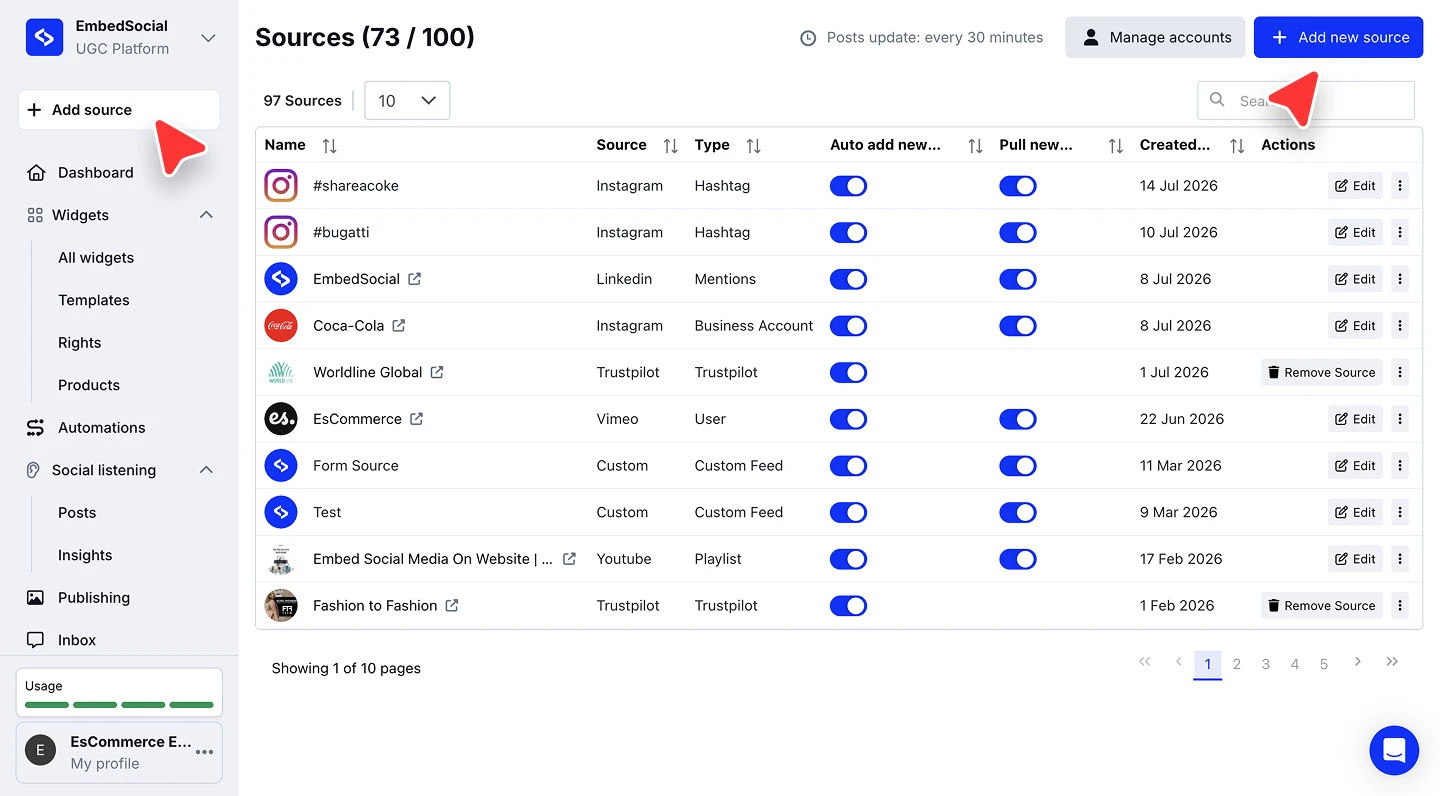
Choose Threads. Under 'or connect single source', click 'Threads'.
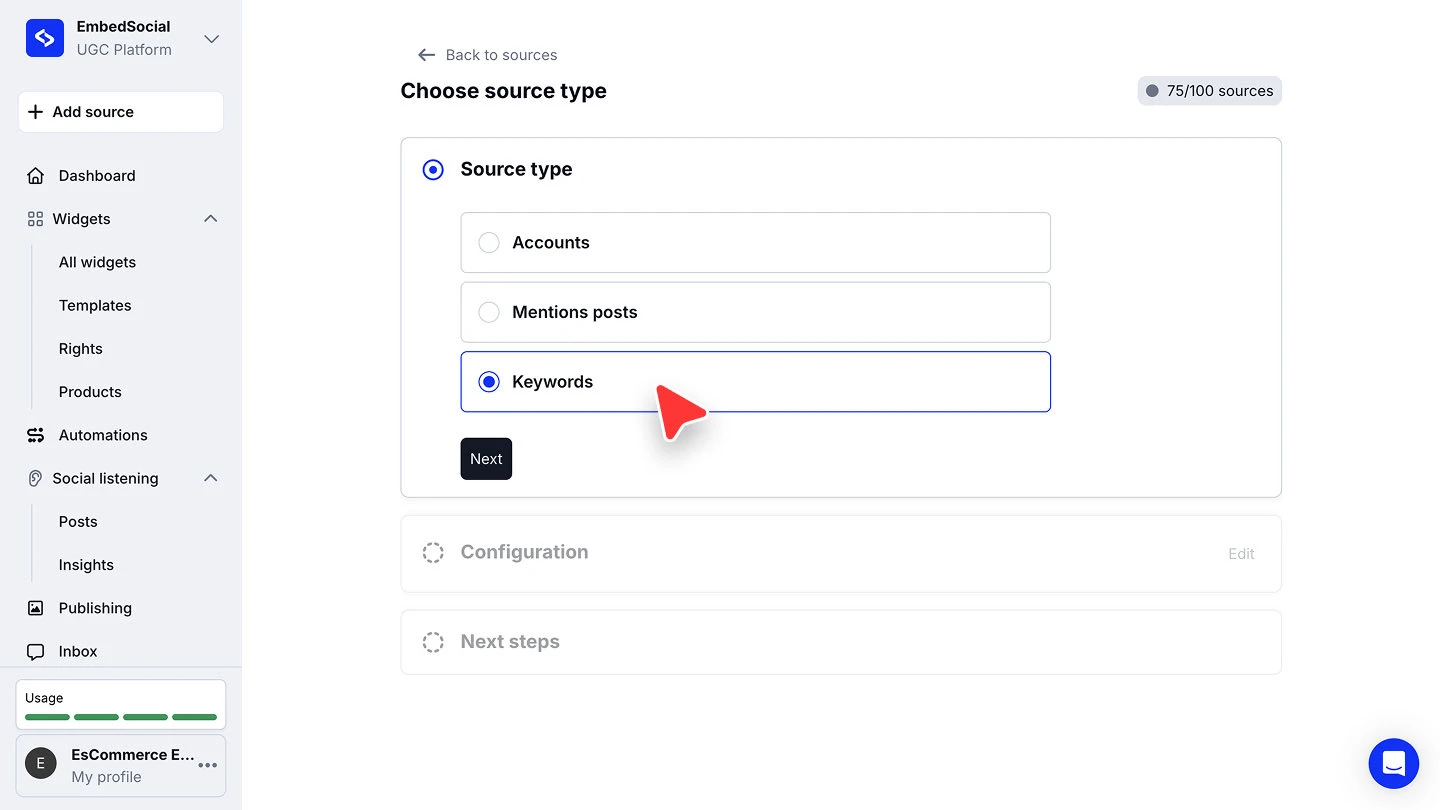
Pick the source type. On 'Choose source type', select 'Accounts', 'Mentions posts', or 'Keywords', then click 'Next'.
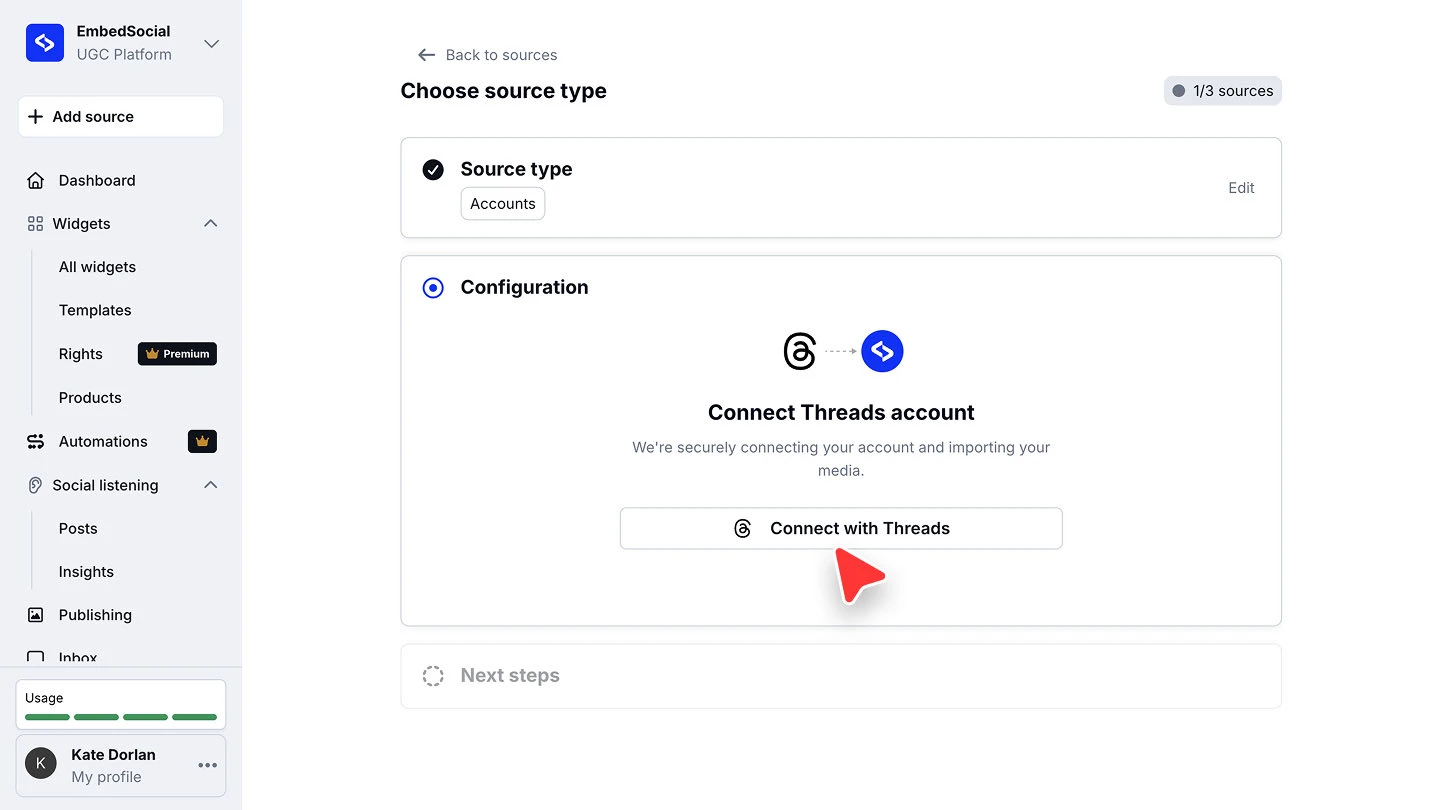
Connect your account. On 'Configuration', click 'Connect with Threads'.
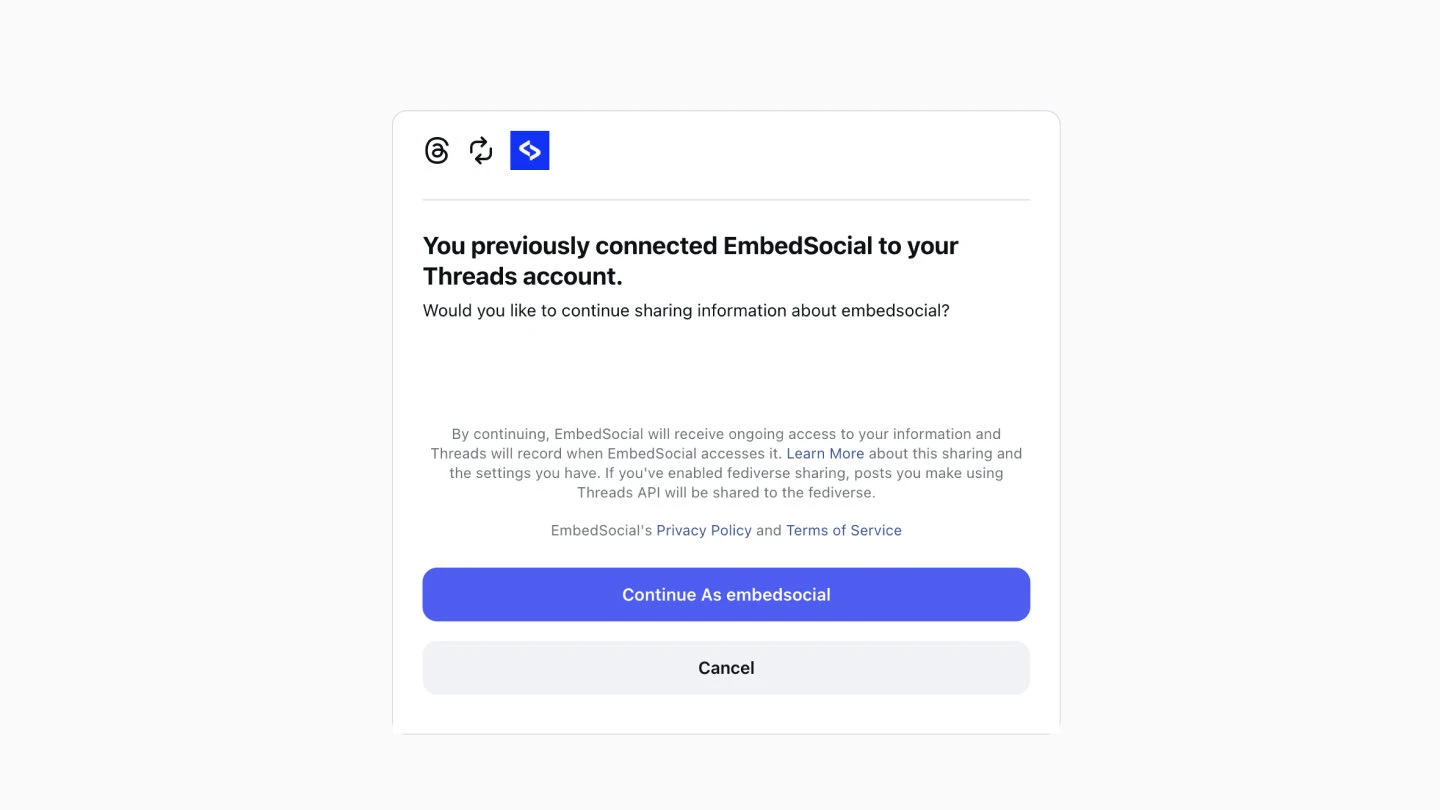
Approve the permissions. Sign in to Threads and approve the access EmbedSocial asks for. Your posts start importing once you are back.


The header shows how many sources you have used against your plan's limit, for example '1/3 sources'. Check it before connecting if you are close to the cap.
Choosing the right source type
'Accounts' pulls the posts your own Threads account publishes, which is what you want for a feed widget on your site.
'Mentions posts' pulls posts from other people that tag your account, so it is the one to use for user-generated content. It requires the Pro Plus plan or higher.

'Keywords' pulls posts containing terms you specify, whether or not they tag you, which suits campaign and topic tracking.
Ready to put your Threads posts on your site?
FAQ
What is the difference between the three source types?
'Accounts' collects your own posts, 'Mentions posts' collects posts that tag you, and 'Keywords' collects posts containing the terms you choose regardless of who wrote them.
Which plan do I need?
Threads mention sources require the Pro Plus plan or higher.
Can I connect more than one Threads source?
Yes. Run through '+ Add source' again for each one. Every connected source counts against your plan's source limit.
Why did the import not start?
The connection only completes once you approve the permissions on the Threads screen. If you closed it early, run through '+ Add source' again and finish the approval step.
What's next
With the source connected, decide how its posts reach your site. See Sources for how sources feed your widgets.
If you have any questions, click the bottom right chat icon to talk with our customer success team or send us an email at support@embedsocial.com We're here for you 🙏