Repost republishes a creator's post to your own social media accounts. The posts your listening sources collect, from the hashtags, keywords, and mentions you monitor, are exactly the community content worth resharing, and Repost sends any of them into the same composer your own posts use.
The flow starts on the 'Posts' page under 'Social listening', where everything you monitor lands.
Before you repost someone's content, ask for permission. See Ask via Instagram comment or Ask via Instagram DM for requesting rights on exactly these posts.
How to repost a monitored post
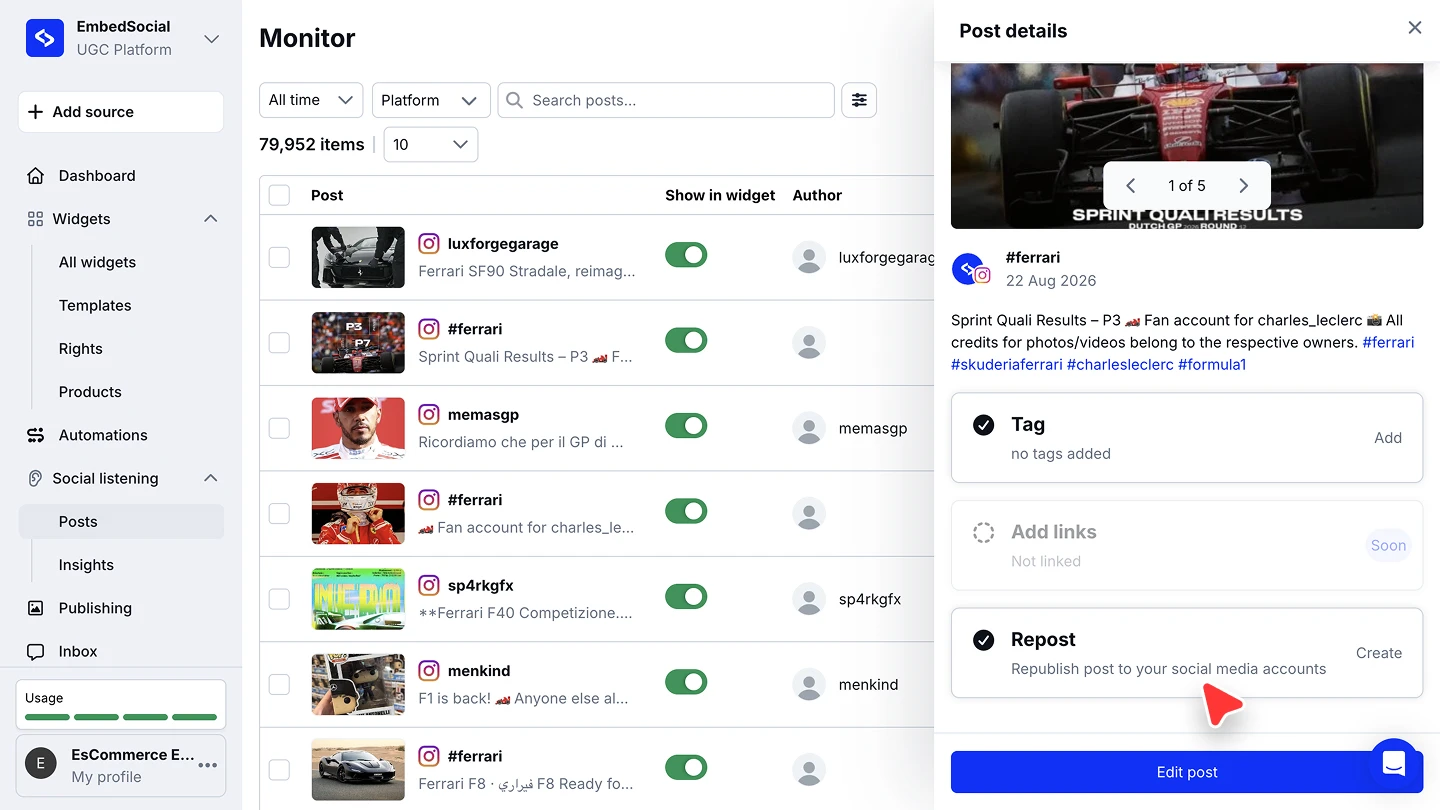
Open Posts. Click 'Social listening' in the left menu, then 'Posts'. Use the search, the platform filter, or your tags to find the creator post you want to reshare.
Open the post. Click it to open the 'Post details' panel, with the media, the caption, and the post's actions.
Click Create under Repost. The 'Repost' action, "Republish post to your social media accounts", hands the post to the composer.
Pick your accounts and adjust. In the composer, choose the accounts to publish to, credit the creator in the caption, and edit anything else the same way as any post. See Post publishing.
Publish or schedule. 'Publish now' sends it straight out, 'Schedule post' queues it for later, and it then appears in your 'Publishing' list like any other post.

Keep the creator's credit in the caption. The posts you monitor arrive with the author's handle, so carrying it into your repost is one edit away.
Ready to turn your community's posts into your content?
FAQ
Which posts can I repost?
Anything your listening sources collect on the 'Posts' page: hashtag, keyword, and mention posts from the platforms you monitor.
Do I need the creator's permission?
Ask before resharing. The rights request flows work on exactly these posts, via a public comment or a DM, and the approval is tracked per post. See Ask via Instagram comment.
Can I edit the post before it goes out?
Yes. Repost opens the standard composer, so the caption, accounts, and schedule are all yours to change.
Where do I see the repost after sending it?
In 'Publishing', with the same statuses as your own posts: draft, scheduled with its publish time, or published.
Which plan do I need?
Social media listening and scheduling are both available from the Pro plan.
What's next
The composer, the Instagram post types, AI captions, and scheduling are covered in Post publishing.
If you have any questions, click the bottom right chat icon to talk with our customer success team or send us an email at support@embedsocial.com We're here for you 🙏