AI design is the chat inside the widget editor where you describe the widget you want and it gets built for you. Instead of setting layout, colors, and spacing by hand, you write what you are after and then keep refining it in the same conversation. Beyond social feeds and reviews, it can also build an FAQ widget, a Google Maps widget or a pricing table.
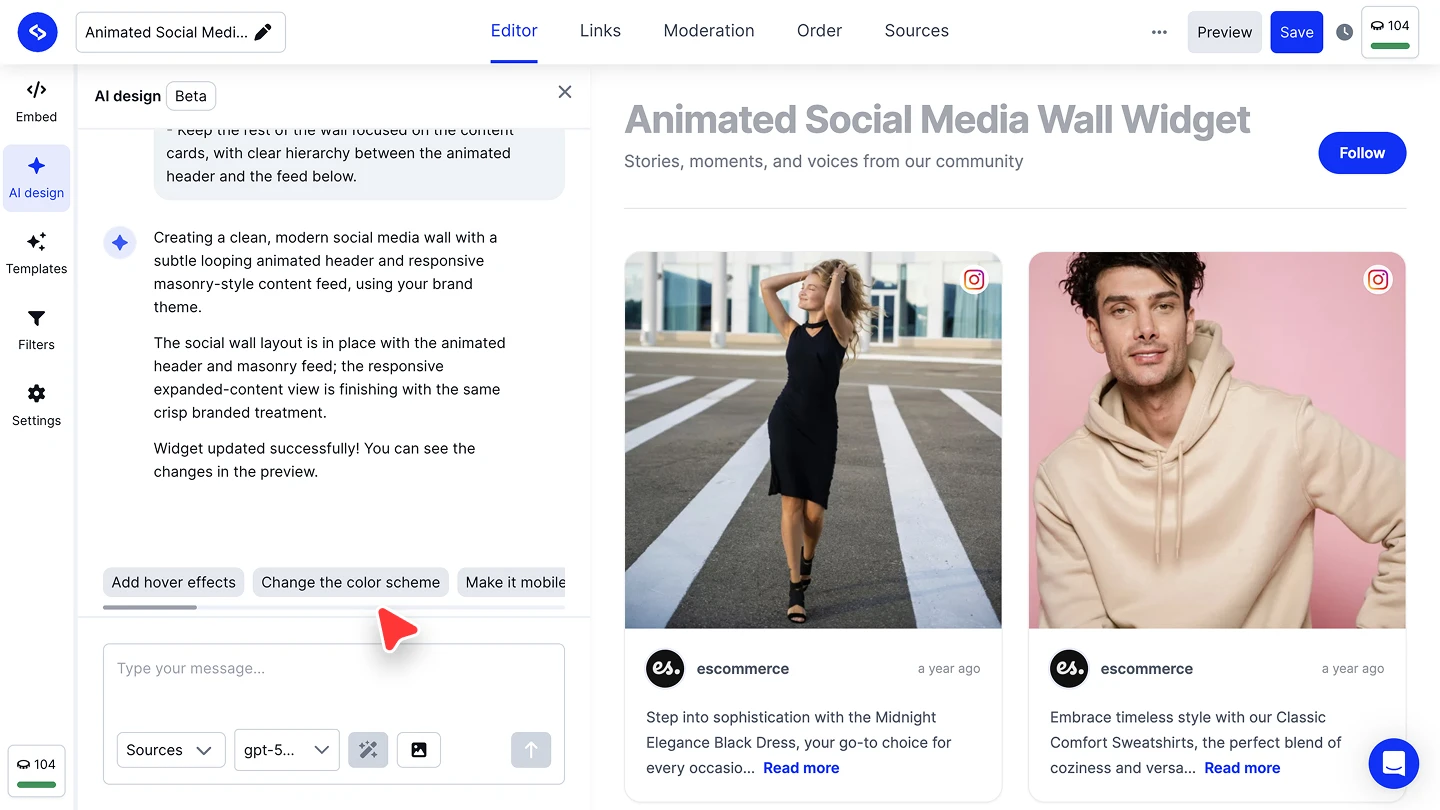
It sits in the left rail of the 'Editor' tab, marked 'AI design'. Each generation costs 1 credit, and the counter in the top right of the editor shows what you have left.
Fill in your Branding settings first and the editor already knows your logo, font, and brand colors. The first build then comes back on-brand, so your prompt can stick to layout and content.
How to build a widget with AI design
Describe the widget. Type what you want into 'Type your message...'. If you are not sure how to start, pick one of the suggested prompts underneath the box.
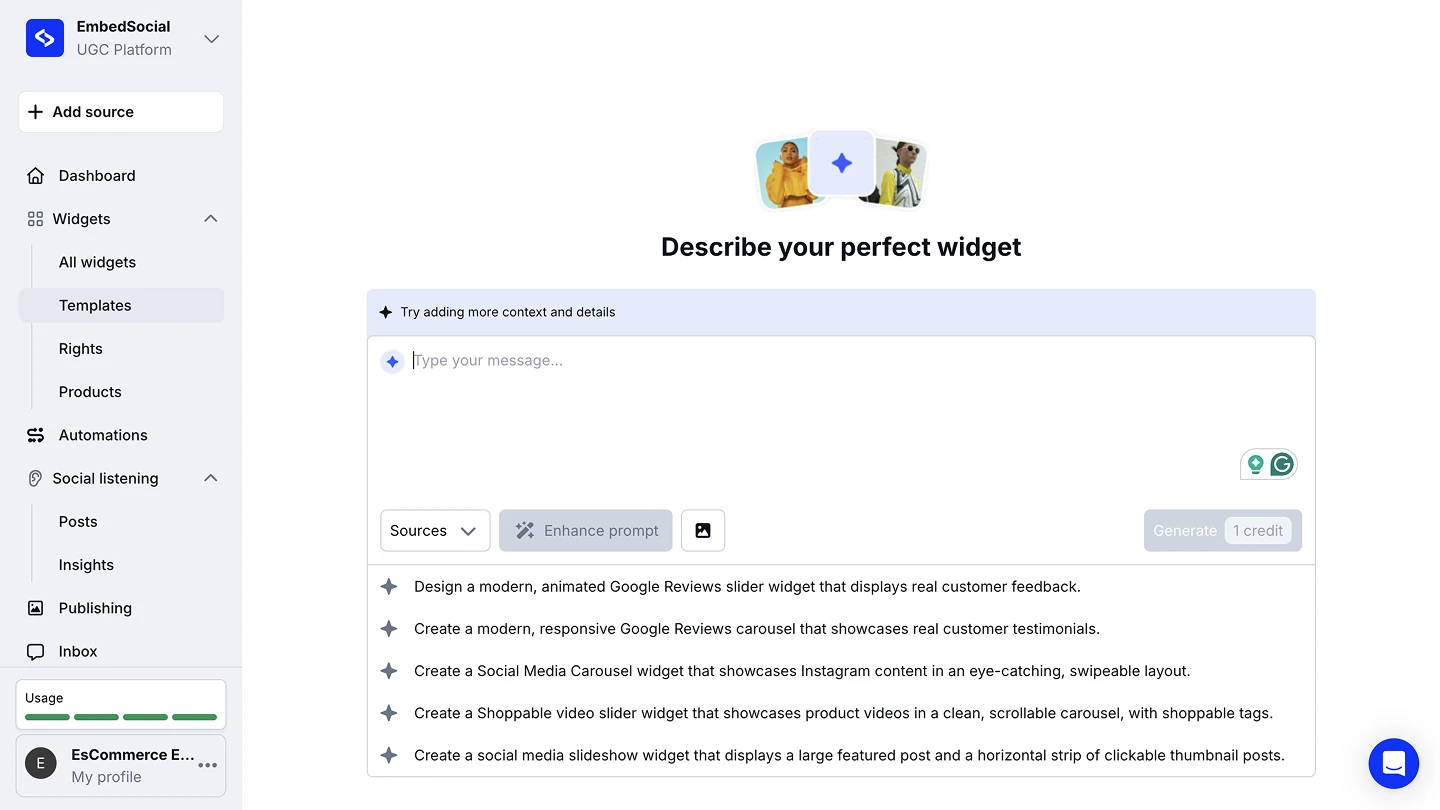
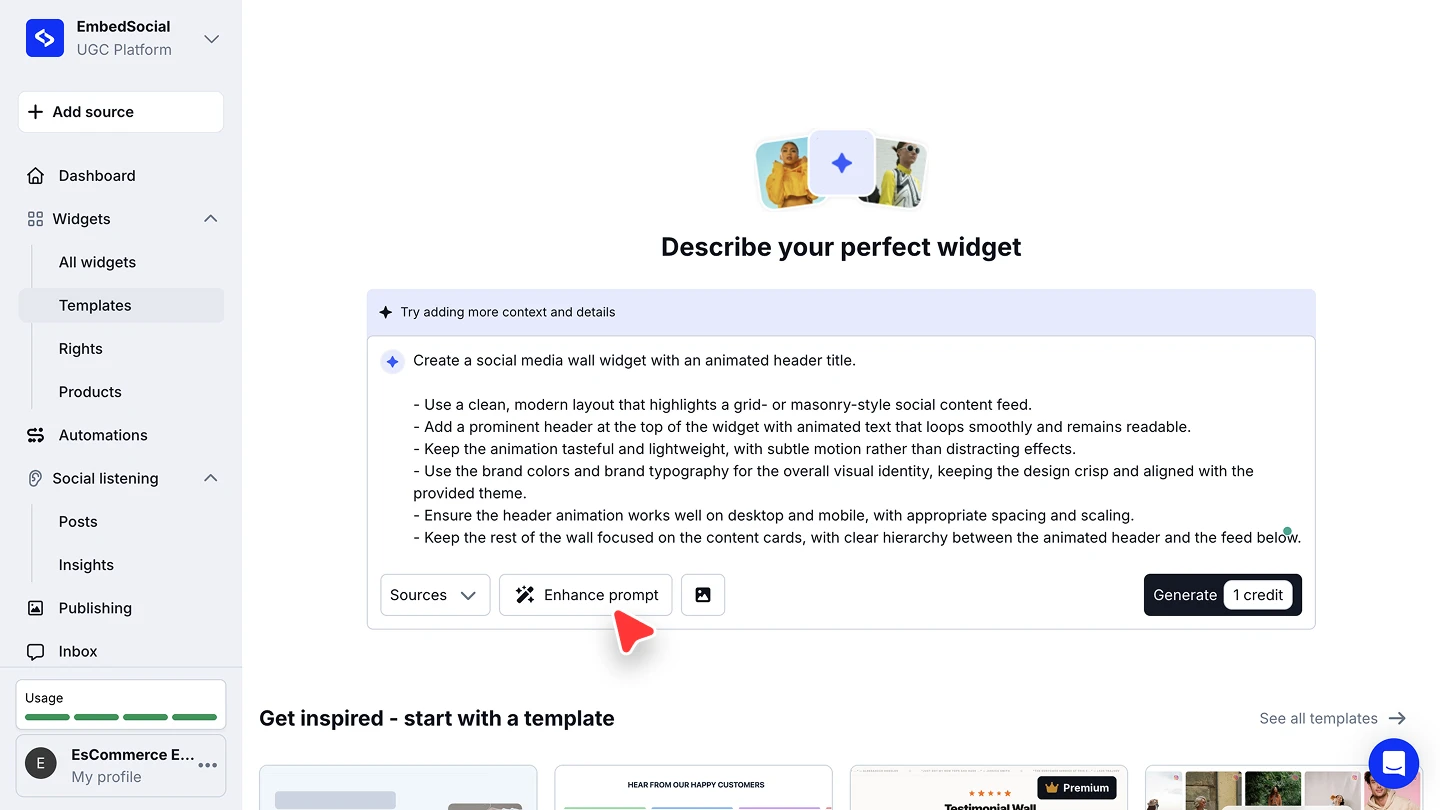
Enhance the prompt (optional, recommended). Click 'Enhance prompt' and your one-line idea is expanded into a detailed brief covering layout, header, animation, brand colors, and mobile behaviour. Edit it before generating.
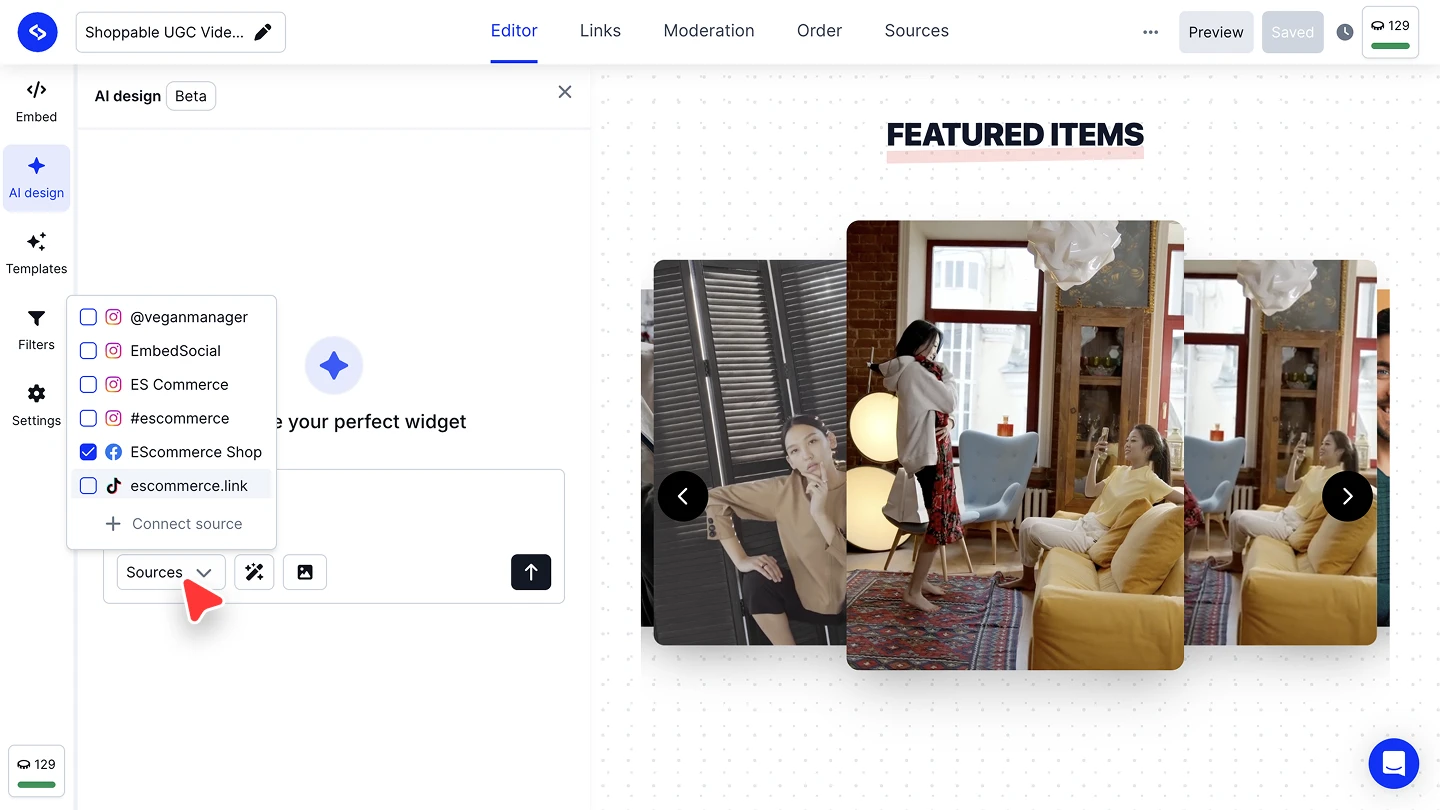
Choose which sources feed it. Open the 'Sources' dropdown and tick the accounts, hashtags, or pages whose posts should appear in the widget.
Add a reference image (optional). Use the image button next to 'Enhance prompt' to upload a screenshot or brand visual, and the design is built to match it.
Generate. Click 'Generate' to spend the credit and build the widget.
Apply your brand colors (optional). When you generate from a template, the editor detects the brand colors on your website and asks in the chat whether to apply them. Confirm and they are worked across headers, buttons, links, and accents; skip it to keep the template's own colors.
Keep refining in chat. After the first build, follow-up suggestions appear as chips ('Add hover effects', 'Change the color scheme'). Click one, or type your own change, and the widget updates in the preview beside the chat.


Enhance prompt is worth the extra click. A short prompt leaves the layout, motion, and brand details to chance, and the expanded brief is editable, so you can strike anything you do not want before generating.
Connecting a source to a generated widget
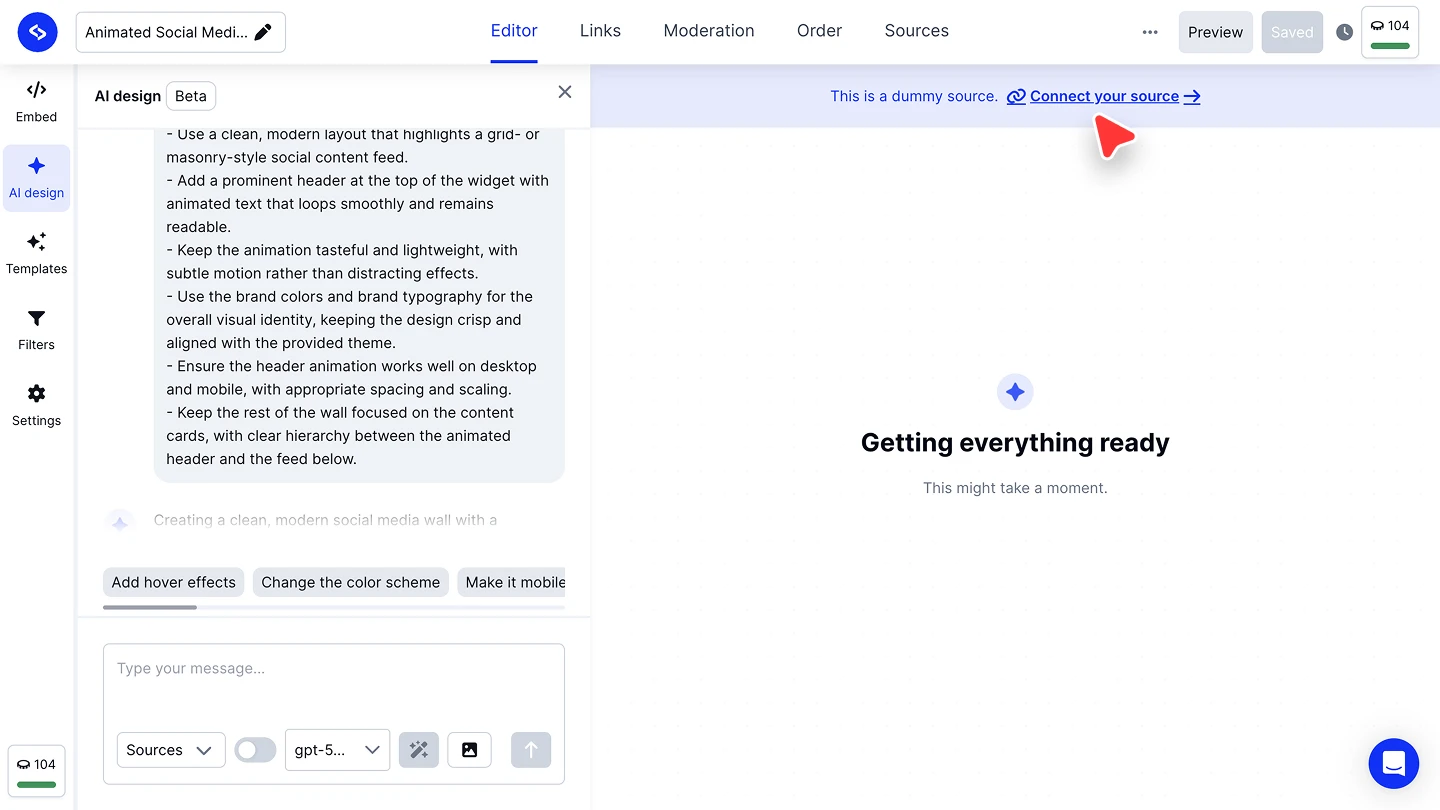
If you started from a template or generated before connecting anything, the preview fills with placeholder content and a banner reads 'This is a dummy source. Connect your source →'. Click it to swap the placeholder for your own posts.
You can also add a source without leaving the chat: open 'Sources', click 'Connect source', then pick the platform.

'Custom' covers content that does not come from a social platform, and 'Request source' asks our team for a platform we do not integrate with yet. See Sources for what each platform pulls.
AI credits in the editor
AI design runs on AI credits. One generation is one credit, whether it is the first build or a follow-up change you type into the chat. Starting from a template, connecting a source, and setting a widget's display options by hand cost nothing.
Your balance sits in the top right of the editor and in the bottom left of the rail, and it counts down as you generate. See AI credits for every feature's rate and how to buy more.
Ready to build one?
FAQ
How many credits does a widget cost, and what happens when I run out?
Each generation costs 1 credit, shown in the counter at the top right of the editor. See AI credits for every feature's rate, your balance, and how to buy more.
Do I have to write the prompt myself?
No. Suggested prompts appear under the box on a new widget, and 'Enhance prompt' turns a one-line idea into a full brief you can edit.
Can I change the widget after it is generated?
Yes. Keep typing in the same chat, or click one of the follow-up suggestion chips. The preview updates as you go.
Why does my widget show posts that are not mine?
It was generated from a template with placeholder content. Click 'Connect your source' in the banner above the preview, or pick your accounts in the 'Sources' dropdown.
What happens if a generation fails?
An 'Unable to generate HTML' error puts a Retry button in the chat. Click it to resend the same prompt, without retyping anything.
Can I design from a screenshot instead of a description?
Yes. Upload a reference image with the image button next to 'Enhance prompt' and the design is matched to it.
Do I have to describe my brand colors in every prompt?
No. Set your logo, font family, and brand colors once in Branding and every widget you generate afterwards starts from them.
Where did custom CSS go?
Custom CSS is no longer a separate setting in the editor. Styling happens here instead: describe the change you want in the chat, and use CSS when you need exact control over the result.
What's next
Set your workspace brand once in Branding so every widget starts on-brand. With the design settled, narrow which posts appear using Filters, then set the display options in Widget settings.
If you have any questions, click the bottom right chat icon to talk with our customer success team or send us an email at support@embedsocial.com We're here for you 🙏