A product catalog is the list of products you tag on your posts. You import it once, from a product feed file or a connected store, and every product in it becomes available for tagging in the widget editor's 'Links' tab.
Catalogs live under 'Products' in the left menu. The page lists every catalog with its locale, product count, status, and last update, alongside the import options.

You can import from 'Google Merchant' (upload a products file or paste a URL) or connect a 'Square' store, with 'Shopify' coming soon. '+ Add Catalog' starts a new import, and products can also be added by hand, which the list shows as a 'Manually added products' catalog. Importing a product catalog is available from the Pro plan.
How to import a product catalog
Open Products. Click 'Products' in the left menu, then click '+ Add Catalog' or 'Import from Google'.
Choose the catalog type. Pick 'Google catalog' for a Google Merchant feed or 'Custom catalog' for your own feed, then choose 'Create new catalog' (or 'Existing catalog' to add into one you already have).
Name the catalog. The name is only visible to you and your teammates when adding products to posts.
Provide the feed. With 'File type' set to 'XML', pick an 'Upload method': 'Upload file' to upload the feed directly, or 'Paste URL' and drop the .xml link into '.xml file link URL'.
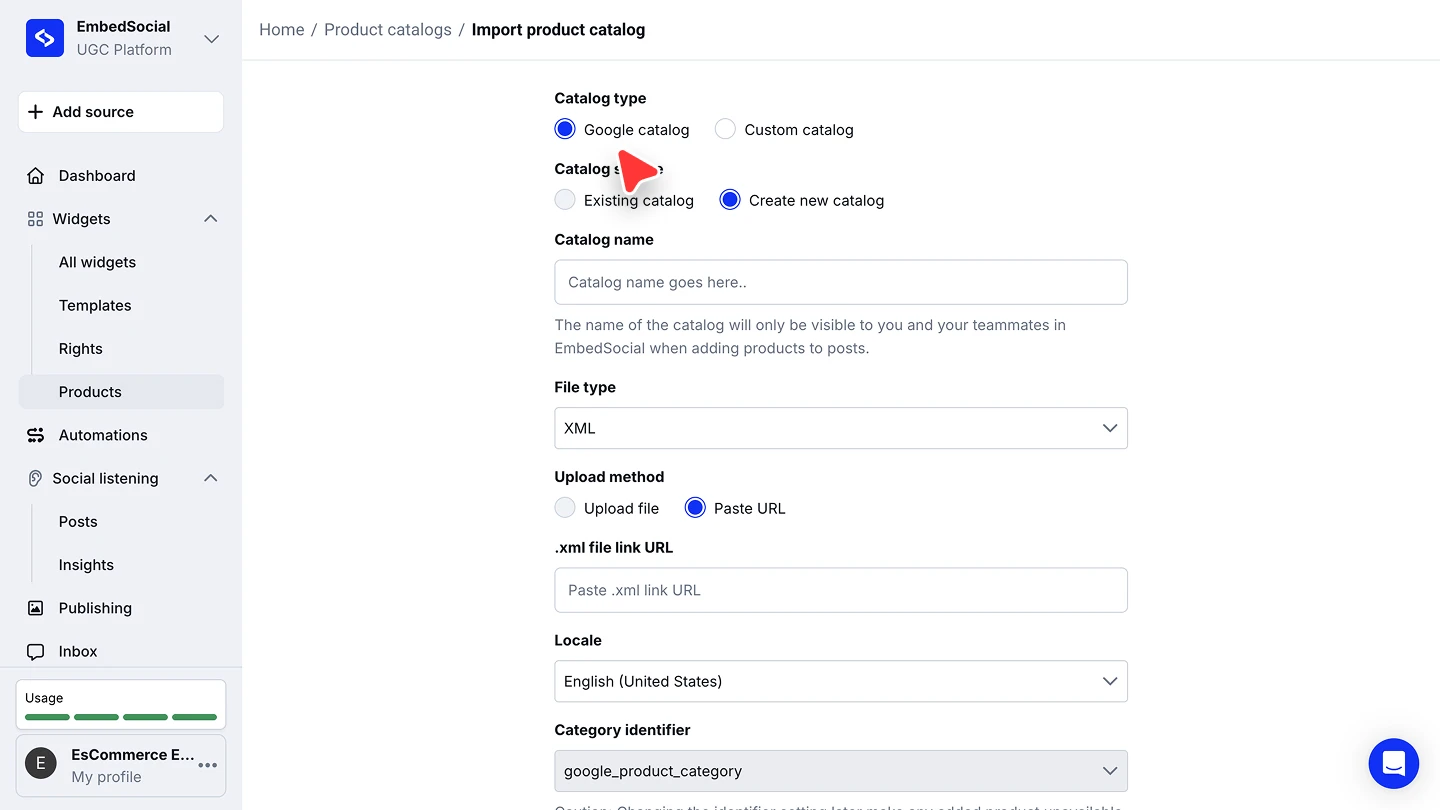
Set the locale and category identifier. Pick the 'Locale' the catalog serves, and leave 'Category identifier' on 'google_product_category' unless your feed uses another field. Changing the identifier later makes already added products unavailable, so set it once.

A catalog imported by URL can be refreshed from the same link, so keeping the feed hosted is the low-maintenance option for a store that changes often.
Editing a catalog
Click 'Edit' on a catalog to see every product in it, with its ID, image, and URL. Opening a product lets you change its 'Product name' and 'Price' (with the currency), then 'Save changes'. 'Delete' on the catalogs list removes a catalog entirely.

The product feed format (.XML)
The feed in the .XML format is generated by automated feed provider systems or web servers. To work with EmbedSocial, your .XML file needs to be based on Google's RSS 2.0 specification.
The .XML file should include the following mandatory attributes:
- ID-attribute
- Product Title
- Link to product
- Product image link
- Price
Note: If you need other identifiers like<gtin>or<mpn>please feel free to reach out to our Customer Success team via live chat or via email at support@embedsocial.com
Here is an example of how the final result should look:
<products>
  <product>
    <id>product_id</id>
    <title>Sample Product Title</title>
    <description>Short product description goes here.</description>
    <google_product_category>1</google_product_category>
    <product_type>General Product Type</product_type>
    <link>https://example.com/product-page</link>
    <image_link>https://example.com/image.jpg</image_link>
    <condition>new/used</condition>
    <availability>in stock</availability>
    <price>00.00 USD</price>
    <brand>Sample Brand</brand>
    <mpn>SampleMPN</mpn>
    <gtin></gtin>
    <additional_image_link>https://example.com/additional-image.jpg</additional_image_link>
    <gender>unisex</gender>
    <age_group>all ages</age_group>
    <color>Sample Color</color>
    <is_bundle></is_bundle>
    <material>Sample Material</material>
    <unit_pricing_measure>1 unit</unit_pricing_measure>
    <unit_pricing_base_measure>1 unit</unit_pricing_base_measure>
    <sale_price>00.00 USD</sale_price>
    <sale_price_effective_date></sale_price_effective_date>
    <custom_label_1>Sample Custom Label</custom_label_1>
  </product>
</products>
The other attributes, while not mandatory, can help display additional information or improve the functionality. These are not mandatory fields and you can leave them empty, same as <gtin></gtin> in the example provided: google_product_category, mpn, additional_image_link, age_group, material, unit_pricing_measure, and unit_pricing_base_measure.
Note: Values in certain attributes of your product feed, like the title, product description, and product type, might contain non-valid XML characters such as (<, >, &, ', " ) that will require the value to be enclosed in a CDATA field, otherwise the import will fail.
Getting the XML file from Google Merchant Center
- Log in to Google Merchant Center: Visit Google Merchant Center and log in with your Google account credentials.
- Navigate to your feed: In the left-hand navigation menu, go to 'Products' and then click 'Feeds'. Select the feed you want to download.
- Download the feed file: If the feed is already processed, look for an option like 'Fetch now' or 'Download processed feed'.
- Or use the feed source URL: If the feed source is an XML file URL, copy the link and paste it straight into the import form's '.xml file link URL' field. Example URL:
https://www.example.com/feeds/products.xml
Catalogs for multiple markets
Each catalog carries one 'Locale'. By adding multiple catalogs, you can display products in different languages based on your customers' regions, with a separate .XML file for each language.
Ready to put the catalog to work?
FAQ
Do I have to host the XML file somewhere?
No. The import form's 'Upload method' offers 'Upload file' for a direct upload, or 'Paste URL' if the feed is hosted.
Which platforms can I import from?
Google Merchant, by file or URL, and Square, by connecting your store. Shopify import is coming soon, and you can always add products manually.
Who sees the catalog name?
Only you and your teammates, when adding products to posts. It never appears on your website.
Can I fix a product after importing?
Yes. Click 'Edit' on the catalog, open the product, and change its name or price.
Which plan do I need?
Importing a product catalog is available from the Pro plan.
What's next
With the catalog imported, tag its products on your posts and put the shoppable feed on your site. See Shoppable Widgets.
If you have any questions, click the bottom right chat icon to talk with our customer success team or send us an email at support@embedsocial.com We're here for you 🙏