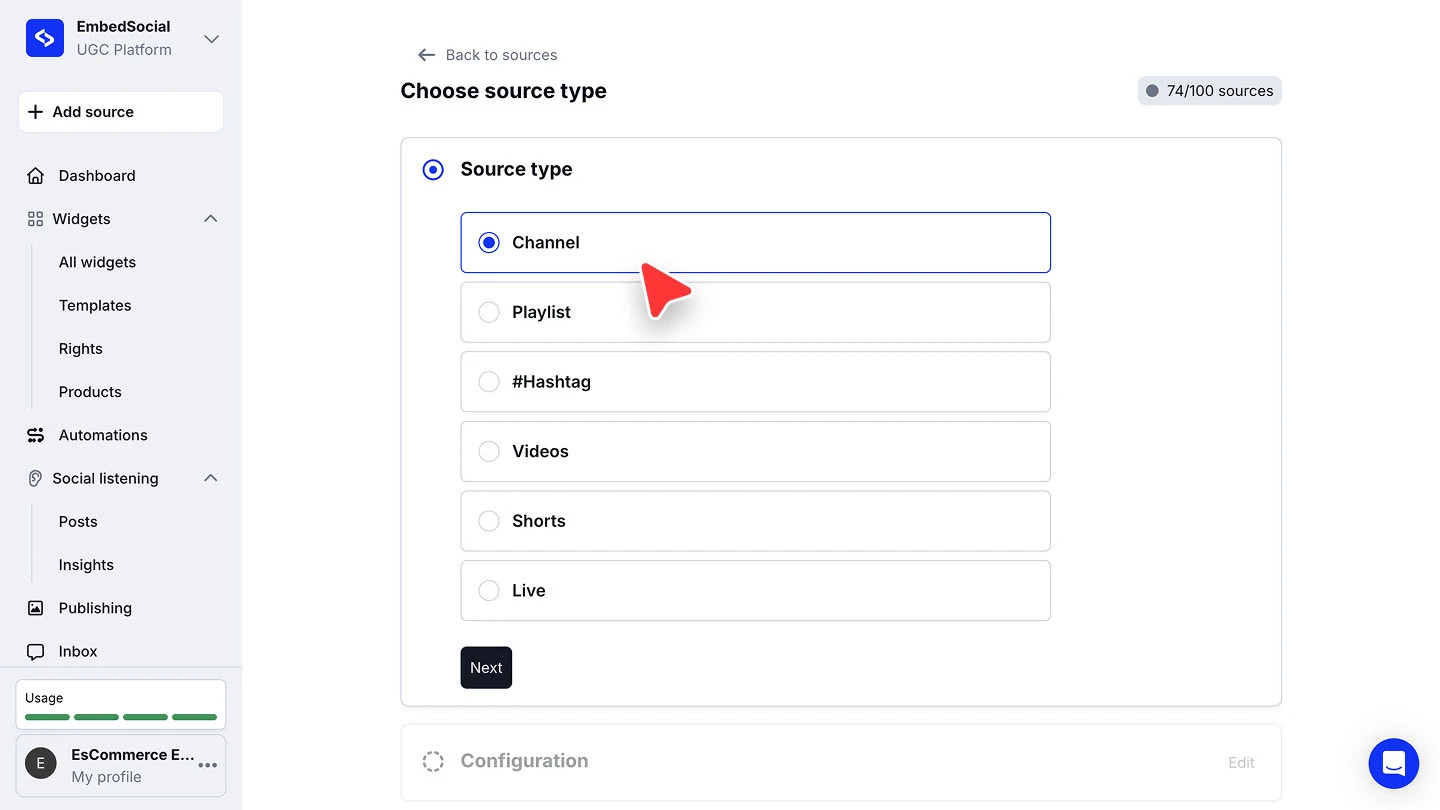
A YouTube source pulls videos into EmbedSocial so you can display them in a widget on your website. When you set one up you pick what the source watches: a whole 'Channel', a 'Playlist', a '#Hashtag', individual 'Videos', 'Shorts', or a 'Live' stream.
Connecting a channel is the most common path, and the one below. All six types run through the same wizard: choose the source type, fill in the configuration for that type, then pick a widget template.
YouTube sources are available on the Pro plan and above. The '#Hashtag' type is the one exception: it starts on Pro Plus.
How to connect a YouTube channel
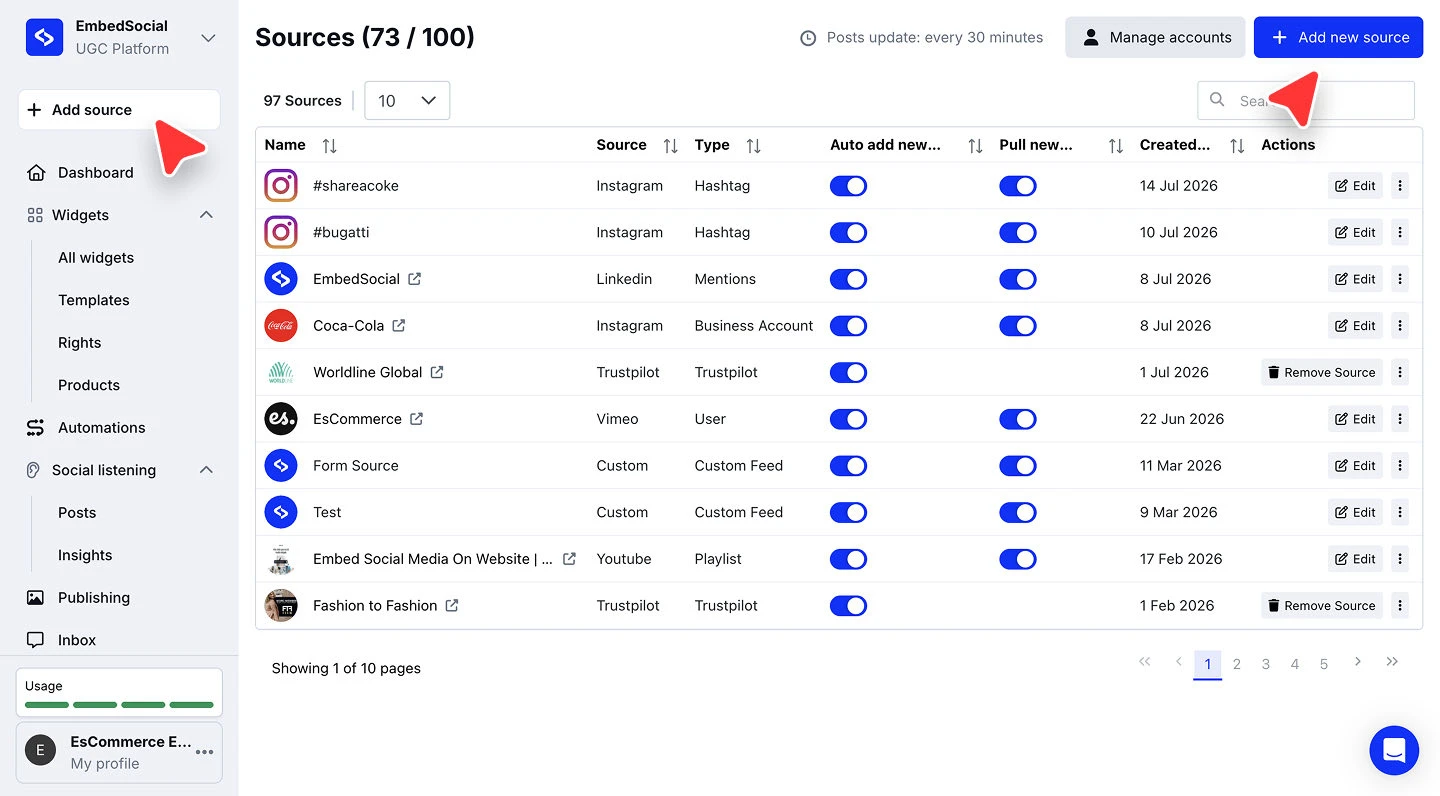
Open the source picker. Click '+ Add source' in the left menu.
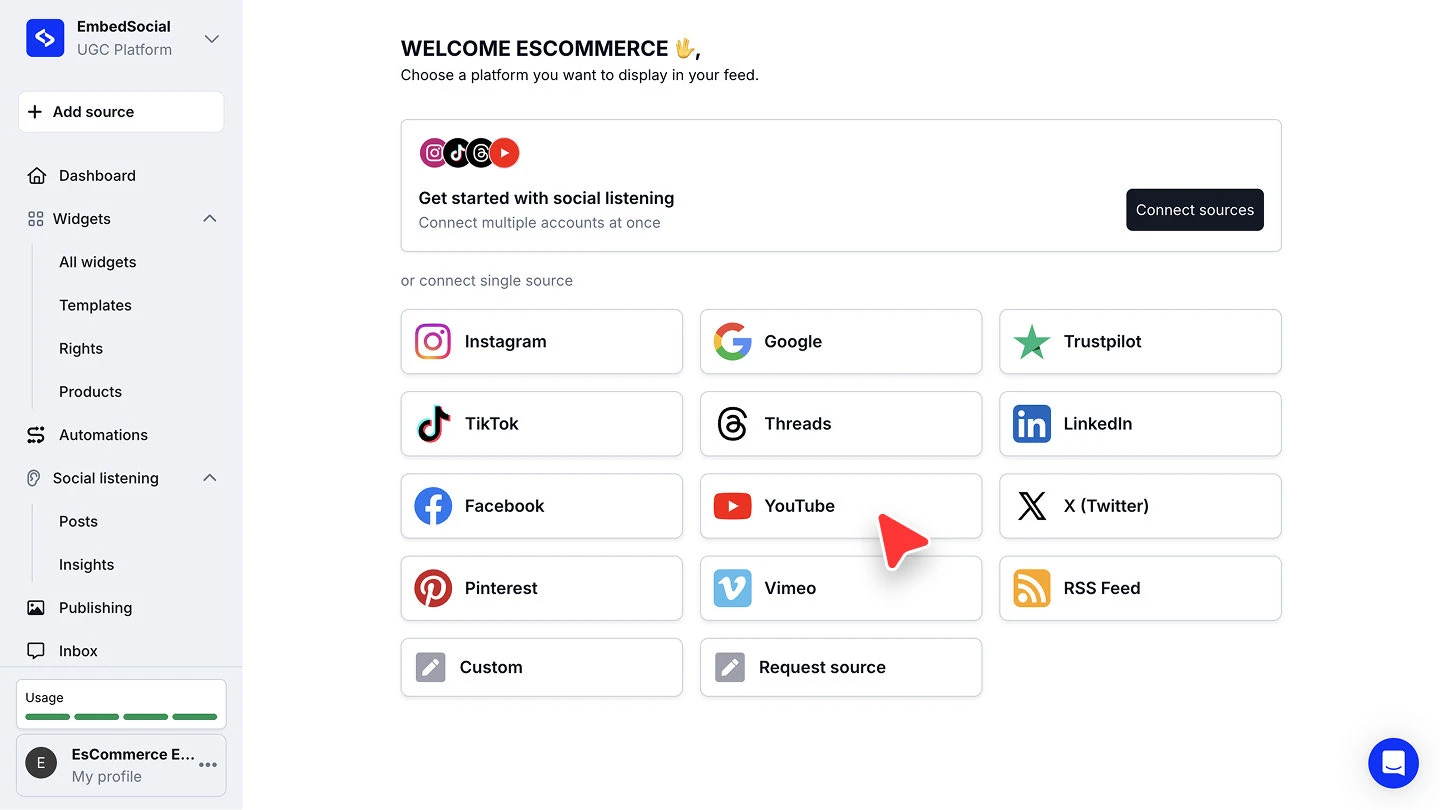
Choose YouTube. Under 'or connect single source', click 'YouTube'.
Pick the source type. On 'Choose source type', select 'Channel', then click 'Next'.
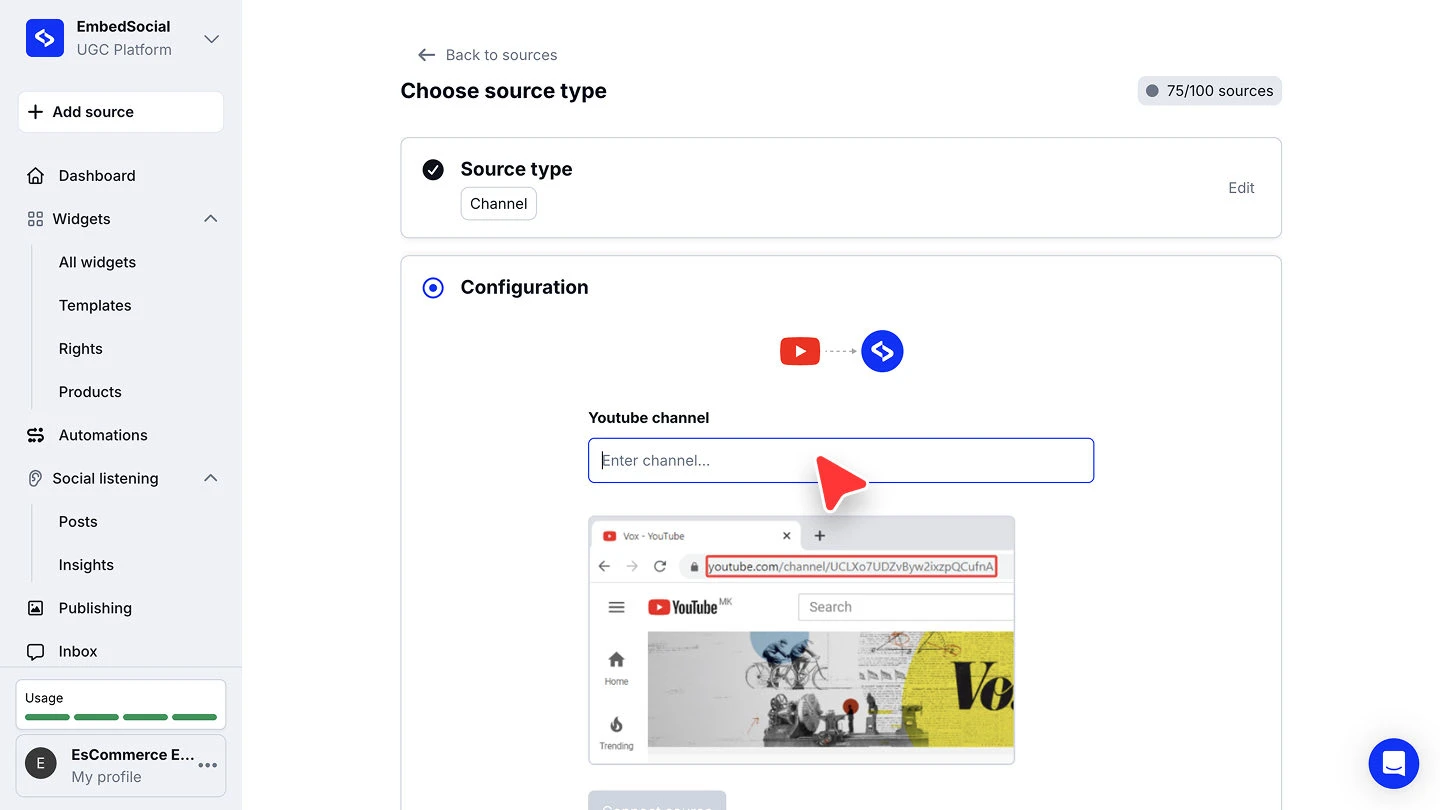
Paste the channel URL and connect. Enter the channel in 'Youtube channel', then click 'Connect source'. The example under the field shows where to copy the URL from in your browser's address bar.
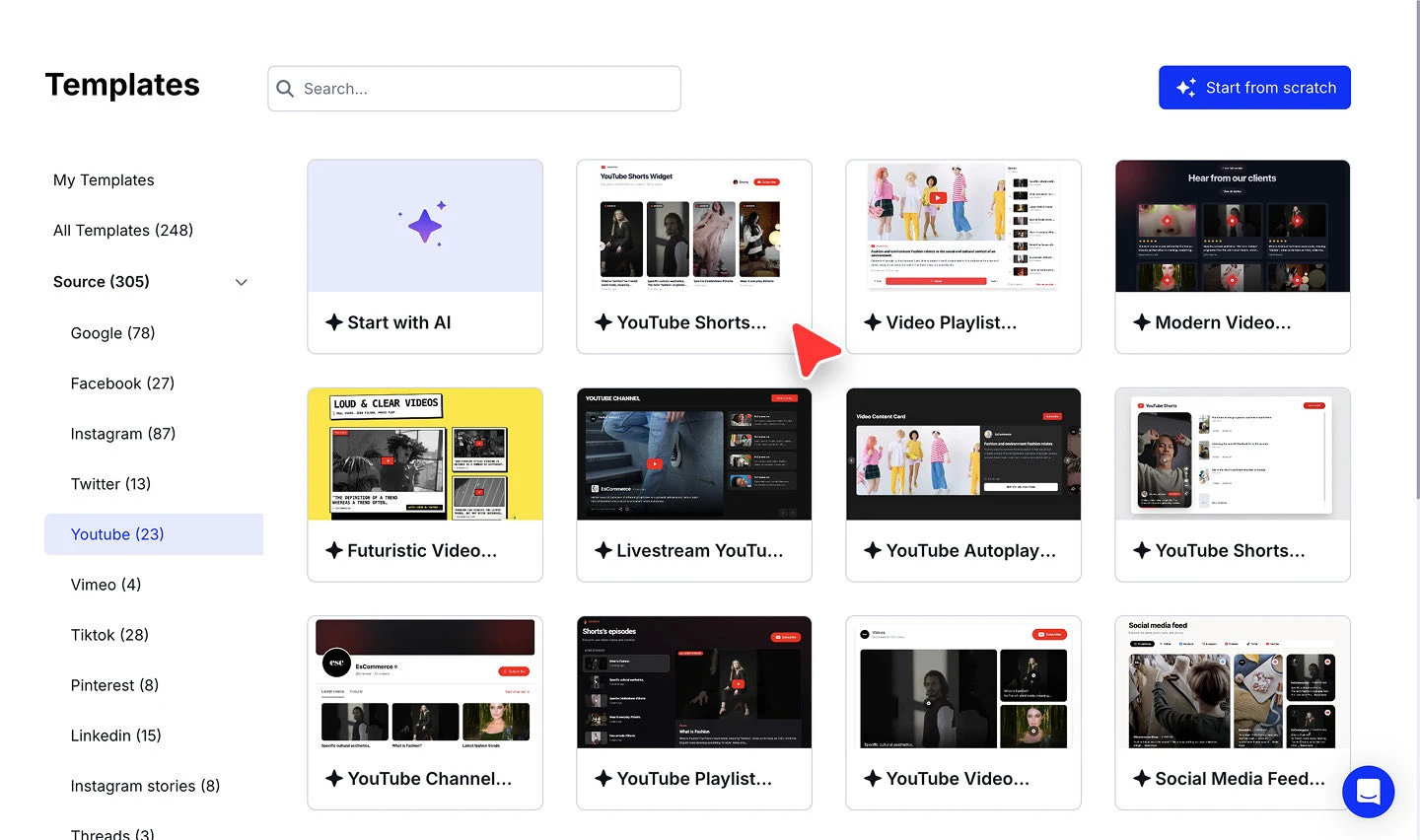
Pick a widget template. Choose a template for the widget that will display your videos.


Copy the channel URL straight from the address bar while you are on the channel page. That is the form the field expects.
The other YouTube source types
Every type uses the same two-stage pattern: pick it on 'Choose source type', then fill in its configuration. What you enter changes per type.
#Hashtag watches a YouTube hashtag and pulls the videos published under it.


Shorts pulls a specific Short from its URL.

Live pulls a live stream from its video URL.

'Playlist' and 'Videos' work the same way, taking a playlist URL and one or more video URLs respectively.
To collect videos by the words in them rather than by a #hashtag, add a YouTube Keywords source. YouTube Keywords sources start on Pro Plus.
Ready to put your videos on your site?
FAQ
Which YouTube source type should I pick?
Pick 'Channel' to keep a widget in sync with everything a channel publishes. Pick 'Playlist', 'Videos', 'Shorts', or 'Live' when you want a fixed selection rather than a whole channel, and '#Hashtag' to collect videos published under a tag.
Where do I find my channel URL?
Open the channel in YouTube and copy the URL from your browser's address bar. The example shown under the 'Youtube channel' field points at exactly that.
Can I connect more than one YouTube source?
Yes. Run through '+ Add source' again for each one. Every connected source counts against your plan's source limit, shown in the header as, for example, '75/100 sources'.
Can I combine several source types in one widget?
Yes. Connect each one as its own source, then select the ones you want when you build the widget.
Which plan do I need for a YouTube source?
YouTube sources are available on the Pro plan and above, except '#Hashtag' sources, which start on Pro Plus. See the pricing page for the full comparison.
What's next
With the source connected, decide how its videos reach your site. See Sources for how sources feed your widgets. To read the videos in your own app instead, see the YouTube API.
If you have any questions, click the bottom right chat icon to talk with our customer success team or send us an email at support@embedsocial.com We're here for you 🙏