AI Filtering scores every post against criteria you write yourself. You describe what counts as relevant in plain language, such as the products and campaigns you care about, the sentiment you want, and the spam or offensive content you want kept out. The AI then gives each post a relevance score.
Once posts are scored, that score becomes something you can filter on in two places: your posts list, when you are reviewing content, and a widget's moderation settings, where posts below the score you choose are filtered out automatically. Scoring is set up once, under 'Settings', and applies across all your sources.
Before you start, connect at least one source. See Connect your first source.
How to turn on AI relevance scoring
Open the AI Filtering settings. Go to 'Settings', then select 'AI Filtering'.
Turn on AI relevance. Switch on the 'AI relevance' toggle. The AI will add a score to each post based on the criteria you write next.
Choose which posts to score. Under 'Score posts', pick 'Score old posts and the new posts' to score everything already collected as well as everything new, or 'Score only new posts' to start from now on.
Write your criteria. In 'System prompt', describe what makes a post relevant to you: the keywords, products, or campaigns to include, the sentiment you want, and what to exclude such as spam, hate speech, or off-topic content. The more context and detail you give, the better the scoring.
Check your credits and save. Each post costs 1 credit to score, so review 'Credit status' before you commit, then click 'Save'.
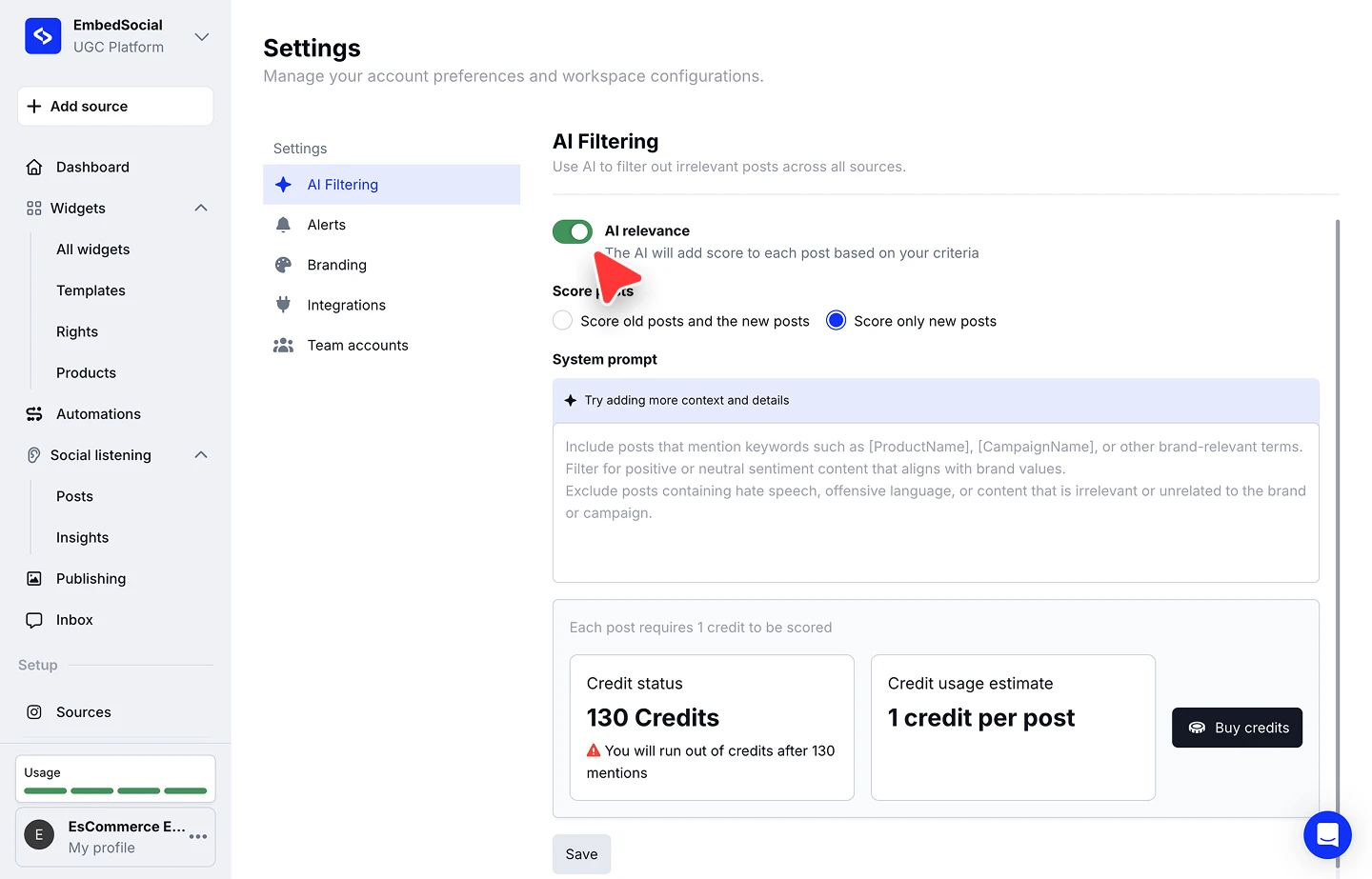

Scoring old posts as well as new ones is what costs the most, because every post already in your account is scored at 1 credit each. If you have a large library, start with 'Score only new posts'.
Filtering posts by AI score
Once posts are scored, you can narrow your posts list down to the ones that cleared your criteria.
Open your posts list. Go to 'Social listening', then 'Posts'.
Open the filters. Click the filter icon next to the search bar to open 'Feed filters'.
Set a minimum score. Drag the 'AI Score' slider to the lowest score you want to see. Posts scoring below it drop out of the list.
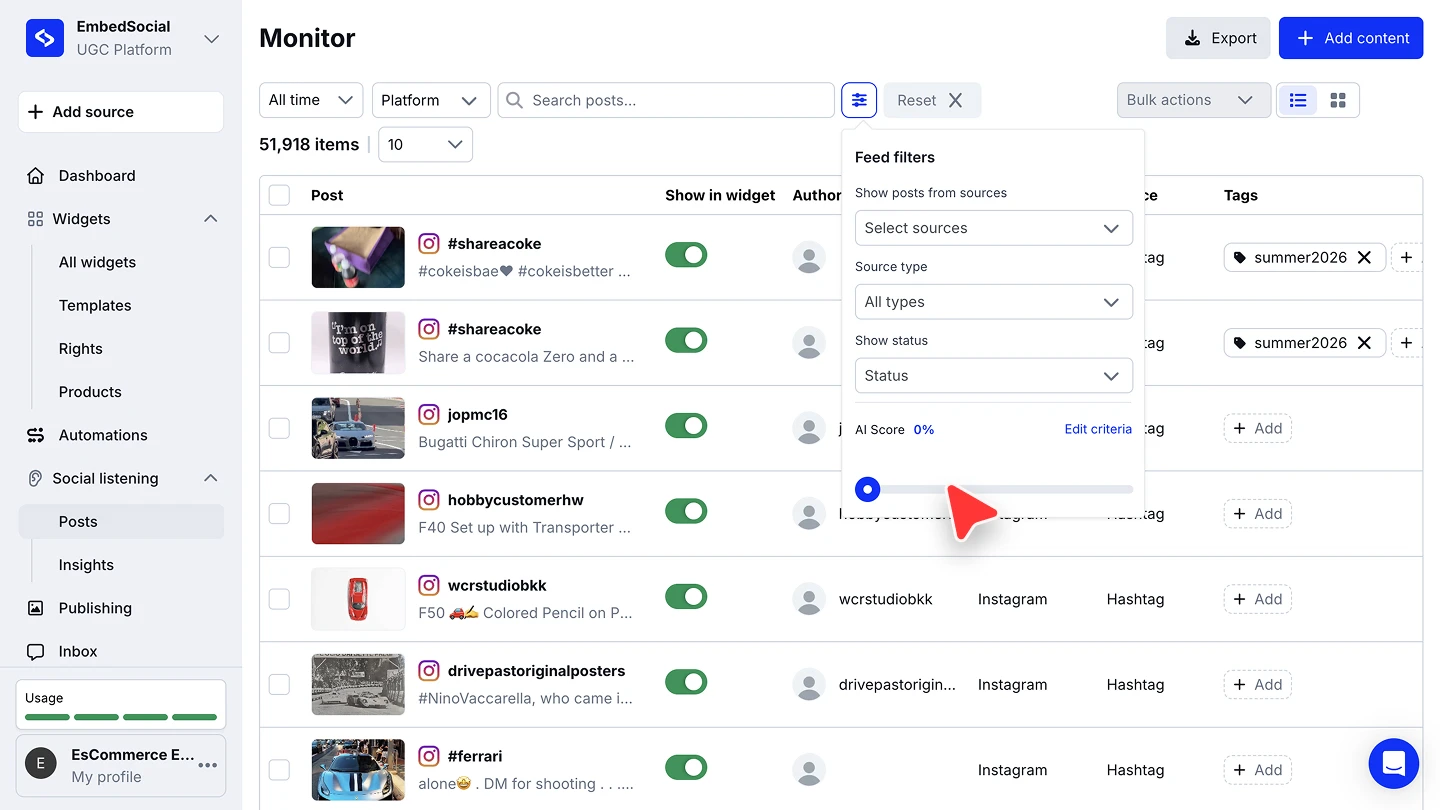

Use 'Edit criteria' in that popover to jump back to your scoring criteria if the results are not what you expected.
Auto-filtering posts in a widget
The same score can gate what a widget displays, so irrelevant posts never reach your website.
Open the widget's moderation settings. Open the widget and go to the 'Moderation' tab, then open the 'Filters' panel.
Set the relevance threshold. Under 'AI filtering', drag 'Relevance score' to your minimum. Posts below it are filtered out of the widget.
Let it apply automatically. Tick 'Auto-approve new posts with selected AI filters' so new posts clearing your threshold are approved without manual review. 'Auto add new posts' keeps new content flowing into the widget.
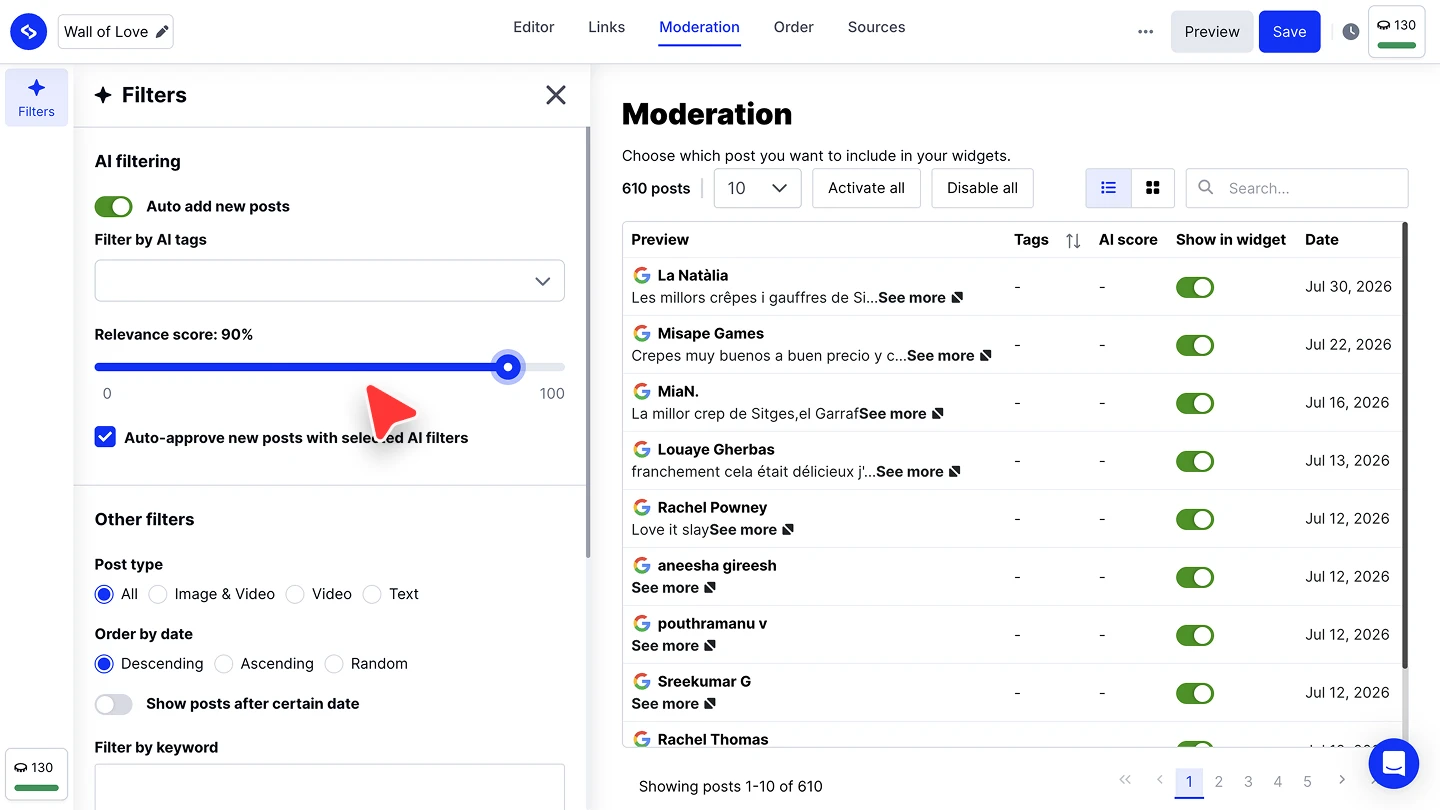

The moderation table alongside it has its own 'AI score' column, so you can see how each post scored while you review what is switched on.
Ready to stop moderating every post by hand?
FAQ
Does AI scoring use credits?
Yes. Each post requires 1 credit to be scored. The 'Credit status' panel in the AI Filtering settings shows how many you have left and warns you when you are close to running out, and 'Buy credits' adds more.
Can I score posts I have already collected?
Yes. Choose 'Score old posts and the new posts' when you set up scoring. Bear in mind every existing post costs 1 credit, so this can use a lot of credits on a large library.
What should I write in the system prompt?
Describe your criteria in plain language: the keywords, product names, or campaign names that make a post relevant, the sentiment you want to keep, and what should be excluded such as spam, offensive language, or content unrelated to your brand. Add as much context and detail as you can.
Do I need to set this up for each source separately?
No. The criteria you write in 'Settings' apply across all your sources once AI relevance is switched on.
Can I change my criteria later?
Yes. Return to 'Settings' then 'AI Filtering' to edit the system prompt, or use 'Edit criteria' from the filter popover on the posts list.
What's next
Scoring tells you which posts matter. Tagging tells you what they are about. See Auto tagging to have tags applied to incoming posts automatically.
If you have any questions, click the bottom right chat icon to talk with our customer success team or send us an email at support@embedsocial.com We're here for you 🙏