Asking via Instagram comment posts your rights request publicly under the creator's post. It is the visible, campaign-friendly way to ask: the creator sees it where their audience does, and their approval reply lands in the same thread.
Requests are sent from 'Rights' under 'Widgets' in the left menu. Rights management is available on the Premium plan and higher, and works on posts collected from your hashtag and mention sources.
Before you start, connect the source that brings the posts in. See How to request rights on your Instagram posts for the full setup, including the Chrome extension.
How to request rights with a comment
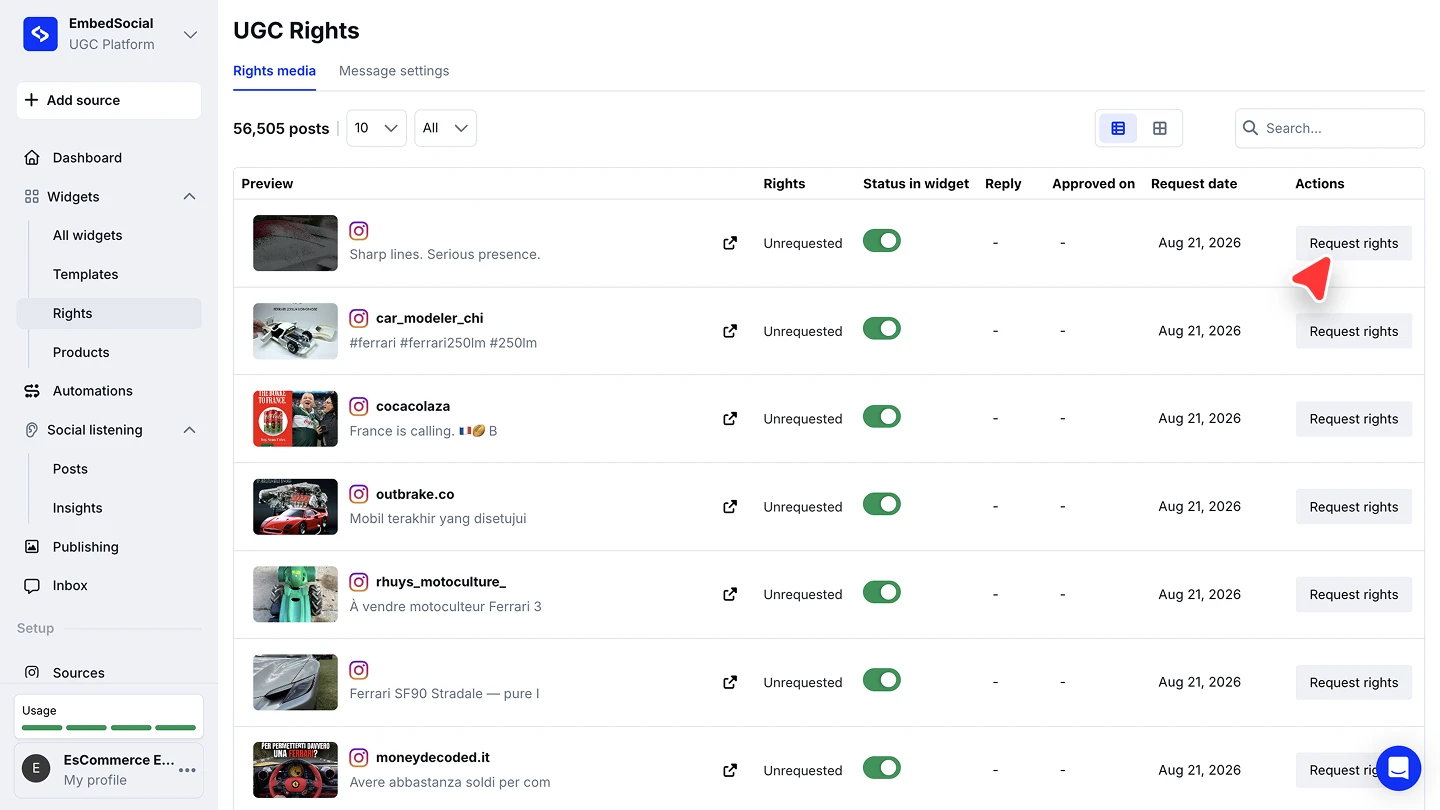
Open Rights. Click 'Rights' in the left menu. The 'Rights media' tab lists your collected posts with their rights status.
Pick the post. Find the post you want to use and click 'Request rights' in its row.
Choose the account. Under 'Post comment from', pick the Instagram account the comment should come from, and make sure you are logged into that same account on Instagram.
Set the request type to Post comment. Open the 'Request type' dropdown and pick 'Post comment'.
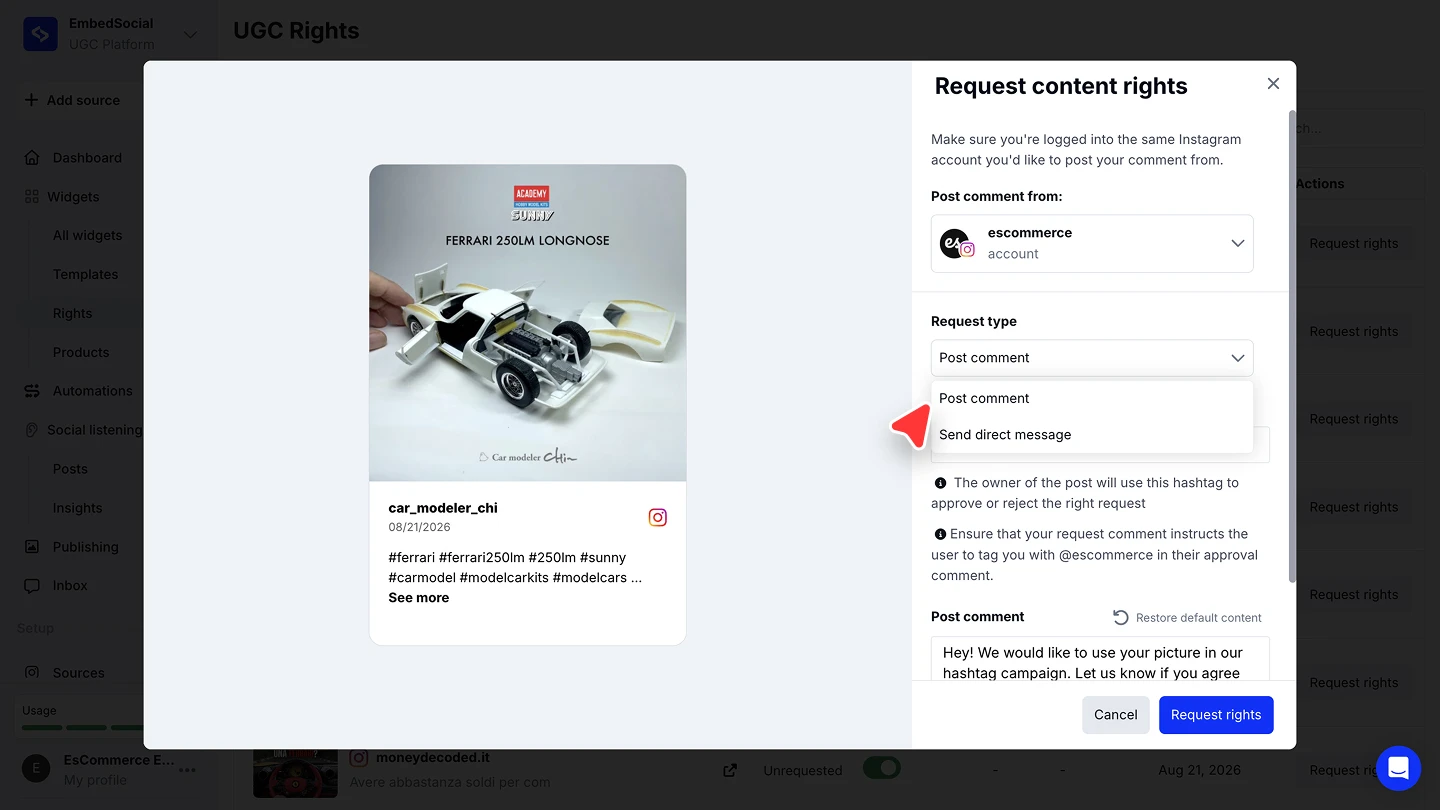
Edit the comment. Adjust the pre-filled request text, and make sure it tells the creator to tag your account in their approval comment. 'Restore default content' brings back the standard text.
Send it. Click 'Request rights'.


The request includes the approval hashtag the creator uses to approve or reject it. Keep the instruction to tag your account in the comment, since that is how the approval is matched back to your request.
Tracking the approval
The 'Rights media' list carries the whole lifecycle: the 'Rights' column moves from 'Unrequested' once you send, the 'Reply' and 'Approved on' columns fill when the creator responds, and 'Request date' records when you asked. Once the creator approves, the 'Only posts that have approved rights' filter can limit a widget to posts with an approval on record.
Ready to collect content you can actually use?
FAQ
Which plan do I need?
Rights management is available on the Premium plan and higher.
Which account posts the comment?
The Instagram account you pick under 'Post comment from'. Log into that same account on Instagram before sending.
Can I change the request text?
Yes. Edit it in the panel before sending, or click 'Restore default content' to bring back the standard text. Default texts live under the 'Message settings' tab.
How does the creator approve?
By replying to your comment with the approval hashtag and your account tag, as your request instructs. The approval then shows in the 'Reply' and 'Approved on' columns.
Should I ask by comment or by DM?
A comment is public and easy for creators to act on. A DM is private. See Ask via Instagram DM for the other route.
What's next
Once approvals come in, show only posts with an approval on record using the 'Only posts that have approved rights' filter. See Filters.
If you have any questions, click the bottom right chat icon to talk with our customer success team or send us an email at support@embedsocial.com We're here for you 🙏