Post publishing is where you create and schedule content for your connected social accounts. You compose the post once, choose every account it should go to, and either publish immediately or set a date and time.
It lives under 'Publishing' in the left menu, which lists everything you have created: drafts, scheduled posts with their publish time, and what already went out, with the source icons showing where each post was shared. Social media scheduling is available from the Pro plan.

How to create and schedule a post
Open Publishing. Click 'Publishing' in the left menu, then '+ Create post'.
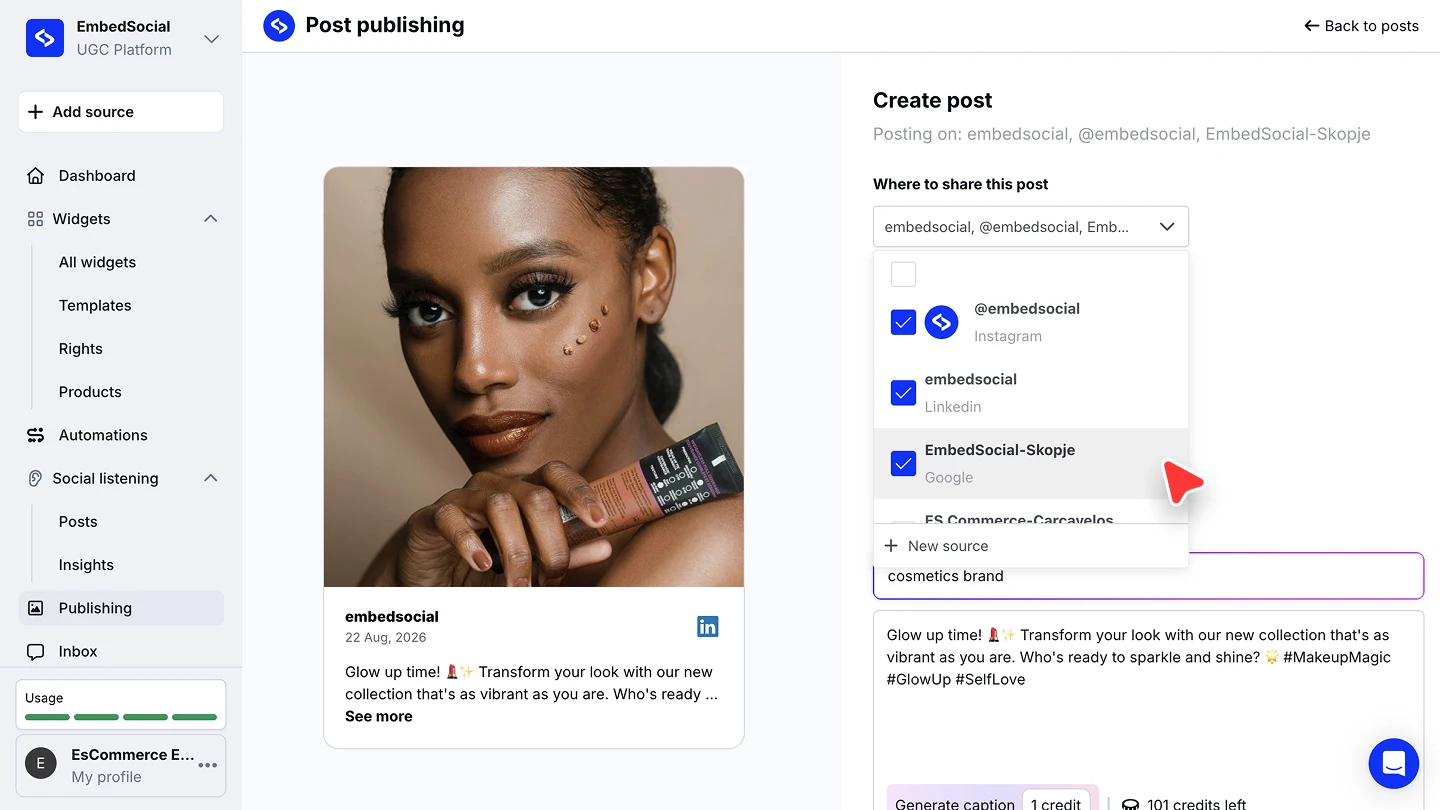
Choose where it goes. Under 'Where to share this post', tick every connected account the post should be published to, across platforms in one go. '+ New source' connects another account without leaving the composer.
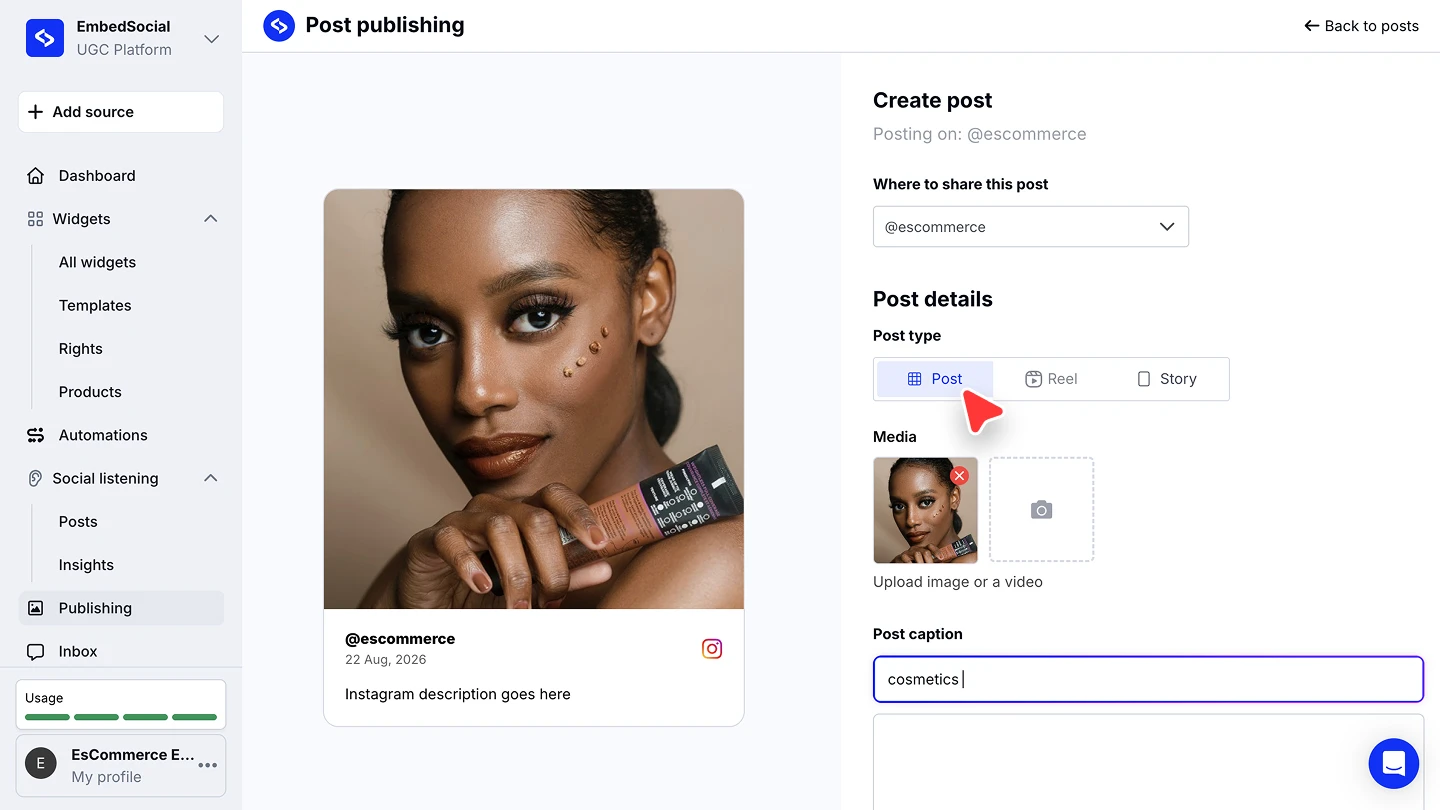
Pick the Instagram post type. When an Instagram account is selected, choose 'Post', 'Reel', or 'Story' under 'Post type'.
Add the media and caption. Upload an image or a video under 'Media', then write the caption. The preview beside the composer shows the post as it will look.
Generate the caption with AI (optional). Describe the post in the 'Post caption' field, such as "cosmetics brand", and click 'Generate caption'. It costs 1 AI credit, and you can edit the result.
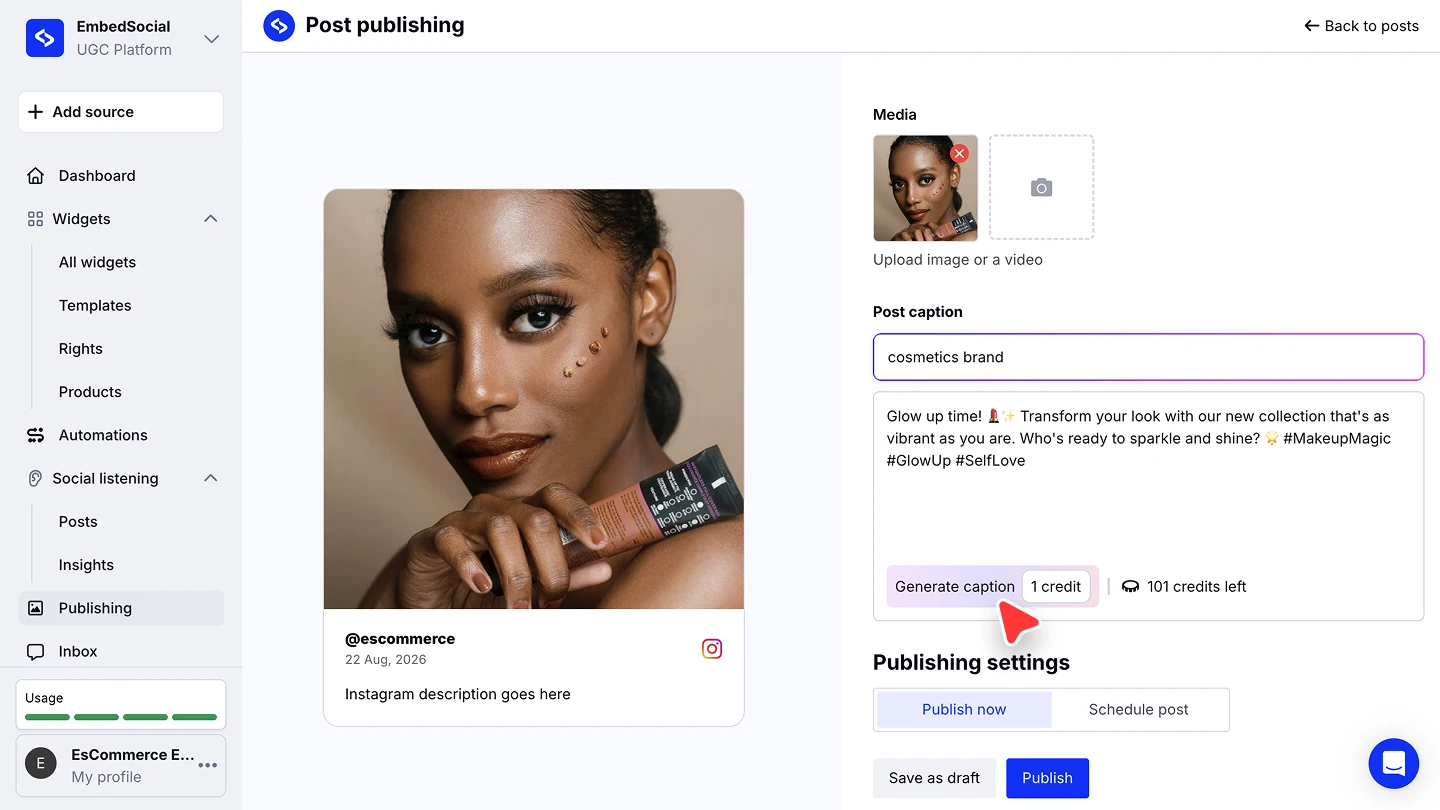
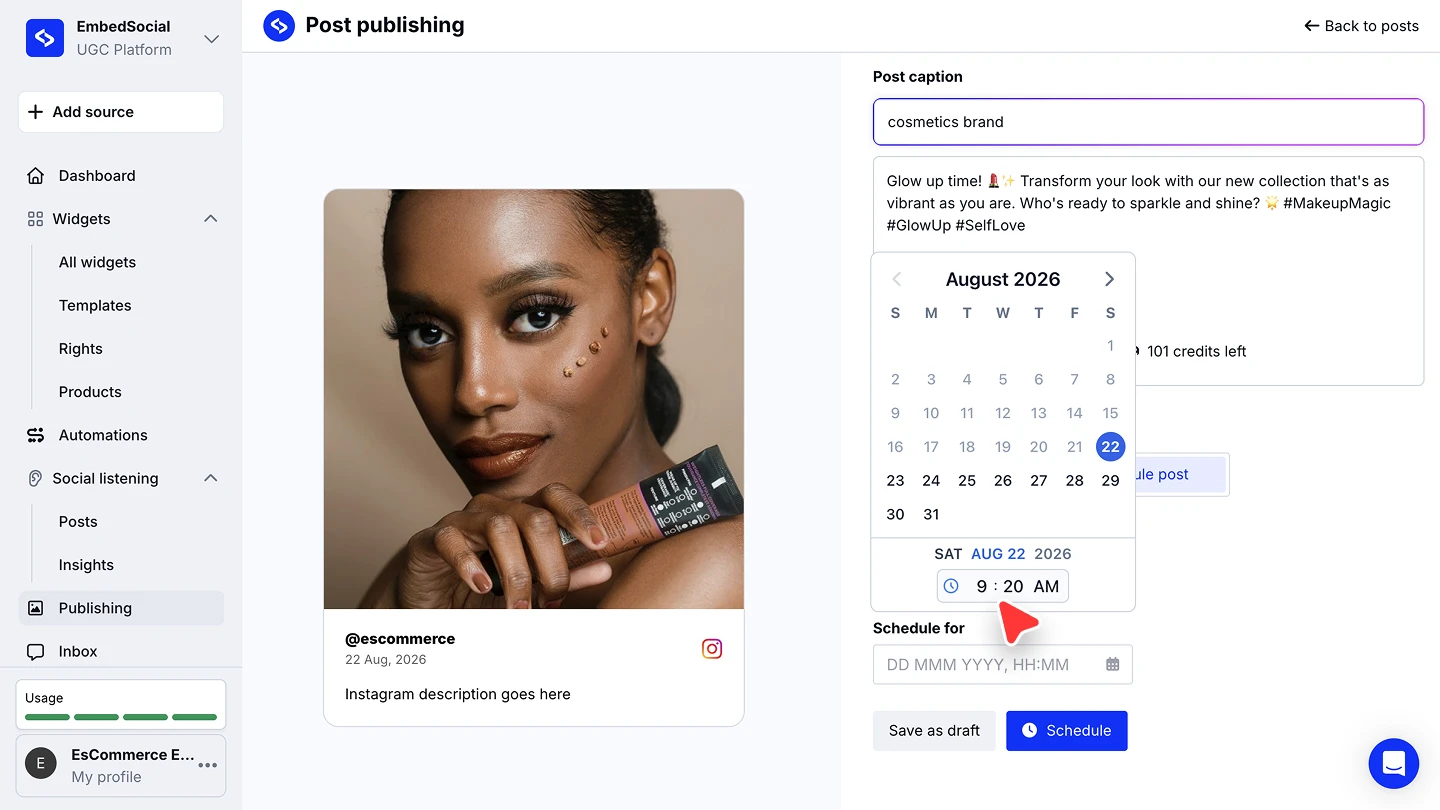
Publish or schedule. Under 'Publishing settings', pick 'Publish now' and click 'Publish', or pick 'Schedule post', choose the date and time, and click 'Schedule'. 'Save as draft' keeps the post for later either way.


One post, several platforms: the accounts you tick in step 2 all receive the same post, so a single compose covers Instagram, LinkedIn, and your Google business profile at once.
Keeping track of what goes out
The 'Publishing' list is your queue. Scheduled posts show their exact publish time and timezone, published ones show where they went, and 'Edit' reopens anything that has not gone out yet. Use the posts filter to narrow the list to drafts or scheduled posts.
Ready to plan your week's content in one sitting?
FAQ
Which platforms can I publish to?
The accounts you connect, such as Instagram, LinkedIn, Threads, and your Google business profile. Pick any combination per post.
Which plan do I need?
Social media scheduling is available from the Pro plan.
Does the AI caption cost anything?
Yes, 1 AI credit per generation. Your remaining balance shows next to the button, and you can edit the generated text before publishing.
Can I change a scheduled post?
Yes. Open 'Publishing' and click 'Edit' on the post before its publish time, or delete it from the same row.
Can I post different content per platform?
Each post goes to the accounts you selected as composed. For platform-specific content, create separate posts with the right accounts ticked.
What's next
Publishing is also how you reshare the community's content: pick a monitored post and send it to your own accounts. See Repost UGC.
If you have any questions, click the bottom right chat icon to talk with our customer success team or send us an email at support@embedsocial.com We're here for you 🙏