Templates are pre-built widgets you apply instead of designing from scratch. Each one is a finished design, a testimonial wall, a reviews slider, a social wall with a CTA, that takes your own content the moment it is applied.
They live in the 'Templates' tab in the left rail of the 'Editor'. The templates library is available on every plan.
How to apply a template
Open Templates. In the widget editor, click 'Templates' in the left rail.
Narrow the list. Use the chips at the top: 'All templates', 'My Templates', or a platform such as 'Google', 'Facebook', or 'Instagram'.
Pick a template. Click a card and the design is applied to your widget, with the preview beside the panel showing your content in it.
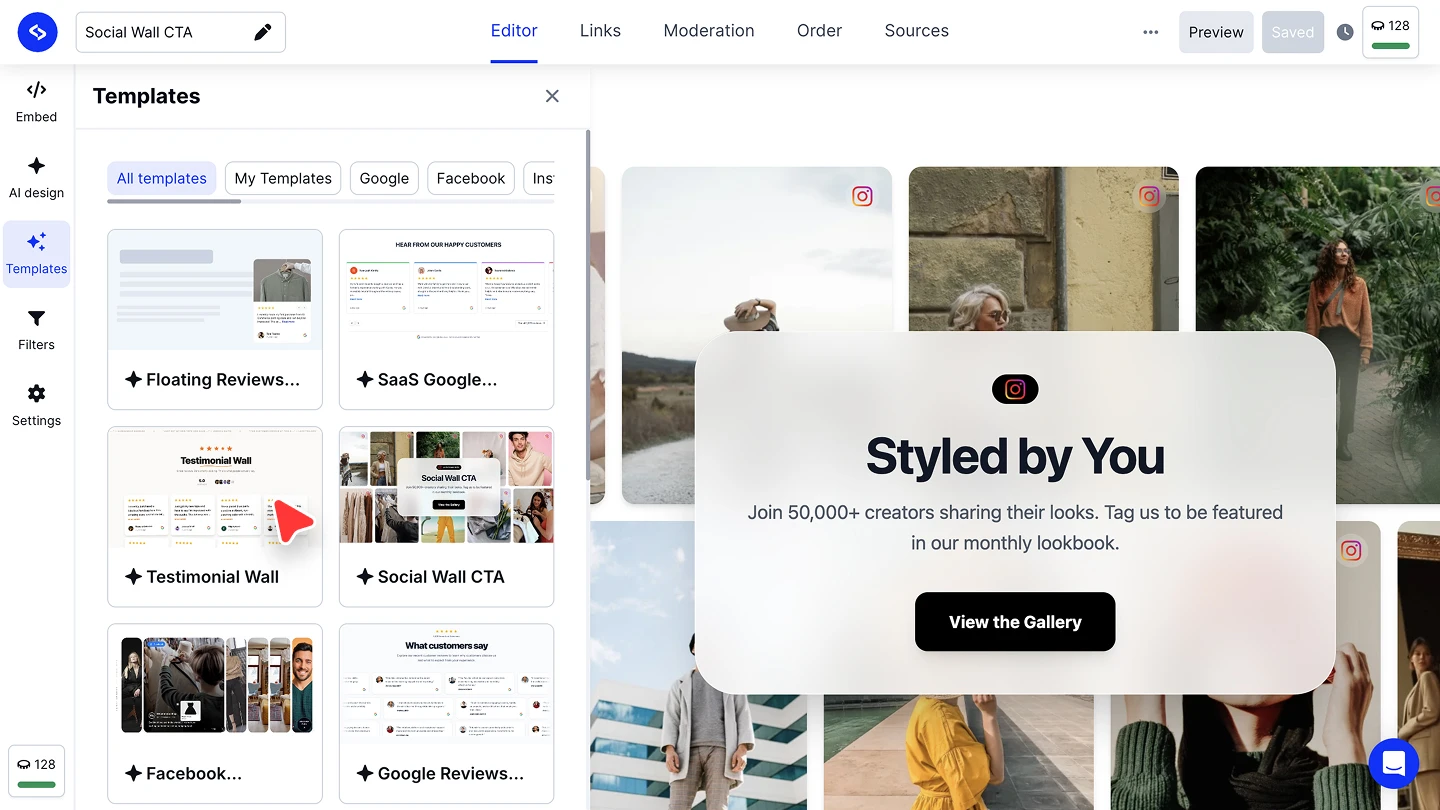

Applying a template replaces the widget's current design, not its content. Your sources, filters, and moderation stay as they were.
My Templates
'My Templates' holds the designs you saved yourself. When a widget looks the way you want, save it as a template and it appears here, so the next widget can start from your own design instead of a stock one. That is how you keep every widget on your site consistent. For the colors, font, and logo behind that consistency, set them once in Branding.
You can also browse the full collection outside the editor in our template library, where each template has a live preview.
Ready to start from one?
FAQ
Do templates cost extra?
The templates library is available on every plan.
What happens to my posts when I apply a template?
Nothing. A template changes the design only. Your sources, filters, and moderation settings stay untouched.
Can I edit a widget after applying a template?
Yes. A template is a starting point. Keep refining it with AI design or any other editor setting.
What is in My Templates?
Widgets you saved as templates. Use it to reuse a design you already polished across new widgets.
Where can I see templates before opening the editor?
In the template library on our website, which shows each one as a live widget. Some formats also have their own page with the templates side by side, like the FAQ widget.
What's next
A template sets the design. Point it at your own accounts in the 'Sources' tab, then narrow what shows with Filters.
If you have any questions, click the bottom right chat icon to talk with our customer success team or send us an email at support@embedsocial.com We're here for you 🙏