A YouTube Keywords source pulls the YouTube videos that match the words you track into EmbedSocial. Use it to follow what creators publish about your brand, your product category or a competitor, then display the videos in a widget or review them with social listening.
YouTube Keywords is its own source type, separate from YouTube hashtags. A keyword source collects videos by the words in them, and a hashtag source collects videos published under a #hashtag. Keeping them apart shows you exactly what each source is pulling in.
YouTube Keywords sources require the Pro Plus plan or higher, the same plans that include YouTube hashtags.
How to add a YouTube Keywords source
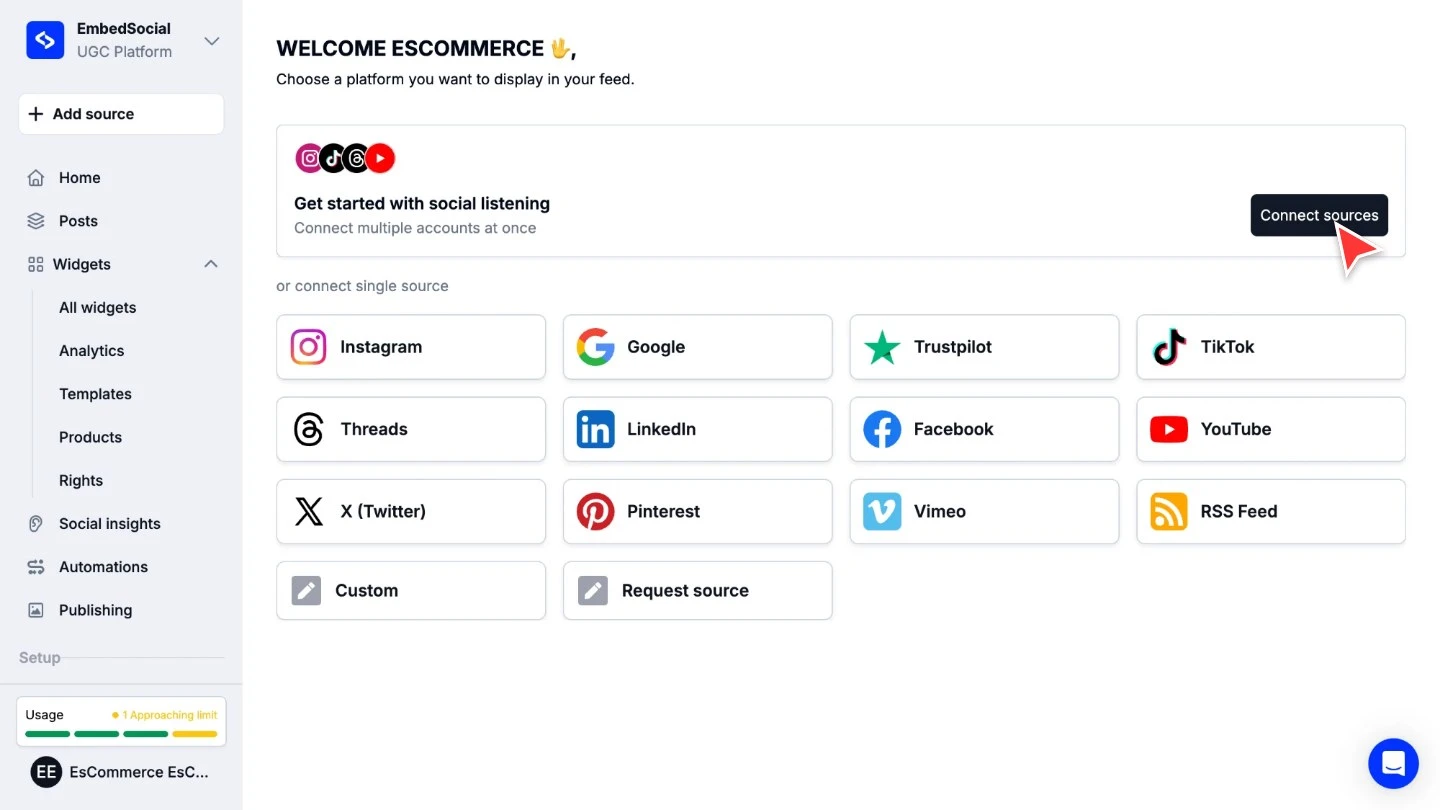
Open the bulk setup. Click '+ Add source' in the left menu, then under 'Get started with social listening' click 'Connect sources'. The bulk setup is where you can add several keywords in one go.
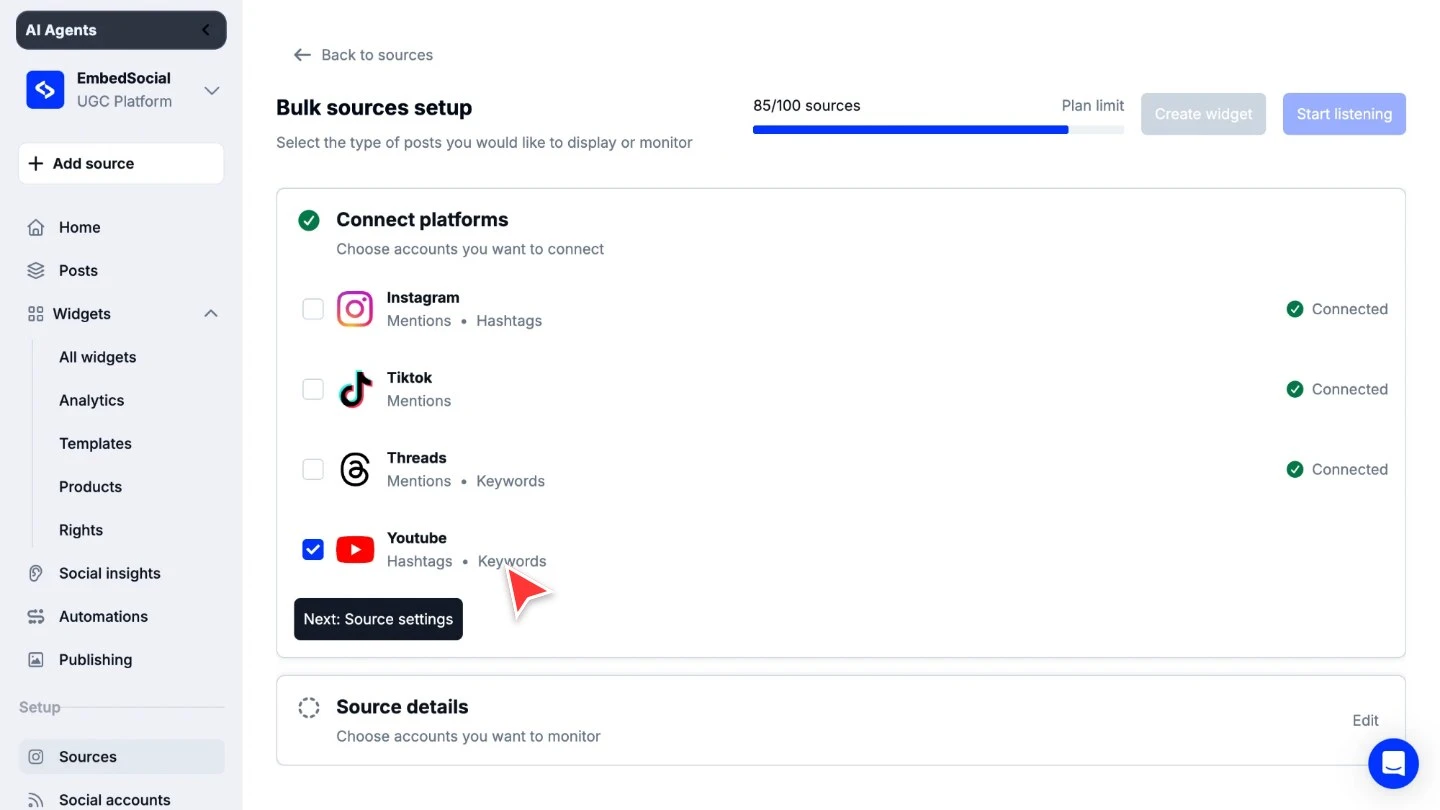
Tick YouTube. In 'Connect platforms', tick 'Youtube'. Its row lists 'Hashtags' and 'Keywords', the two listening types YouTube supports. Click 'Next: Source settings'.
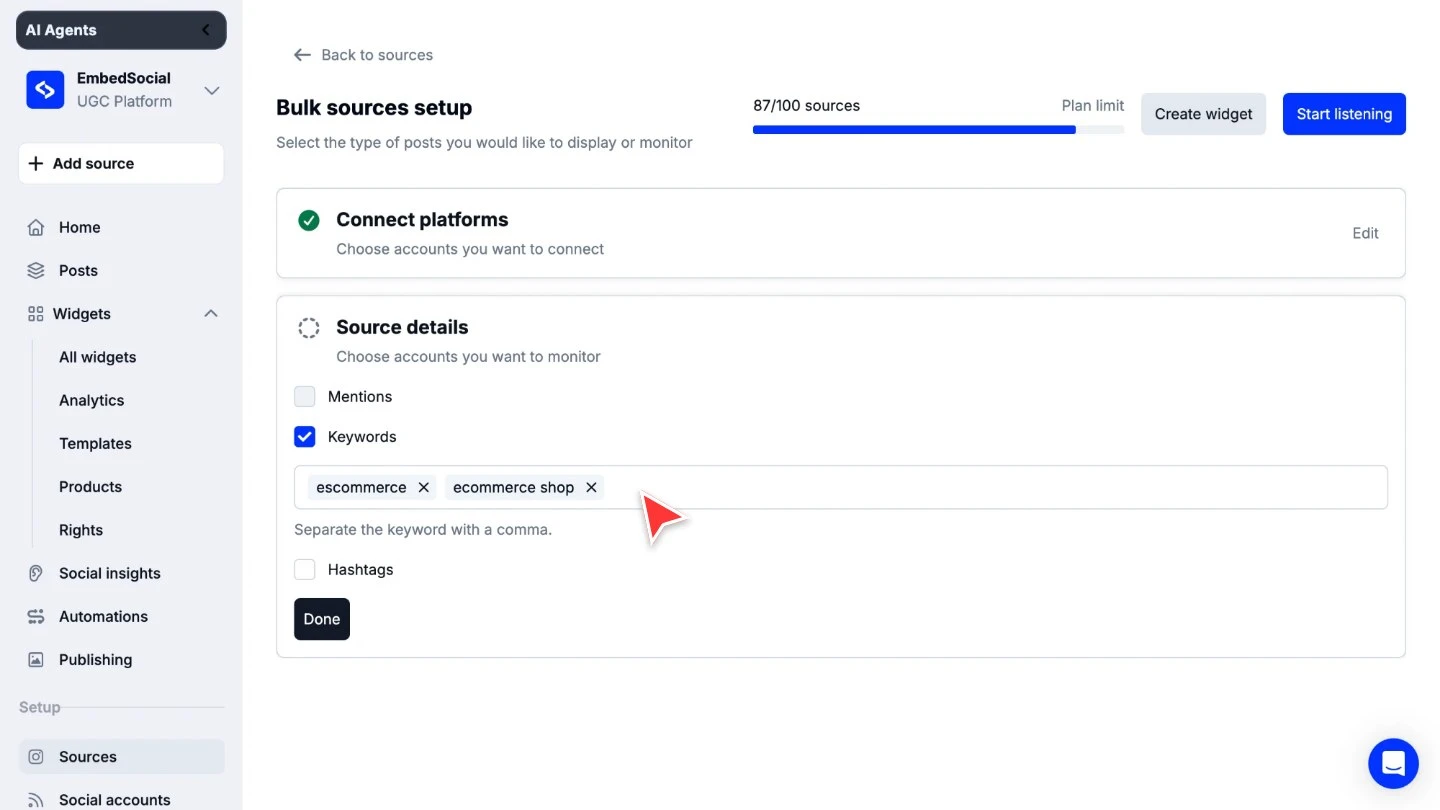
Type your keywords. In 'Source details', tick 'Keywords' and type the words you want to track in the field below it. To add several keywords at once, separate them with a comma: each one appears as its own tag in the field. Click 'Done' when the list is complete.
Start collecting. Click 'Start listening' in the top right, or 'Create widget' if you also want to show the videos on your website.


Every keyword counts as one source against your plan, the same way a connected account does. The counter next to 'Bulk sources setup' shows where you stand: adding the two keywords in the example above moved it from 85 to 87 sources. See Usage and limits.
How keywords match videos
- One word pulls videos that contain that word.
- Several words in one keyword, such as ecommerce shop, pull videos that contain all of those words. A video that contains only one of them is not collected.
- Comma separated keywords, each with its own tag in the field, are separate sources. Each one collects its own matching videos.
Start with the phrases your audience actually uses in titles, then narrow a keyword that pulls in too much by adding a second word to it.
Where your videos land
Collected videos arrive on the 'Posts' page. Set the 'Platform' filter to 'Youtube' to see only YouTube content, then show or hide each video in your widgets with the 'Show in widget' toggle.

YouTube content updates every 24 hours, and only public and unlisted videos can be pulled. See Sources for the details per platform.
Ready to find the videos people make about your brand?
FAQ
What is the difference between YouTube Keywords and YouTube hashtags?
A hashtag source pulls videos published under one #hashtag. A keyword source pulls videos that contain the words you track, whether or not the creator added a hashtag. Use a hashtag for a campaign you named, and a keyword for conversations about your brand or category.
Which plan do I need for YouTube Keywords?
YouTube Keywords is included in the Pro Plus, Premium and Enterprise plans. See the pricing page for the full comparison.
Can I add several YouTube keywords at once?
Yes. Open the bulk setup with 'Connect sources', tick YouTube, and type your keywords in the 'Keywords' field separated by a comma. Each keyword becomes its own source.
Can I also connect a YouTube channel or playlist?
Yes. Channels, playlists, Shorts and live streams are added as their own source types. See Connect a YouTube source.
What's next
Turn what you collected into charts with Social Insights, or track keywords on several platforms at once with Keywords, Hashtags and Mentions.
If you have any questions, click the bottom right chat icon to talk with our customer success team or send us an email at support@embedsocial.com We're here for you 🙏